Edit split rule
By editing split rules, you can modify the specific conditions and logic that govern how verbatim terms are segmented during the medical coding process. This ensures that the rules remain accurate, relevant, and aligned with the current requirements of your study, facilitating more precise coding workflows.
For example, if the verbatim term "Severe abdominal pain and nausea" was previously split into "Severe abdominal pain" and "Nausea," you can edit the split rule to adjust the segmentation. For instance, you could modify the first segment to "Abdominal pain" or delete the second segment if "Nausea" is no longer relevant. This ensures that the split rule remains accurate and aligned with the updated medical coding needs, enhancing the precision of data analysis.
-
In the Medical Coding application header, select the CONFIGURATION tab.
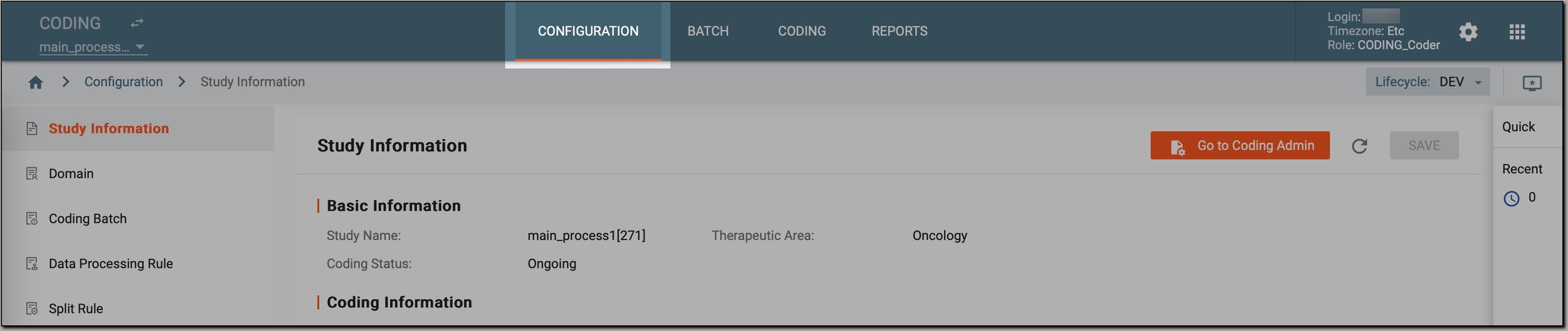 Figure 1. Accessing coding configurations
-
In the left pane, select Split Rule.
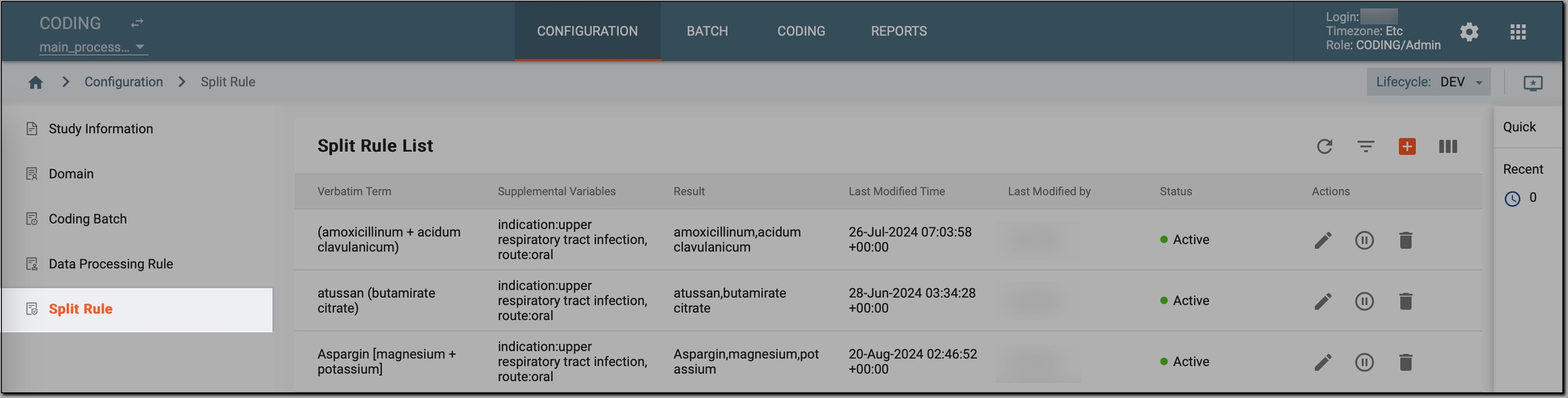 Figure 2. Accessing split rules
-
In the Split Rule List table that appears, go to the split rule that you want to update and select Edit
 next to it.
 Figure 3. Initiating split rule editing
-
In the Edit dialog that opens, update the conditions that govern how the verbatim term is segmented as explained in the following table.
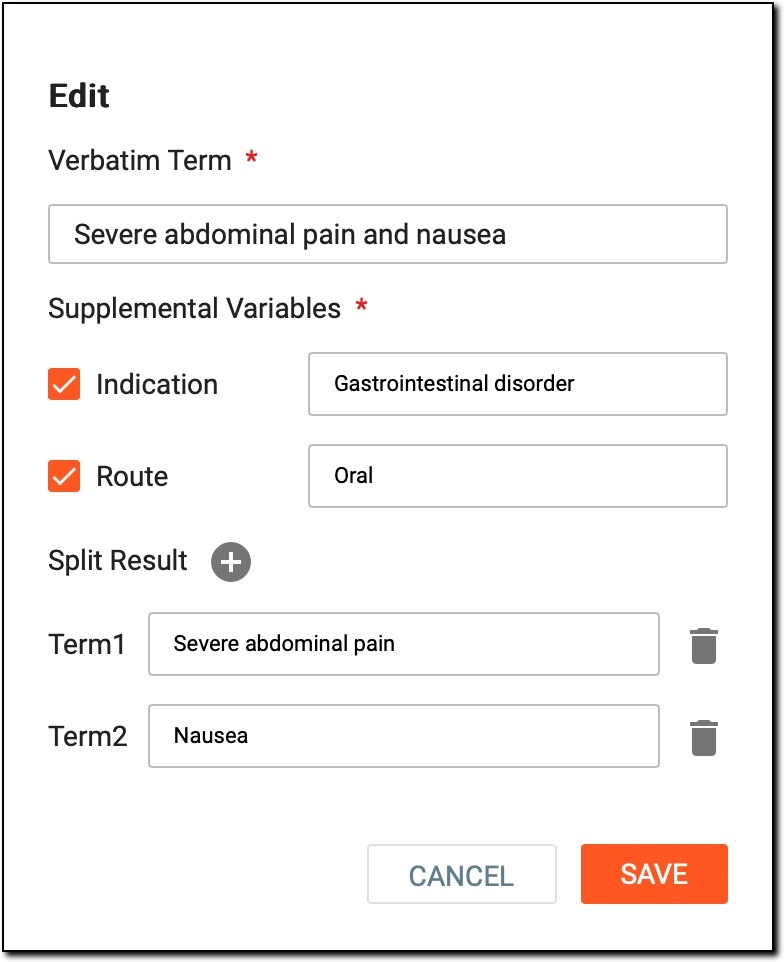 Figure 4. Split rule udating
Tip
In the following table, mandatory elements are marked with an asterisk (*).
Element
Details
Verbatim Term*
Update the name of the verbatim term or phrase that needs to be split during the medical coding process.
Supplemental Variables*
-
Indication: if the checkbox is selected, enter or update the reason or condition associated with the verbatim term in the field next to it. To exclude an indication, clear the checkbox and clear the contents of the adjacent text field.
-
Route: if the checkbox is selected, enter or update how the treatment related to the verbatim term is administered in the field next to it. If the route is not relevant, clear the checkbox and clear the contents of the associated text field.
Split Result
Update the verbatim term split result by doing one of the following:
-
Update each segment by editing the text in the corresponding field.
-
Delete a segment by selecting Delete
 next to the segment you want to remove.
 -
Add a new segment by selecting
 at the top to create a new field where you can enter an additional segment.
SAVE
Select
 to save your changes.
CANCEL
Select
 to cancel the rule editing and dismiss the changes.
 -
Once the rule is updated, it remains effective and aligned with the evolving needs of your study, facilitating accurate and consistent clinical data coding.