Create new split rule
The Create New Split Rule feature helps you define new rules for segmenting verbatim terms in the medical coding process. This functionality ensures that terms are split and organized according to specific criteria, enhancing the accuracy and consistency of coding.
By creating new split rules, you can tailor the segmentation of terms to meet the unique study requirements of your coding workflows, ensuring high-quality data management and interpretation.
For instance, if the verbatim term "Severe abdominal pain and nausea" is documented, you can create a split rule to segment it into two distinct parts: "Severe abdominal pain" and "Nausea." This ensures that each symptom is separately coded, improving the precision of the medical coding process and making data easier to analyze and interpret.
-
In the Medical Coding application header, select the CONFIGURATION tab.
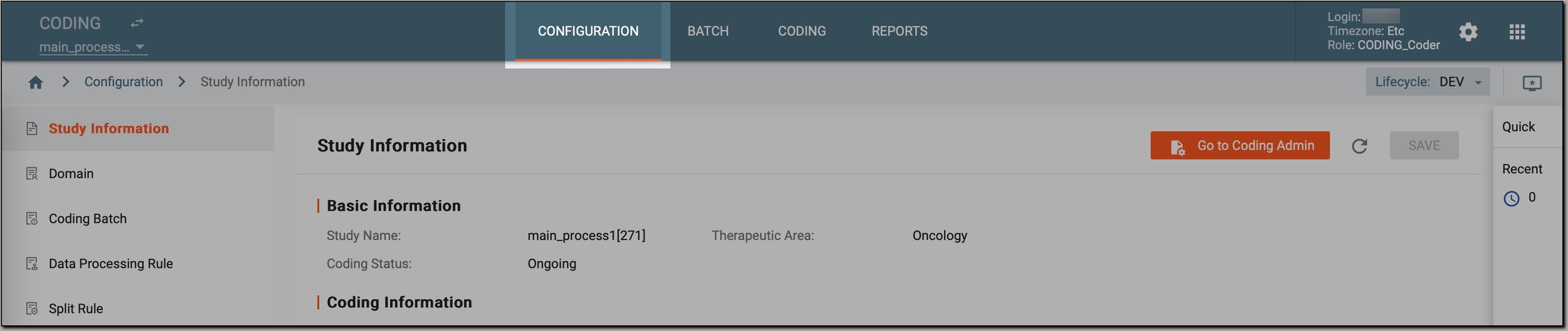 Figure 1. Accessing coding configurations
-
In the left pane, select Split Rule.
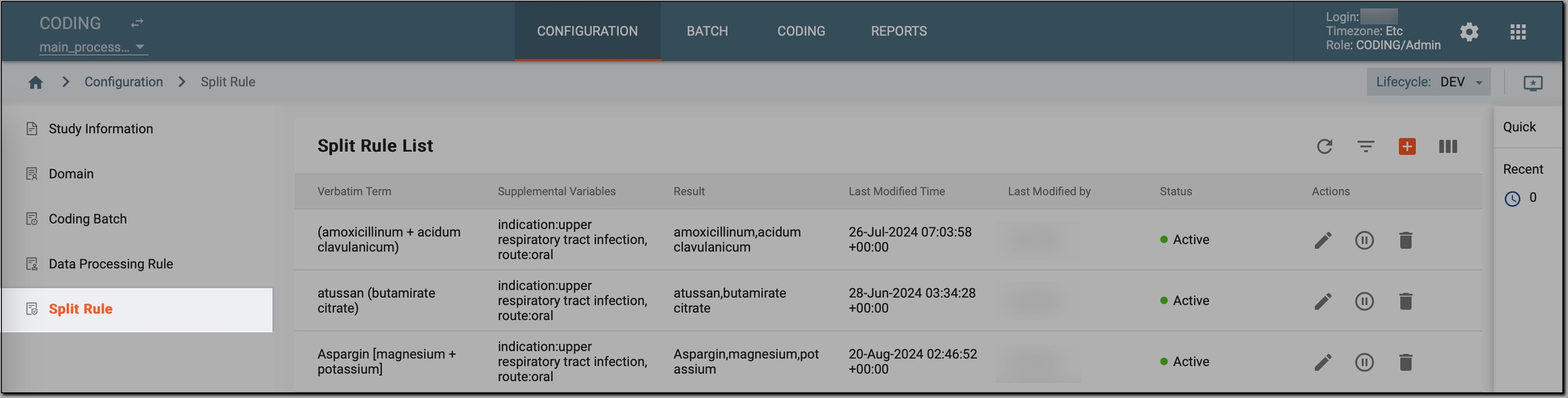 Figure 2. Accessing split rules
-
On the Split Rule List page that opens, in the workspace toolbar, select New Item
 .
. -
In the New dialog, provide the rule configurations as explained in the following table.
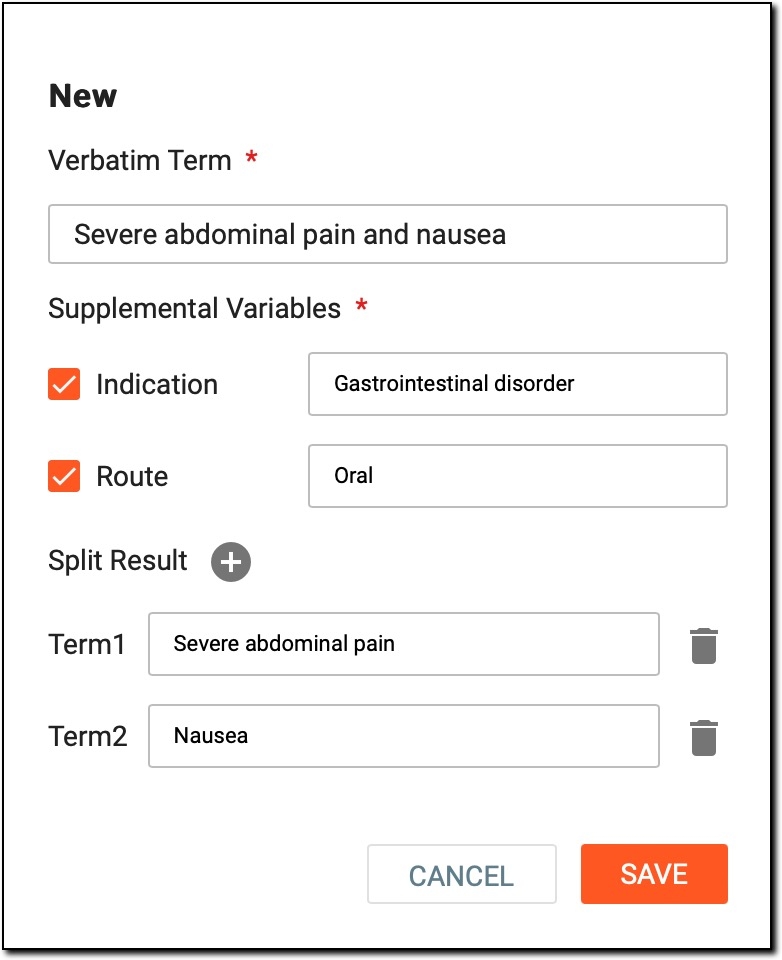 Figure 3. Creating new split rule
Tip
In the following table, mandatory elements are marked with an asterisk (*).
Element
Details
Verbatim Term*
Enter the exact verbatim term or phrase that needs to be split during the medical coding process.
Supplemental Variables*
-
Indication: leave the checkbox selected if you want to specify the reason or condition associated with the verbatim term. Then, in the field next to it, enter the relevant indication (for example, "Gastrointestinal disorder").
If you do not want to include an indication, clear this checkbox.
-
Route: leave the checkbox selected if you want to specify how a treatment related to the verbatim term is administered. Then, in the field next to it, enter the corresponding route (for instance, "Oral" or "Intravenous").
If the route is not applicable, simply clear this checkbox.
Split Result
Define how the verbatim term must be split. To do so, select
 and in the Term 1 field that appears,
add the first segment. Then select again and in the Term 2 field that appears, add the second
segment.
and in the Term 1 field that appears,
add the first segment. Then select again and in the Term 2 field that appears, add the second
segment.The number of selections should match the number of parts the verbatim term needs to be split into.
For example, for "Severe abdominal pain and nausea," you would click the
icon twice, resulting in:-
Term 1: "Severe abdominal pain."
-
Term 2: "Nausea."
If some segment appears to be irrelevant and needs to be deleted, select Delete
 next to the
segment you want to remove.
next to the
segment you want to remove.SAVE
Select
 to create the new split rule.
CANCEL
Select
 to cancel the rule creation and dismiss the changes.
 -
Once saved, a new split rule is created in the Active status. This means the rule is immediately ready to be applied to segment verbatim terms according to the defined logic, ensuring that the terms are split accurately and prepared for the medical coding process.