Download SAE audit report from history
The SAE Audit report comprises the history of user activities with serious adverse event (SAE) records and individual fields of these records in the EDC system. The report provides the study-wide audit trail of changes, such as initial data entry, change of data, form signature, query creation, and other activities with SAE records.
For your convenience, you can export the audit trail by the SAE record or field to your computer in XLSX format and use it as per your business needs. All the previously exported versions can be accessed and downloaded from Export History.
-
In the EDC application header, select the STUDY INFO tab.
-
On the page that opens, in the left pane, select the SAE > SAE Audit subtab.
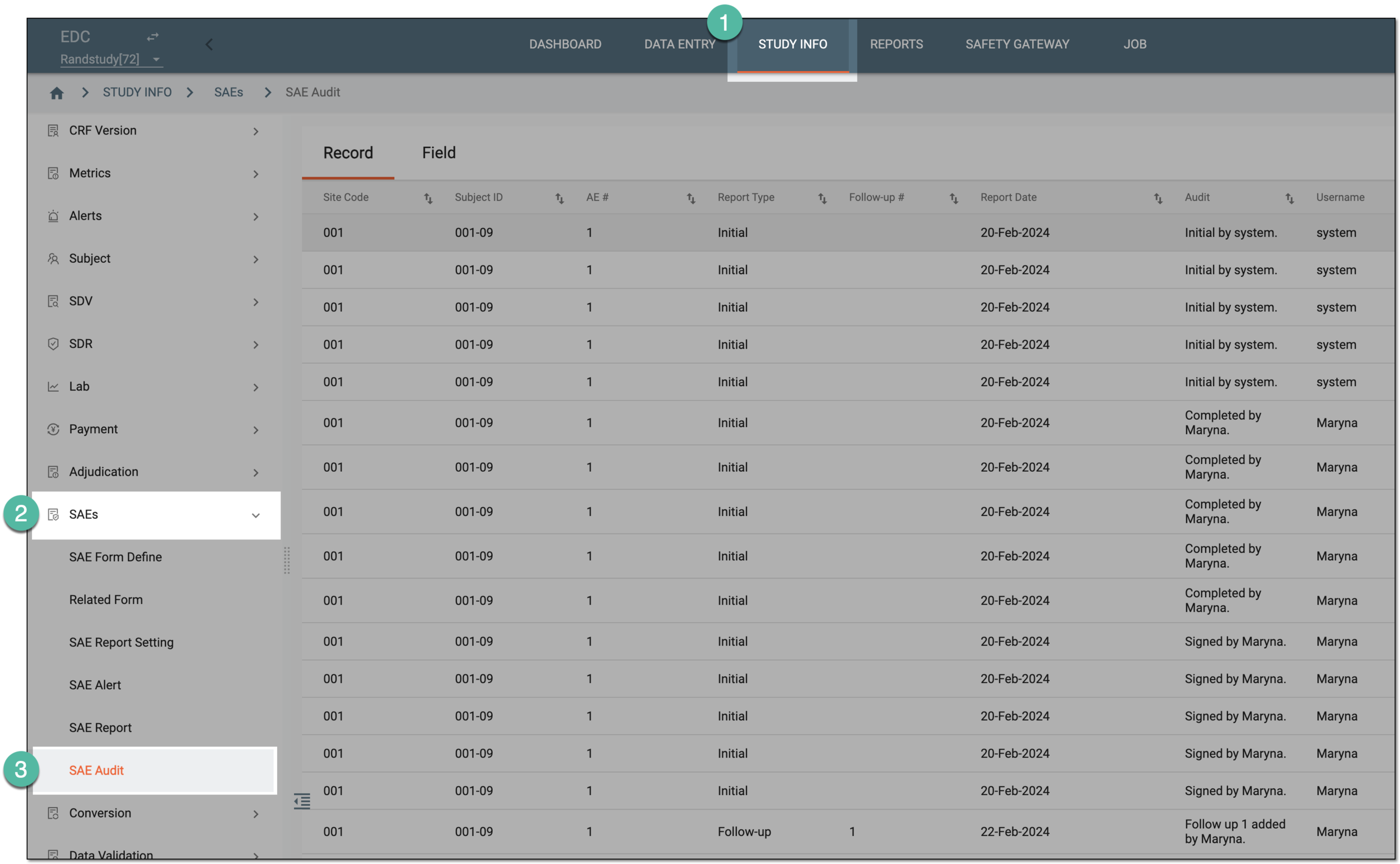 Figure 1. Accessing SAE audit report
-
From the contents panel, select the Record or Field tab depending on the export history that you want to access. Then from the workspace toolbar, select Export History
 .
. Figure 2. Accessing SAE audit export history
-
In the Export History dialog that opens, next to the file version that you want to download, select Export
 .
.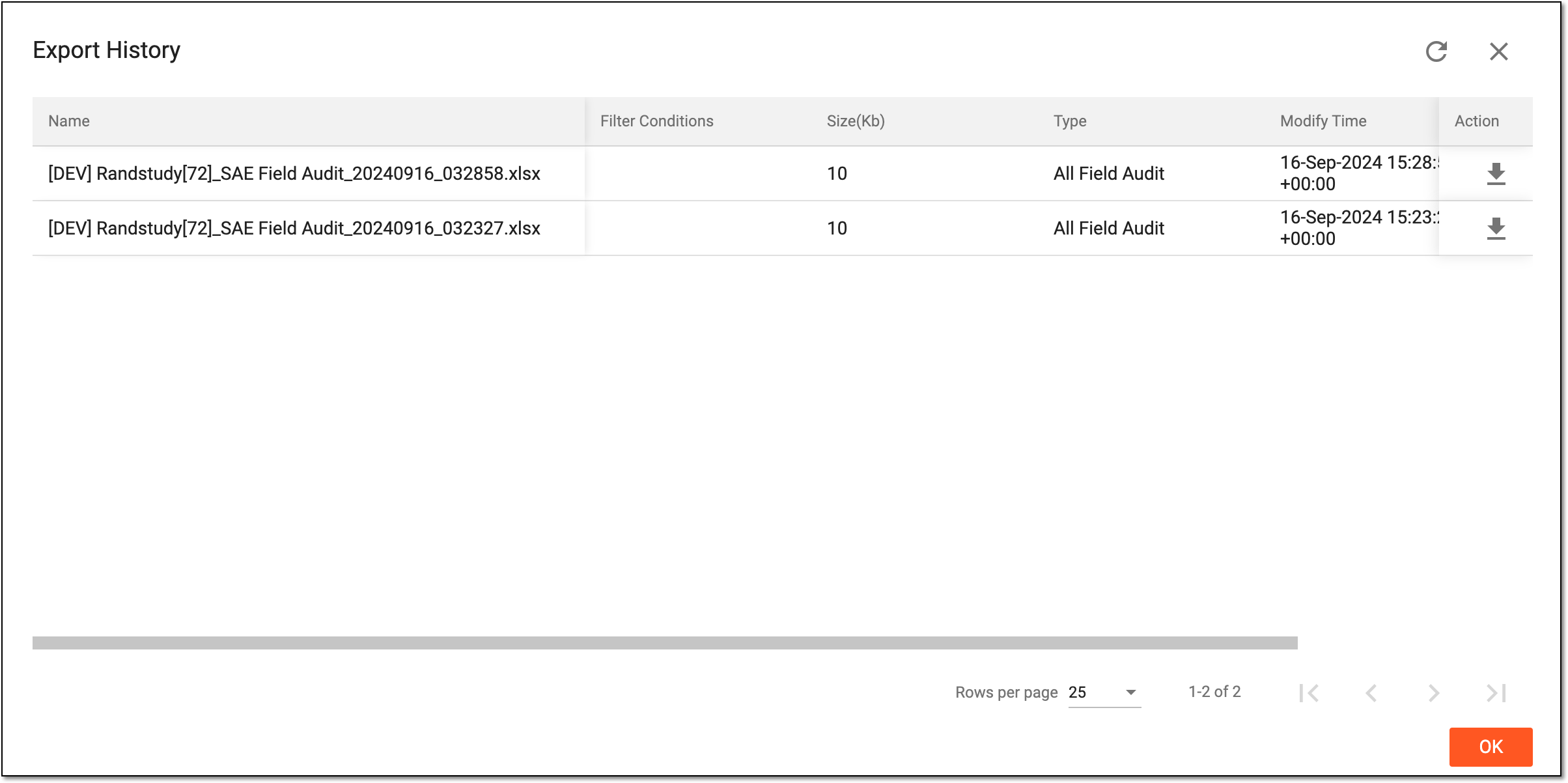 Figure 3. Downloading SAE report file from history
Once downloaded and saved, the file becomes available on your computer. Select  to close the dialog.