Export SAE audit report
The SAE Audit report comprises the history of user activities with serious adverse event (SAE) records and individual fields of these records in the EDC system. The report provides the study-wide audit trail of changes, such as initial data entry, change of data, form signature, query creation, and other activities with SAE records.
The report consists of two tabs—Record and Field—to differentiate between the log of actions taken on the SAE record and the changes in certain fields within the record.
For your convenience, you can export the audit trail by the SAE record or field to your computer in XLSX format and use it as per your business needs. For instance, if you need to share the data with the parties who have no access to EDC.
-
In the EDC application header, select the STUDY INFO tab.
-
On the page that opens, in the left pane, select the SAE > SAE Audit subtab.
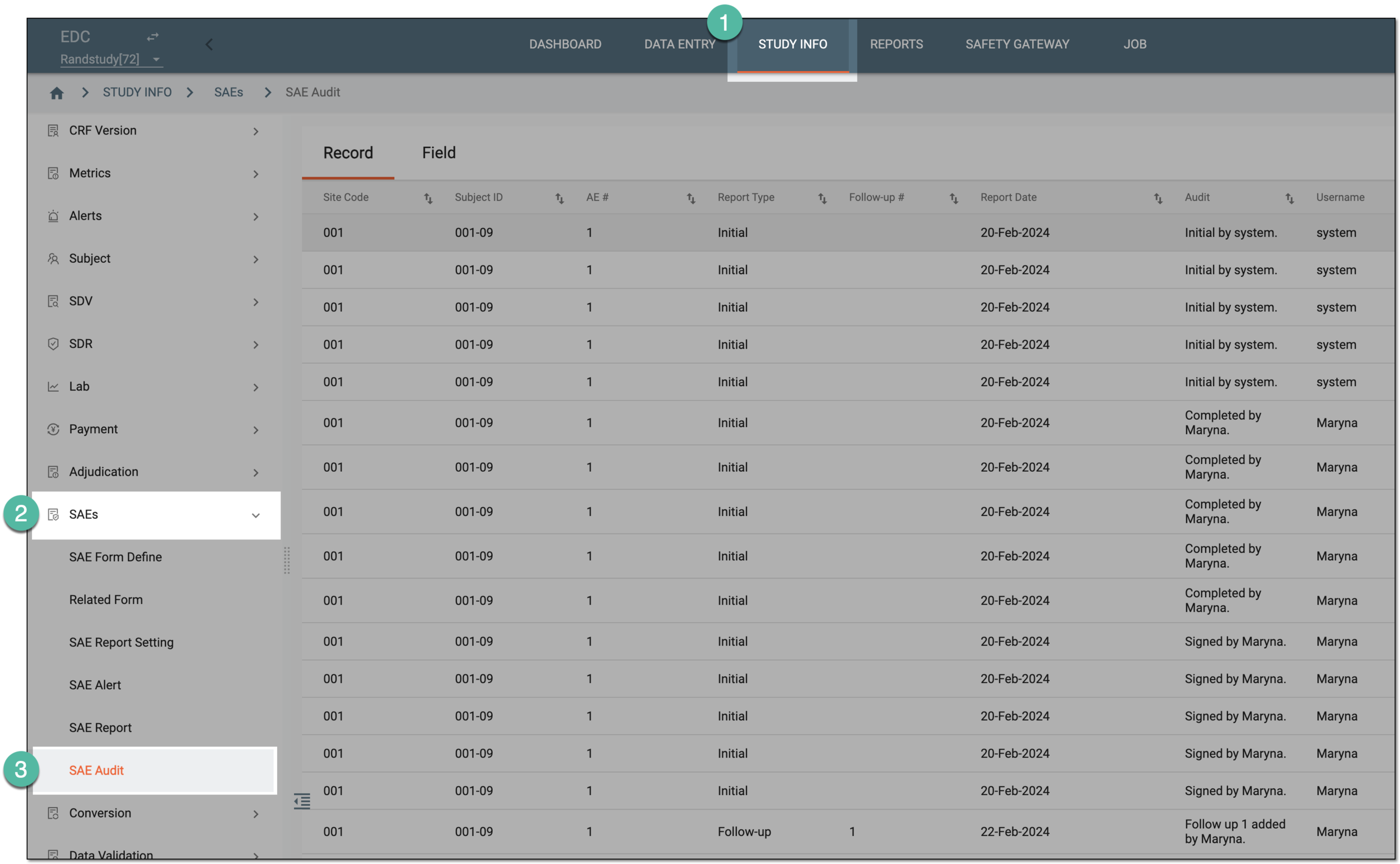 Figure 1. Accessing SAE audit report
-
From the contents panel, select the Record or Field tab depending on the change log you prefer to export. Then from the workspace toolbar, select Export
 .
.Tip
If needed, apply filtering to the Record or Field table to export only the data satisfying the set parameters.
-
Once exported, the widget appears displaying your download progress. Select the widget to open the My Downloads dialog.
 Figure 2. SAE audit downloads widget
-
In the My Downloads dialog that opens, you can find the following tabs:
-
Preparing: under this tab, you can find all the files whose export is in progress, and they are not yet ready for download.
-
Download is Ready: under this tab, you can find all the files whose export is complete, and they can be downloaded to your computer.
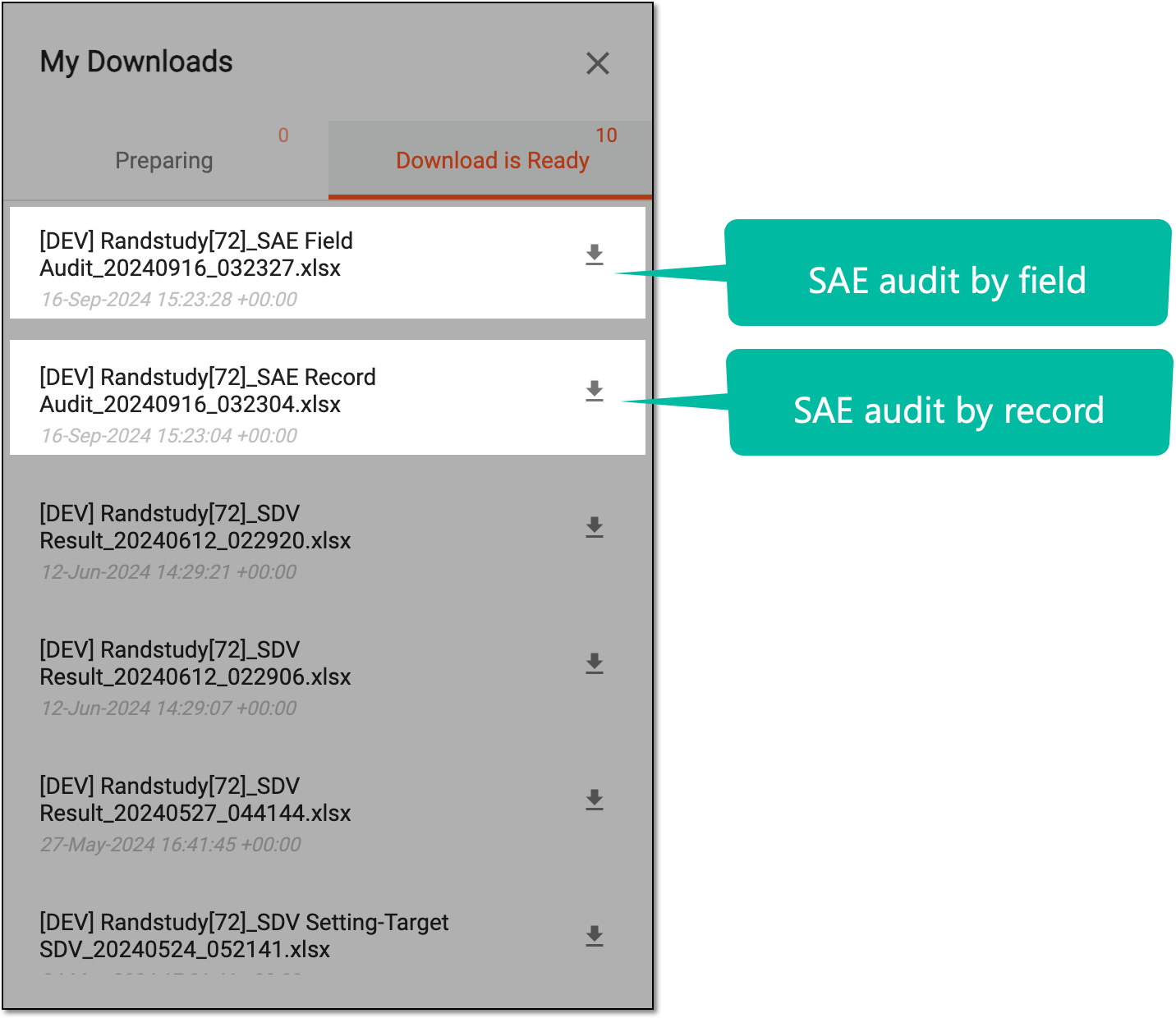 Figure 3. Accessing exported SAE audit files
-
-
Under the Download is Ready tab, next to the file that you want to download, select
 .
.
Once downloaded, the XLSX file with SAE audit report details becomes available on your computer.