Execute PPC manually
Post-production change (PPC) is a clinical data management term that usually implies changes to the visit structure, form fields, or CRF edit checks. These changes can be attributed to planned or unplanned updates. Planned PPCs refer to study-specific updates known by a clinical data manager in advance or specified in the protocol. On the other hand, unplanned PPCs are not included in the protocol but may be requested by the sponsor or due to important protocol alterations.
After the updates to the CRF are made in Study Designer, the most recent CRF version becomes available for the PPC process in EDC. If this version has not yet been published to EDC in the PROD lifecycle of Study Designer, the PPC update can be scheduled or executed manually. The PPC is run to initiate the review process of data by clinical programmers, statisticians, or other study stakeholders when CRF changes take place during data collection.
Important
For the studies where the PI signature follows the independent setting and does not allow the data amendment once the CRF is signed, the signed CRFs are skipped upon the PPC execution.
-
From the EDC application toolbar, select the PROD lifecycle and the necessary role.
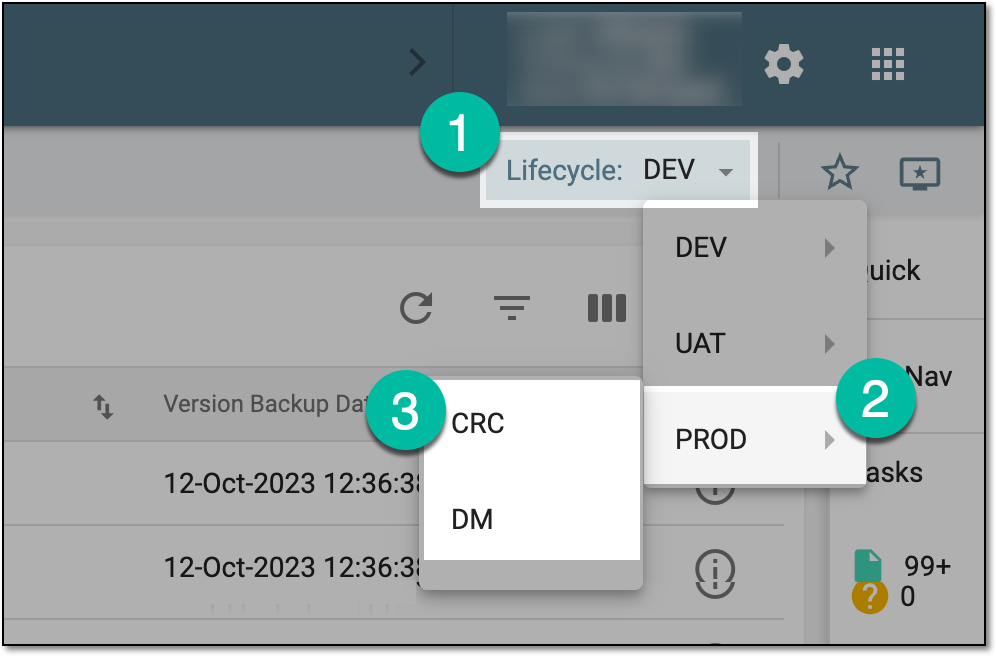 Figure 1. Accessing PROD lifecycle
-
In the EDC application header, select the STUDY INFO tab.
-
On the page that opens, in the left pane, select CRF Version > Post Production Change.
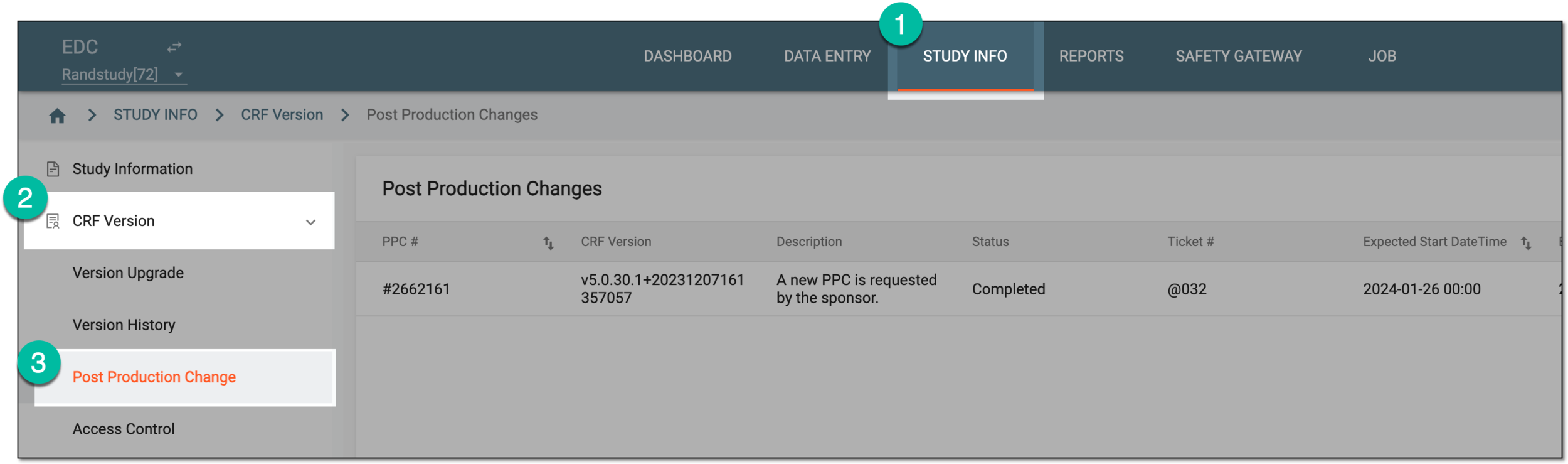 Figure 2. Accessing post production change
-
In the Post Production Changes table that appears, next to the needed PPC, select Perform
 .
. Figure 3. Selecting to execute PPC
-
On the page that opens, select
 to initiate the PPC run manually.
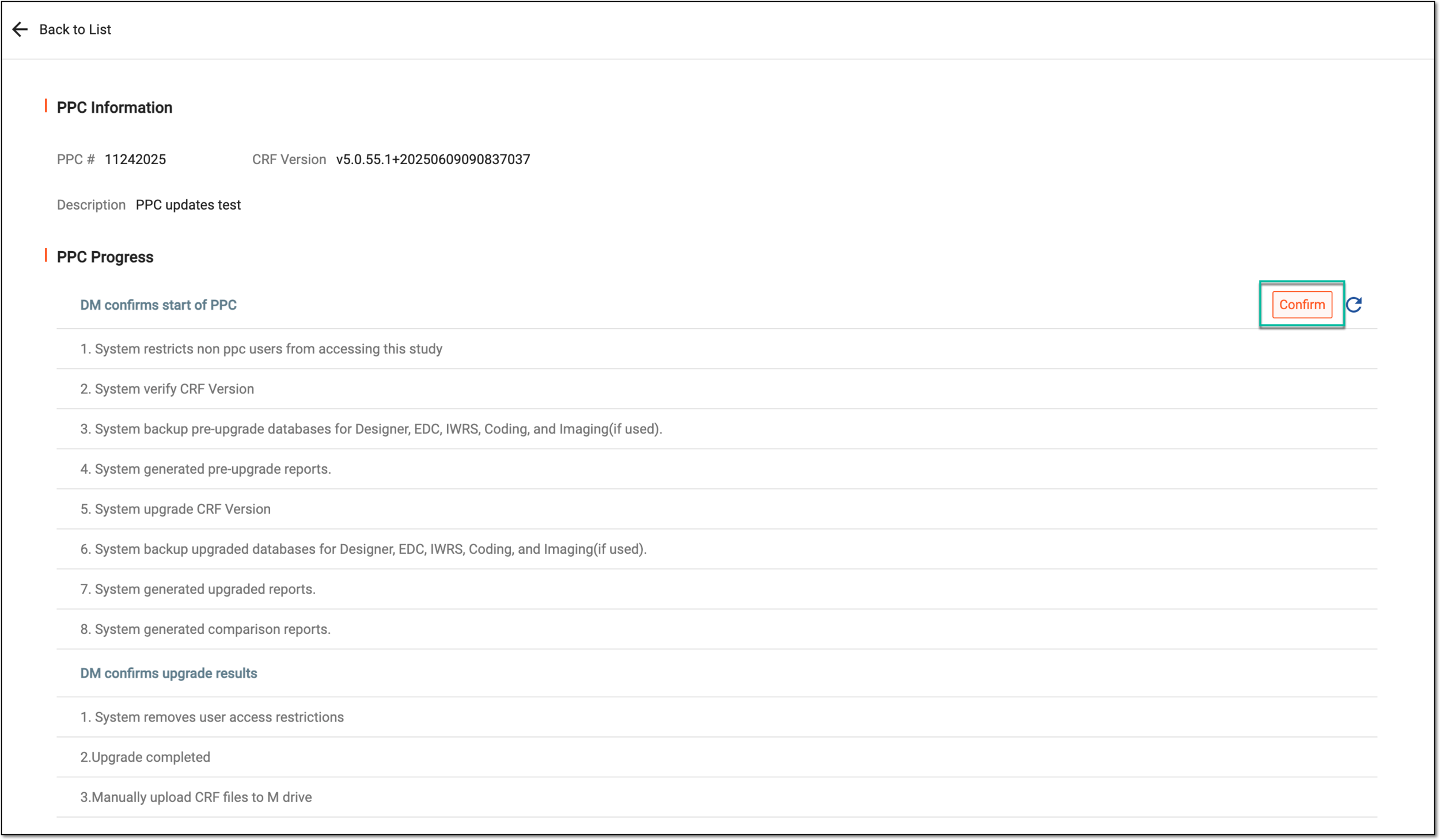 Figure 4. Executing PPC run
-
In the dialog that opens, confirm the PPC execution by selecting
 .
.Important
Once you confirm the PPC execution, the system users are to be notified of the PPC start and automatically logged out of the system to prevent their interaction with EDC during the PPC run. The users can resume working with EDC upon the successful PPC execution.
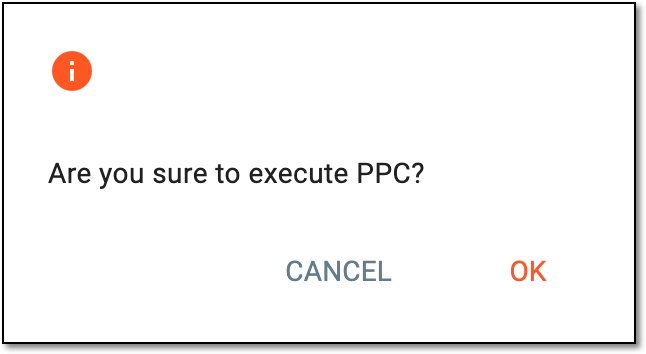 Figure 5. Confirming PPC execution
-
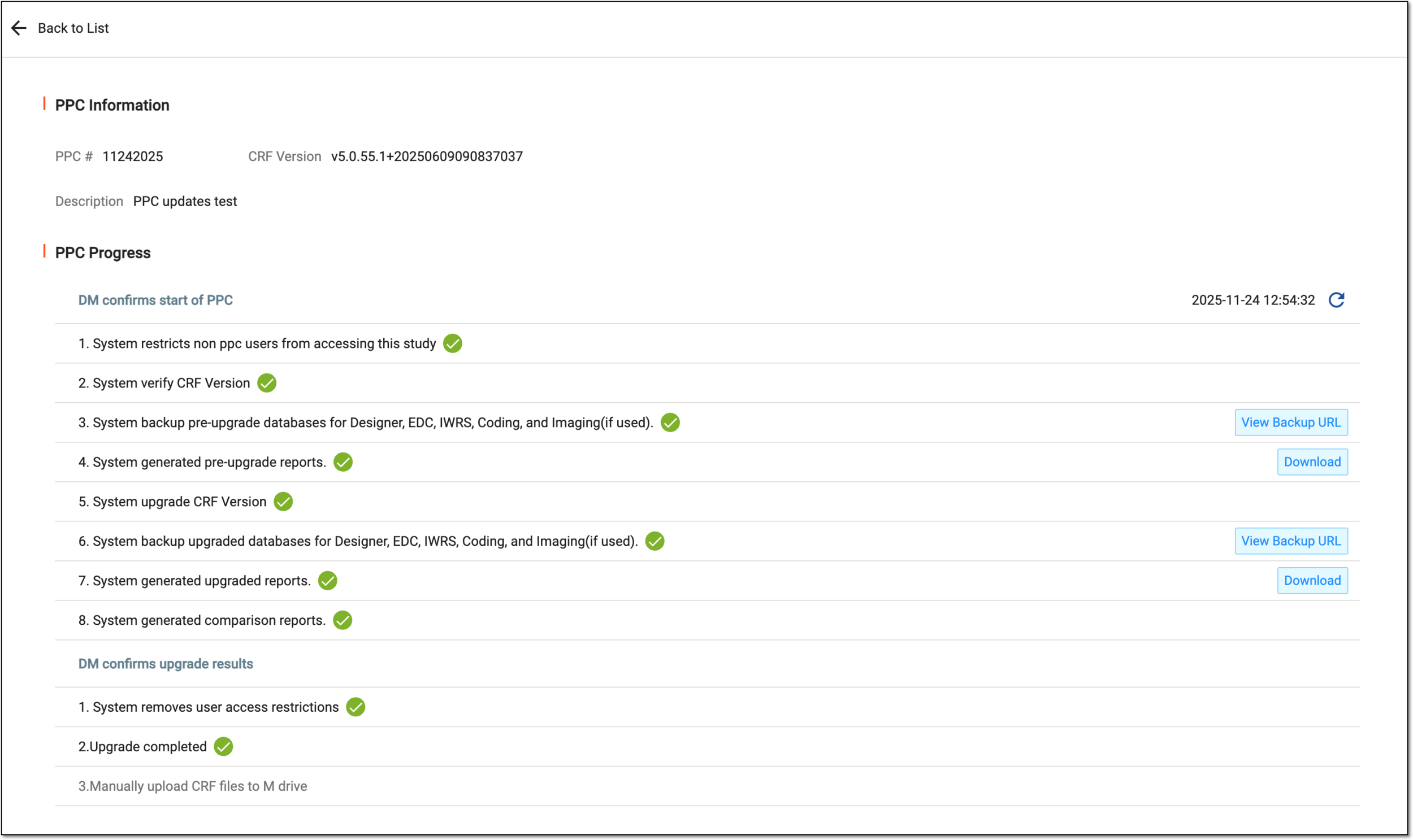
In the PPC Progress block, observe that all steps are completed successfully. Once each step is completed it either obtains a green check mark symbol or, if any further interaction is available for the step, the action buttons appear, such as report download or backup URL access button. Execution of some steps can take a while based on the amounts of data being processed.
If any step fails, you can select
 to reinitiate the PPC execution or select
  to ignore the failed step and proceed with PPC execution.
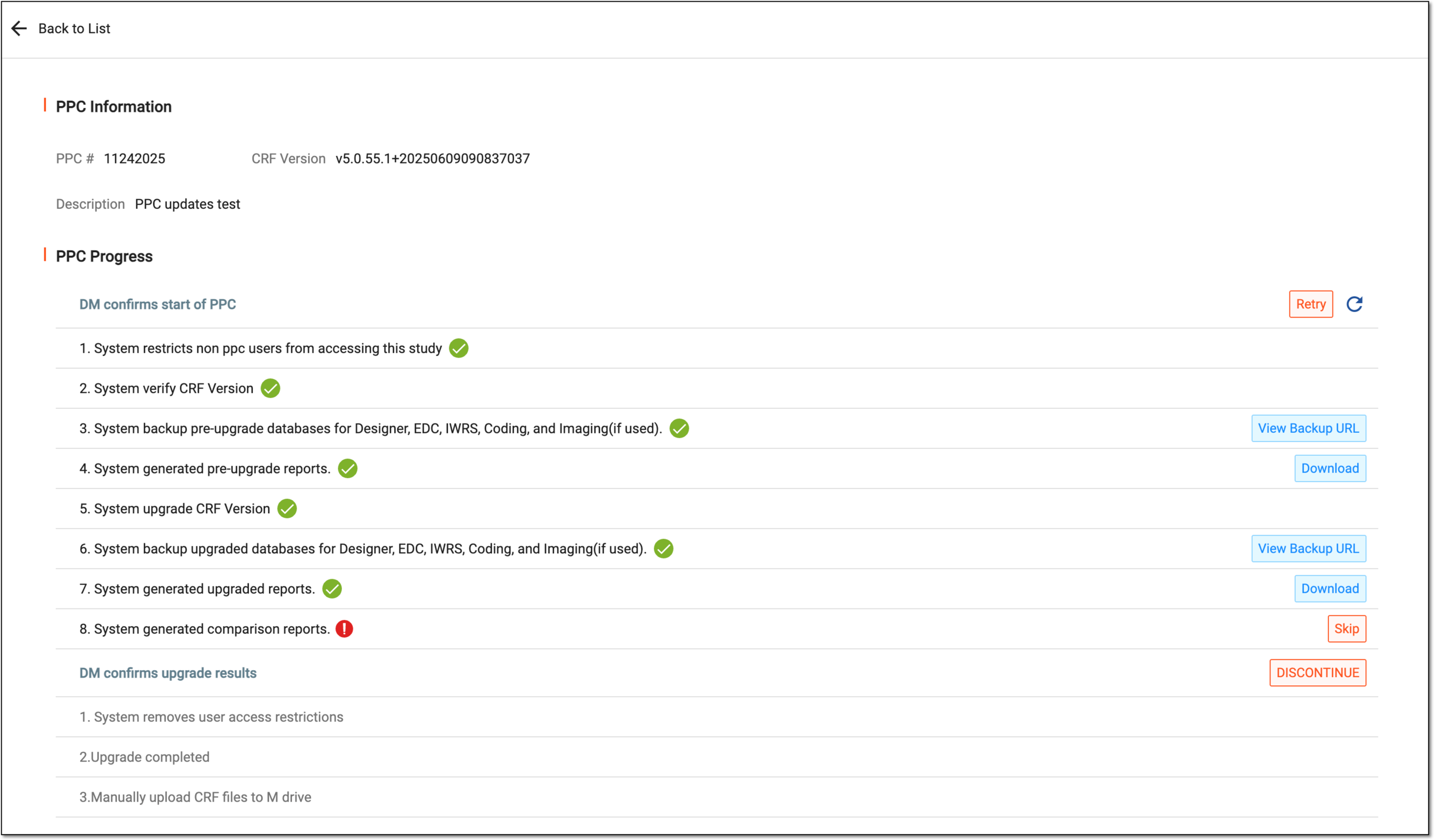 Figure 6. Tracking progress of PPC execution
Important
If the PPC run is not satisfactory, select
 and start over. This option remains available until PPC run is confirmed.
 Figure 7. Discontinuing PPC run
-
Once the PPC run is completed successfully, select
 to approve the PPC run and remove study access restrictions.
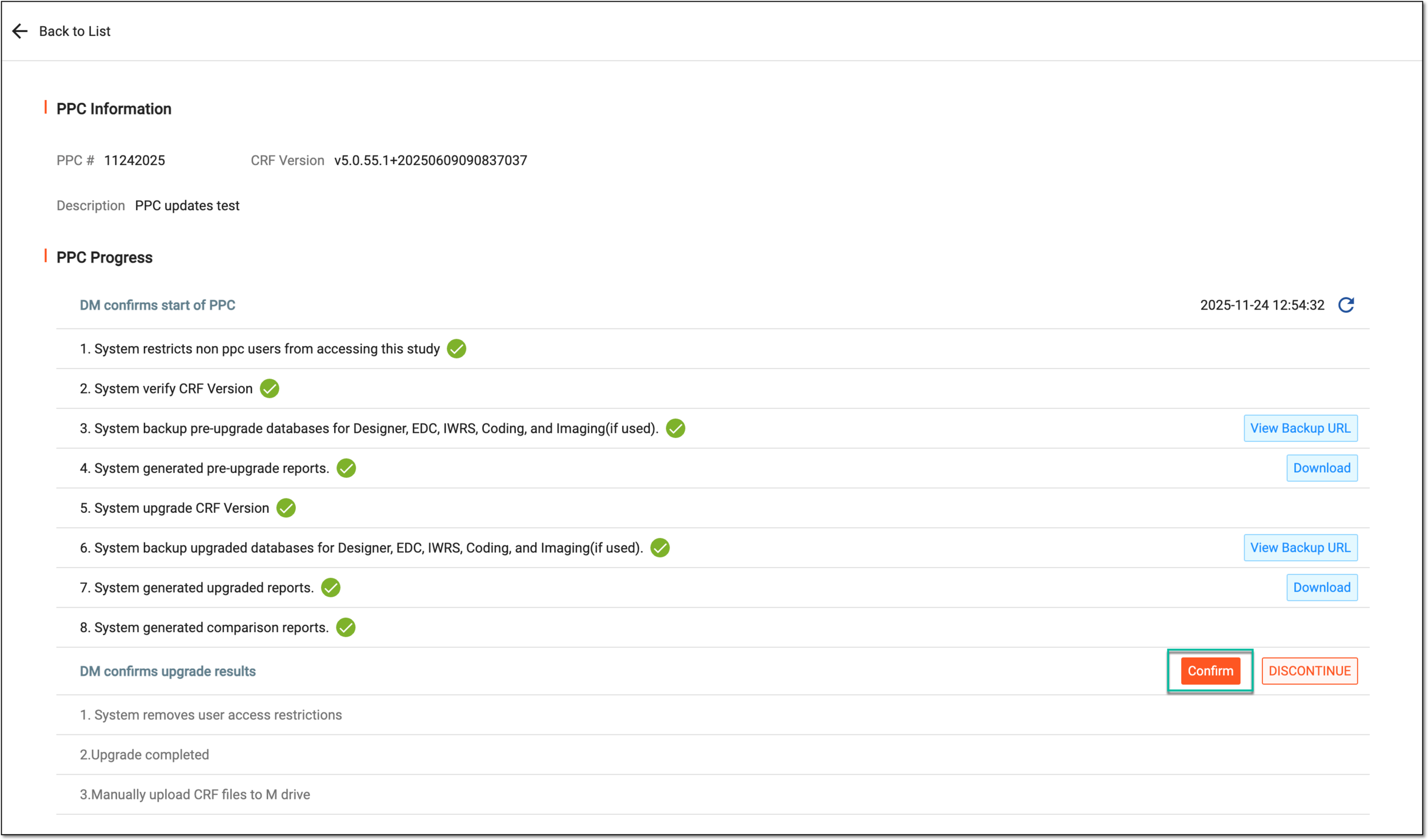 Figure 8. Confirming PPC run
-
In the dialog opens for you to acknowledge the result of the PPC execution. Select
to proceed.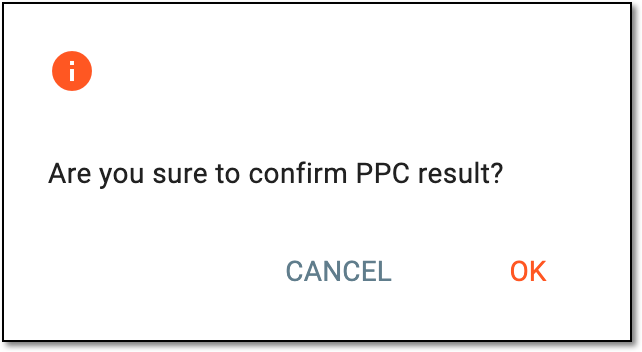 Figure 9. Confirming PPC result
Upon confirmation, the PPC run is completed. The email about its completion is sent out to previously indicated recipients. For the executed PPC, you can still access report download or backup URL review.