Send email on ICSR
In PV, you can send email notifications on various ICSR-related events directly from the system. This feature is useful for the staff of EDETEK or another external company that acts as a Contract Research Organization (CRO). The emailing functionality provides an opportunity to notify external parties or request them to perform some review and approval actions at different stages of case processing.
Since all the ICSRs in the system must follow a certain case-processing workflow, email templates are preconfigured for all its events (stages). The following schema depicts how certain events correlate with existing email templates.
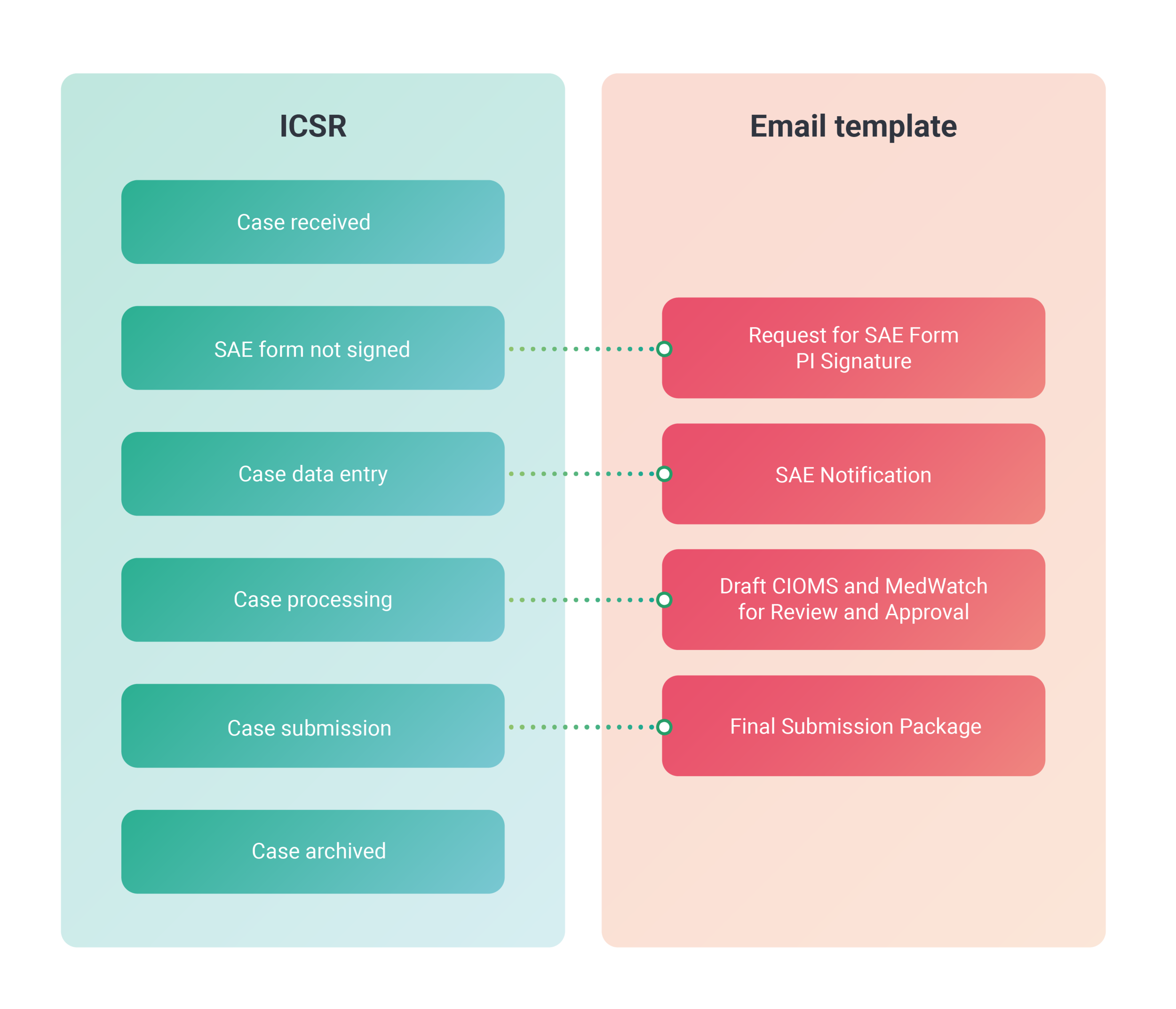
The workflow status of the ICSR is directly related to its respective template as shown in the following table.
|
ICSR workflow status |
Template name |
|---|---|
|
Draft |
SAE Form for Signature |
|
Data Entry |
SAE Notification |
|
Final Review |
Draft CIOMS and MedWatch for Review and Approval |
|
Case Submission |
Final Submission Package |
Important
The following preconditions must be met otherwise, the email templates are unavailable:
-
The ICSR type must be Report from study.
-
The case classification must be one of the following: Expedited/SUSAR or Non-Expedited/SAE.
-
In the PV application header, select the ICSR tab.
 Figure 2. Accessing ICSR list
-
On the ICSR List page that opens, in the table, locate the ICSR record for which you need to send an email. Then select its case number to open the details page in the new browser tab.
Alternatively, from the Actions column next to your ICSR, select Edit
 to open the
ICSR details in the same browser tab.
to open the
ICSR details in the same browser tab. Figure 3. Selecting to edit ICSR
-
On the page that opens, from the toolbar, select More
 > Send Email
  .
.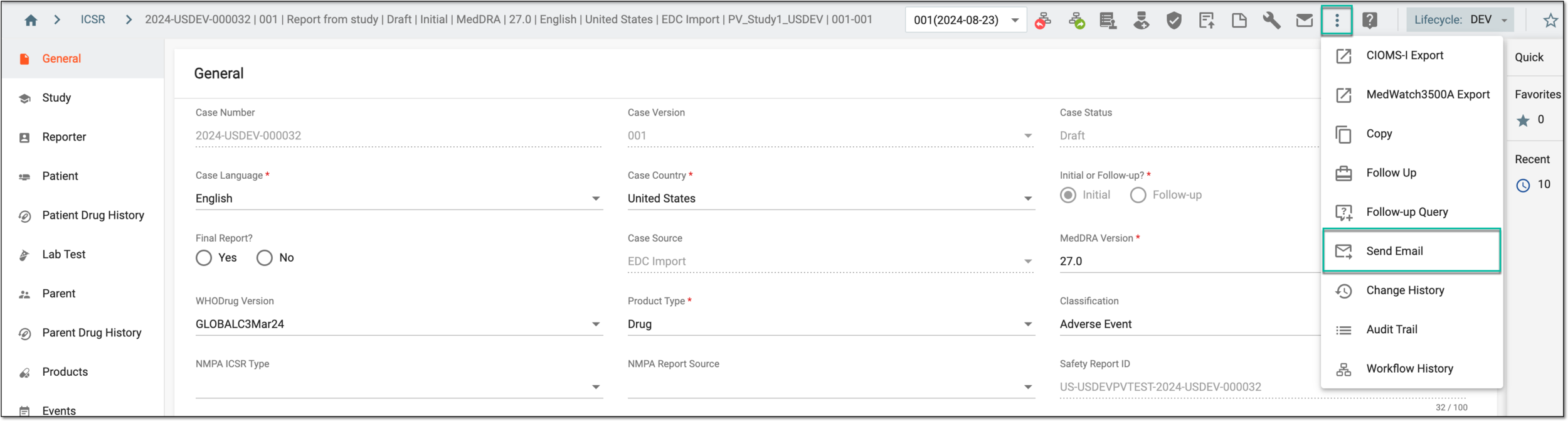 Figure 4. Accessing email option
-
At the Select Template stage, choose the template that suits your business needs and the language in which you want to generate the email contents. Then select
 .
.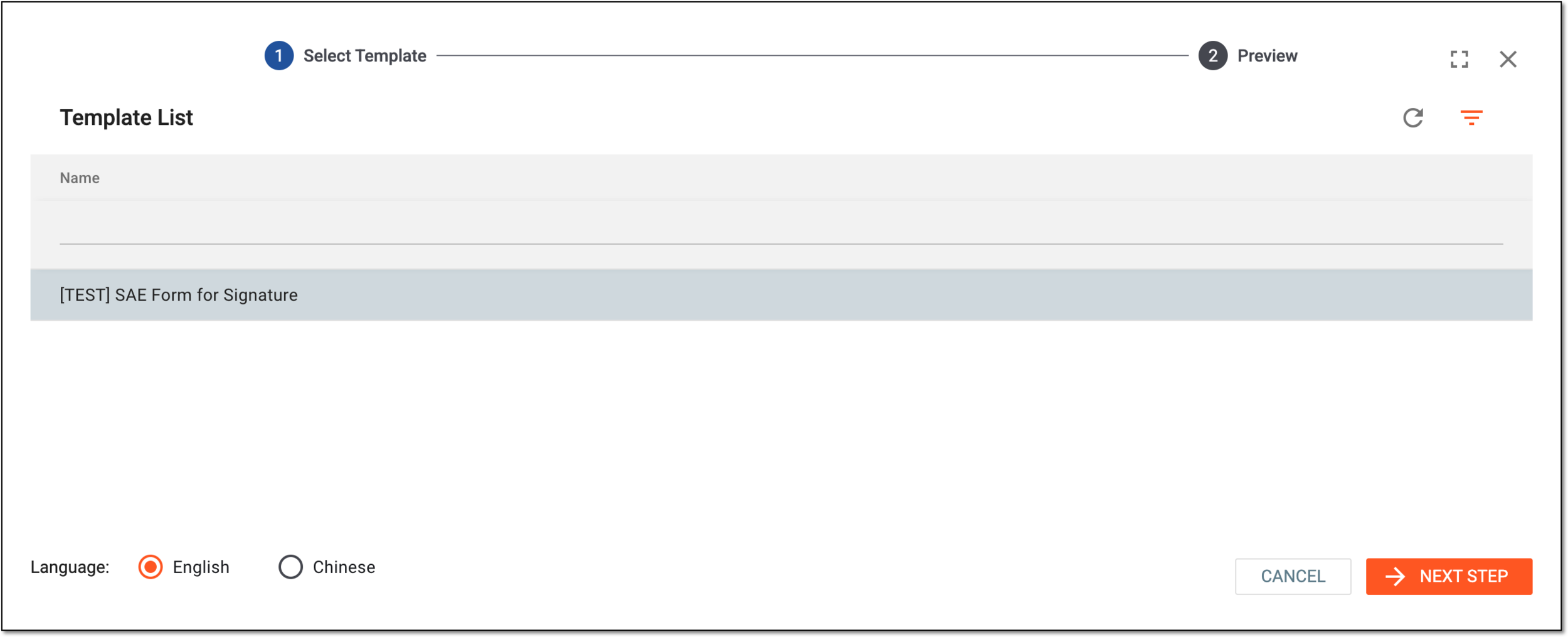 Figure 5. Selecting email template and language
Important
The templates available are preconfigured by the EDETEK administrator in the languages requested by the sponsor. Templates are designed to suit each stage of your ICSR workflow—data entry, case submission, and so on. You can only see the templates relevant to the current stage of ICSR processing.
-
At the Review stage, you can review and amend the details and content of the email preconfigured according to the selected template. The details of editable elements are provided in the following table.
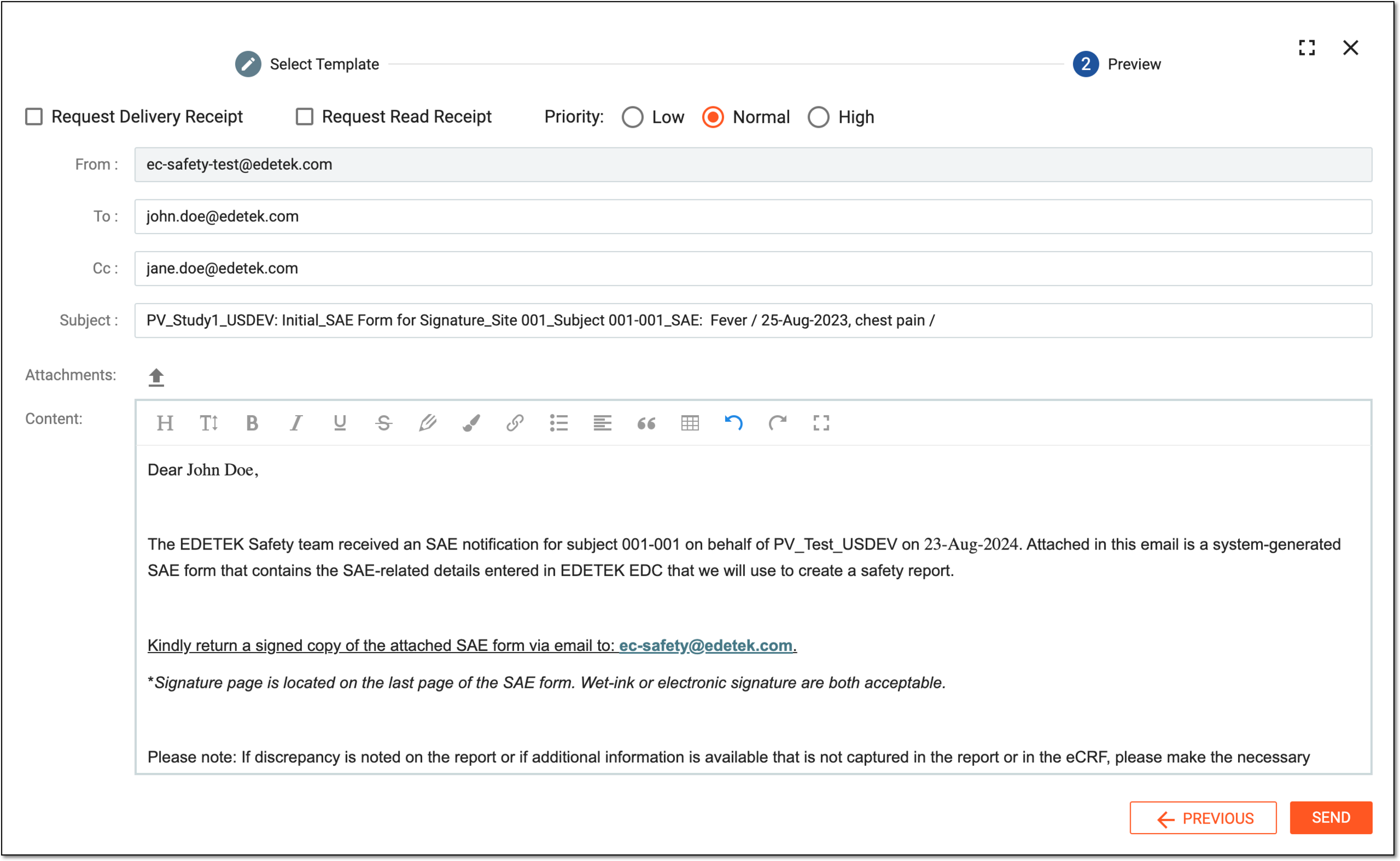 Figure 6. Previewing and editing email content
Element
Details
Request Delivery Receipt
Select this checkbox if you want to receive a confirmation letter once the email is delivered to its recipient(s).
Request Read Receipt
Select this checkbox if you want to receive a confirmation letter once the email is read by its recipient(s).
Priority
Select the option button to establish the level of your email importance—Low, Normal, or High.
From
Represents the system-configured email address from which your email is sent. This address cannot be manually edited.
To
Represents the email address of the recipient(s). These are system-filled based on the case reporter's details specified in the Reporter form of the ICSR.
However, you can edit the recipient address, add more, or remove the redundant ones.
CC
Represents the additional address to which the email copy is forwarded. These are system-filled based on the logic configured by the EDETEK administrator.
However, you can edit the copy recipient address, add more, or remove the redundant ones.
Subject
Represents the subject of the letter depending on the selected email template. The subject can be edited to suit your business needs.
Attachments
Represents the files pulled from the Source form if there are any.
Select Upload File
 to provide attached documents along with your email if needed.
Content
Represents the content of the letter depending on the selected email template. The details such as the name of the recipient, sponsor, study, arm, and so on are pulled from various case forms.
The content can be edited to suit your business needs.
SEND
Select
 to forward your email to the specified recipients.
PREVIOUS
Select
 to return to the template selection step if needed.
Full Screen
Select
 to open the email editor in full-screen view.
To collapse the full-screen view, select Full Screen Exit
 .
.
Once sent, the email is forwarded to its recipients.