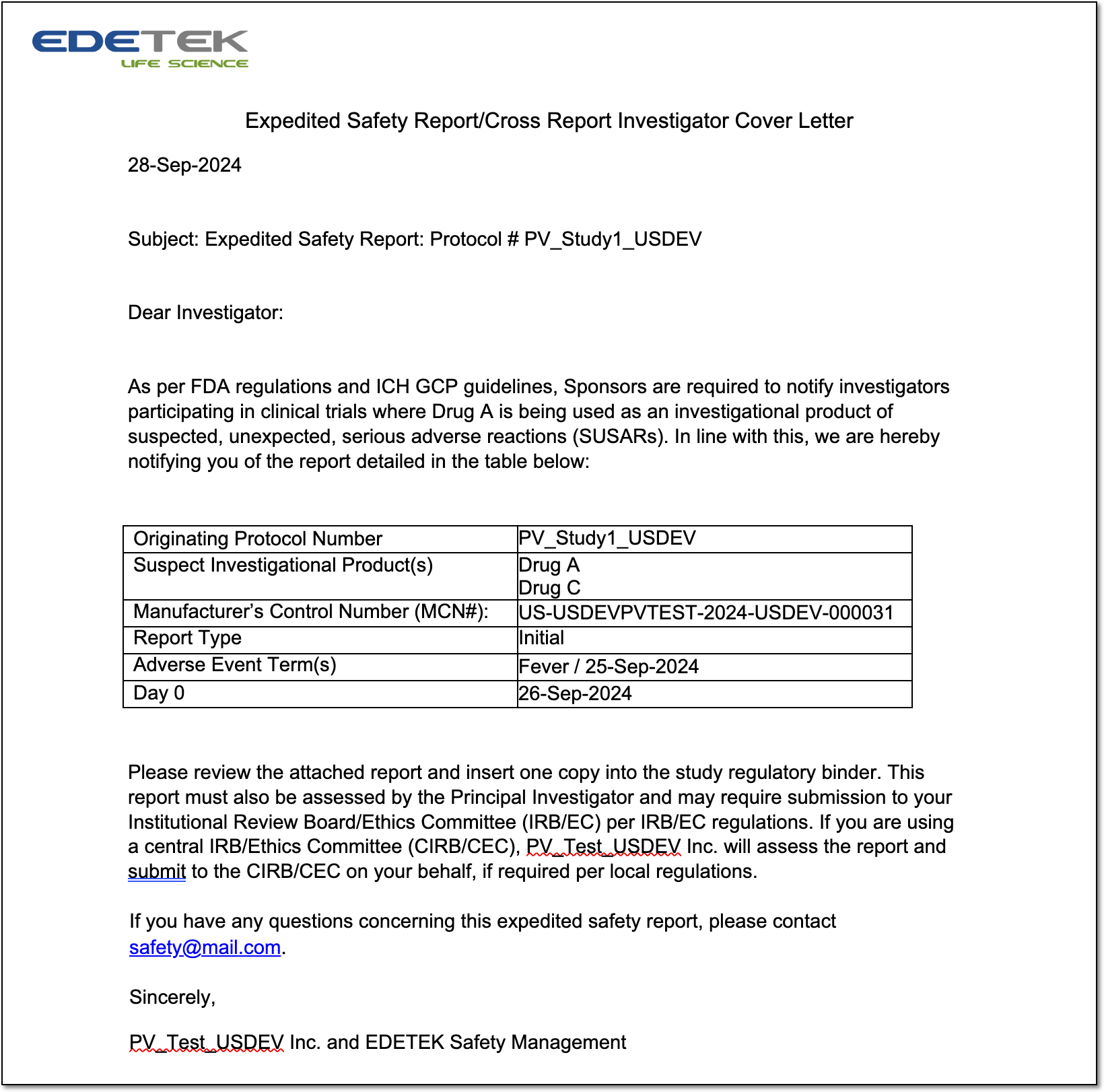
Export customized report for single ICSR
While working with the adverse event (AE) case in PV, you might need to publish some auxiliary reports on its details. The reports are client-specific and suit individual needs and requirements.
Tip
To configure the customized reports for your PV system, contact the EDETEK administrator.
-
In the PV application header, select the ICSR tab.
 Figure 1. Accessing ICSR list
-
On the ICSR List page that opens, in the table, locate the ICSR record for which you need to export a custom report. Then select its case number to open the details page in the new browser tab.
Alternatively, from the Actions column next to your ICSR, select Edit
 to open the
ICSR details in the same browser tab.
to open the
ICSR details in the same browser tab. Figure 2. Selecting to edit ICSR
-
On the page that opens, from the toolbar, select More
 > Customized Report Export
 .
.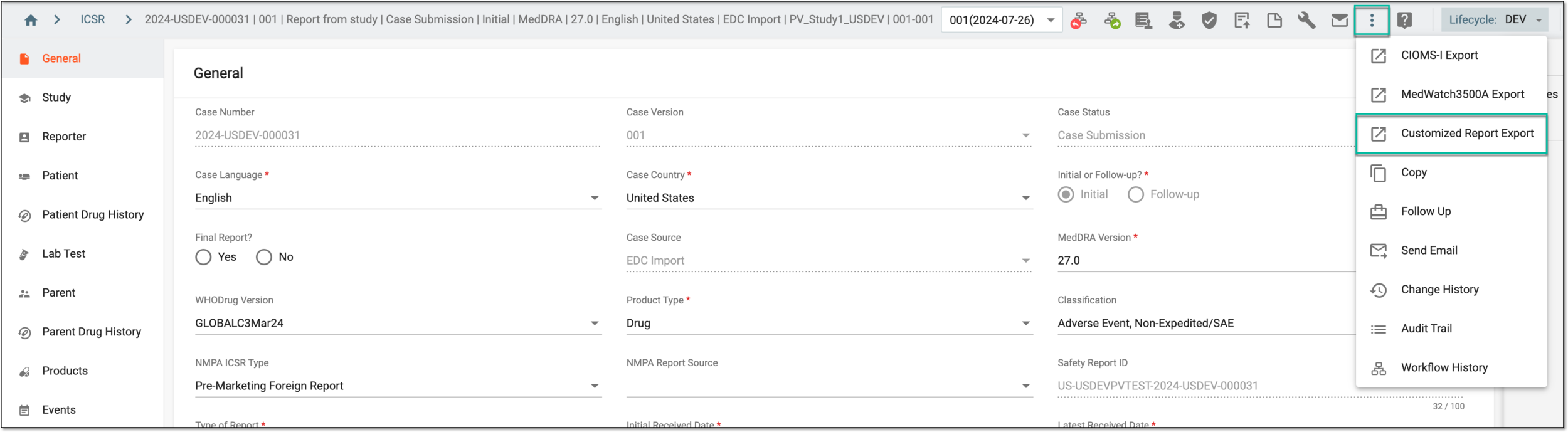 Figure 3. Accessing customized report export
-
In the Customized Report Export dialog that opens, choose the report template and format that suits your business needs and then select
 .
.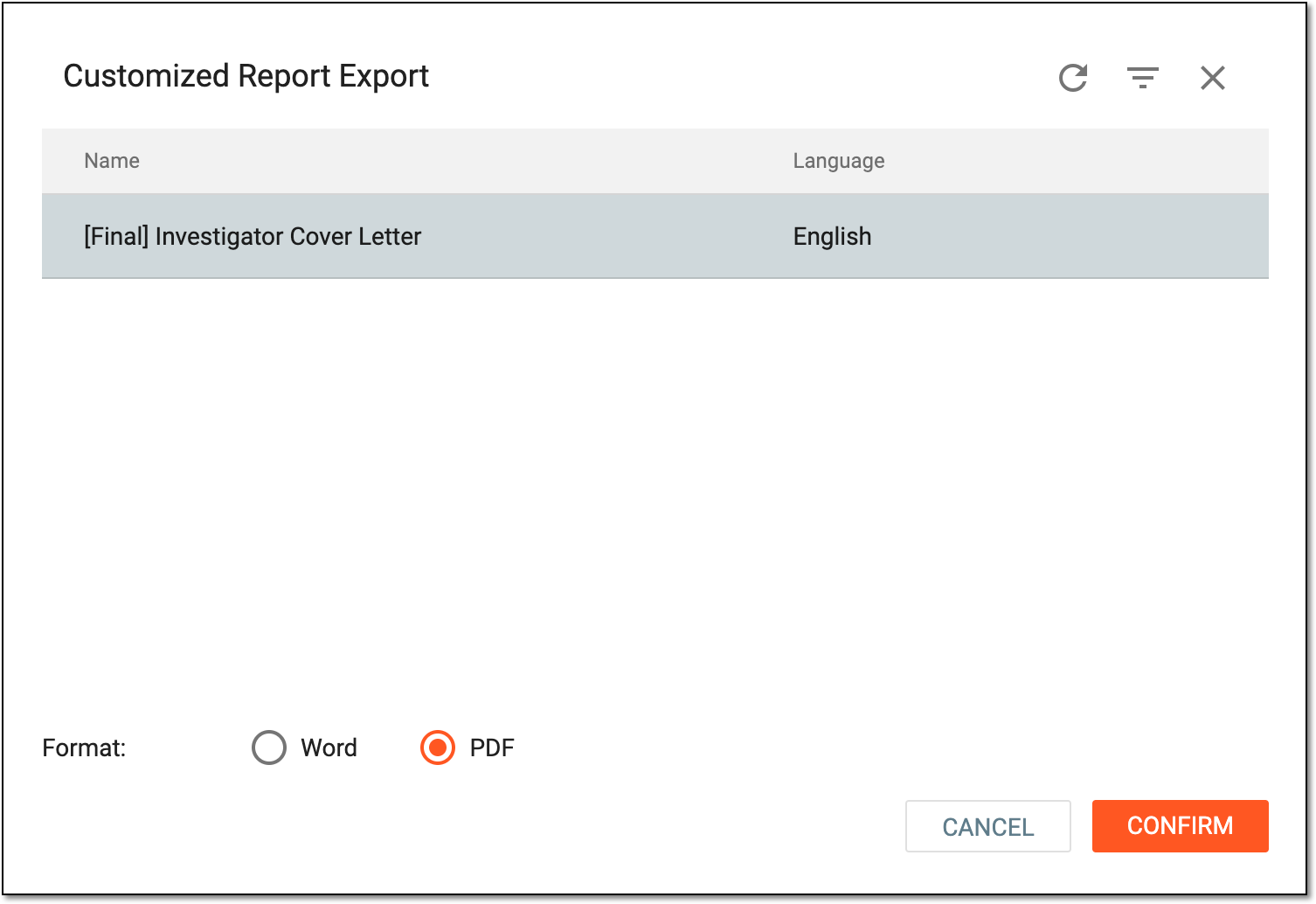 Figure 4. Selecting customized report template and format
Important
The templates available are configured by the EDETEK administrator per client request.
Once confirmed, the report is exported and becomes available on your computer.