Export customized reports in batch
While working with adverse event (AE) cases in PV, you might need to publish some auxiliary reports on its details. The reports are client-specific and suit individual needs and requirements.
Tip
To configure the customized reports for your PV system, contact the EDETEK administrator.
In PV, you can opt for exporting a customized report on an individual ICSR or exporting customized reports in batch for multiple ICSRs.
-
In the PV application header, select the ICSR tab.
 Figure 1. Accessing ICSR list
-
On the ICSR List page that opens, ensure that you have filtered the list of cases for which you want to generate the customized report. For this, use advanced search.
-
From ICSR List, select the checkboxes next to the ICSRs for which you want to generate reports or select them all with the multiselect option. Then from the toolbar, select More
 > Customized Report Export
  .
.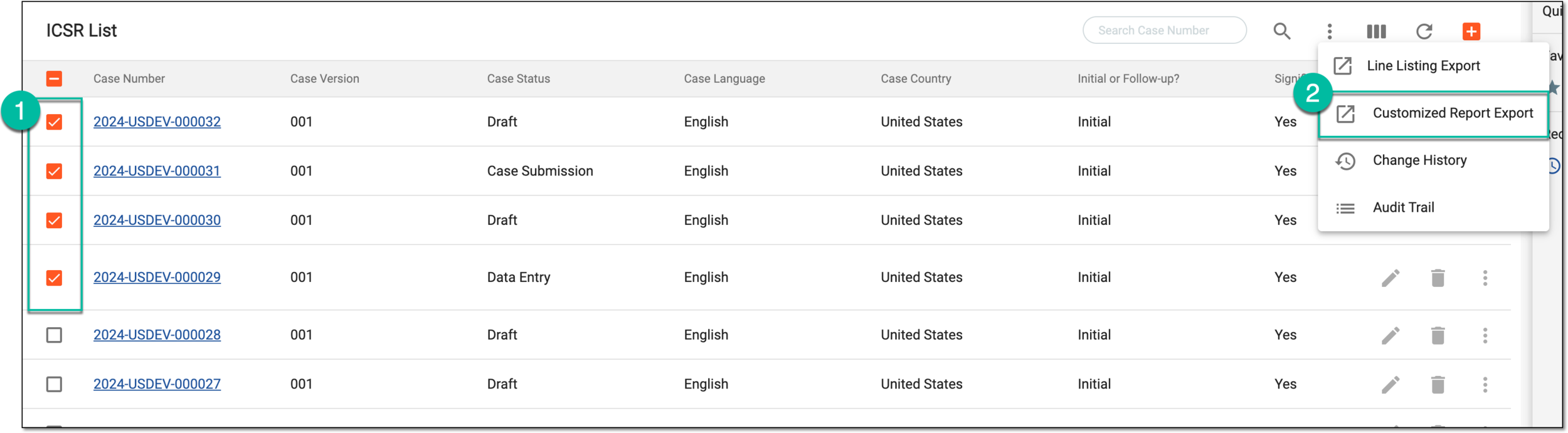 Figure 2. Exporting customized reports in batch
-
In the Customized Report Export dialog that opens, choose the report template and format that suits your business needs and then select
 .
.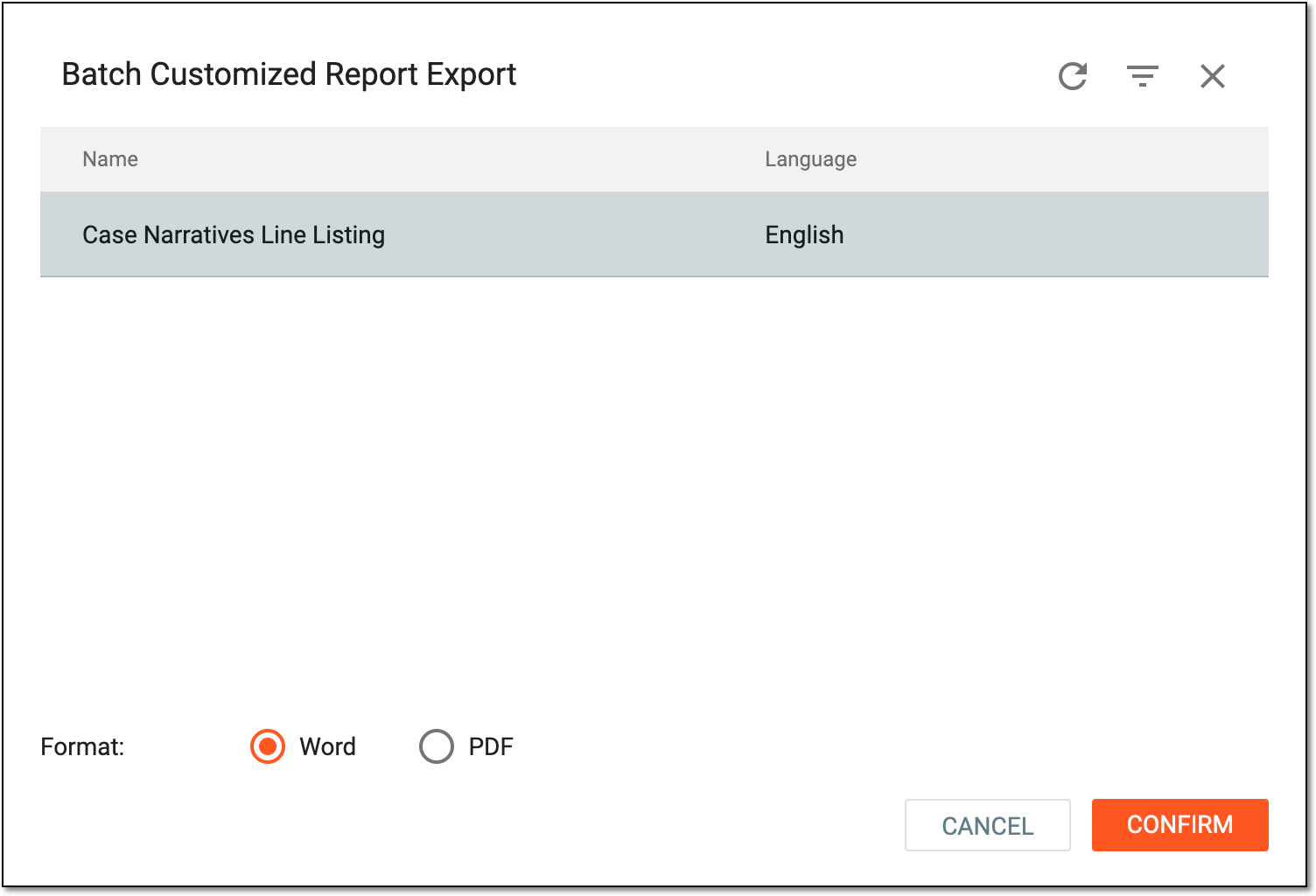 Figure 3. Selecting customized report and its format
Important
The templates available are configured by the EDETEK administrator per client request.
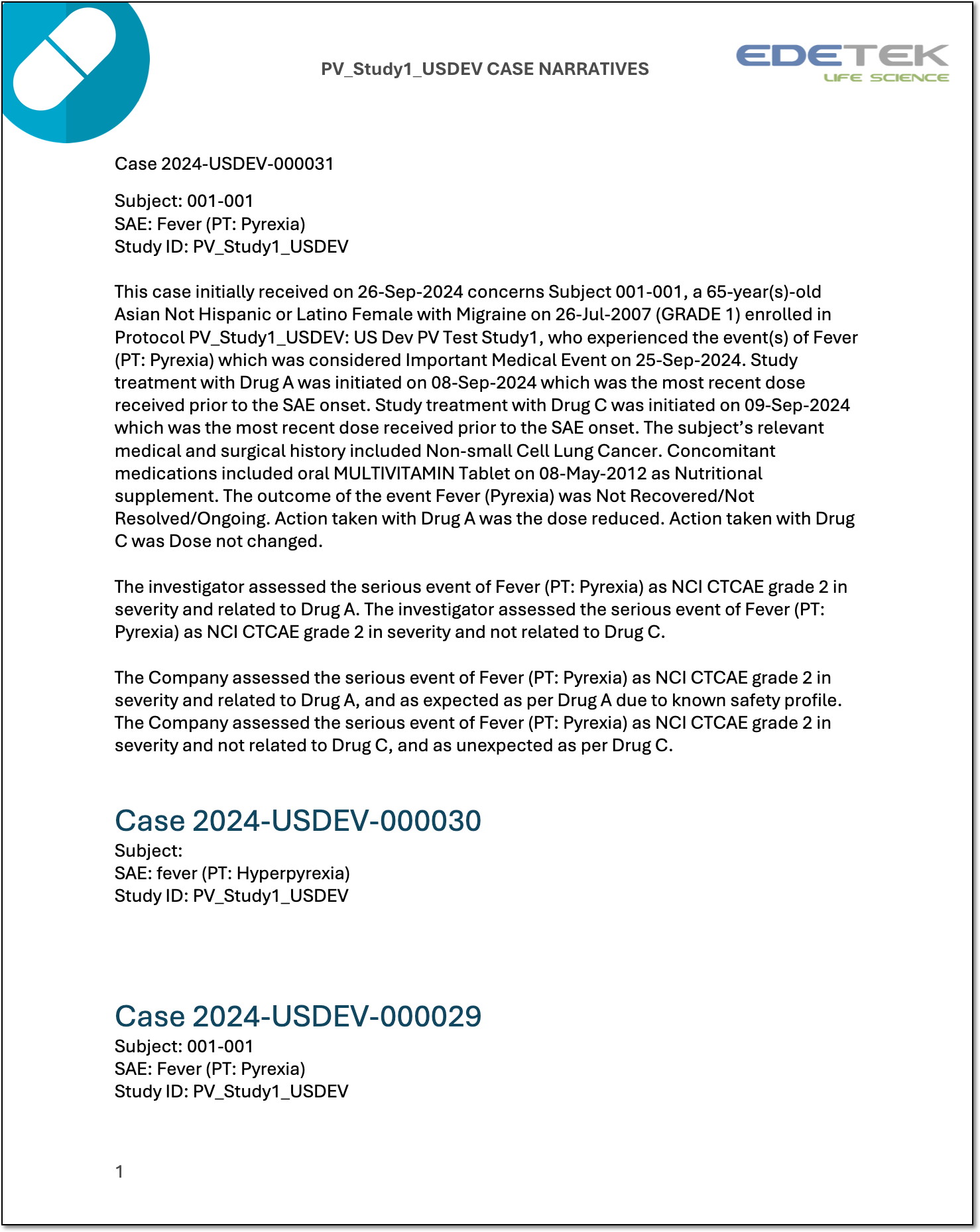
Once confirmed, the reports for all the selected ICSRs are exported and become available on your computer as a single file of your preferred format.