Create new data processing rule
The Create new data processing rule feature helps you establish new rules that define how data should be processed before the coding phase. This functionality ensures that data is standardized and organized according to specific guidelines, making it ready for accurate and consistent coding. By creating new data processing rules, you can tailor data handling procedures to meet unique study requirements and maintain high data quality standards.
Important
It is important to note that creating new rules requires knowledge of Groovy, as they are configured within the Groovy editor.
-
In the Medical Coding application header, select the CONFIGURATION tab.
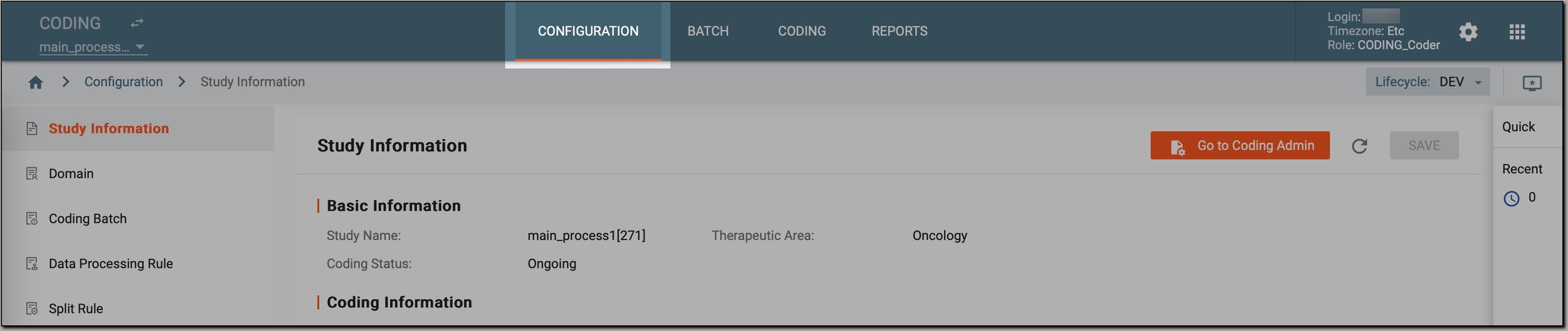 Figure 1. Accessing coding configurations
-
In the left pane, select Data Processing Rule.
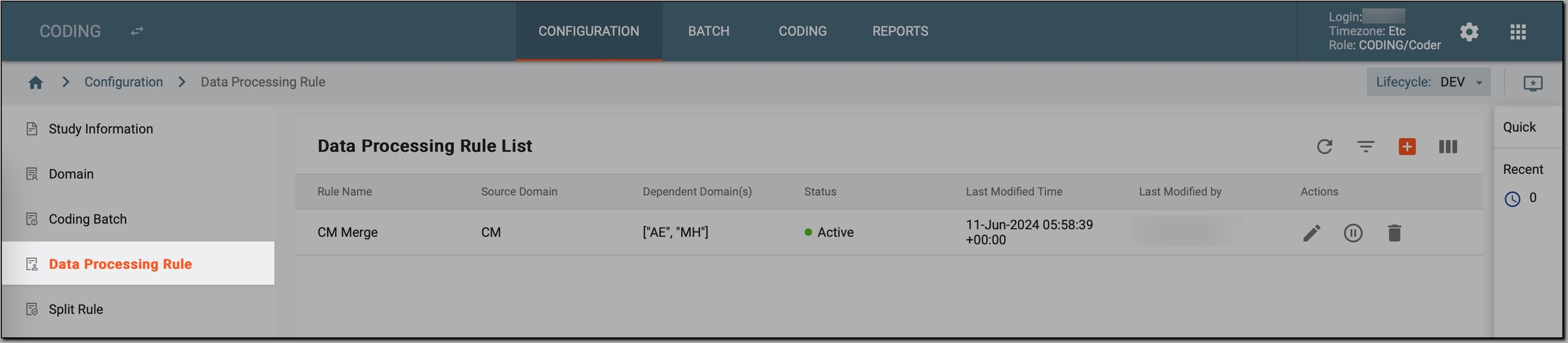 Figure 2. Accessing data processing rules
-
On the Data Processing Rule List page that opens, in the workspace toolbar, select New Item
 .
. -
In the New dialog, provide the rule configurations as explained in the following table.
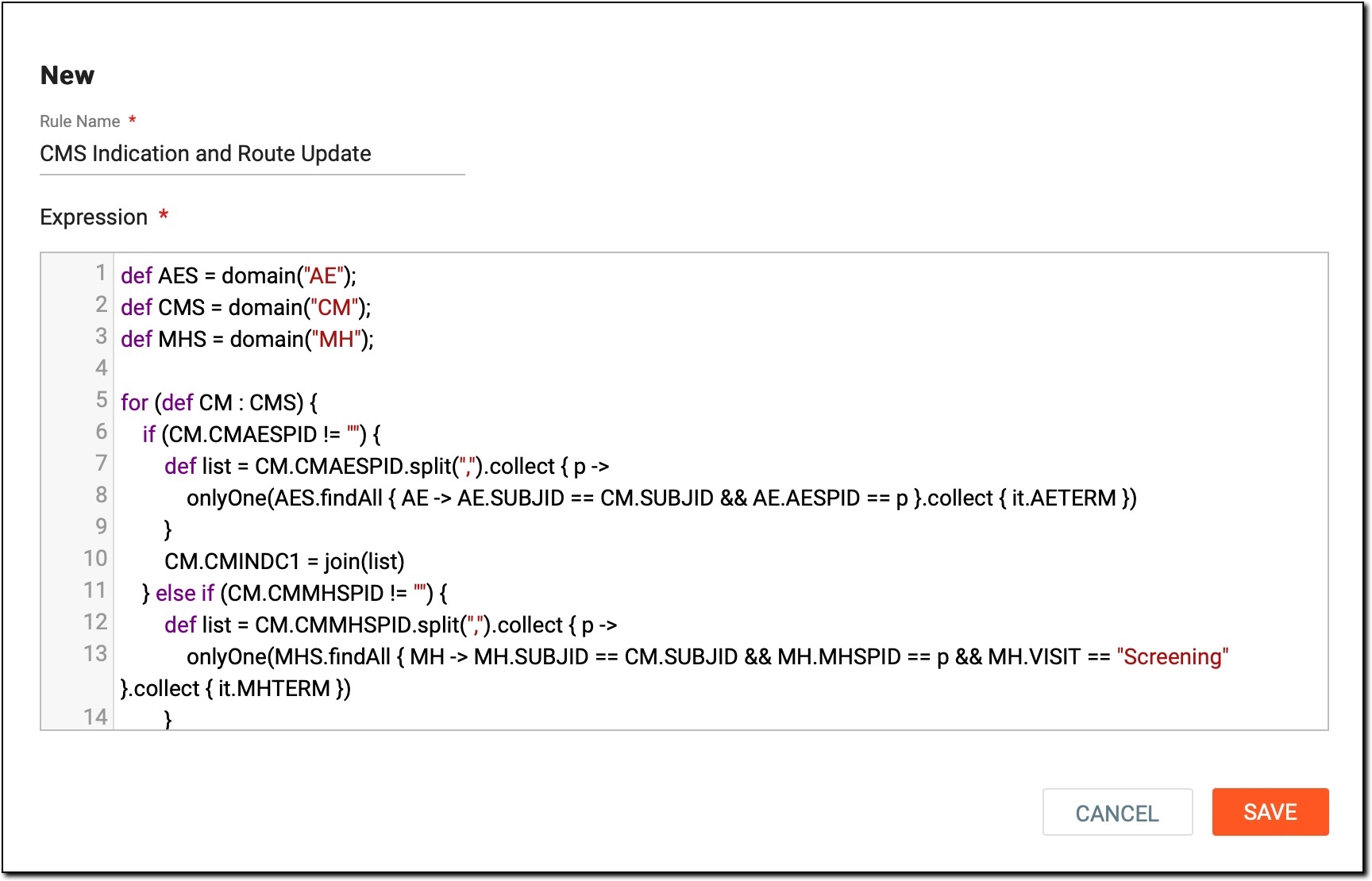 Figure 3. Creating new data processing rule
Tip
In the following table, mandatory elements are marked with an asterisk (*).
Element
Details
Rule Name*
Enter a descriptive name for the new data processing rule. This name is used to identify the rule in the data processing rule list.
Expression*
Use the code editor to enter the code for the rule itself. This code defines the logic and conditions for how data should be processed.
The provided code processes records from the CMS domain, updating fields based on specific conditions:
-
Define domains: AES, CMS, and MHS are defined as domains.
-
Loop through CMS records: for each record in CMS:
-
If CMAESPID is not empty, it retrieves related terms from AES and updates CMINDC1.
-
If CMMHSPID is not empty, it retrieves related terms from MHS during "Screening" visits and updates CMINDC1.
-
If REMHSPID is not empty, it retrieves related terms from MHS during "Re-Screening" visits and updates CMINDC1.
-
If CMINDC matches specific values ("OTH", "PROPHYLAXIS", "STUDY INDICATION"), it updates CMINDC1 accordingly.
-
It handles the routing logic based on CMROUTE and ROUTEOTH, updating CMROUTE1.
-
Finally, it returns the modified CMS domain.
SAVE
Select
 to create the new data processing rule.
CANCEL
Select
 to cancel the rule creation and dismiss the changes.
 -
Once saved, a new rule is created in the Active status. This means that the rule is ready to be applied to process data according to the defined logic, ensuring that data is standardized and prepared for coding.