Approve monitoring visit
A monitoring visit refers to an activity when a monitor, usually a clinical research associate (CRA), visits sites to review and verify study-related activities, including data collection, patient safety, and adherence to the study protocol. The monitor also verifies that the study is conducted in compliance with relevant regulatory requirements and GCP guidelines.
In CTMS, for each monitoring visit created in the system, it is individually set whether this visit requires approval of a certain role or a specific person. If the approval is necessary, the system creates a new approval task for assigned users or user roles upon creation, and then each time any edits are introduced to this visit. If you are responsible for approval of a monitoring visit, a respective task is assigned to you in the system.
There are several ways to access monitoring visit approval tasks—from the My Work dashboard or from the Monitoring Visits list.
-
Access the study management page in one of the following ways:
-
In the CTMS application header, select the DASHBOARD tab and then select the study dashboard of your interest.
 Figure 1. Accessing study management from dashboard
-
In the CTMS application header, select the STUDY MANAGEMENT tab. Then from the Study Data List table, select the study name of your interest.
 Figure 2. Accessing study management from study data list
-
-
On the page that opens, perform one of the following actions:
-
On the My Work dashboard select the Monitoring Visit tile to start working on monitoring visit tasks.
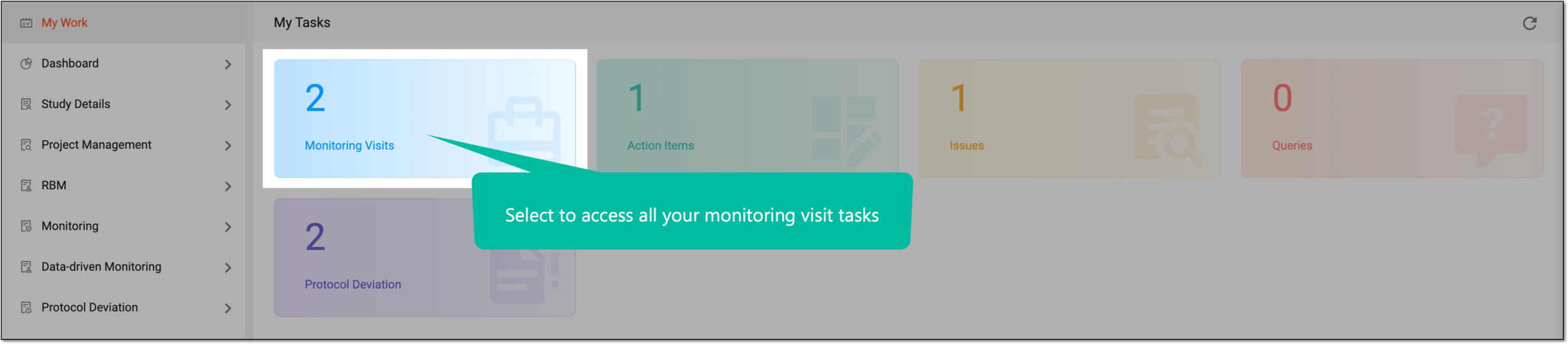 Figure 3. Accessing monitoring visit tasks
-
In the left pane, select Monitoring > Monitoring Visit and from the table that appears, locate and select the name of the monitoring visit you want to approve.
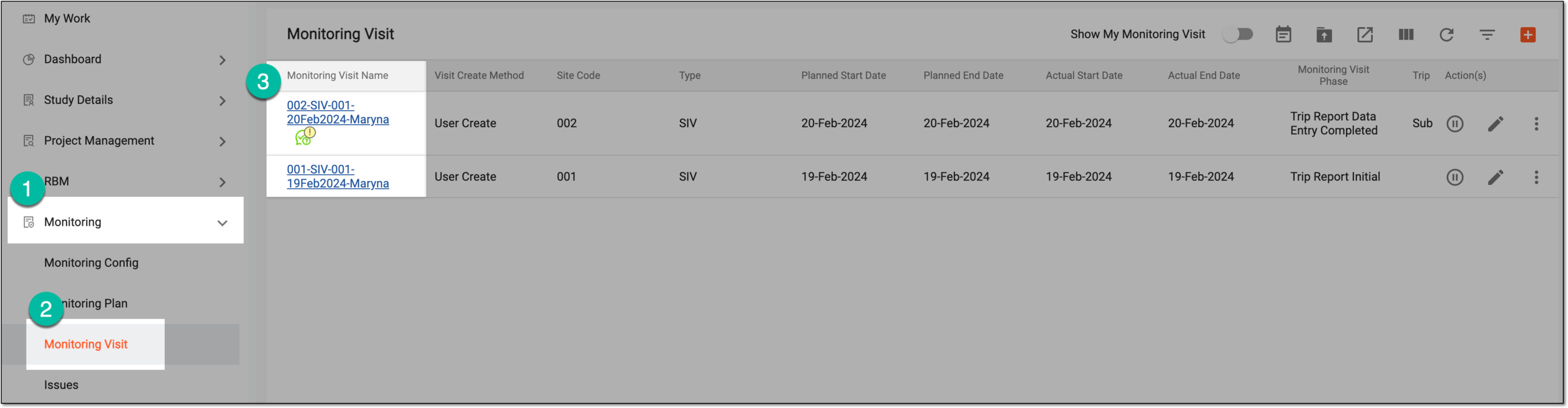 Figure 4. Accessing monitoring visit from list
-
-
On the page that opens, from the monitoring visit configuration form, select
 .
.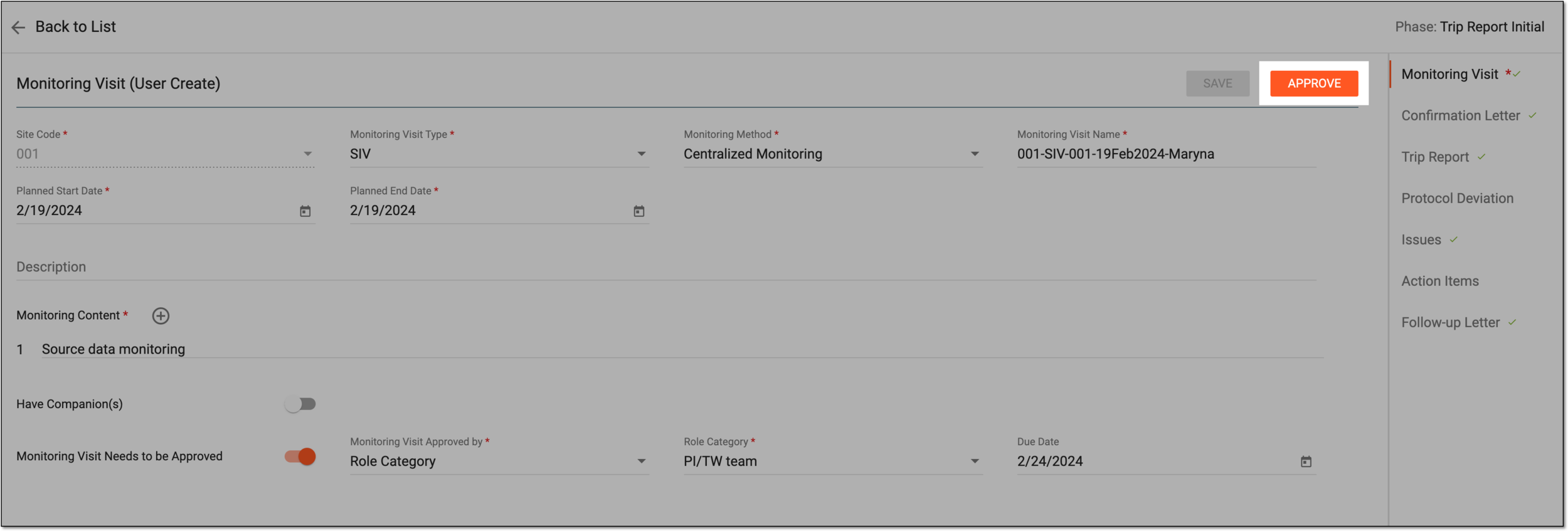 Figure 5. Approving monitoring visit
The monitoring visit is now approved.