Export SDV result
Source Data Verification (SDV) involves the review and comparison of data recorded in the source documents such as laboratory results, medical history, adverse event records, and so on against the data captured on the case report forms (CRFs).
Once you have selected the SDV type for your study and configured either global, general, or target SDV settings, the planning stage may be considered complete. You can now start to verify the CRF data against the source documentation and then track the outcomes under the SDV Result tab. For your convenience, you can also export the entire SDV result report from EDC and save it to your computer as an XLSX file.
-
In the EDC application header, select the STUDY INFO tab.
-
In the left pane of the page that opens, expand SDV and select the SDV Result tab.
-
From the workspace toolbar of the SDV Result page that opens, select Export
 and then
one of the available options as follows.
and then
one of the available options as follows.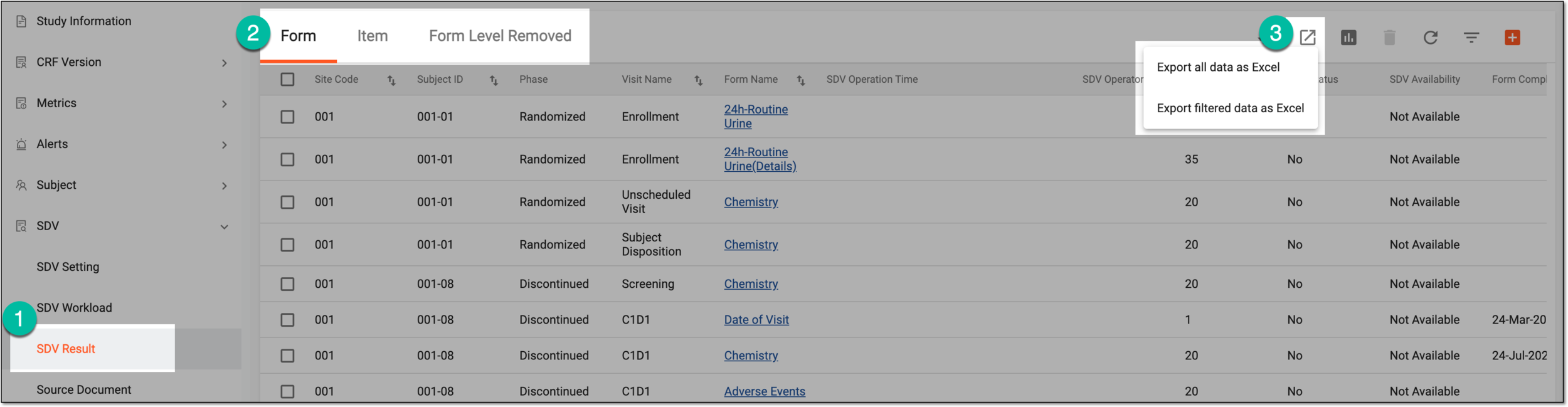 Figure 1. Exporting data
-
Export all data as Excel: select this option to export the entire report data regardless of any filtering currently applied.
-
Export filtered data as Excel: select this option to open the Export dialog and set selective filters as explained in the following table.
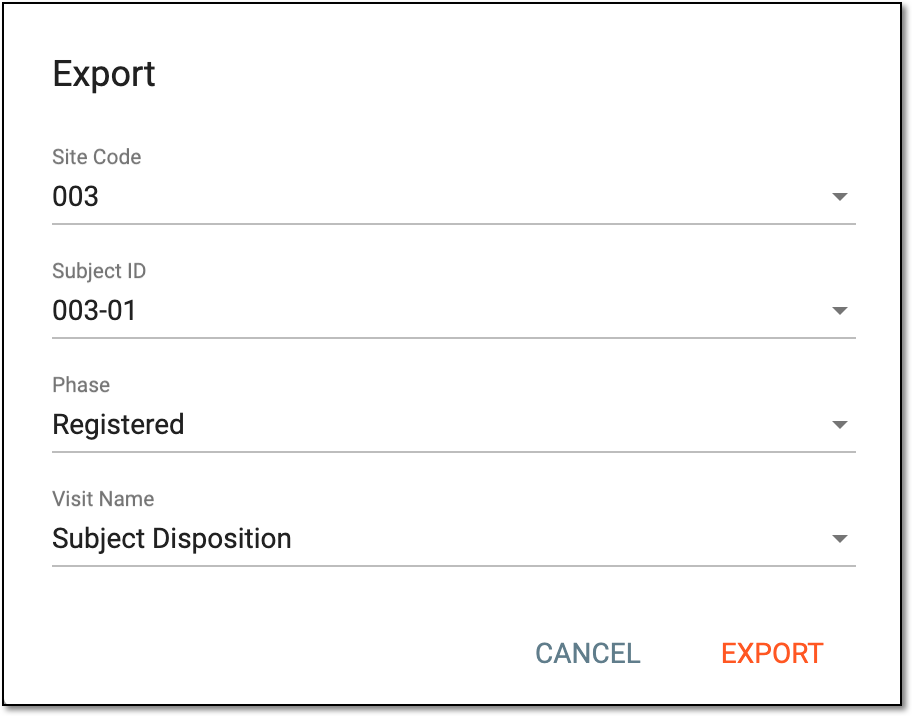 Figure 2. Selecting export filters
Tip
You can select one or more filters to combine selective parameters for report sorting.
Element
Details
Site Code
Select the code of the site for which you want to export the SDV result report.
Subject ID
Select the ID of the subject for whom you want to export the SDV result report.
Phase
Select the subject phase for which you want to export the SDV result report.
Visit Name
Select the name of the visit for which you want to export the SDV result report.
EXPORT
Select
 to apply set filters and export the report.
CANCEL
Select
 to discard the changes and close the dialog.
-
-
Once exported, the widget appears displaying your download progress. Select the widget to open the My Downloads dialog.
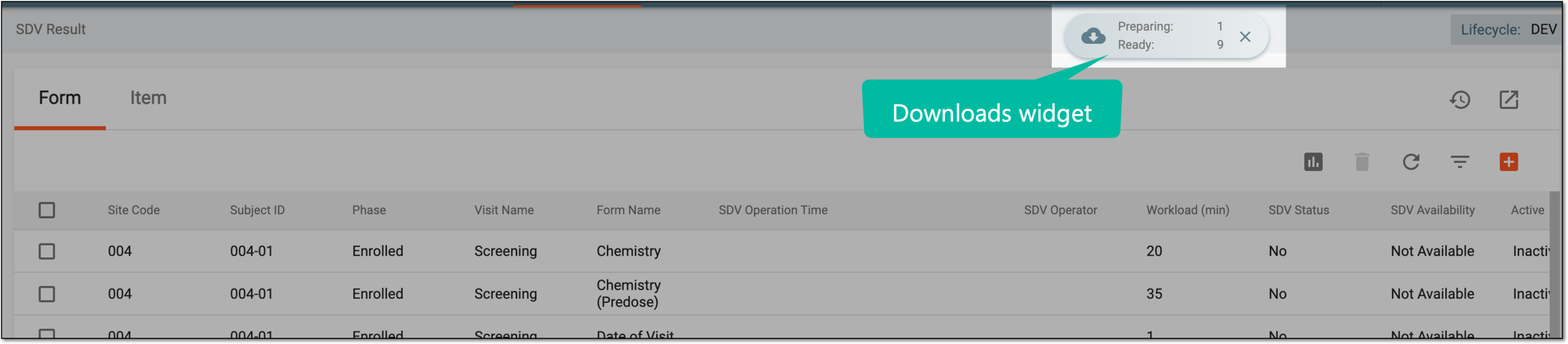 Figure 3. Downloads widget
-
In the My Downloads dialog that opens, you can find the following tabs:
-
Preparing: under this tab, you can find all the files whose export is in progress, and they are not yet ready for download.
-
Download is Ready: under this tab, you can find all the files whose export is complete, and they can be downloaded to your computer.
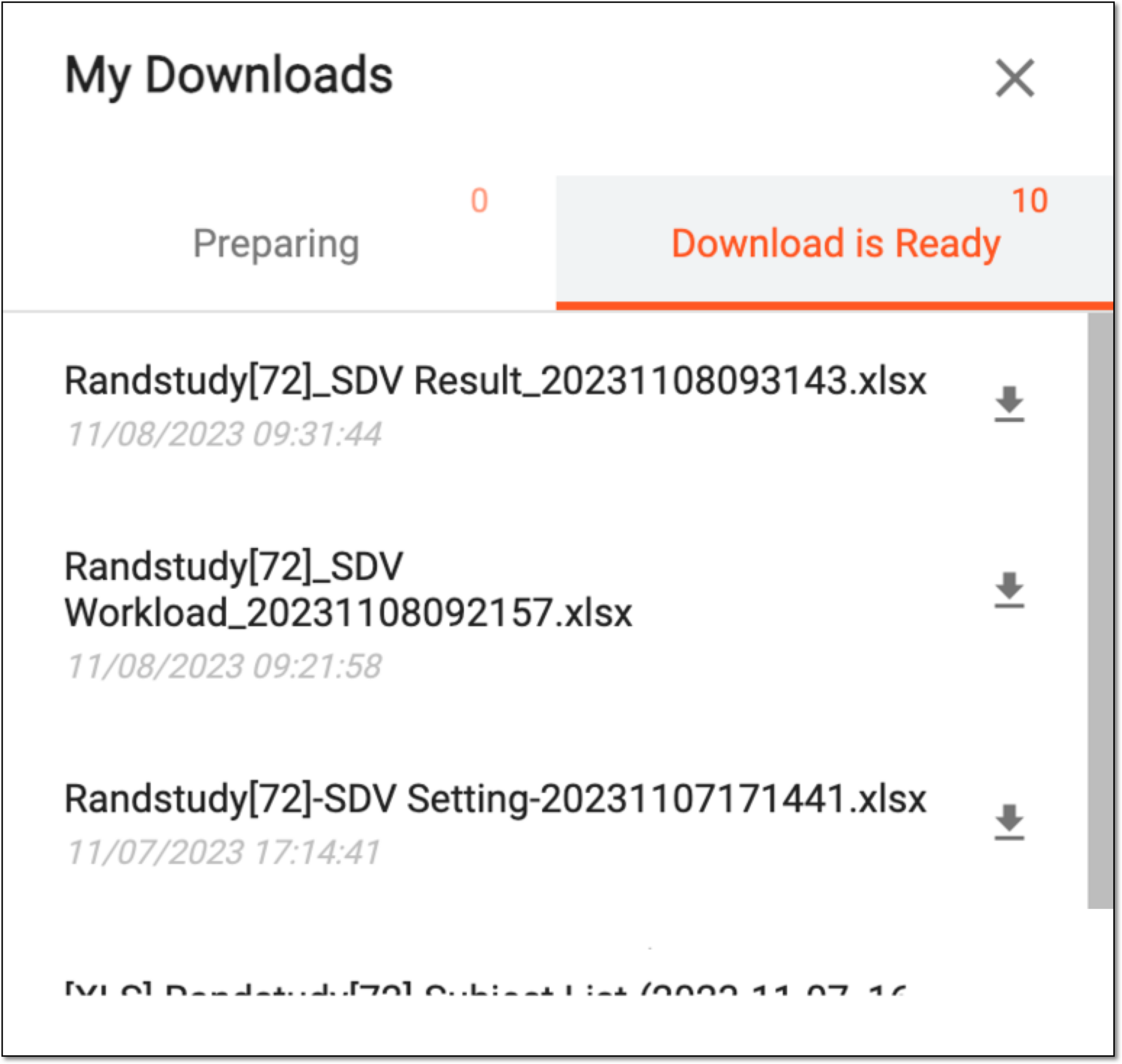 Figure 4. Viewing downloads
-
-
Under the Download is Ready tab, next to the file that you want to download, select
 .
.
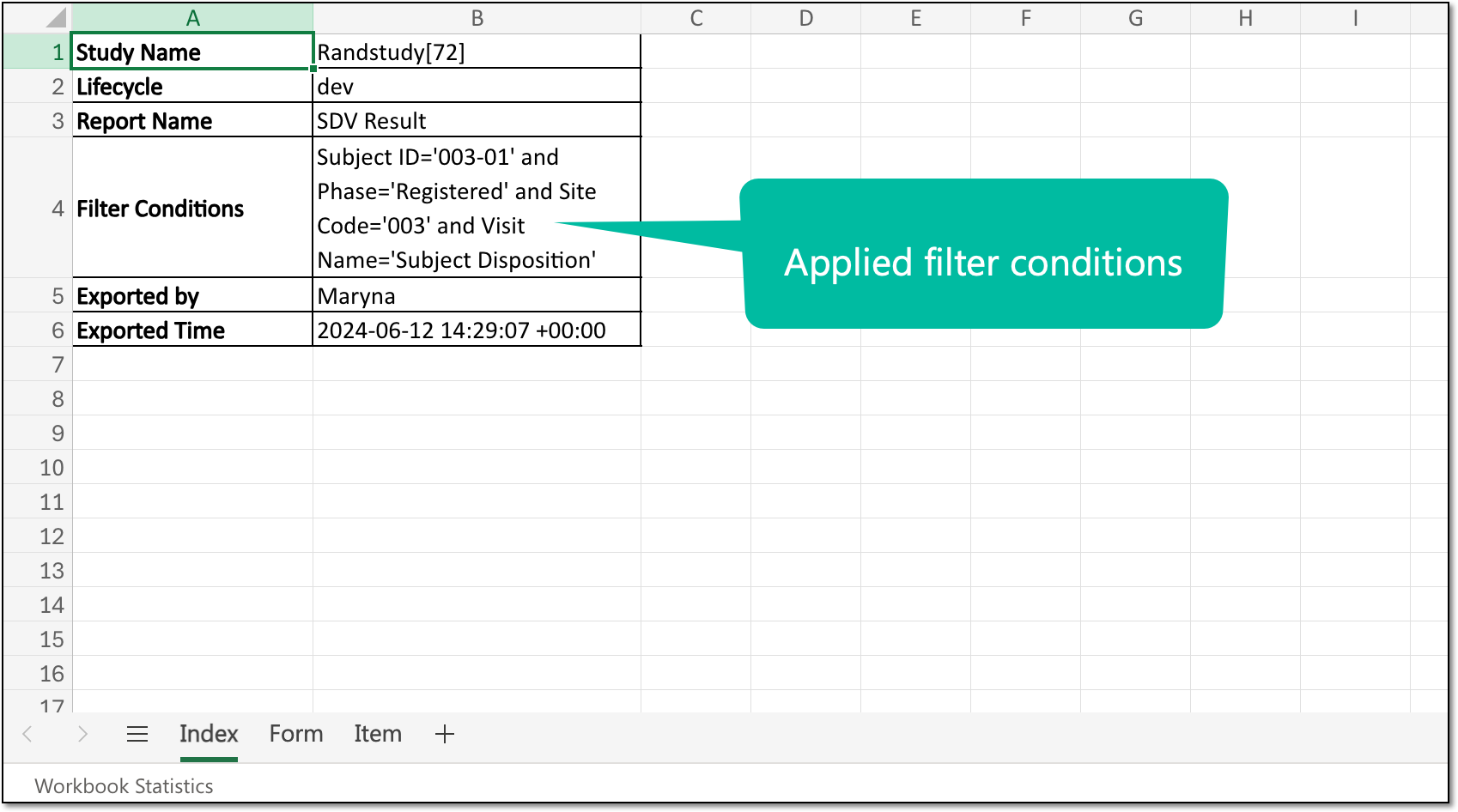
Once downloaded and saved, the SDV result report—filtered or complete—is available on your computer. For your convenience, in a filtered XLSX report, you can find the applied filter conditions under the Index sheet.
Download SDV result file from export history
Source Data Verification (SDV) involves the review and comparison of data recorded in the source documents such as laboratory results, medical history, adverse event records, and so on against the data captured on the case report forms (CRFs).
Once you have selected the SDV type for your study and configured either global, general, or target SDV settings, the planning stage may be considered complete. You can now start to verify the CRF data against the source documentation and then track the outcomes under the SDV Result tab.
In EDC, the entire SDV result report can be exported from EDC and saved to your computer as an XLSX file. All the previously exported files are stored in the export history, so you can download any previous version of it if needed.
-
In the EDC application header, select the STUDY INFO tab.
-
In the left pane of the page that opens, expand SDV and select the SDV Result tab.
-
From the workspace toolbar of the SDV Result page that opens, select History
 .
.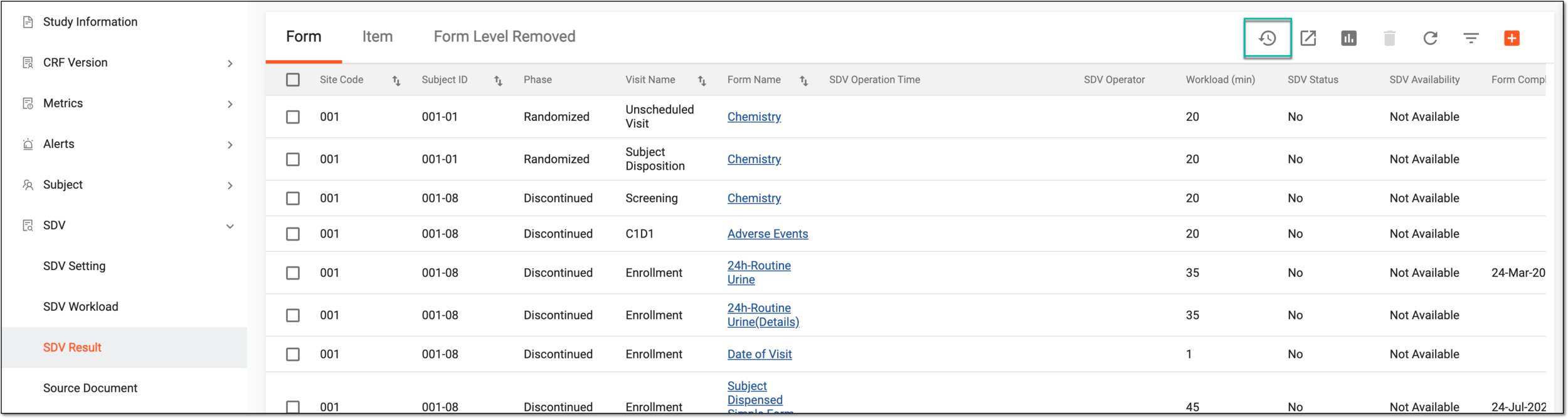 Figure 1. Accessing export history
-
In the Export History dialog that appears, view the complete record of previously generated files and next to the one(s) you want to download, select Export
.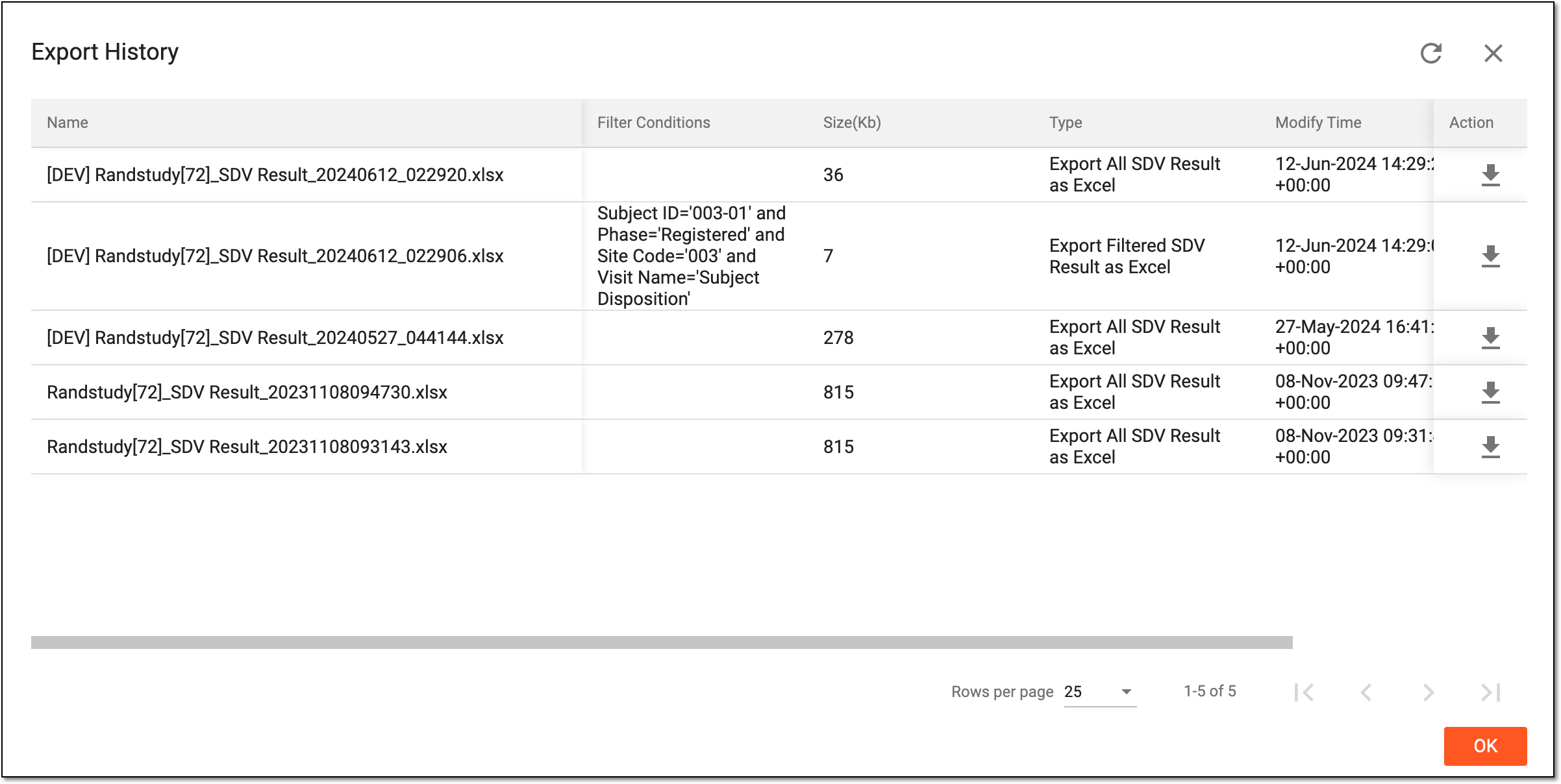 Figure 2. Downloading file from export history
Tip
For your convenience, if any report is exported as filtered data, you can find the applied sorting details under the Filter Conditions column.
Once downloaded and saved, the SDV result report is available on your computer. Select  to close the dialog.