Export dispatch file list
The IWRS application supports the integration with SFTP file servers to enable the automation of data transfer from the file server to IWRS. This automation minimizes manual effort, reduces the risk of human error, and simplifies the overall data management processes within the application.
All files received from the SFTP server are in the CSV format and stored on the Dispatch File page under the INTEGRATION tab. You can export the list of dispatch files to your computer in the XLSX format and use this data offline.
-
In the IWRS application header, select the INTEGRATION tab.
-
In the left pane of the page that opens, select Dispatch File.
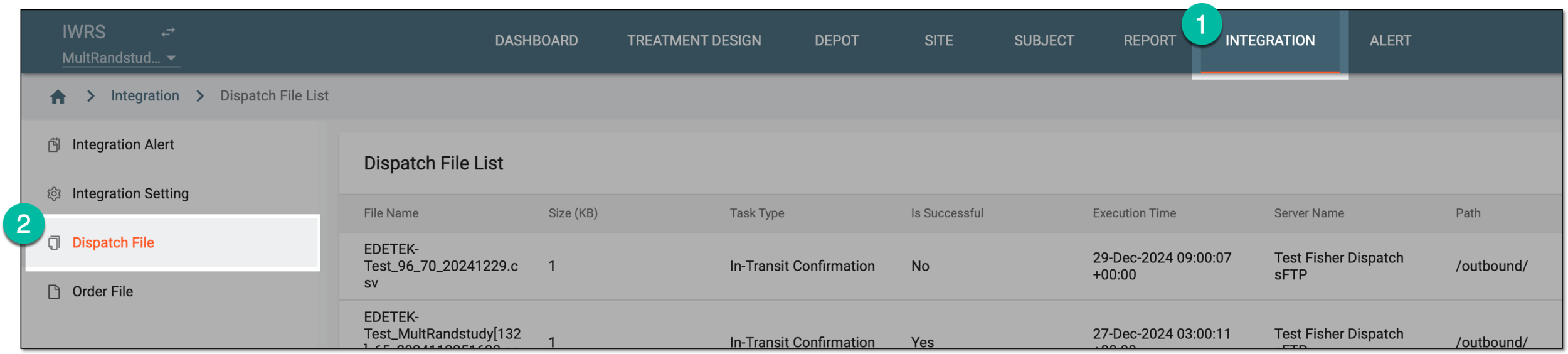 Figure 1. Accessing dispatch file list
-
On the page that opens, from the workspace toolbar, select Export
 . Once selected, the widget appears displaying your download
progress.
. Once selected, the widget appears displaying your download
progress.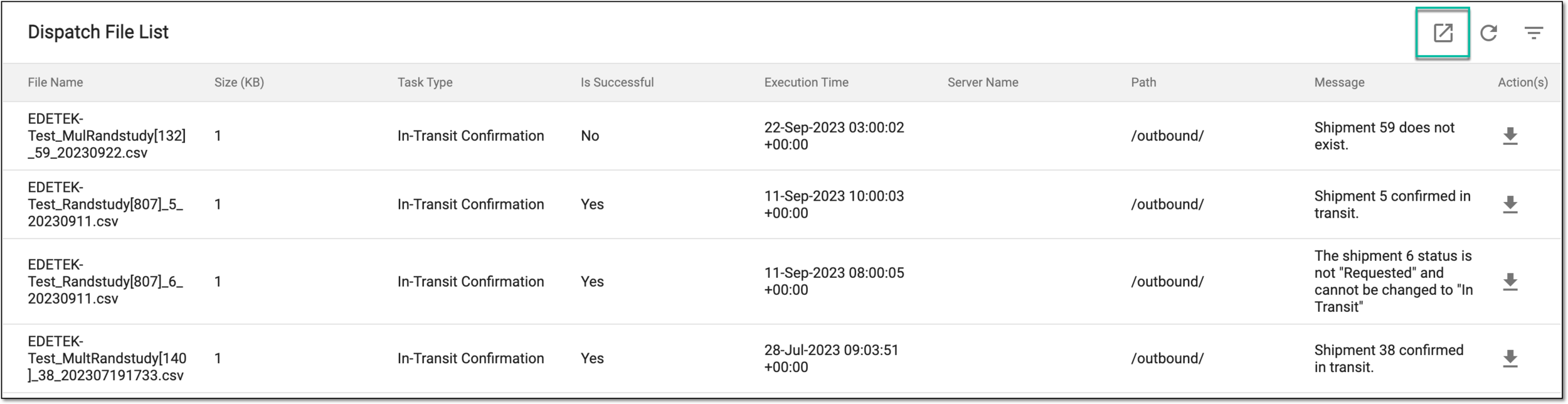 Figure 2. Exporting dispatch file list
-
Select the downloads widget to open the My Downloads dialog.
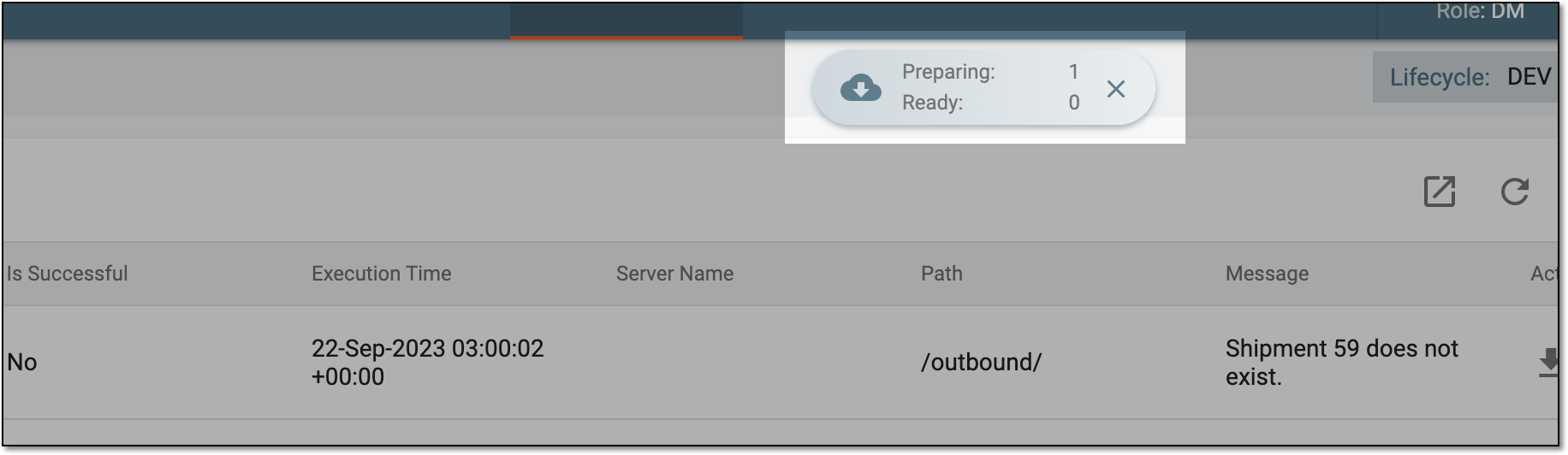 Figure 3. Downloads widget for dispatch file list export
-
In the My Downloads dialog that opens, you can find the following tabs:
-
Preparing: under this tab, you can find all the files whose export is in progress, and they are not yet ready for download.
-
Download is Ready: under this tab, you can find all the files whose export is complete, and they can be downloaded to your computer.
-
-
Under the Download is Ready tab, next to the file that you want to download, select
 .
.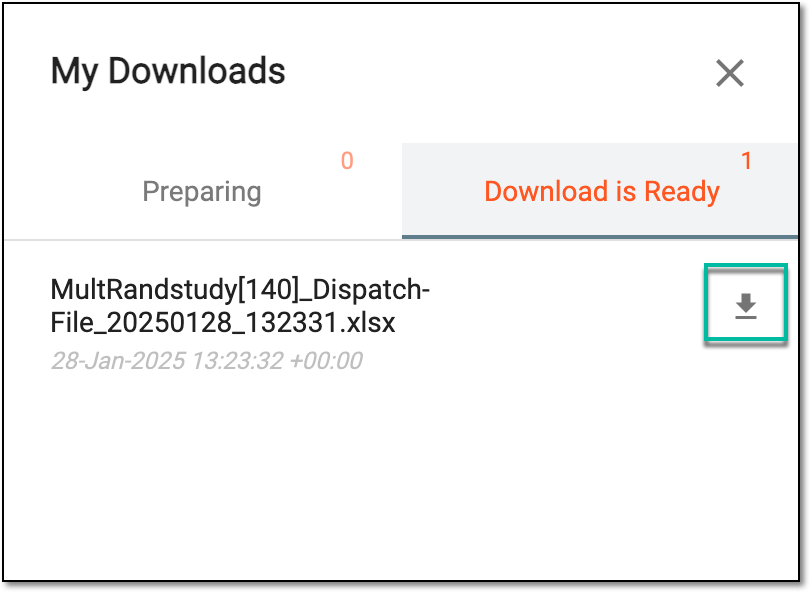 Figure 4. Downloading exported dispatch file list
Once downloaded and saved, the dispatch file list is available as an XLSX file on your computer.