View user login logs report
The User Login Logs report assists the administrator in analyzing the last login date of a specific user for each application, such as IWRS, EDC, and so on. It is used to observe whether a user is working or using the eClinical system or not.
-
In the ADMIN application header, select the REPORT tab.
-
On the page that opens, in the left pane, select User Login Logs.
-
In the User Login Logs table that appears, view the details of login activities as explained in the following table.
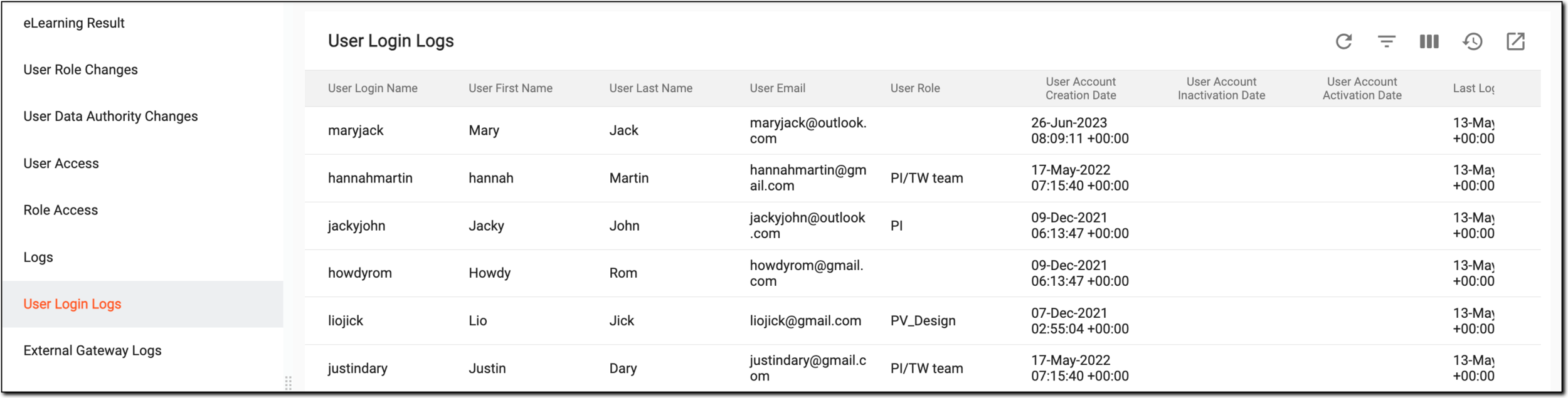 Figure 1. Viewing user login logs report
Element
Details
User Login Name
Represents the name with which the user logged in to the system.
User First Name
Represents the first name of the user who logged in to the system.
User Last Name
Represents the last name of the user who logged in to the system.
User Email
Represents the email address of the user who logged in to the system.
User Role
Represents the role of the user who logged in to the system.
User Account Creation Date
Represents the date on which the user's account was created.
User Account Inactivation Date
Represents the date on which the user's account has been deactivated. This field will remain blank if the account has not been deactivated.
User Account Activation Date
Represents the date on which the user's account has been activated.
Last Login Date
Represents the date when the user last logged in to the system.
Last Login Time
Represents the time when the user last logged in to the system.
Login Application
Represents the application the user accessed upon logging in to the system.
Lifecycle
Represents the lifecycle through which the user views details from the system, such as dev.
Sponsor
Represents the name of the sponsor the user used to access the application after logging in to the system.
Study
Represents the name of the study and the user used from the selected sponsor to access the application, after logging in to the system.
You have viewed the User Login Logs report. You can export and download it to work with it offline.