Export report data
In the ADMIN application, you can export each of the reports available to you and work with their data offline or share them with third parties that do not have access to the system.
To export a report
-
In the ADMIN application header, select the REPORT tab.
-
On the page that opens, in the left pane, select the report you want to export.
-
In the report table that appears, optionally use Filter
 or Refresh
  to have the targeted and most recent data in the exported file.
 -
From the workspace toolbar, select Export
 .
.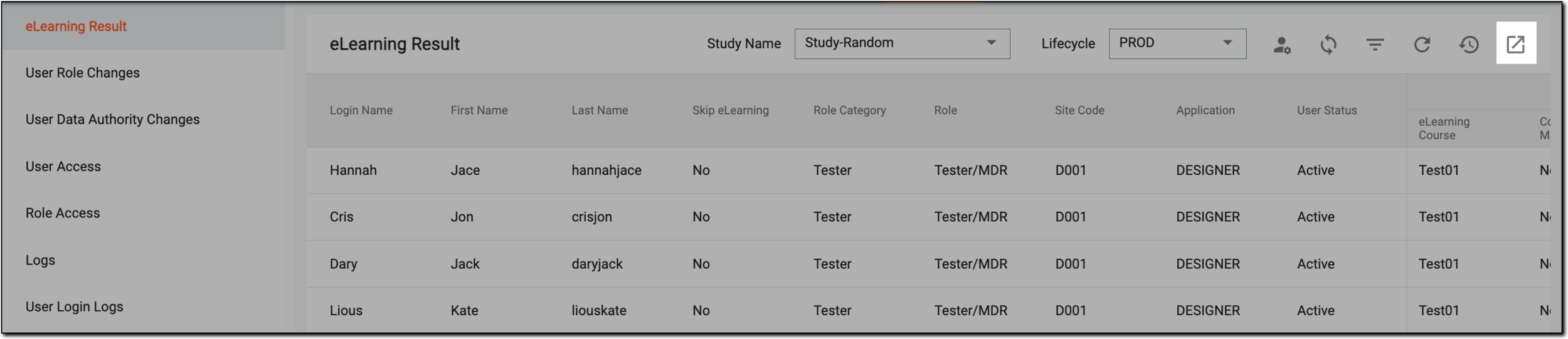 Figure 1. Exporting report
-
Select the download widget to view the download management dialog.
 Figure 2. Selecting download widget
-
In the My Downloads dialog that appears, next to the exported report you want to download to your computer, select
 .
.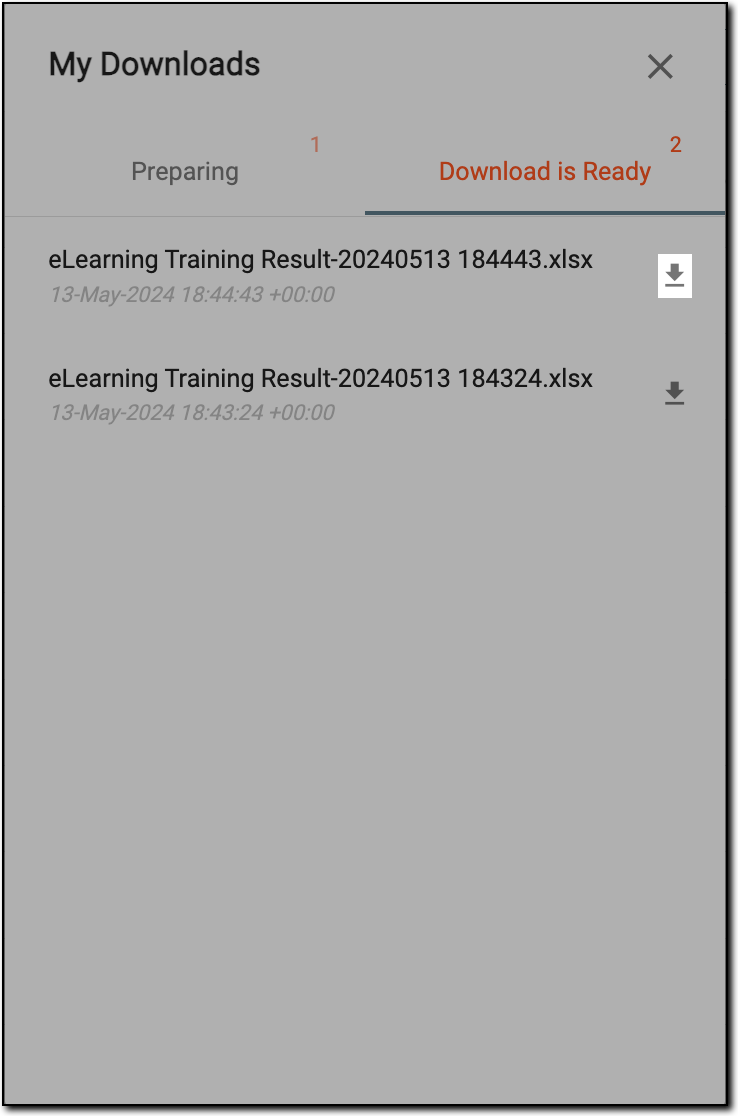 Figure 3. Downloading file
The report is exported and is available on your computer.