View user access report
The User Access report of the ADMIN application provides the list of access permissions provided to users in a particular study. It mainly displays the list of all the sites and depots to which a user has access in different lifecycles.
-
In the ADMIN application header, select the REPORT tab.
-
On the page that opens, in the left pane, select User Access.
-
On the page that opens, from the toolbar, select the study whose User Access report you want to view.
-
In the User Access table that opens, view the details of all the sites and depots to which the user has access, as explained in the following table.
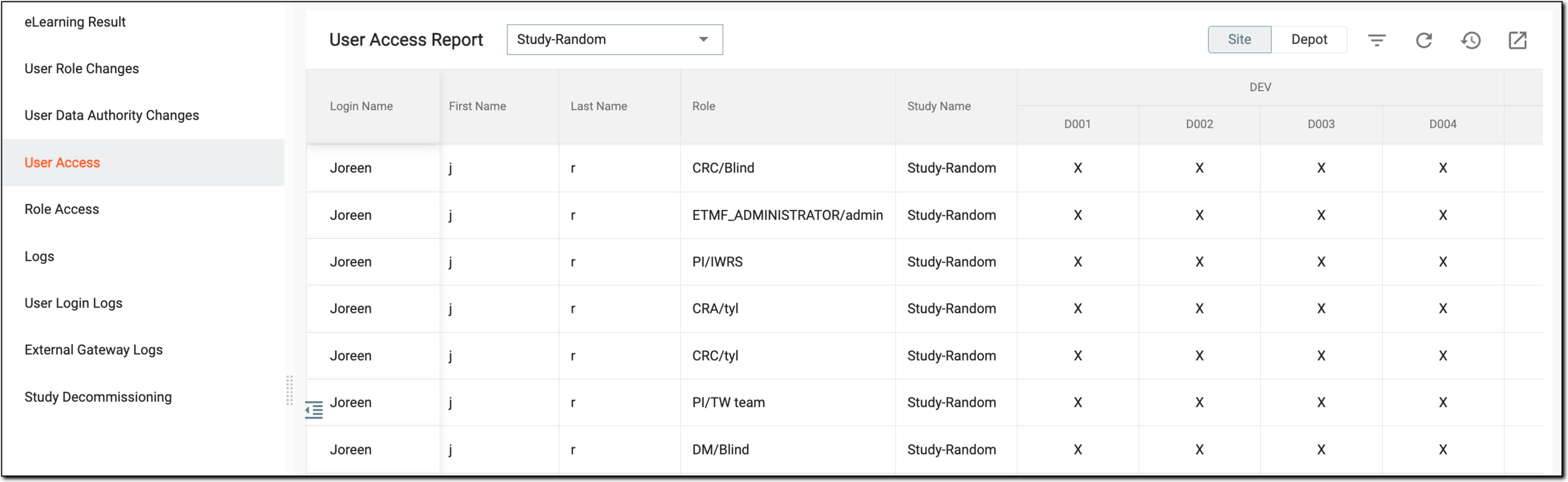 Figure 1. Viewing user access report
Column
Details
Login Name
Represents the name of the user who logs in to the system.
First Name
Represents the first name of the user.
Last Name
Represents the last name of the user.
Role
Represents the role granted to the user in the eClinical system.
Study Name
Represents the name of the study to which the user has access in the eClinical system.
DEV
Represents the sites or depots to which the user has access in the dev lifecycle.
For instance, if the user has access to D002 in the DEV environment, then
 is
displayed next to such a user under DEV > D002 column.
is
displayed next to such a user under DEV > D002 column.PROD
Represents the sites and depots to which the user has access in the PROD lifecycle.
UAT
Represents the sites and depots to which the user has access in the UAT lifecycle.
You have viewed the details of the user access report. You can also export and download it to work with it offline.