View role access report
A role is a position that has access to certain permissions and responsibilities. The users are entitled to these roles depending upon the functions they perform.
From the Role Access report, you can analyze all the permits granted to each role.
For instance, you can determine whether the DM role of the IWRS application has access to edit the single sign-on settings in ADMIN.
-
In the ADMIN application header, select the REPORT tab.
-
On the page that opens, in the left pane, select Role Access.
-
In the Role Access Report table that appears, view the permission details granted to the user roles as explained in the following table.
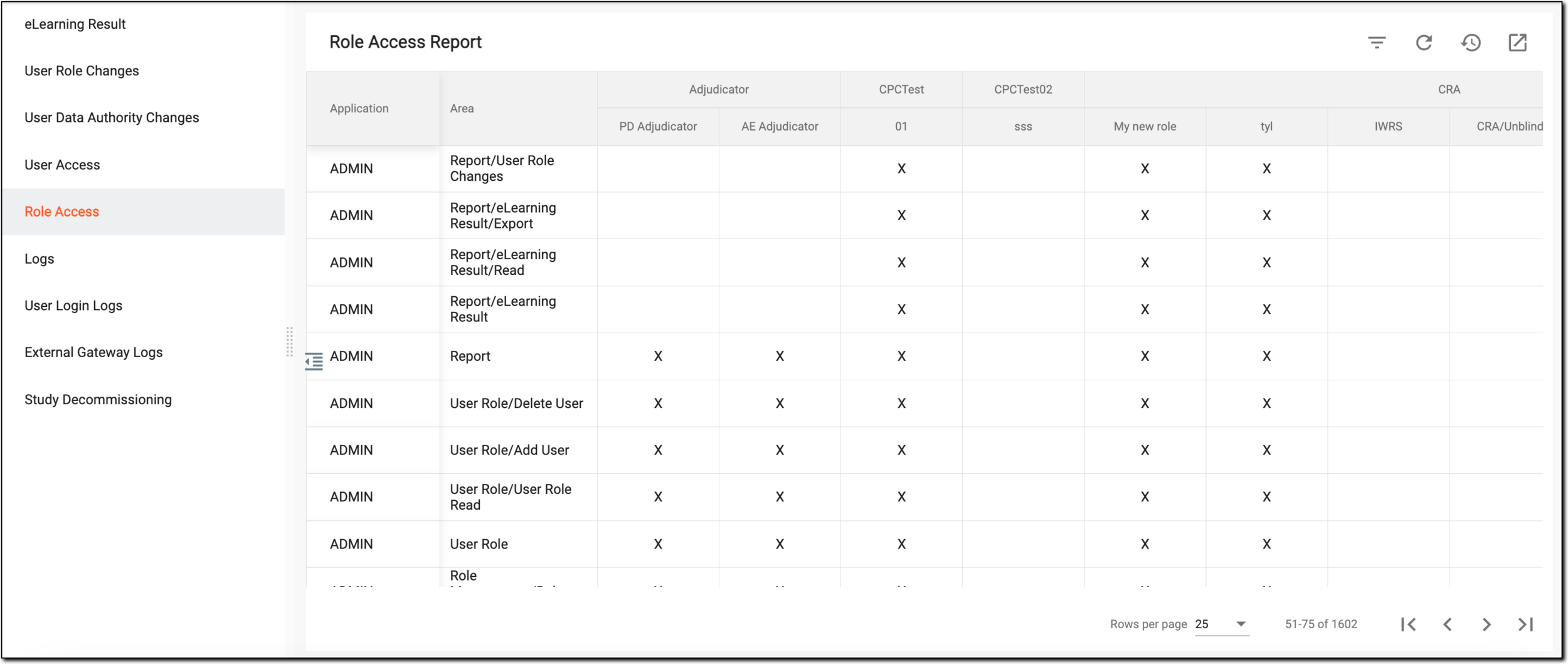 Figure 1. Viewing role access report
Column
Details
Application
Represents the application to which the user role has access, for instance, ADMIN, EDC, and so on.
Area
Represents the functionalities to which the user role has access within the application.
[Roles]
From the roles section, you can analyze the various roles that have access to a particular functionality of an application. There can be as many such columns as there are roles configured.
For instance, if the PD Ajudicator role has access to the reports of the ADMIN application, then
 appears in the field under
PD Ajudicator next to Report of the ADMIN application.
appears in the field under
PD Ajudicator next to Report of the ADMIN application.eCOA
Represents whether the eCOA roles have access to a certain area of an application, with a cross sign appearing if the access is permitted.
You have viewed Role Access Report. You can export it to work with it offline.