Reset password
For security reasons or if you forgot your password, you can reset your password from the login screen.
-
In the address bar of your browser, enter the URL address of the eClinical platform.
-
In the Login form that opens, select the Reset Password link.
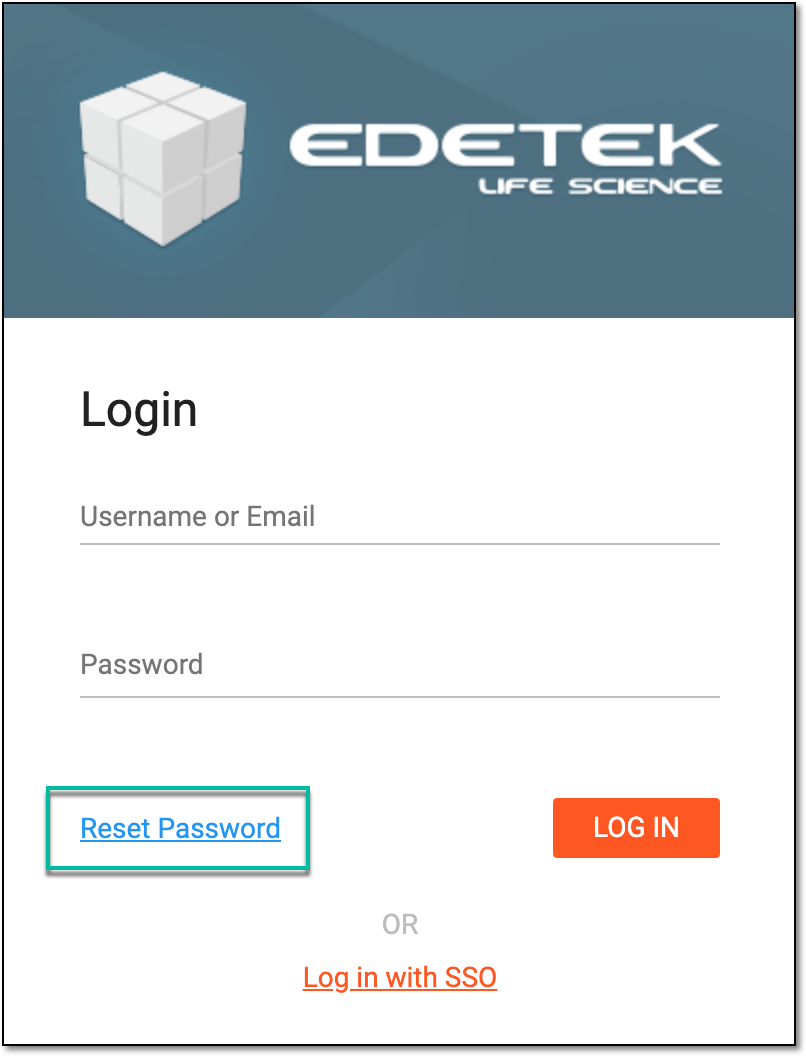 Figure 1. Selecting to log in with SSO
-
In the Reset Password form that opens, enter the username or email for which your eClinical access is configured. Then select
 to trigger the email with the password reset instructions.
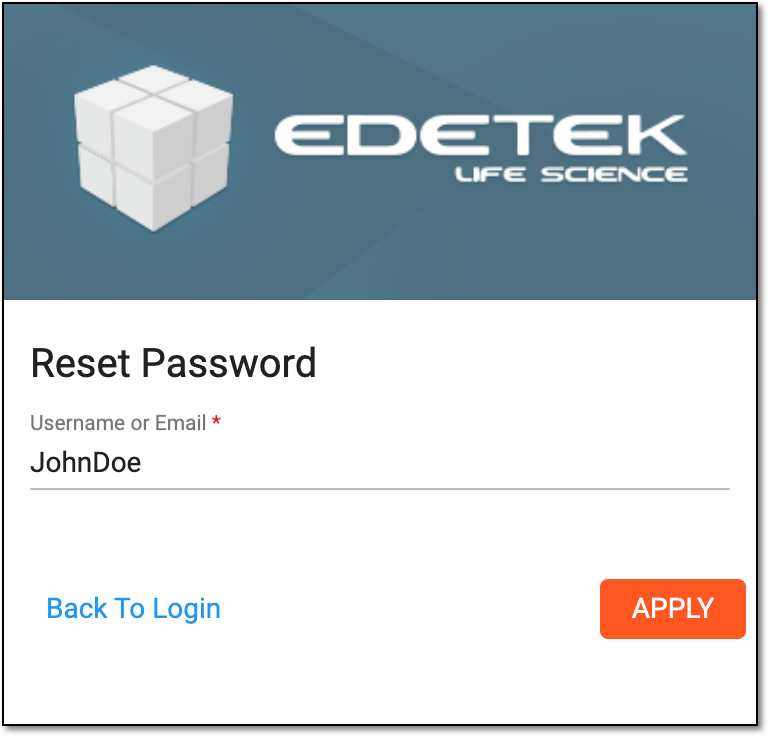 Figure 2. Resetting password
-
In the received password reset email select the link to access the password update screen.
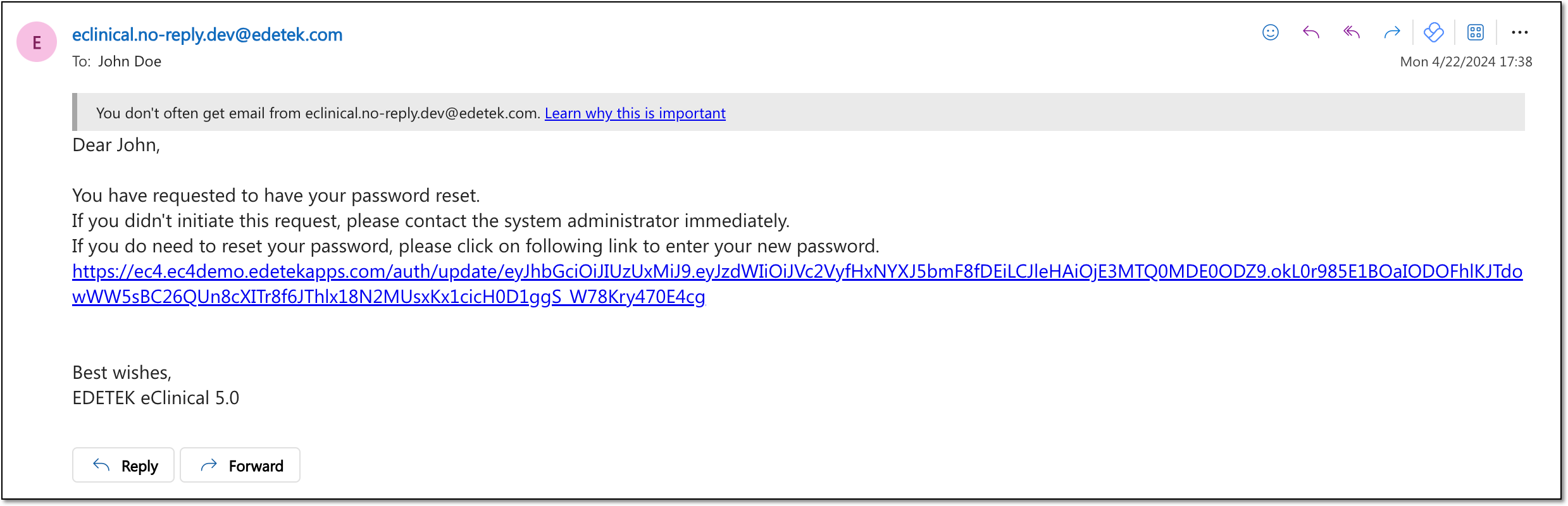 Figure 3. Following email link
-
In the Update Password form that opens, update the password as explained in the following table.
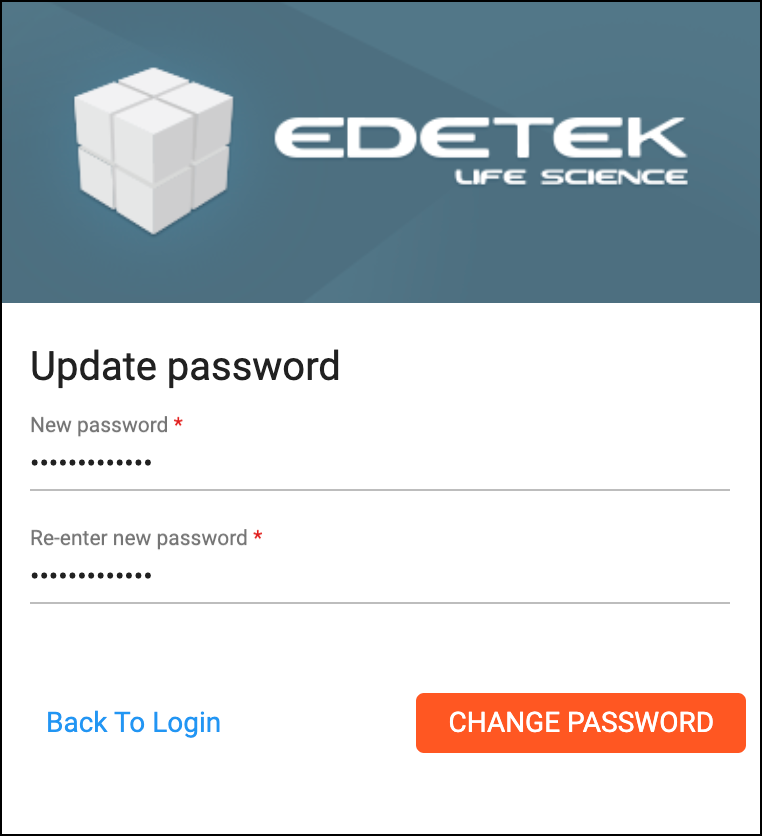 Figure 4. Updating password
Tip
In the following table, mandatory elements are marked with an asterisk (*).
Element
Details
New Password*
Enter your new password that satisfies all the system requirements in terms of length, used characters, and so on.
The new password also cannot match your previously used passwords.
Re-enter New Password*
Repeat your new password to match the above.
CHANGE PASSWORD
Select
 to implement the changes.
Back To Login
Select
 to discard the changes without saving and go to the login screen.
Once the password is changed, you can log in to eClinical with your new credentials.