Change password
For security reasons, it is recommended to change your password regularly.
-
In the header of the application you work with, select
 .
. -
From the expanded menu, select Change Password
 .
.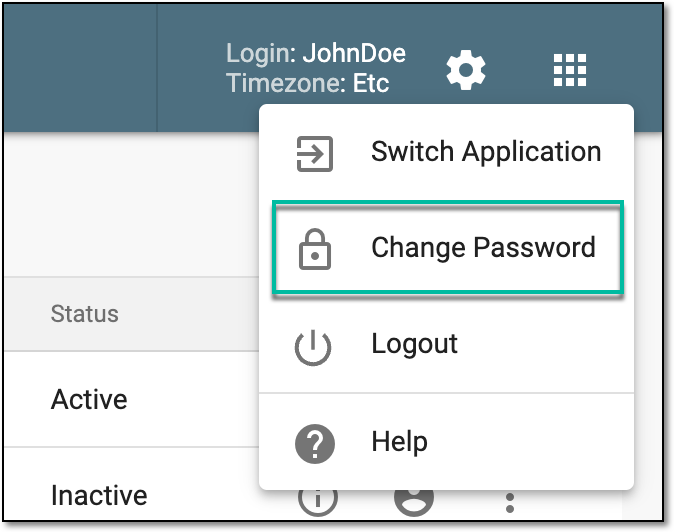 Figure 1. Accessing password change
-
In the Change Password dialog, update the fields as explained in the following table.
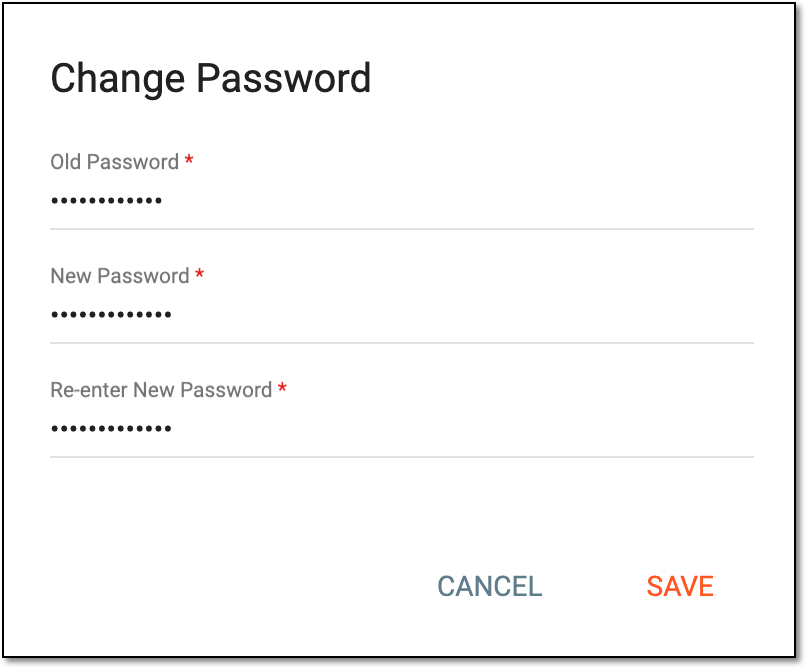 Figure 2. Changing password
Tip
In the following table, mandatory elements are marked with an asterisk (*).
Element
Details
Old Password*
Enter your old password that you want to change.
New Password*
Enter your new password that satisfies all the system requirements in terms of length, used characters, and so on.
The new password also cannot match your previously used passwords.
Re-enter New Password*
Repeat your new password to match the above.
SAVE
Select
 to implement the changes.
CANCEL
Select
 to discard the changes without saving.
Once saved, the password is updated.