Log in to eClinical
To access any eClinical product, the system requires your authorization. If you are a local user, you can log in to the platform with your credentials—username and password.
The credentials are configured for you by the EDETEK administration considering the sponsor, study, and environment that you are authorized to access—development (DEV), testing (UAT), or production (PROD).
Important
If you are a new user and need your credentials configured, contact the EDETEK administrator.
-
In the address bar of your browser, enter the URL address of the eClinical platform.
-
In the Login form that opens, enter your credentials as explained in the following table.
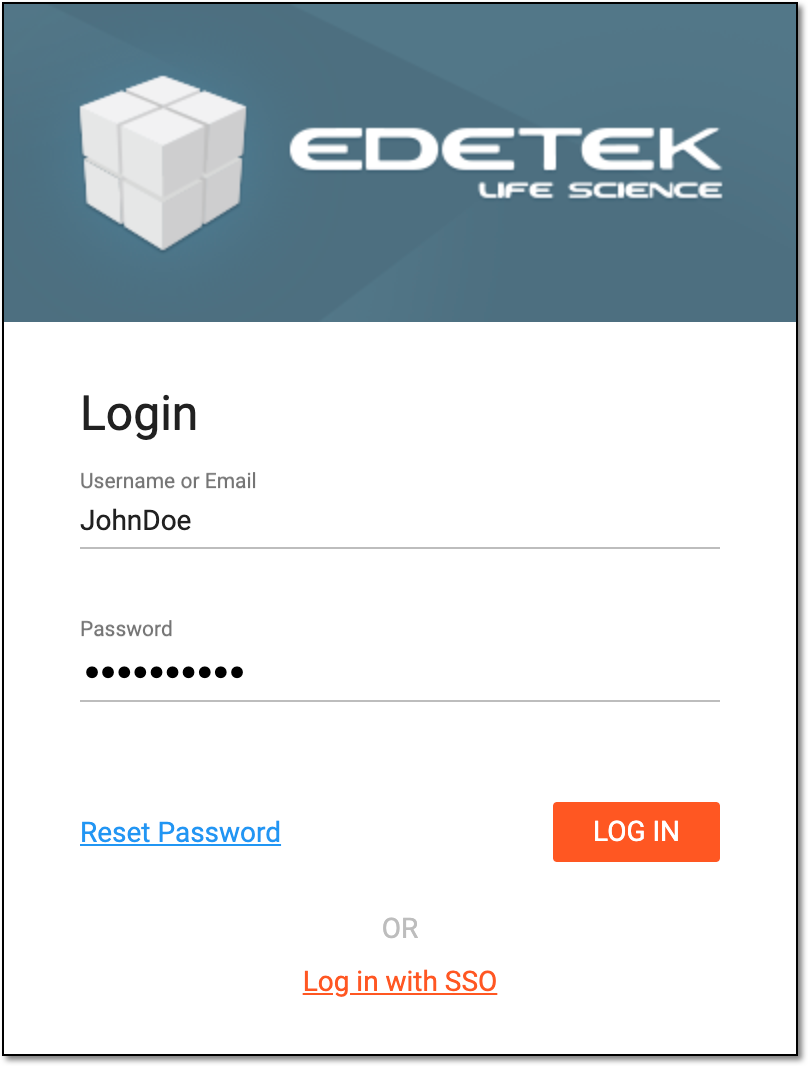 Figure 1. Logging in to eClinical
Element
Details
Username or Email
Enter the username or email address for which your eClinical user account is configured.
Password
Enter your password for the eClinical system.
LOG IN
Select
 to access the application selection screen.
Reset Password
Select this link to reset your password.
Log in with SSO
Select this link to go the the SSO login screen.
-
On the application selection page that opens, you can select the application to work with. There can be three variations of application access:
-
Administration-level application: this application controls all the sponsors and studies configured for them. To access, select the name of the application and then select
 .
.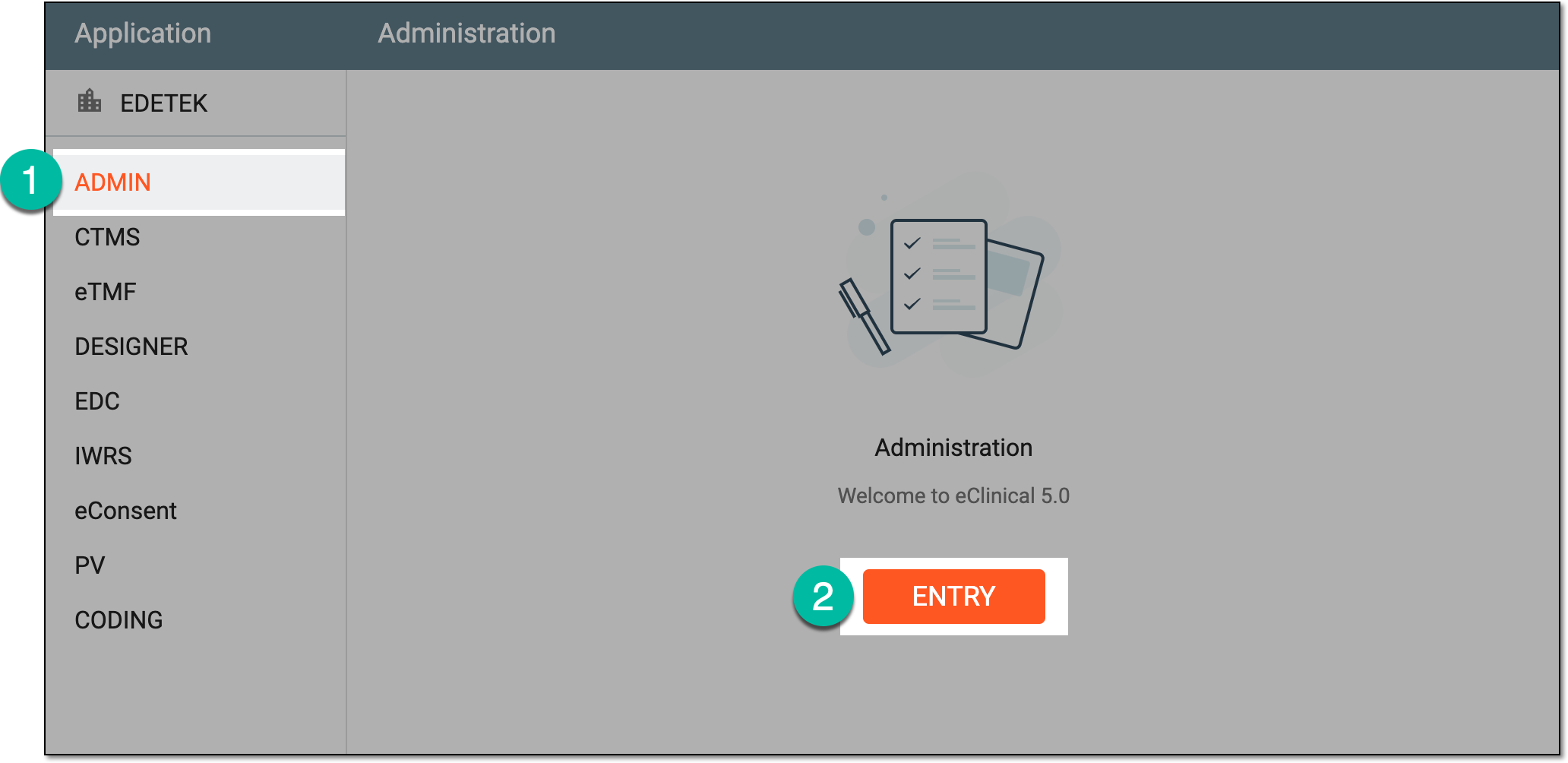 Figure 2. Accessing admin-level application
-
Sponsor-level application: this application controls all the studies configured for the sponsor. To access, do the following:
-
Select the name of the application.
-
Next to the sponsor of your interest, select the environment that you want to enter—DEV, UAT, or PROD.
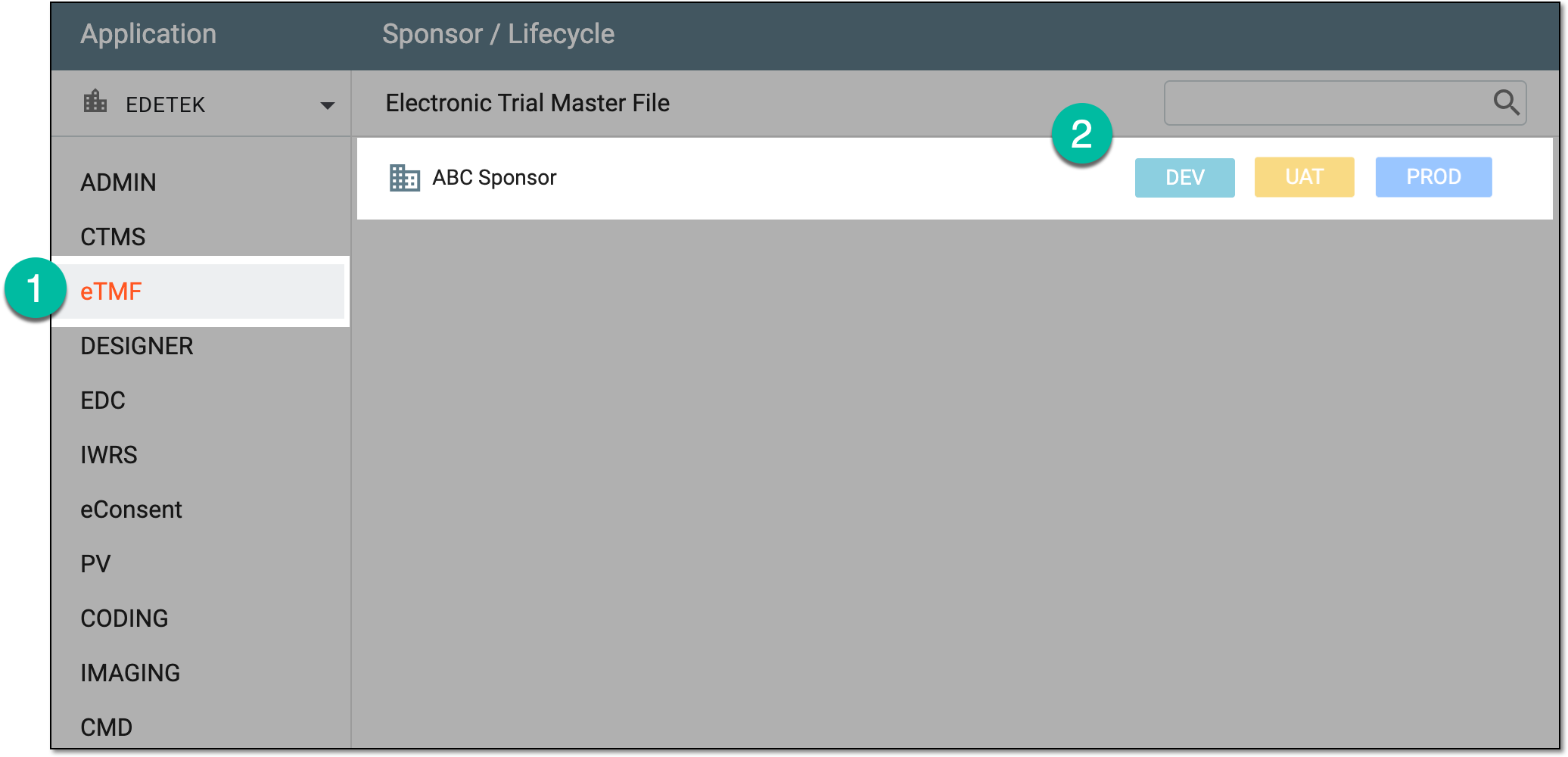 Figure 3. Accessing sponsor-level application
-
-
Study-level application: this application controls all the functionality of a specific study configured for the sponsor. To access, do the following:
-
Select the name of the application.
-
Expand the sponsor to which the needed study belongs.
-
Next to the study of your interest, select the environment that you want to enter—DEV, UAT, or PROD.
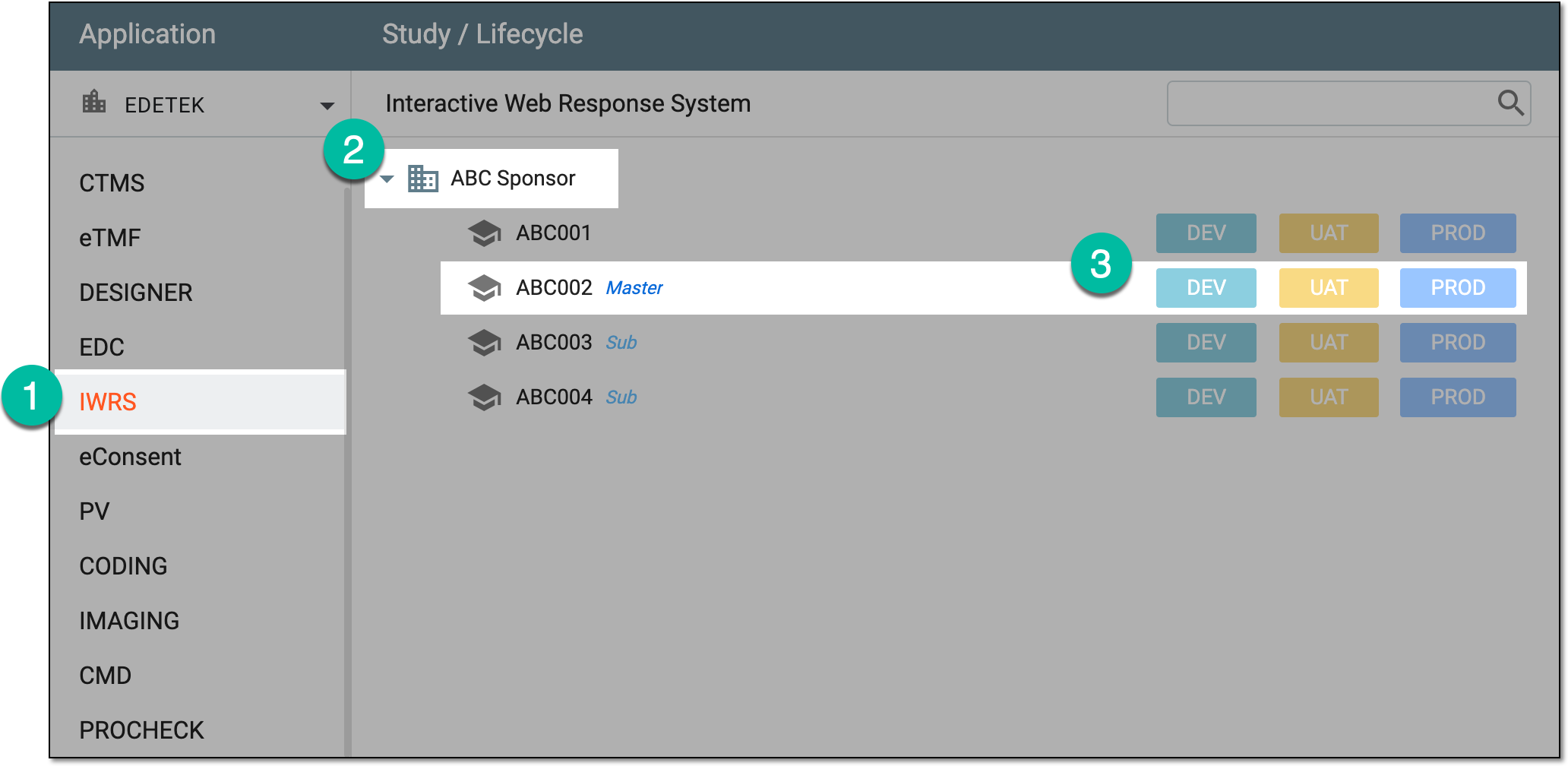 Figure 4. Accessing study-level application
-
-
Once the selection is made, the respective application opens.