Log in with SSO
To access any eClinical product, the system requires your authorization. If you are an SSO—single sign-on—user, you can log in to the platform with your username or email to redirect to the SSO provider's login website.
-
In the address bar of your browser, enter the URL address of the eClinical platform.
-
In the Login form that opens, select the Log in with SSO link.
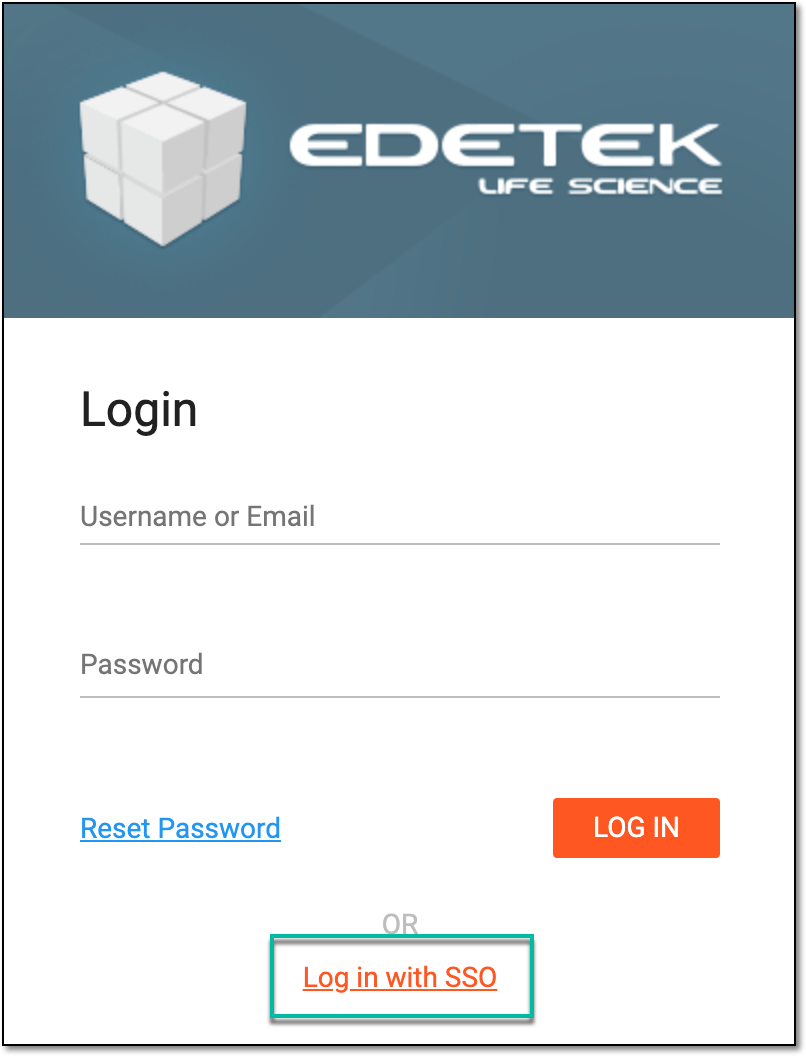 Figure 1. Selecting to log in with SSO
-
In the Log in with SSO dialog that opens, enter the username or email for which the SSO access is configured. Then select
 .
.Important
If you are not logged in to your SSO provider, the system redirects you to the SSO provider's login website. Complete your authentication to get redirected to the eClinical application selection page.
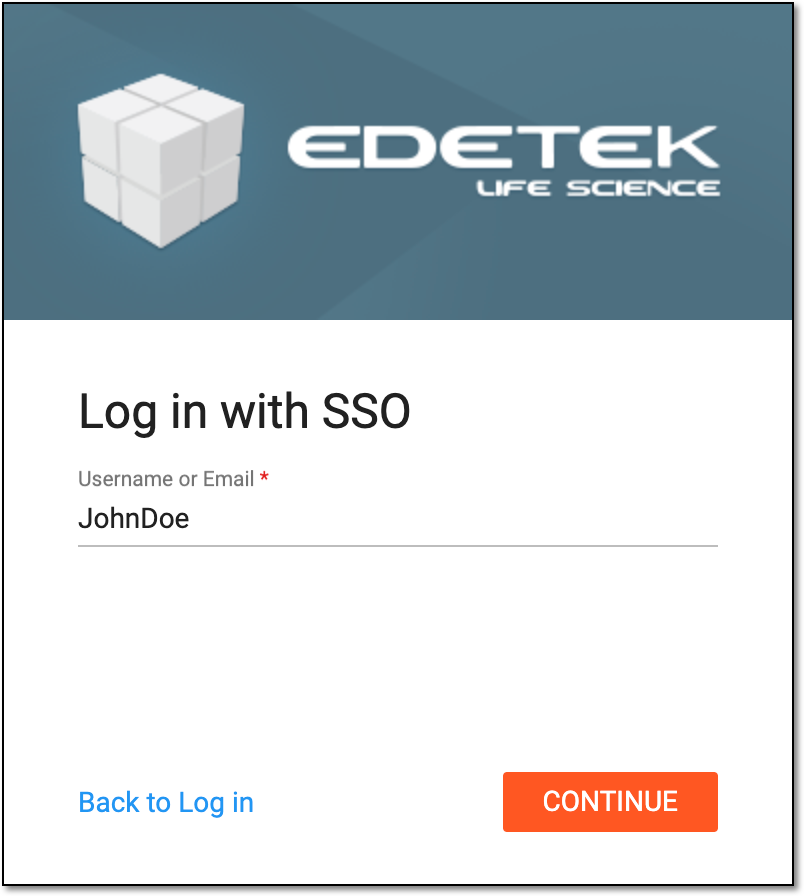 Figure 2. Selecting to log in with SSO
-
On the application selection page that opens, you can select the application to work with. There can be three variations of application access:
-
Administration-level application: this application controls all the sponsors and studies configured for them. To access, select the name of the application and then select
 .
.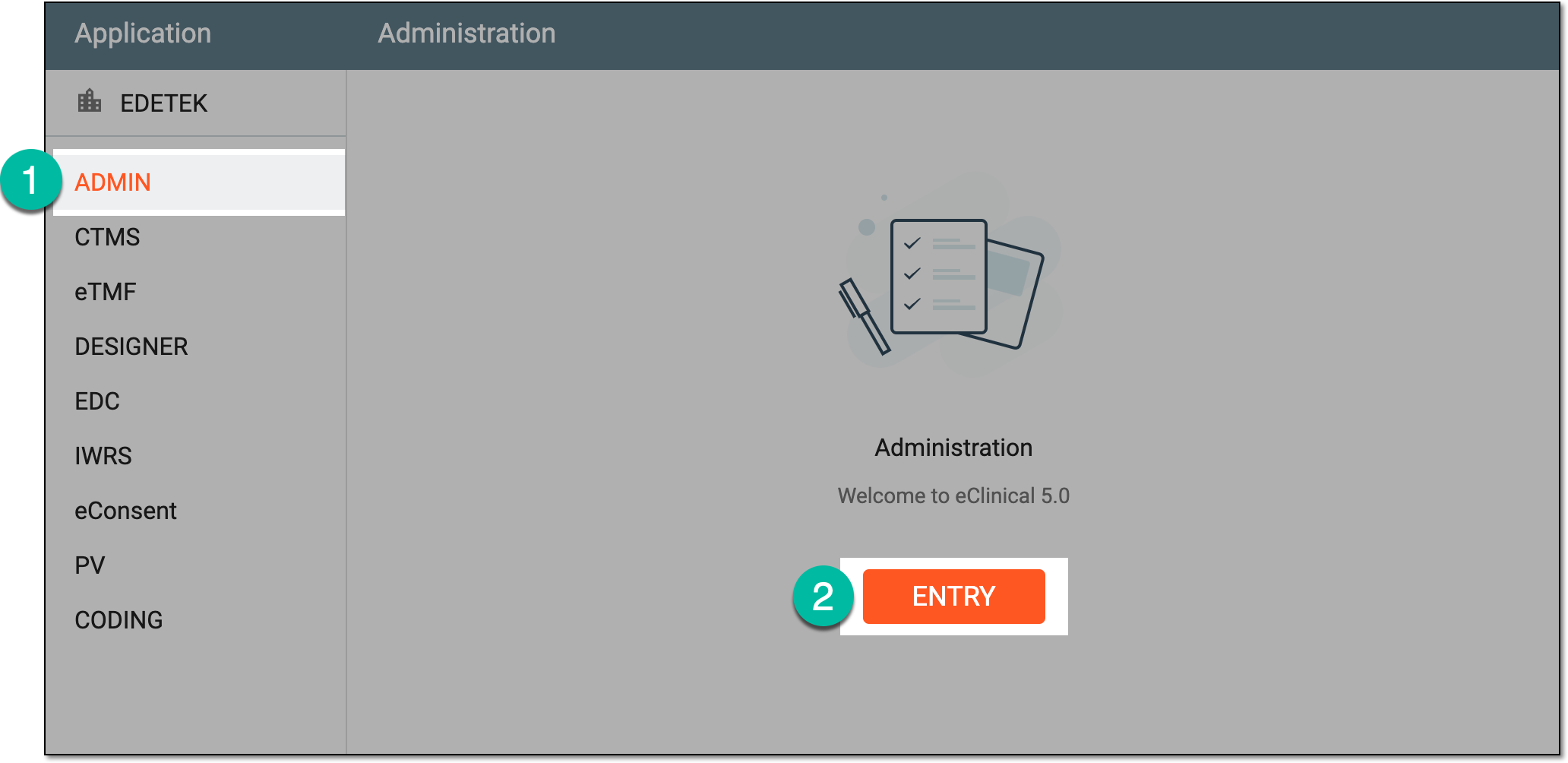 Figure 3. Accessing admin-level application
-
Sponsor-level application: this application controls all the studies configured for the sponsor. To access, do the following:
-
Select the name of the application.
-
Next to the sponsor of your interest, select the environment that you want to access—DEV, UAT, or PROD.
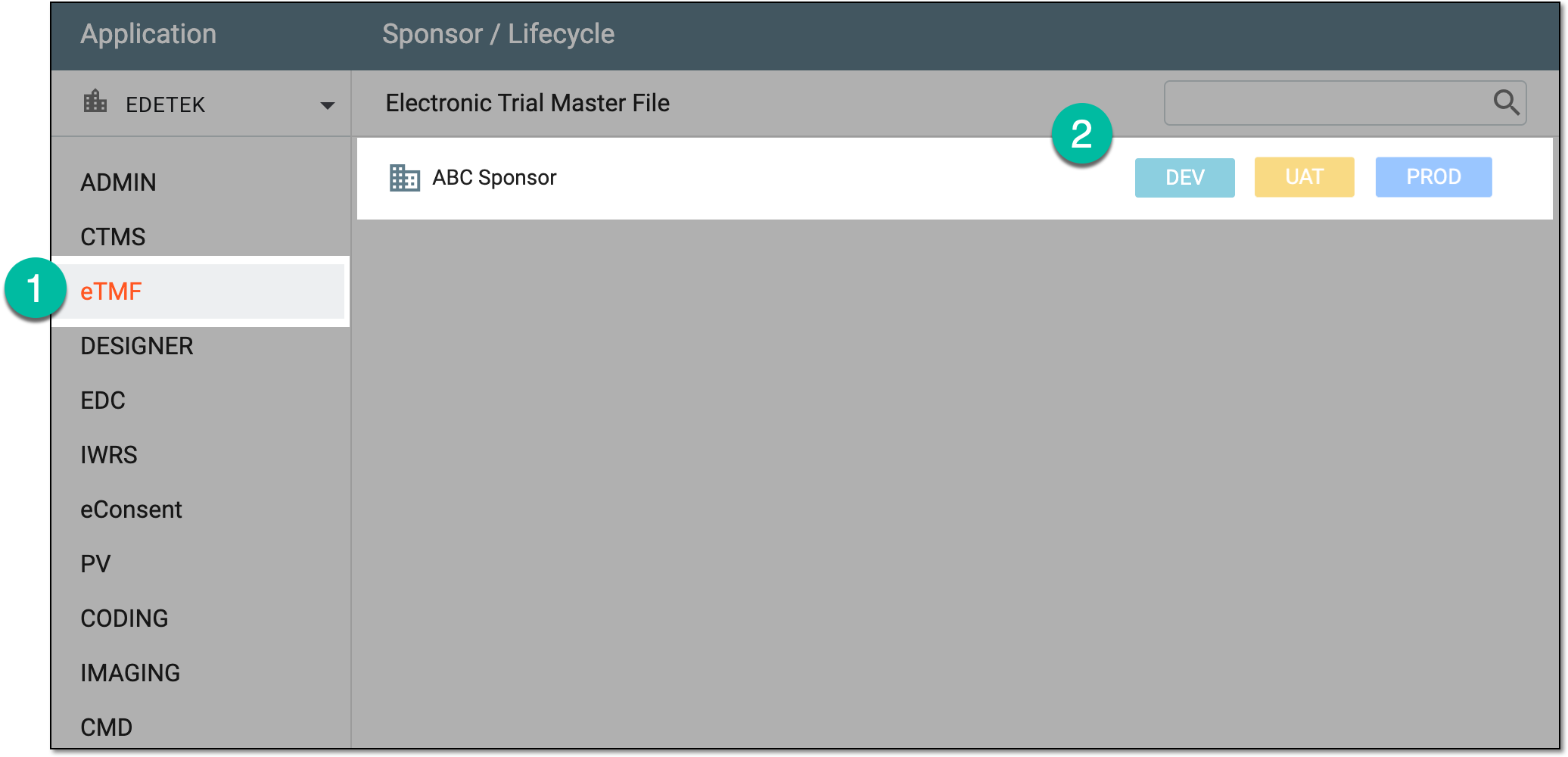 Figure 4. Accessing sponsor-level application
-
-
Study-level application: this application controls all the functionality of a specific study configured for the sponsor. To access, do the following:
-
Select the name of the application.
-
Expand the sponsor to which the needed study belongs.
-
Next to the study of your interest, select the environment that you want to enter—DEV, UAT, or PROD.
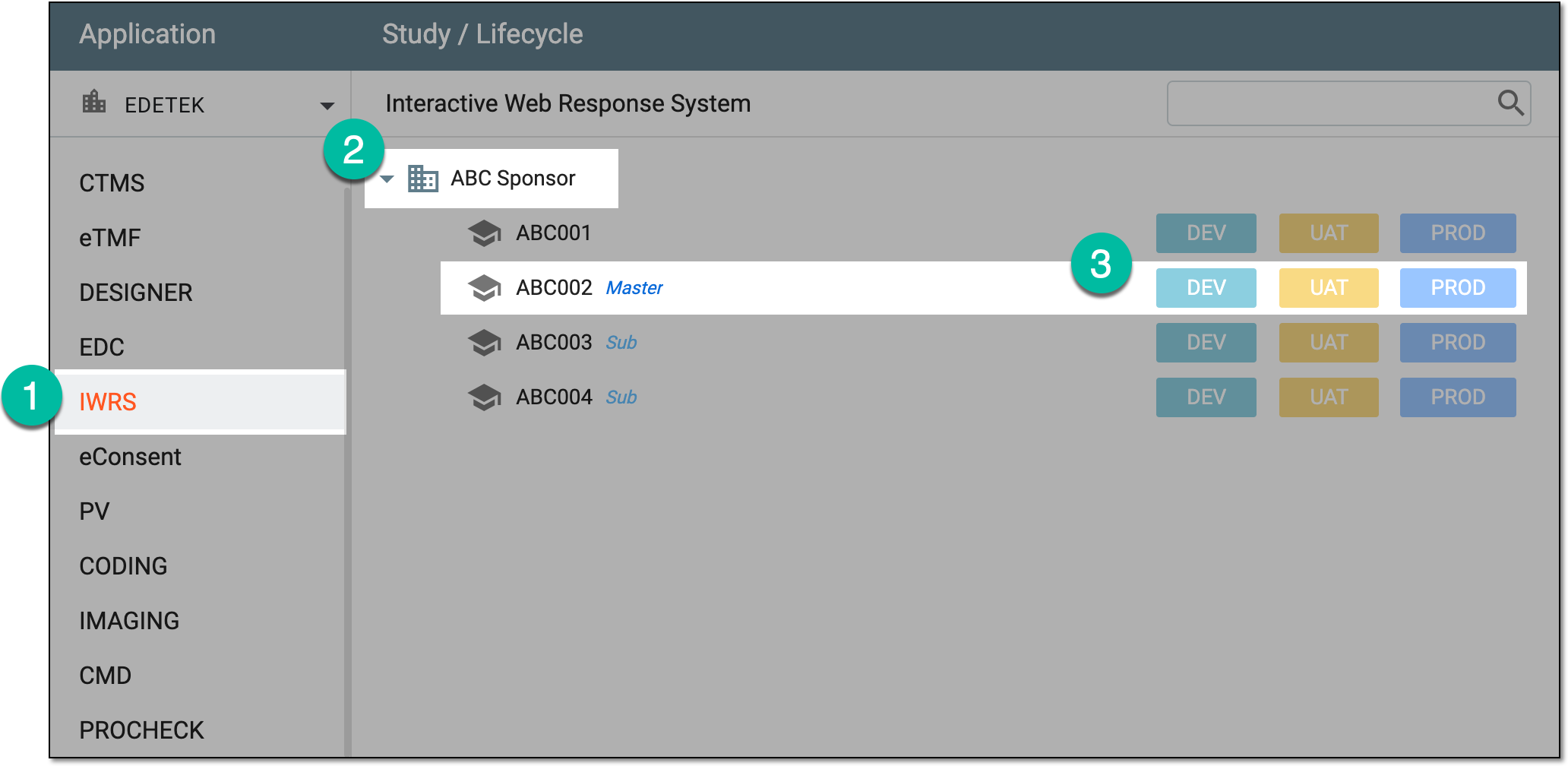 Figure 5. Accessing study-level application
-
-
Once the selection is made, the respective application opens.