View charts in ascending/descending order
In IWRS, under the DASHBOARD > Shipment tab, you can view various bar and pie charts related to the shipment statistics of your study. Using these charts, you can analyze shipment-related data and processes.
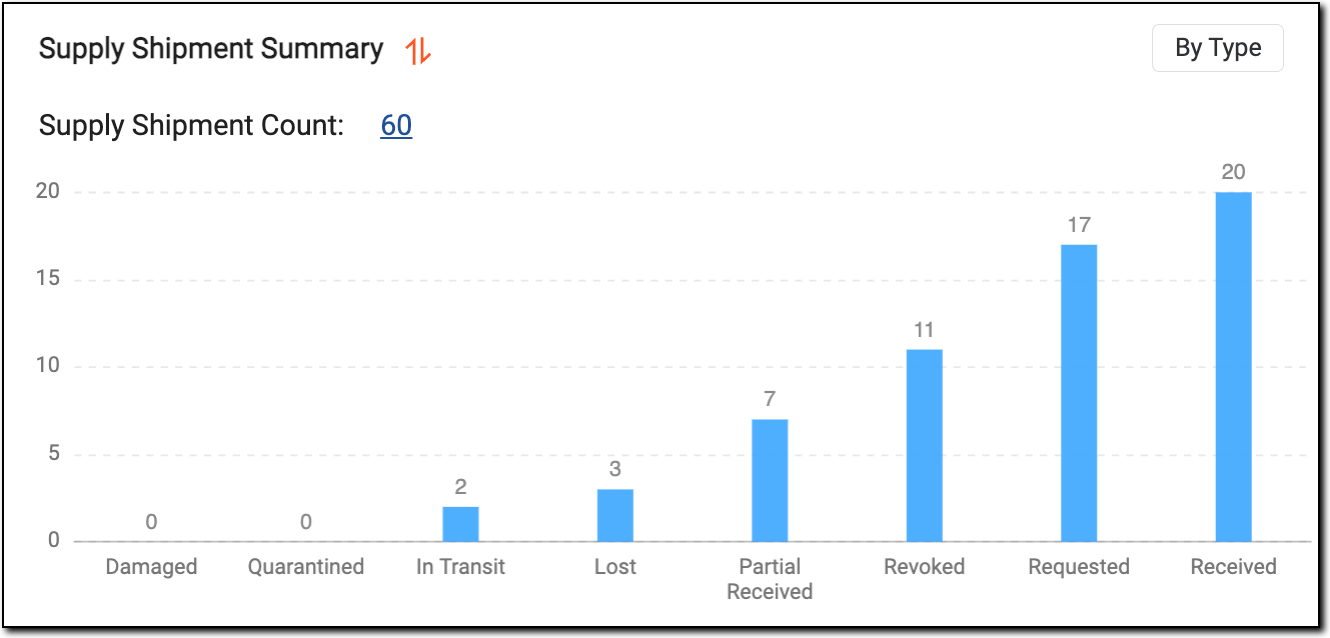
For convenience, you can select to view the chart data in ascending or descending order for the supply shipment summary and return shipment summary.
-
In the IWRS application header, select the DASHBOARD tab.
-
On the page that opens, select the Shipment tab and locate the Supply Shipment Summary or Return Shipment Summary chart.
-
Next to the chart title, select one of the following options:
-
Ascending: select
 to view the details of the chart in order from the smallest quantity to the greatest quantity.
 -
Descending: select
 to view the details of the chart in order from the greatest quantity to the
smallest quantity.
to view the details of the chart in order from the greatest quantity to the
smallest quantity. -
Unsort: select
to view the details of the chart in default order.
-
You have arranged your chart data in the preferred order.
 |