Activate/Inactivate user
From the User Management page, you can activate and inactivate the user account on a specific sponsor request or for another reason. By inactivating the user, you restrict their access to the system until activated again.
-
In the ADMIN application header, select the USER tab.
-
In the User Management table that appears, next to the needed user, select More
 and
choose either of the following:
and
choose either of the following:-
Activate
 : select this option to activate the currently inactive user and reinstate their ability to log in to the
eClinical system and use the functionalities as per their user access configurations.
: select this option to activate the currently inactive user and reinstate their ability to log in to the
eClinical system and use the functionalities as per their user access configurations. -
Inactivate
 : select this option to inactivate the currently active user and restrict their ability to log in to the
eClinical system.
: select this option to inactivate the currently active user and restrict their ability to log in to the
eClinical system.
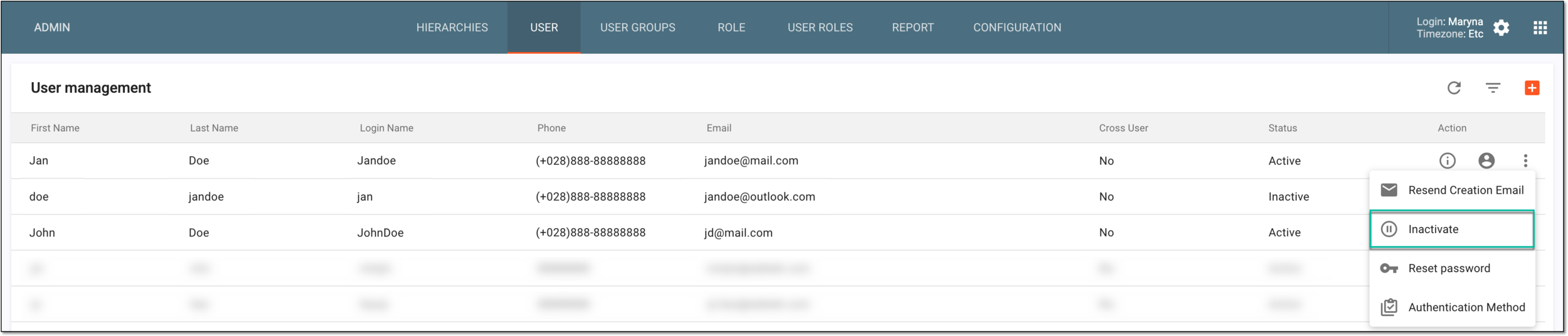 Figure 1. Inactivating user account
-
Once the respective option is selected, the user is either activated or inactivated.