Edit codelist
By adding codelists to your study in the SD app, you predefine a database of such lists for the CRF design, where you can reuse them. You can update the details of any existing codelist to ensure that they are named correctly to meet the specific demands of the study or sponsor requirements.
Important
Before initiating the following procedure, ensure to select the latest unlocked CRF version from the toolbar of the CRF DESIGN tab, otherwise, you cannot edit codelists in your study. The CRF version remains unlocked until it is submitted to EDC for data entry.
-
In the Study Designer application header, select the CODELIST tab.
 Figure 1. Accessing codelist management
-
In the Code List Setting table that appears, next to the codelist you want to update, select More
 > Edit
  .
. Figure 2. Selecting to edit codelist
-
In the Edit dialog that appears, update the details as needed. The details are identical to those explained in the table of the Add codelist manually section.
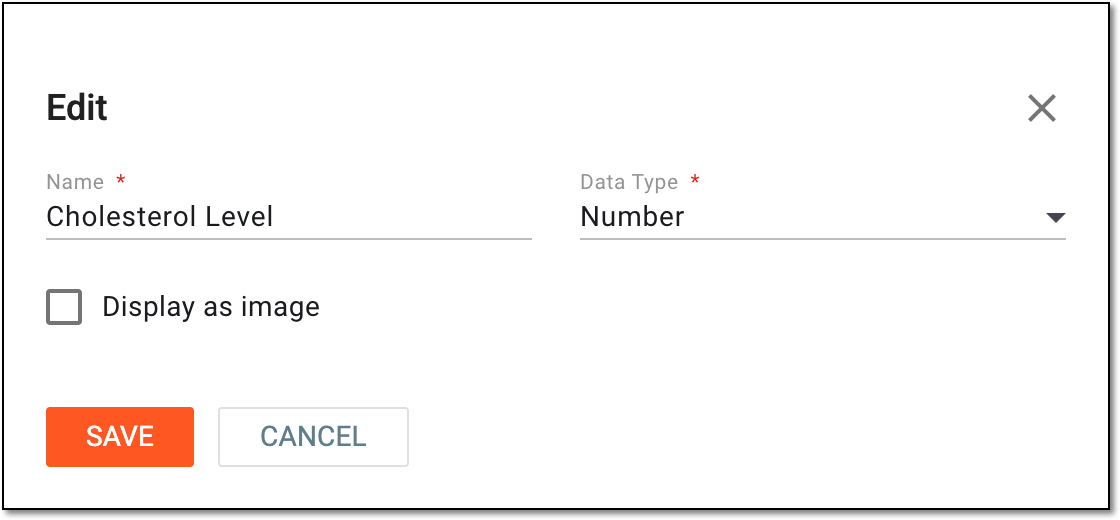 Figure 3. Editing codelist
-
Select
 to implement the changes.
Once saved, the codelist details are updated.