Download SAE report file from history
SAE report comprises information related to the SAE occurrences during a clinical trial. This information is pulled from the SAE forms completed under the DATA ENTRY tab of the EDC application. Having the full SAE report is vital for the FDA approval process.
In EDC, you can export SAE report data as an XLSX file or download a ZIP archive comprising SAE-related forms in PDF format and use them as per your business needs. All the previously exported files are stored in Export History and can be downloaded from there if needed.
-
In the EDC application header, select the STUDY INFO tab.
-
On the page that opens, in the left pane, select the SAE > SAE Report subtab.
-
On the SAE Report page that opens, from the workspace toolbar, select History
 .
.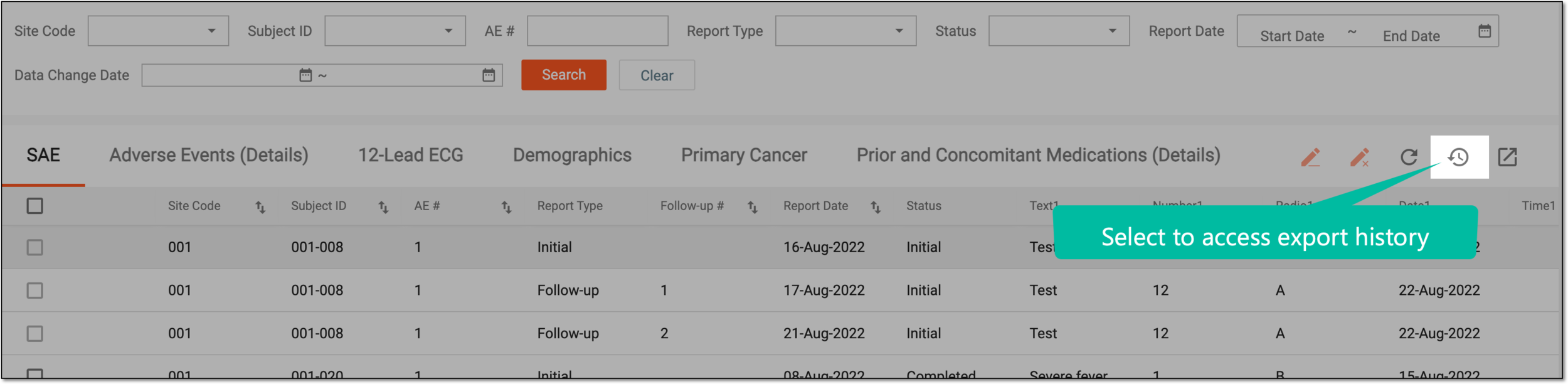 Figure 1. Accessing export history
-
In the Export History dialog that opens, next to the file version that you want to download, select Export
 .
.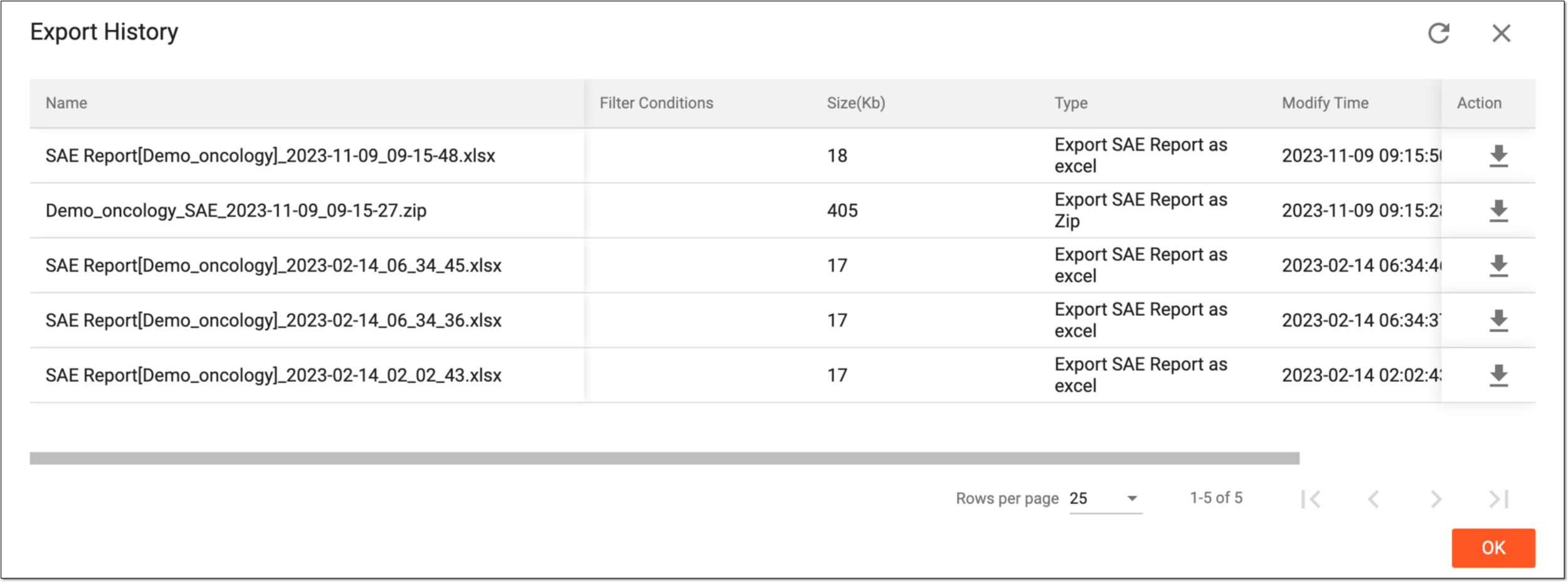 Figure 2. Downloading file from export history
Once downloaded and saved, the file becomes available on your computer. Select  to close the dialog.