Reset workflow for files
In eTMF, the uploaded files undergo the audit process in order to verify their quality, compliance with regulatory requirements, and other aspects. The audit procedure is controlled by the workflow associated with the folder in which the file resides. Sometimes there might be the need to reset the workflow for files to initiate their auditing from the very first stage.
The first case when the workflow reset becomes handy is if the file is uploaded to the folder without workflow. The auditing for such file is not initiated and the file becomes final but not actually verified by any user. For such final files that were not reviewed and approved, you might want to associate the workflow with the containing folder and then reset the workflow to initiate auditing.
Another scenario for workflow reset can be for files that are already being reviewed or have received their final approval, but the directory to which they belong has a new workflow associated. If you want all the files to be reconciled according to the new auditing procedure, you can reset the workflow and this will initiate the audit according to the new procedure.
-
In the eTMF application header, select the TMF.
-
In the Study List table that appears, select the name of the study for which you need to reset the workflow status.
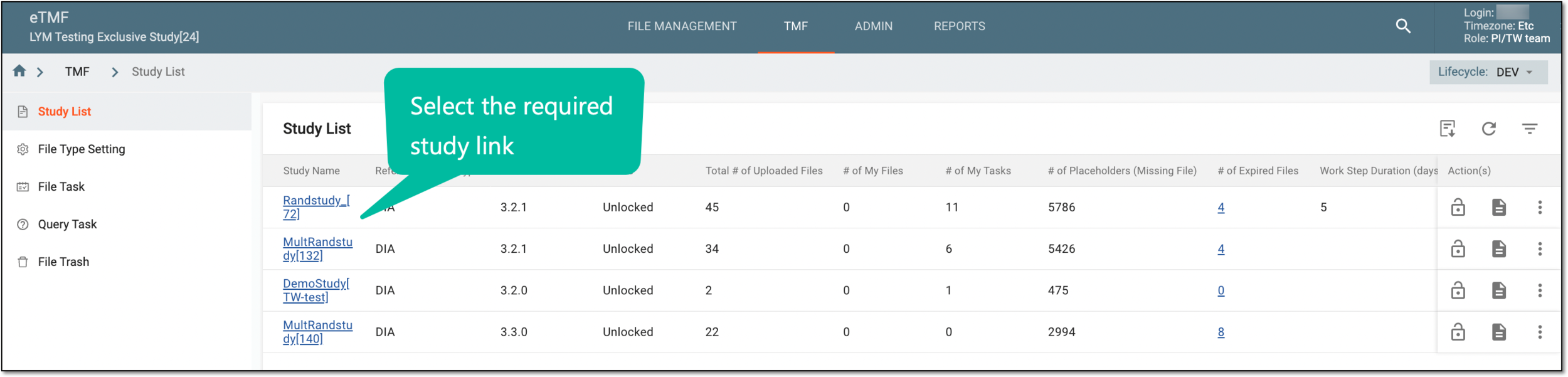 Figure 1. Selecting study
-
On the page that opens, in the left pane, select Study Details > Reset Workflow.
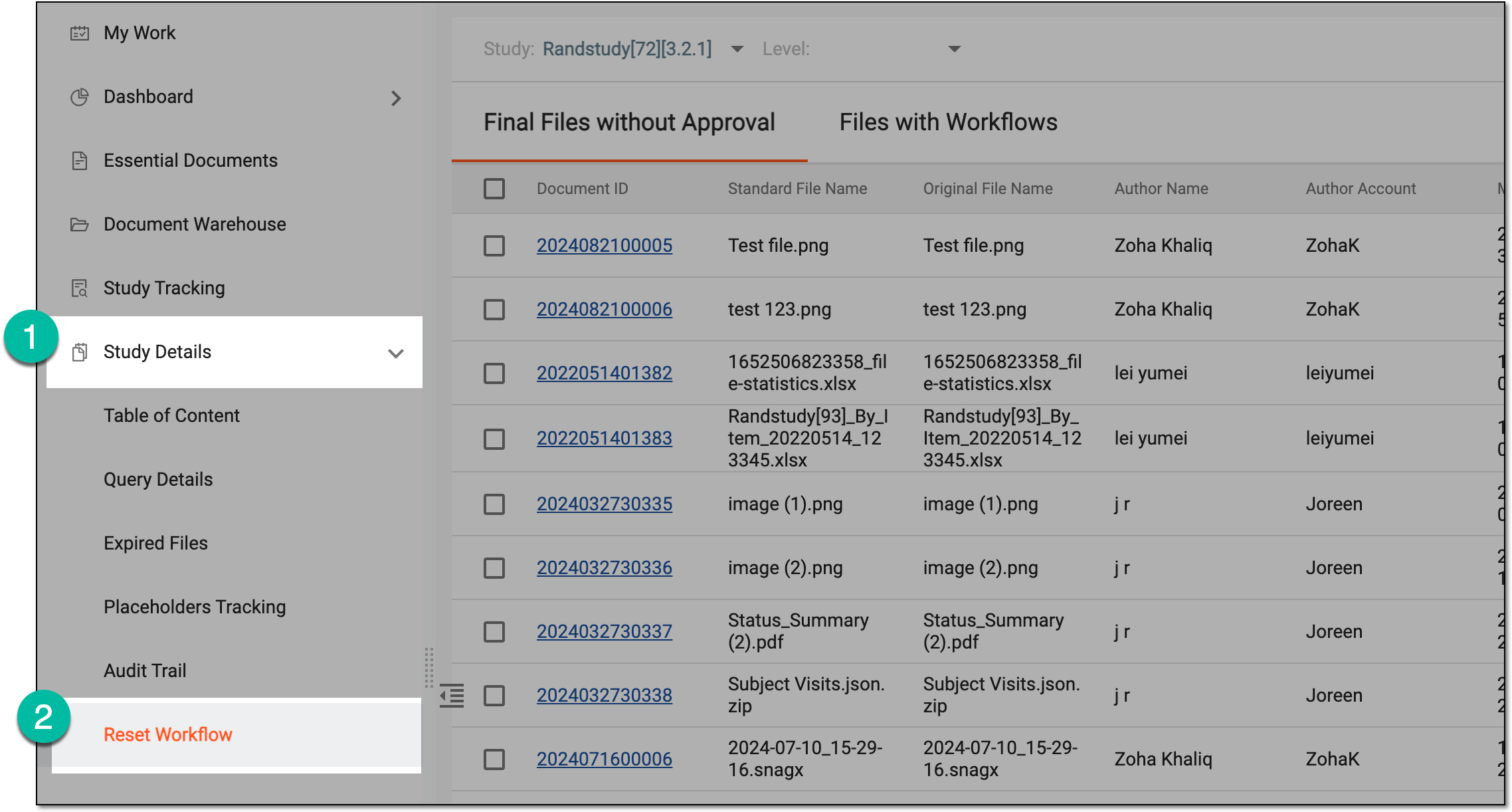 Figure 2. Accessing workflow reset
-
On the page that opens, optionally you can select another study or sort the report by study-, country, and site-level files.
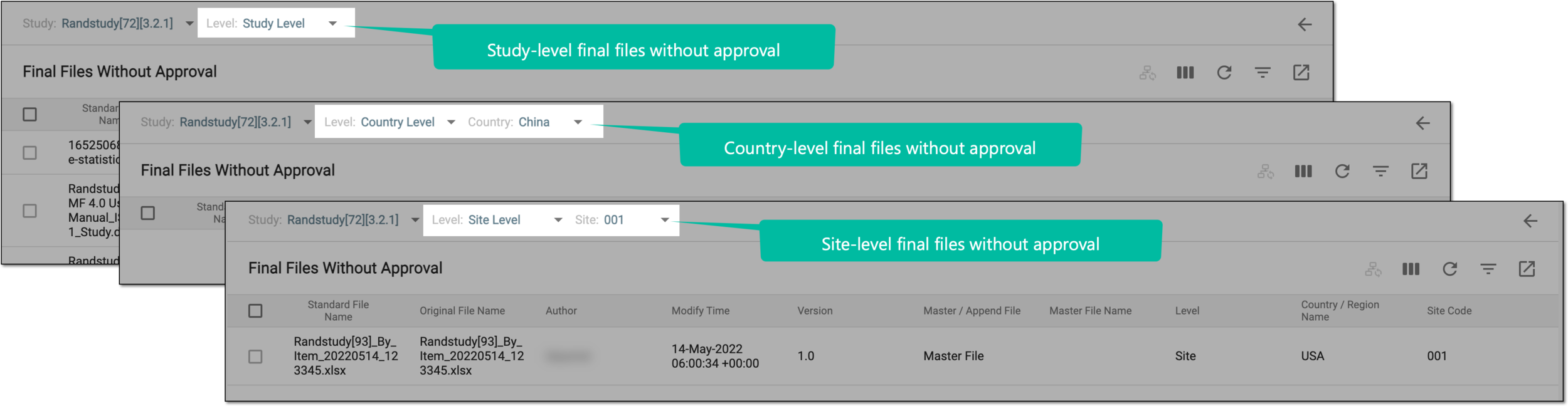 Figure 3. Sorting final files without approval data by file level
-
Select one of the following tabs:
-
Final Files Without Approval: to access the list of all files that had no associated workflow and obtained the Final status upon upload to the eTMF system but now you want them to undergo the review and approval process.
-
Files with Workflows: to access the list of files that had associated workflow and obtained some status already while being audited but now you want them to undergo the review and approval process from the beginning.
-
-
From the list, select the files and from the workspace toolbar, select Reset Workflow
 .
.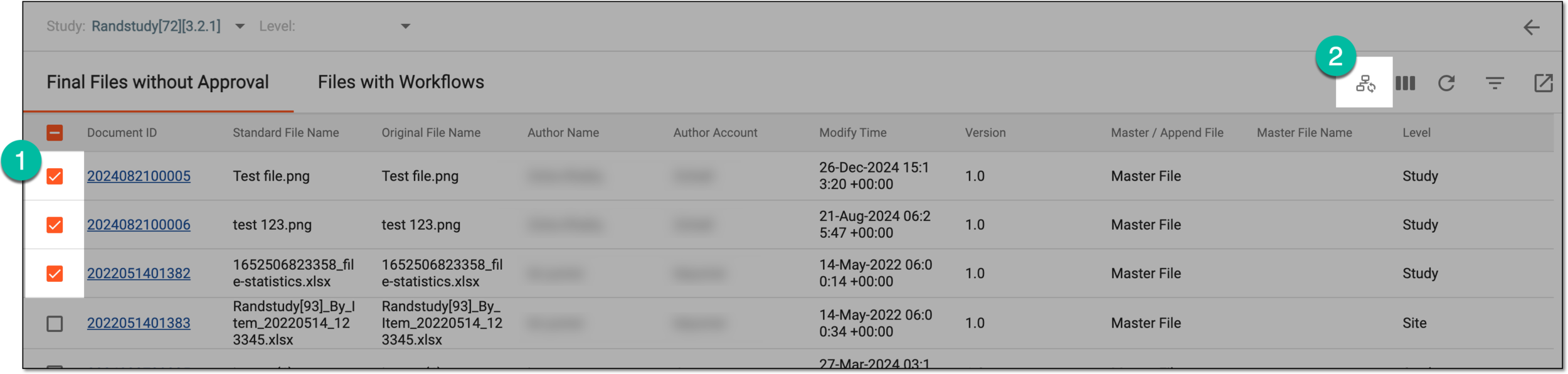 Figure 4. Selecting files and resetting workflow
Important
If no workflow is associated with the corresponding file, you cannot reset the workflow.
-
In the Reset Workflow dialog, in the Reason field, enter the reason why you are resetting the file workflow.
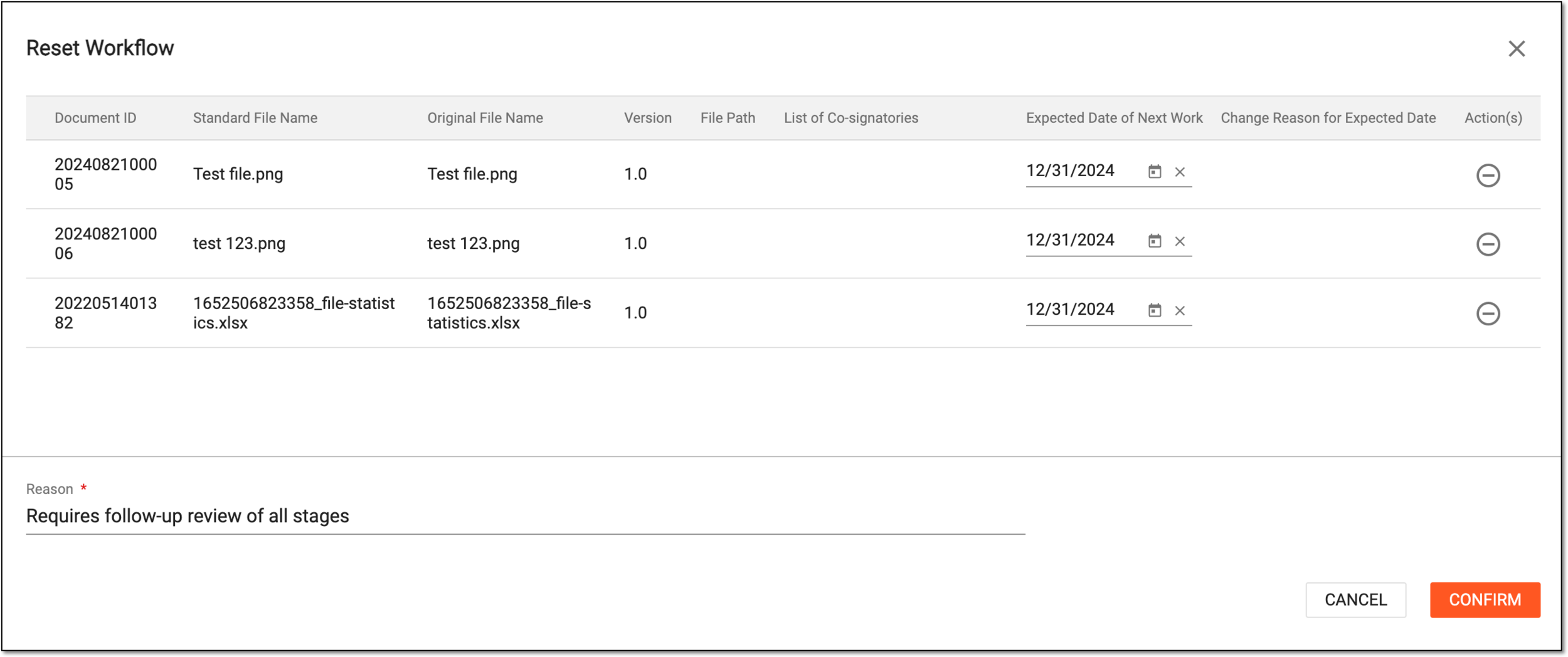 Figure 5. Providing reason for file workflow reset
Tip
If at this point, you want to exclude any file from the workflow reset operation, next to such files, select
 .
. -
Select
 to save the implemented changes.
Once confirmed, the workflow is reset for the selected files.