Create shipment alert
A shipment refers to an action of transporting items (drugs) between depots and sites. A shipment alert is a customizable notification mechanism that generates an email to inform relevant parties about the details requested for a shipment when a certain shipment transaction is processed.
The purpose of a shipment alert is to notify the responsible IWRS users about shipment-related transactions promptly.
When the IWRS application is configured for a new study, the shipment alert built-in templates can be preconfigured by the EDETEK administrator. This helps you to only modify the templates instead of creating each alert from scratch.
For instance, if you have preconfigured shipment alert templates, you can simply add recipients, change the email body of the subject, or make other adjustments as per your needs.
-
In the IWRS application header, select the ALERT tab.
-
In the left pane of the page that appears, select Shipment Alert.
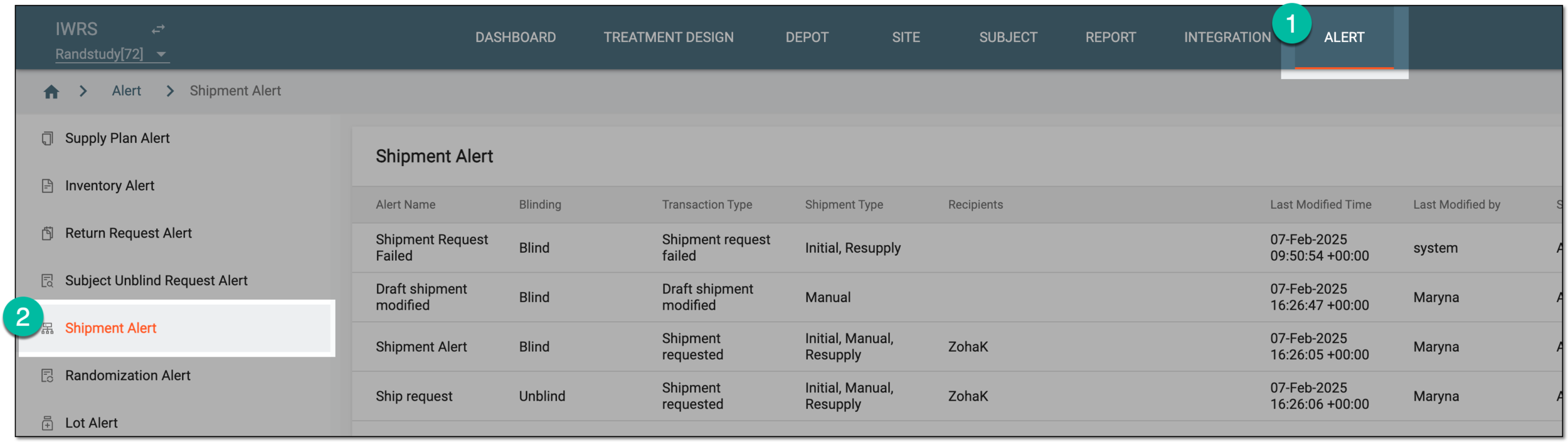 Figure 1. Accessing shipment alert setting
-
From the workspace toolbar of the Shipment Alert table that appears, select Add
 .
. Figure 2. Adding shipment alert
-
On the page that opens, configure a shipment alert as explained in the following table.
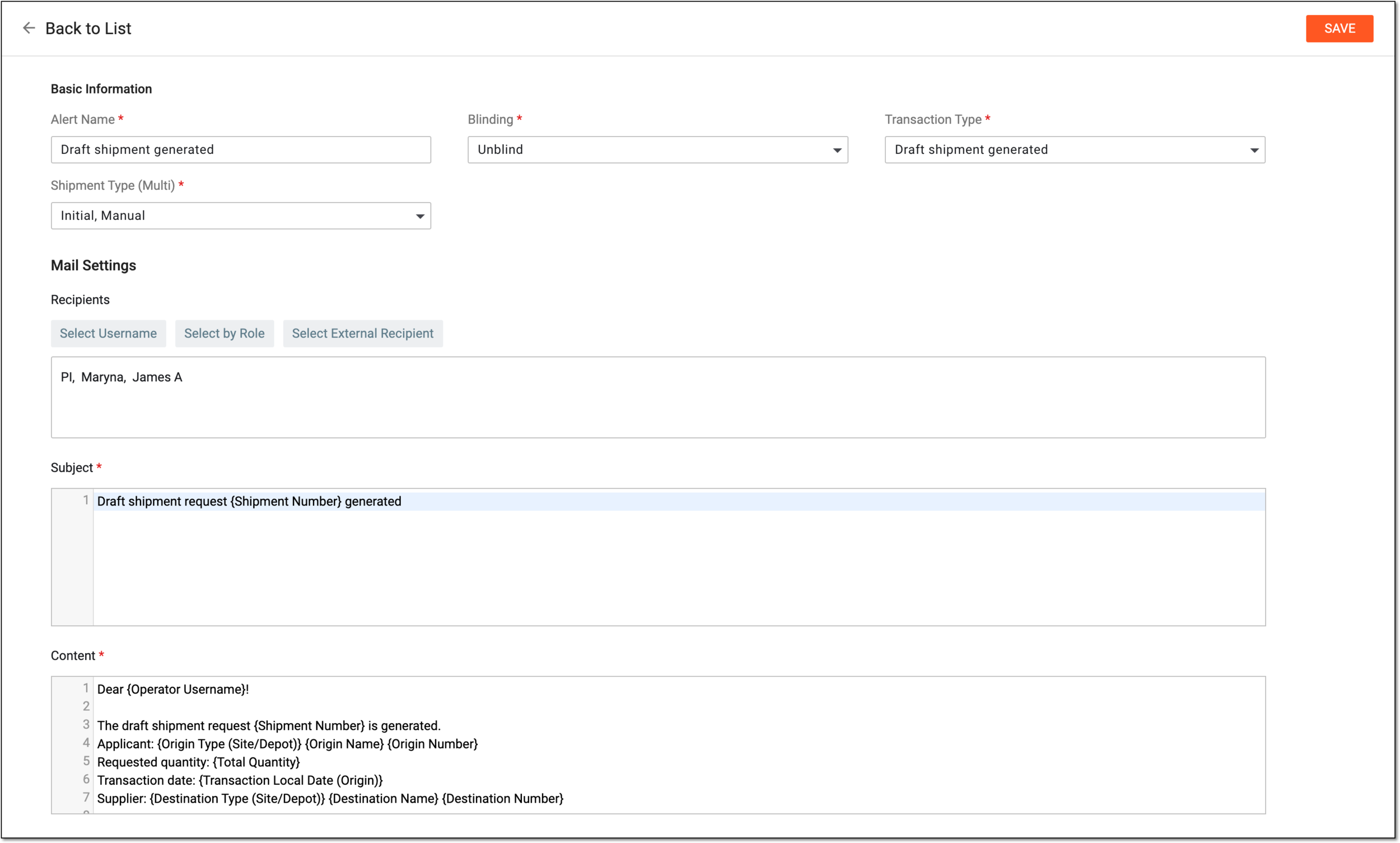 Figure 3. Configuring shipment alert
Tip
In the following table, mandatory elements are marked with an asterisk (*).
Element
Details
Basic Information
Alert Name*
Enter a name for the shipment alert that you are creating.
Blinding*
Select one of the following blinding types:
-
Blind: select this type if you want both blinded and unblinded users to be recipients of the alert.
-
Unblind: select this type if you want only unblinded users to be recipients of the alert.
Transaction Type*
Select one of the following transaction types:
-
Draft shipment generated: triggers an alert when a draft shipment is generated for amendments.
-
Draft shipment cancelled: triggers an alert when a draft shipment is canceled.
-
Draft shipment modified: triggers an alert when a draft shipment is modified.
-
Shipment requested: triggers an alert when a shipment is requested.
-
Shipment dispatched: triggers an alert when the shipment is dispatched.
-
Shipment revoked: triggers an alert when the shipment is revoked by the supply depot.
-
Shipment received: triggers an alert when the shipment is received by the depot or site.
-
Shipment partially received: triggers an alert when the shipment is partially received by the depot or site.
-
Shipment lost: triggers an alert when the shipment is confirmed lost by the applicant depot or site.
-
Shipment request failed: triggers an alert when the initial or resupply shipment request fails to be sent automatically by the system.
-
Shipment Rejected: triggers an alert when the initial, manual, or resupply shipment request is rejected.
Shipment Type (Multi)*
Select one or multiple following shipment types:
-
Initial: triggers an alert when an initial shipment is created.
-
Manual: triggers an alert when the shipment is created manually.
-
Resupply: triggers an alert when the shipment transaction requires item resupply.
-
Return for Destruction: triggers an alert when the shipment is returned for destruction.
-
Return Available Items: triggers an alert when the shipment is sent to return available items.
-
Select all: select this trigger if you want to select all the shipment types.
Mail Settings
Recipients
Select either of the following options:
-
Select Username: to expand the list of system users and select the ones to receive an alert email. To remove a user from recipients, clear the checkbox next to their name.
-
Select by Role: to expand the list of system user roles and select the ones to receive an alert email. To remove a user role from recipients, clear the checkbox next to its name.
-
Select External Recipient: to expand the list of preconfigured external recipients—contacts who are not system users but for whom the account exists in IWRS to be able to include them in correspondence—and select the ones to receive an alert email. To remove a person from recipients, clear the checkbox next to their name.
You can specify users, roles, and external recipients together.Subject*
Enter the subject of the email. You can also start typing with the opening brace "{" to expand the list of predefined values that you want to include in the email subject.
Content*
Enter the text of the email. You can also start typing with the opening brace "{" to expand the list of predefined values that you want to include in the email content.
SAVE
Select
 to create a shipment alert after it has been configured.
 -
Once saved, the shipment alert is created. Whenever a shipment transaction occurs, an email is sent to the corresponding recipients.
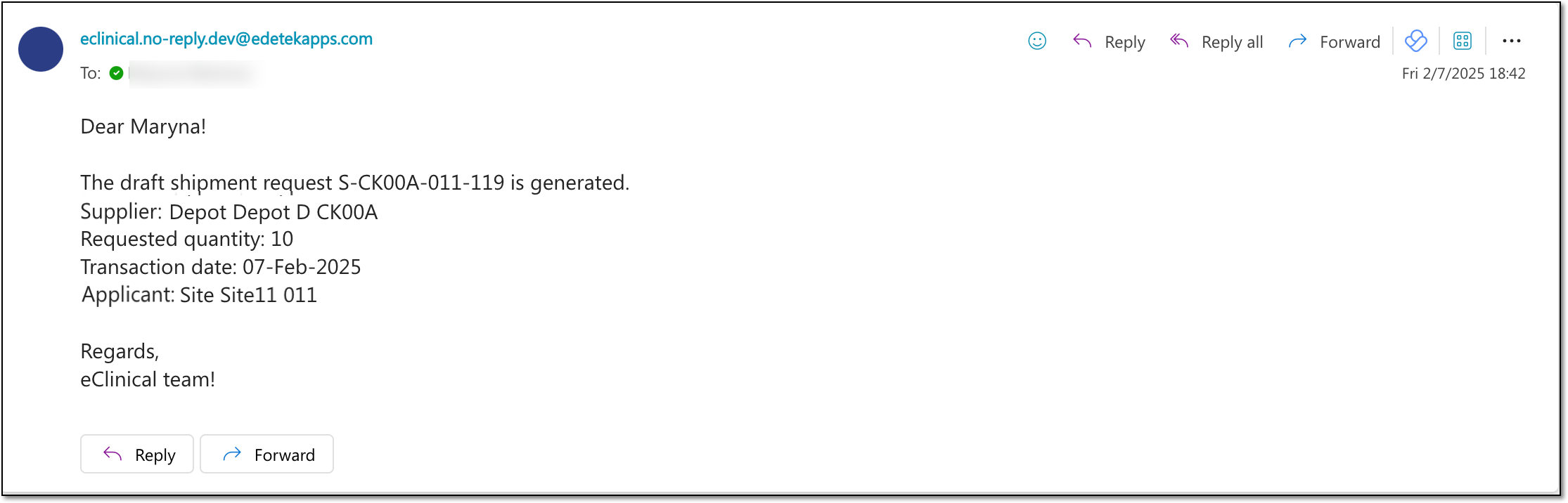
The following figure is an example of the email that an eClinical user receives after the shipment alert has been properly configured and a shipment transaction is initiated.