Export normal range data
In EDC, the setup and maintenance of normal ranges are performed under the Site Normal Range subtab.
Sometimes, for some reason, you might need to have the normal range data locally on your machine. For example, to pass it to a person/institution that has no access to the Lab feature of the EDC application.
Another reason for exporting normal ranges can be editing them in the XLSX format and then importing the updated version to the EDC application.
In EDC, you have different exporting options as explained in the following sections.
Sometimes, you might need to have the normal range data locally on your computer. For example, to pass it to a person/institution that has no access to the Lab feature of the EDC application. Another reason for exporting normal ranges can be editing them in the XLSX format and then importing the updated version to the EDC application.
-
In the EDC application header, select the STUDY INFO tab.
-
In the left pane, select Lab > Site Normal Range.
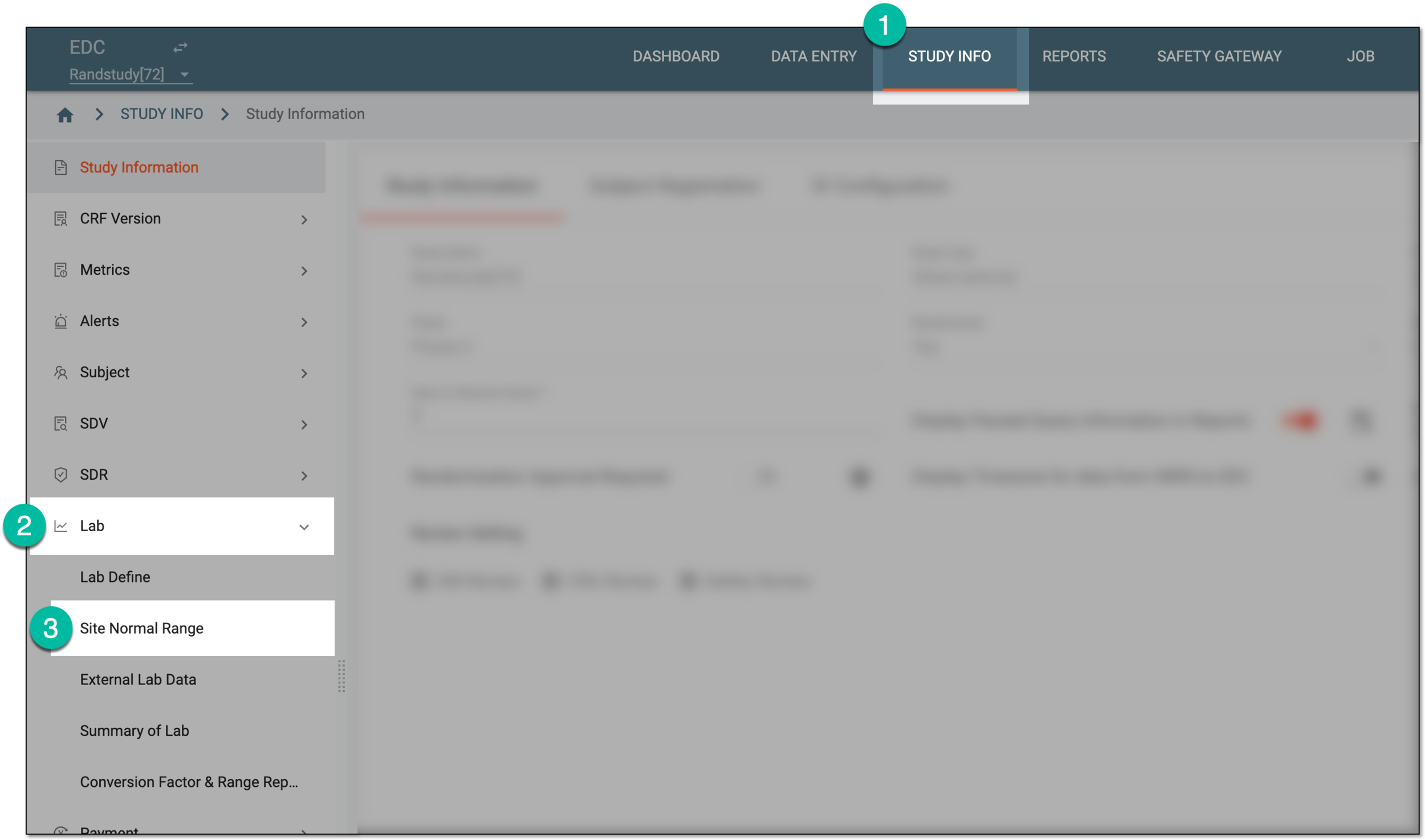 Figure 1. Accessing normal range list
-
On the Normal Range List page that opens, from the workspace toolbar, select Export
 and from the expanded menu, select one of the options as follows.
 Figure 2. Selecting to export normal ranges
-
Export by Site and Category: select this option to download the normal range data for specific sites and categories by picking them from the Export by Site and Category dialog as explained in the following table.
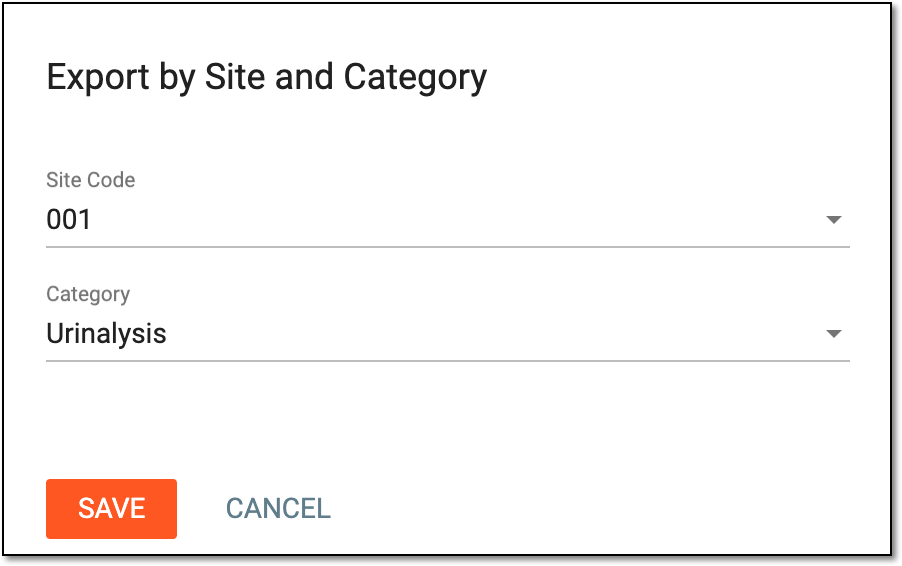 Figure 3. Selecting sites and categories to export normal ranges
Element
Details
Site Code
Select the site code for which you want to export the normal ranges. Select All to export the normal ranges for all the sites of your study.
Category
Select the lab test category (for example, Hepatitis B Serology) for which you want to export the normal ranges. Select All to export the normal ranges for all the categories of your study.
SAVE
Select
 to proceed with exporting.
CANCEL
Select
 to discard exporting and return to Normal Range List.
 -
Export by Study: select this option to download the normal range data for all the sites of the study.
-
-
In the downloads widget that appears, view your download progress. Select the widget to open the My Downloads dialog.
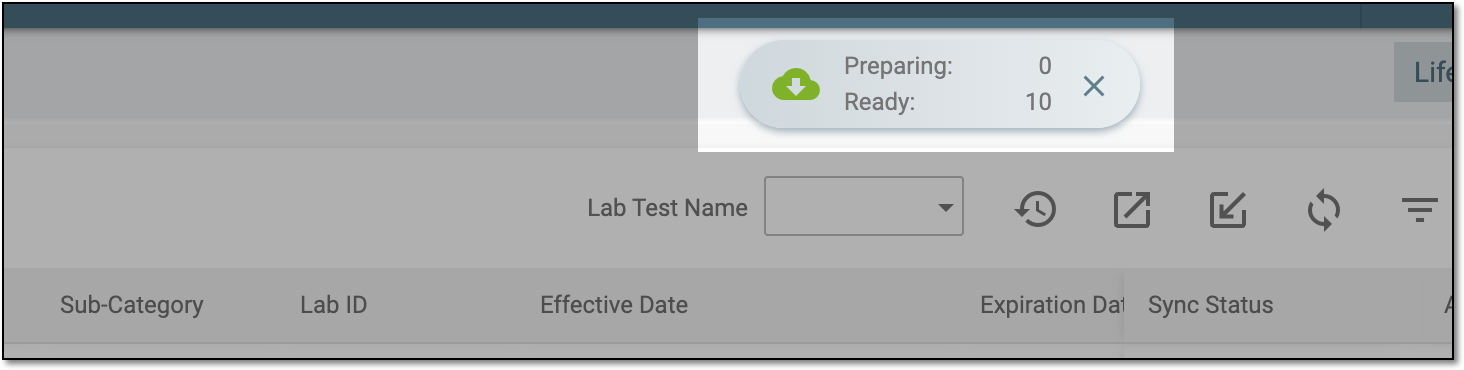 Figure 4. Downloads widget for site normal ranges
-
In the My Downloads dialog that opens, you can find the following tabs:
-
Preparing: lists all the files whose export is in progress, and they are not yet ready for download. Wait until the needed file moves to the Download is Ready tab.
-
Download is Ready: lists the files whose export is complete, and they can be downloaded to your computer by selecting
 .
.
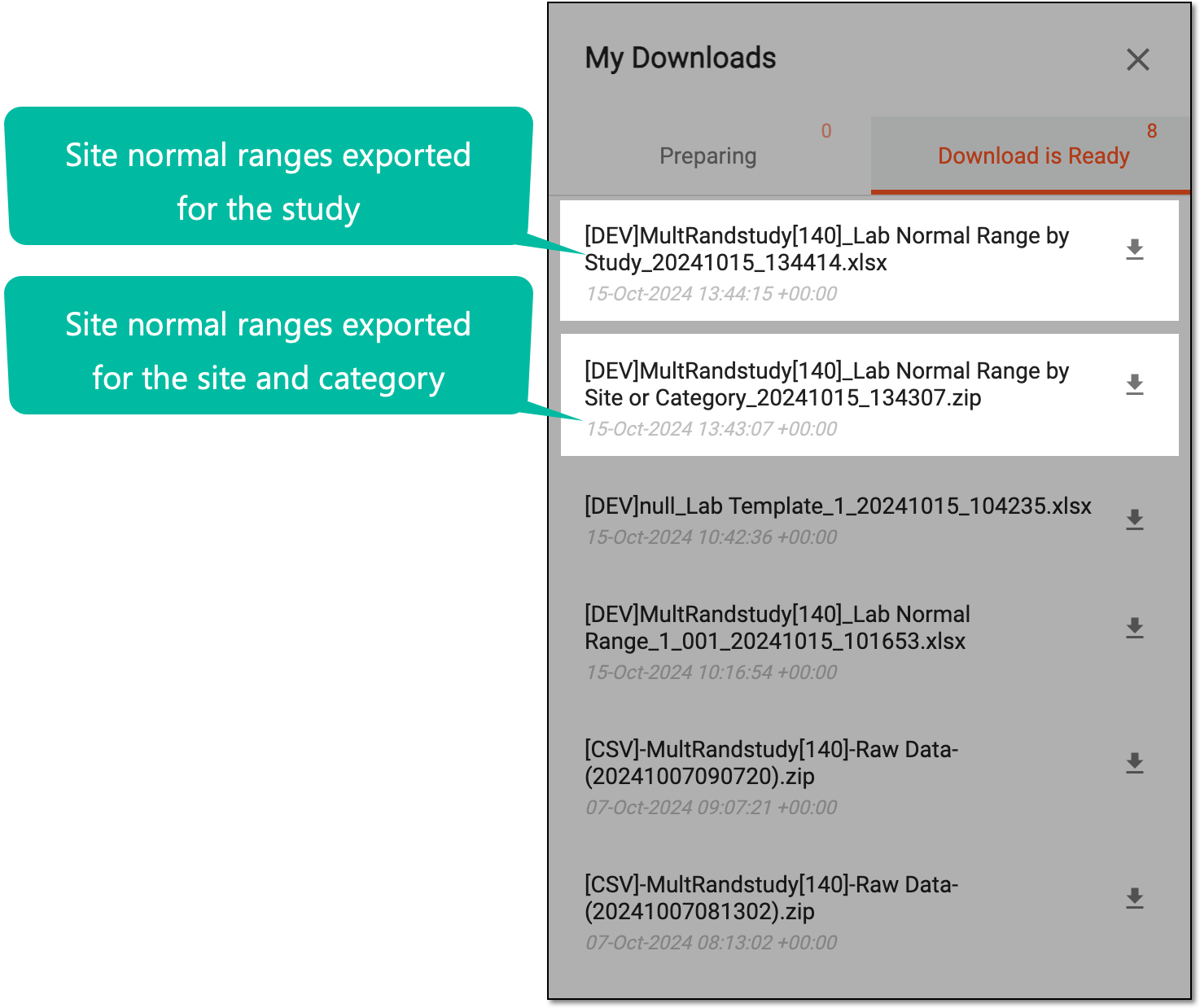 Figure 5. Locating exported site normal ranges to download
-
Upon saving, the normal range file is available on your computer. If needed, you can update the file and import it back to the EDC system.
Sometimes, for some reason, you might need to have the normal range data locally on your machine. For example, to pass it to a person/institution that has no access to the Lab feature of the EDC application. Another reason for exporting normal ranges can be editing them in the XLSX format and then importing the updated version to the EDC application.
-
In the EDC application header, select the STUDY INFO tab.
-
In the left pane, select Lab > Site Normal Range.
Figure 1. Accessing normal range list
-
In the Normal Range List table that appears, next to the normal range of your interest, select More
 > Export Normal Range List .
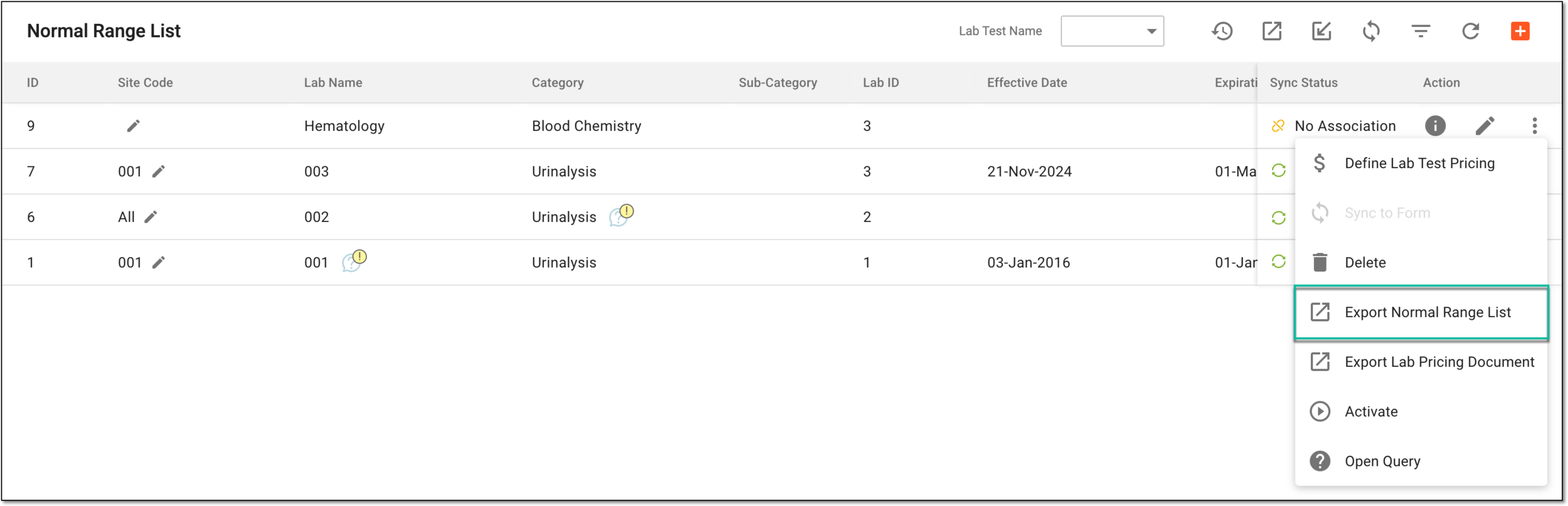 Figure 2. Exporting singular normal range list
-
Once selected, the widget appears displaying your download progress. Select the widget to open the My Downloads dialog.
Figure 3. Downloads widget for site normal ranges
-
In the My Downloads dialog that opens, you can find the following tabs:
-
Preparing: lists all the files whose export is in progress, and they are not yet ready for download. Wait until the needed file moves to the Download is Ready tab.
-
Download is Ready: lists the files whose export is complete, and they can be downloaded to your computer by selecting
.
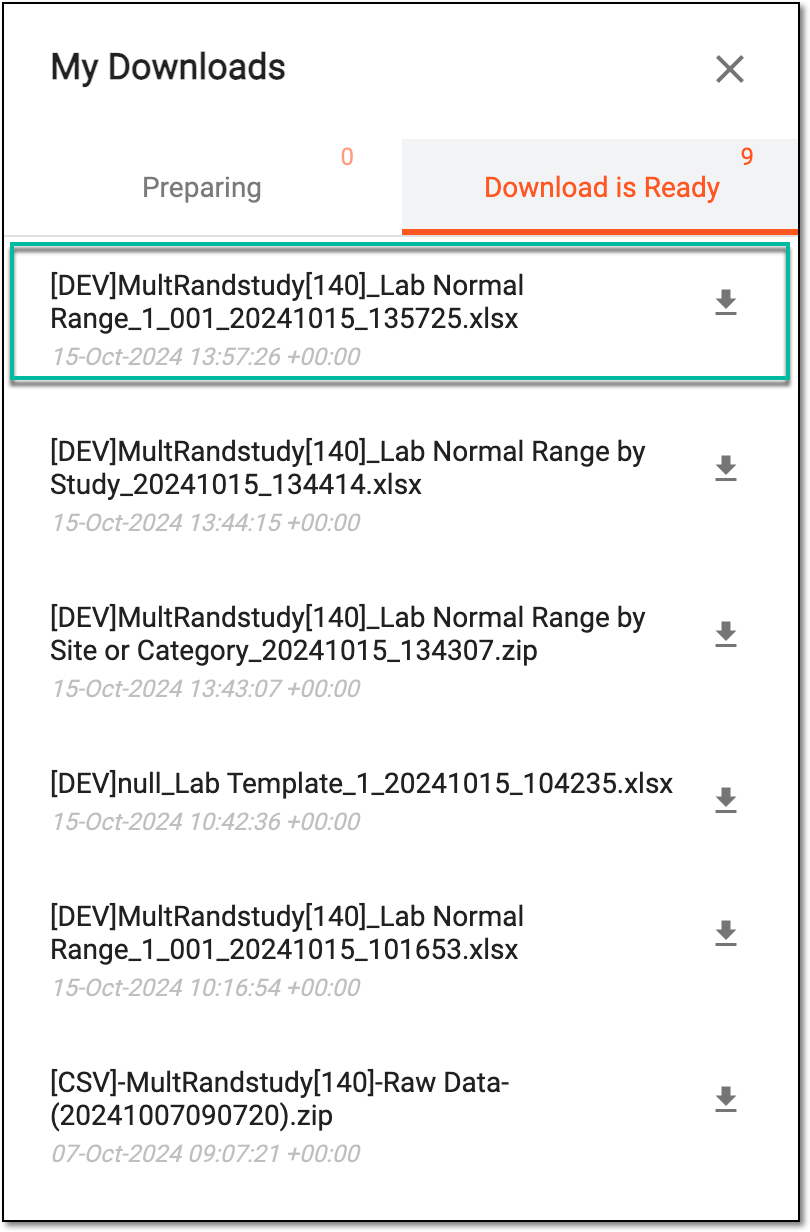 Figure 4. Locating exported normal range list to download
-
Upon saving, the selected normal range in the form of the XLSX file is available on your computer. If needed, you can update the file and import it back to the EDC system.