Delete library folder
The Study Designer application has a library of reusable forms that can streamline the process of designing a CRF for different studies. This library accelerates the form creation process and ensures consistency and accuracy across various studies, saving study teams considerable effort. By leveraging the library content, researchers can minimize the time spent on repetitive form design tasks.
To tailor the experience, you have the flexibility to organize the form library into custom folders. It may occur that sometimes any folder needs to be deleted from the library due to evolving organizational structures. In such cases, you can easily remove folders, thus ensuring smooth adaptability and folder organization.
Important
Note that you can only delete empty folders that contain no forms in them or their child folders. Therefore, if you decide to delete a specific custom folder, remove forms from it beforehand.
-
In the Study Designer application header, select the CRF DESIGN tab.
-
In the toolbar, select Form library
 to open the library with forms.
 Figure 1. Opening form library
-
On the page that opens, right-click the needed custom folder and select Delete
 .
.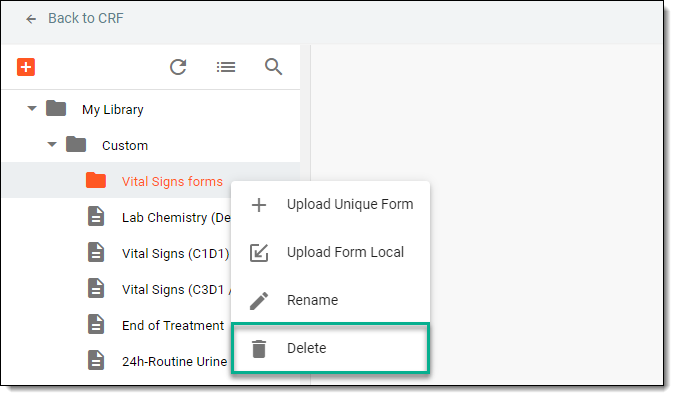 Figure 2. Selecting option to delete folder
Important
You cannot delete the My Library folder because it is the primary tree node in the library hierarchy.
-
In the Delete Item dialog that appears, confirm the folder deletion by selecting
 .
.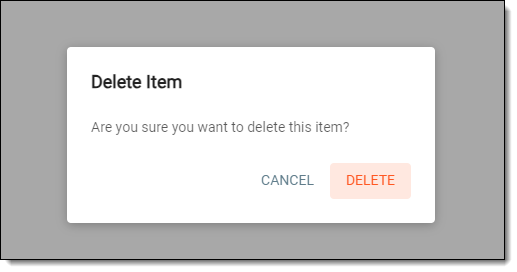 Figure 3. Deleting folder
Once confirmed, the folder is permanently deleted from the form library.