Activate/Inactivate status
In EDC, you can configure the custom statistical information on your study subjects count that is displayed under the DATA ENTRY > Site List page.
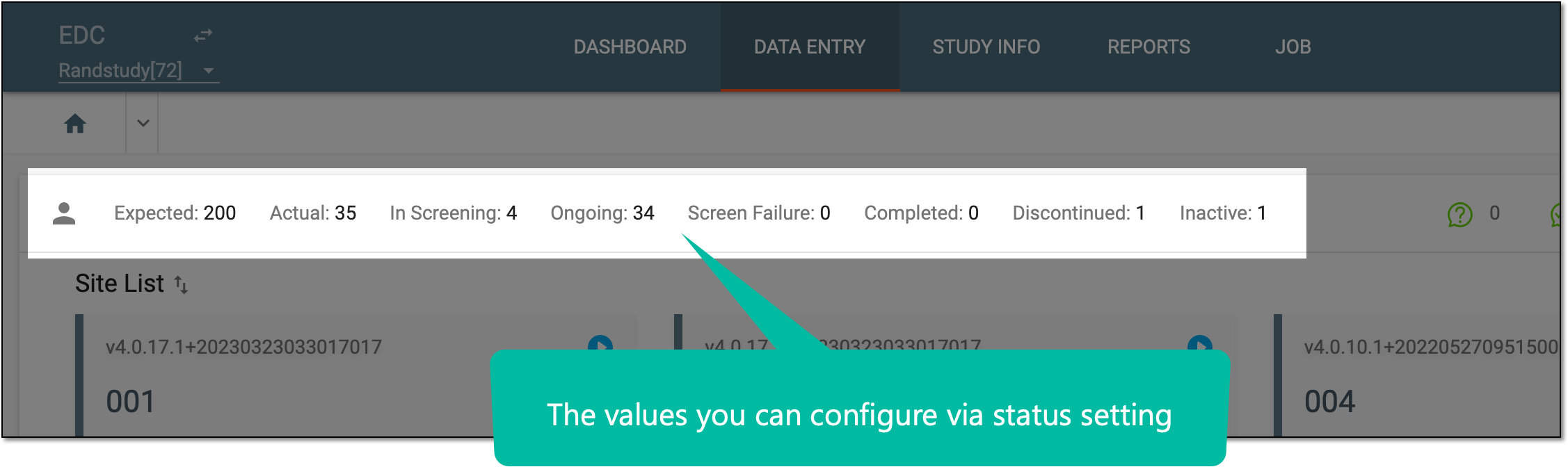
If you want to show or hide some status from the EDC system user interface (UI), you can use Activate or Inactivate features, respectively.
-
In the EDC application header, select the STUDY INFO tab.
-
In the left pane that appears, select Subject > Subject Phase.
-
On the page that opens, from the contents panel, select Status Setting tab.
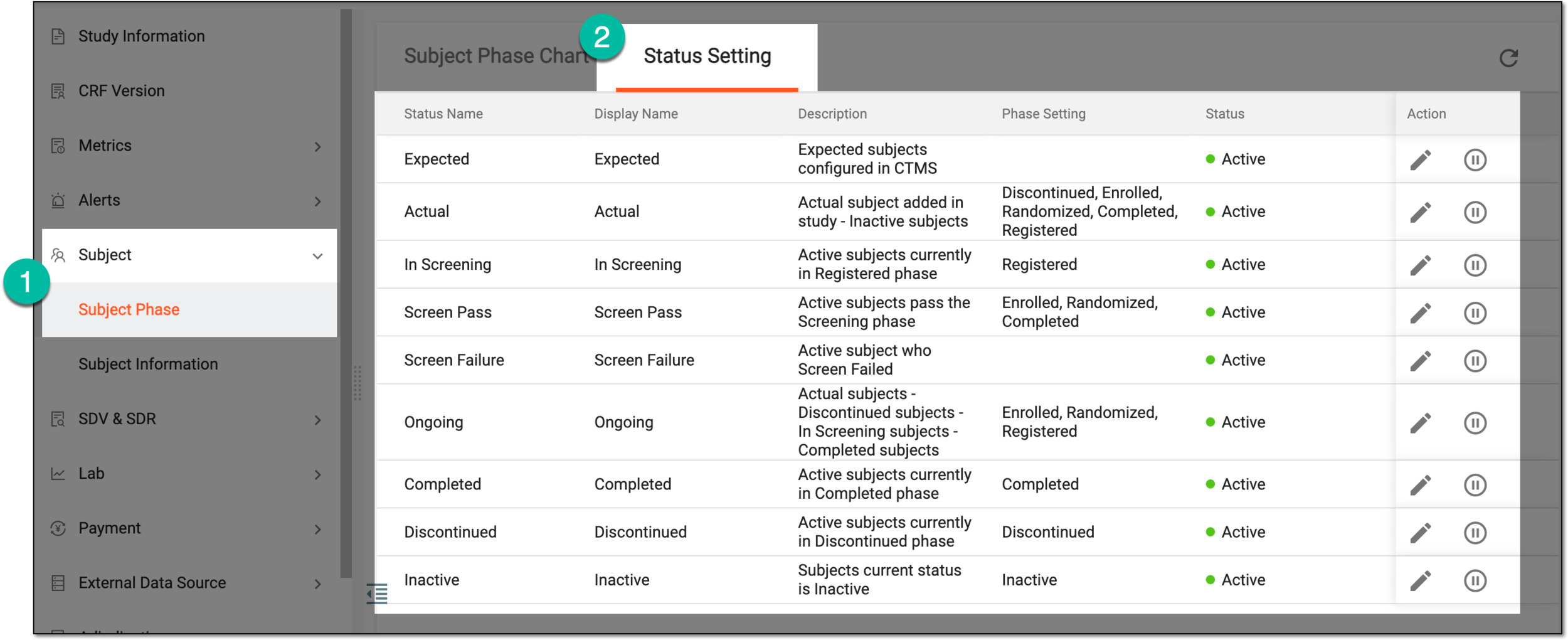 Figure 2. Accessing Status Setting tab
-
In the Status Setting table that appears, locate the status that you want to activate or inactivate and next to it, from the Action column, select one of the following options:
-
Activate
 : to make the status active and visible in the EDC system, for instance, under the Site List page.
 -
Inactivate
 : to make the status inactive and hide it elsewhere in the EDC system except for the Status Setting table until activated again.
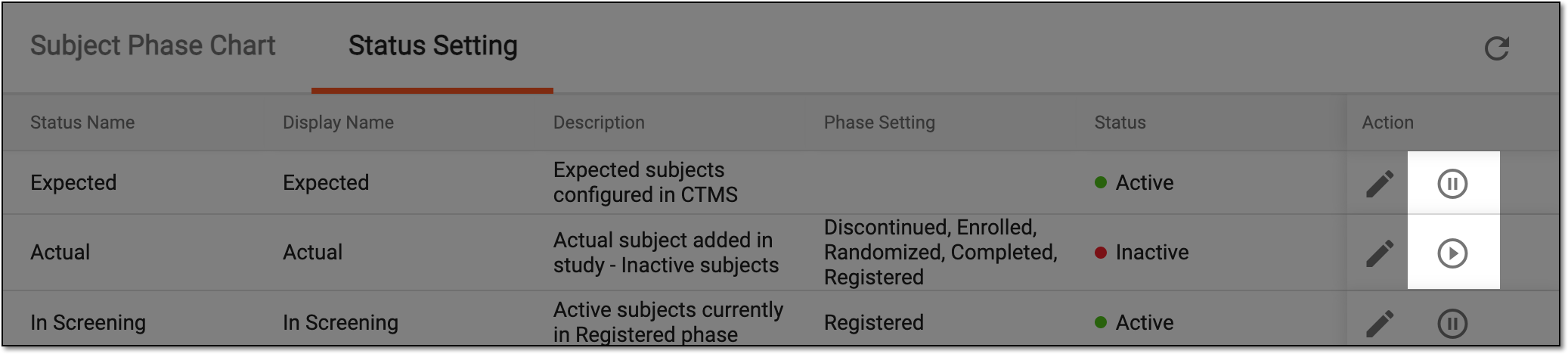 Figure 3. Selecting to edit status
-
Once selected, depending on the performed action, the status is either activated or inactivated.