Edit status
In EDC, you can configure the custom statistical information on your study subjects count that is displayed under the DATA ENTRY > Site List page. This might be needed, for instance, to suit specific internal naming conventions of the sponsor.
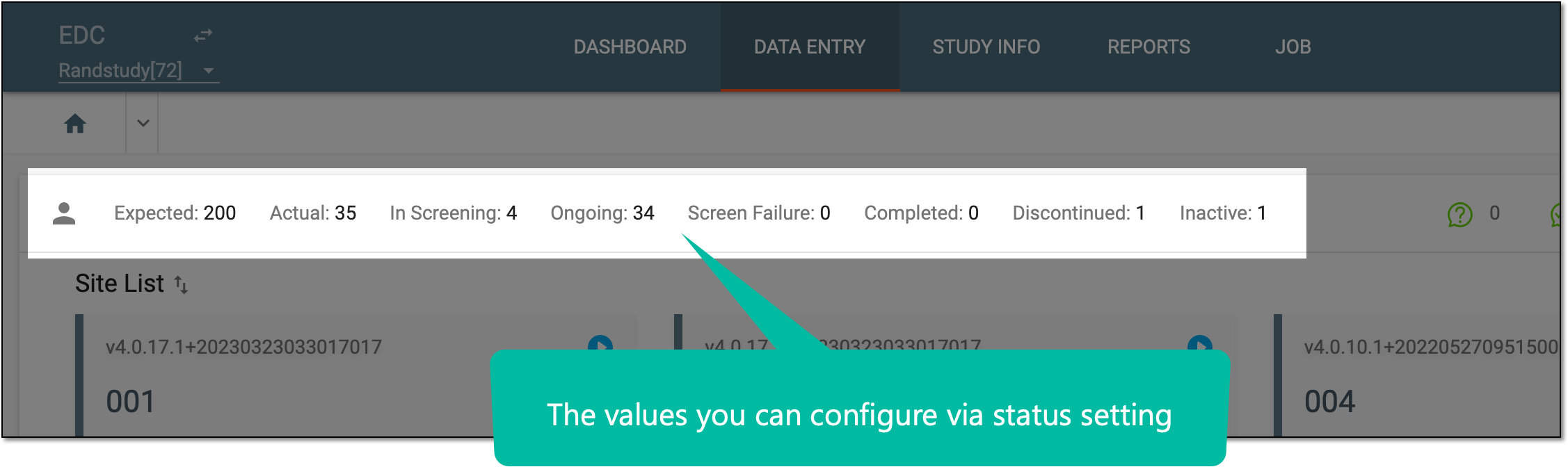 |
The status configuration involves changing the status title displayed in the EDC system user interface (UI), providing the status description, or changing the subject phase(s) pertinent to the status. You can configure your status via the Edit feature.
-
In the EDC application header, select the STUDY INFO tab.
-
In the left pane that appears, select Subject > Subject Phase.
-
On the page that opens, from the contents panel, select Status Setting tab.
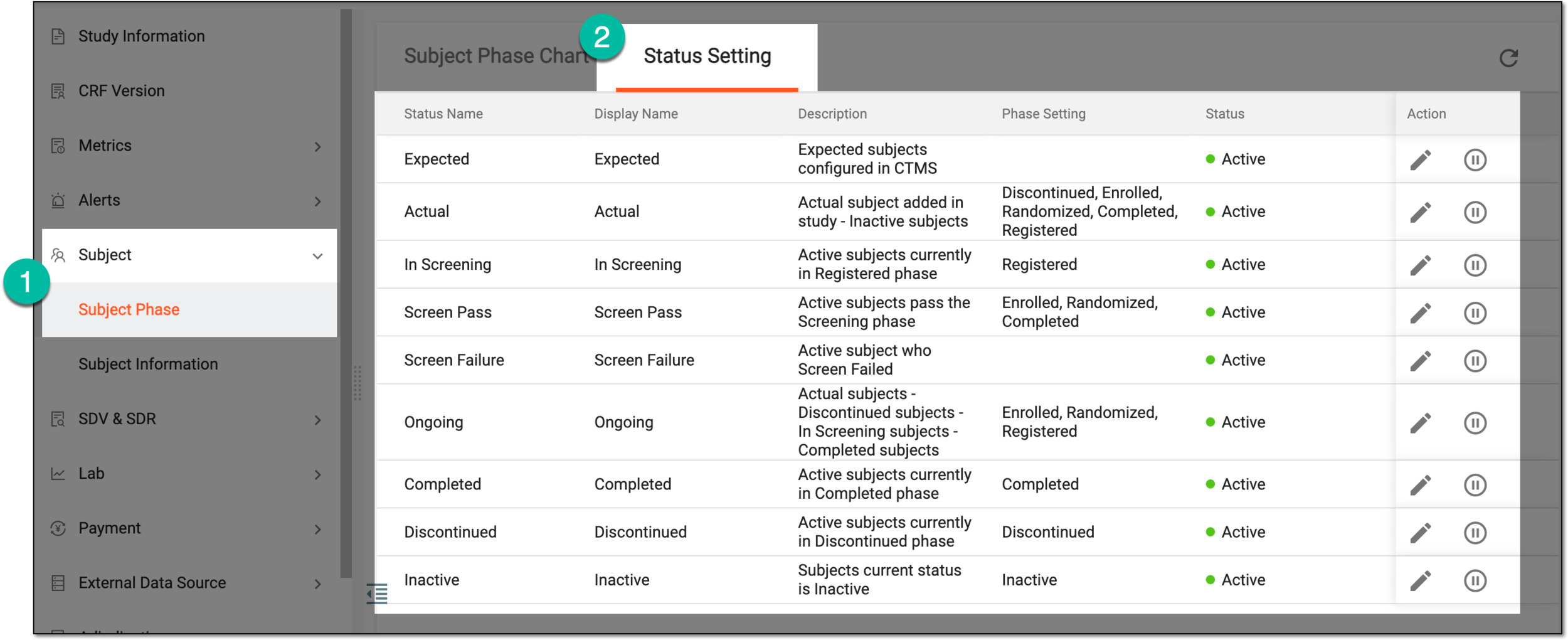 Figure 2. Accessing Status Setting tab
-
In the Status Setting table that appears, locate the status that you want to configure and next to it, from the Action column, select Edit
 .
. Figure 3. Selecting to edit status
-
In the Edit dialog that opens, update the fields as explained in the following table.
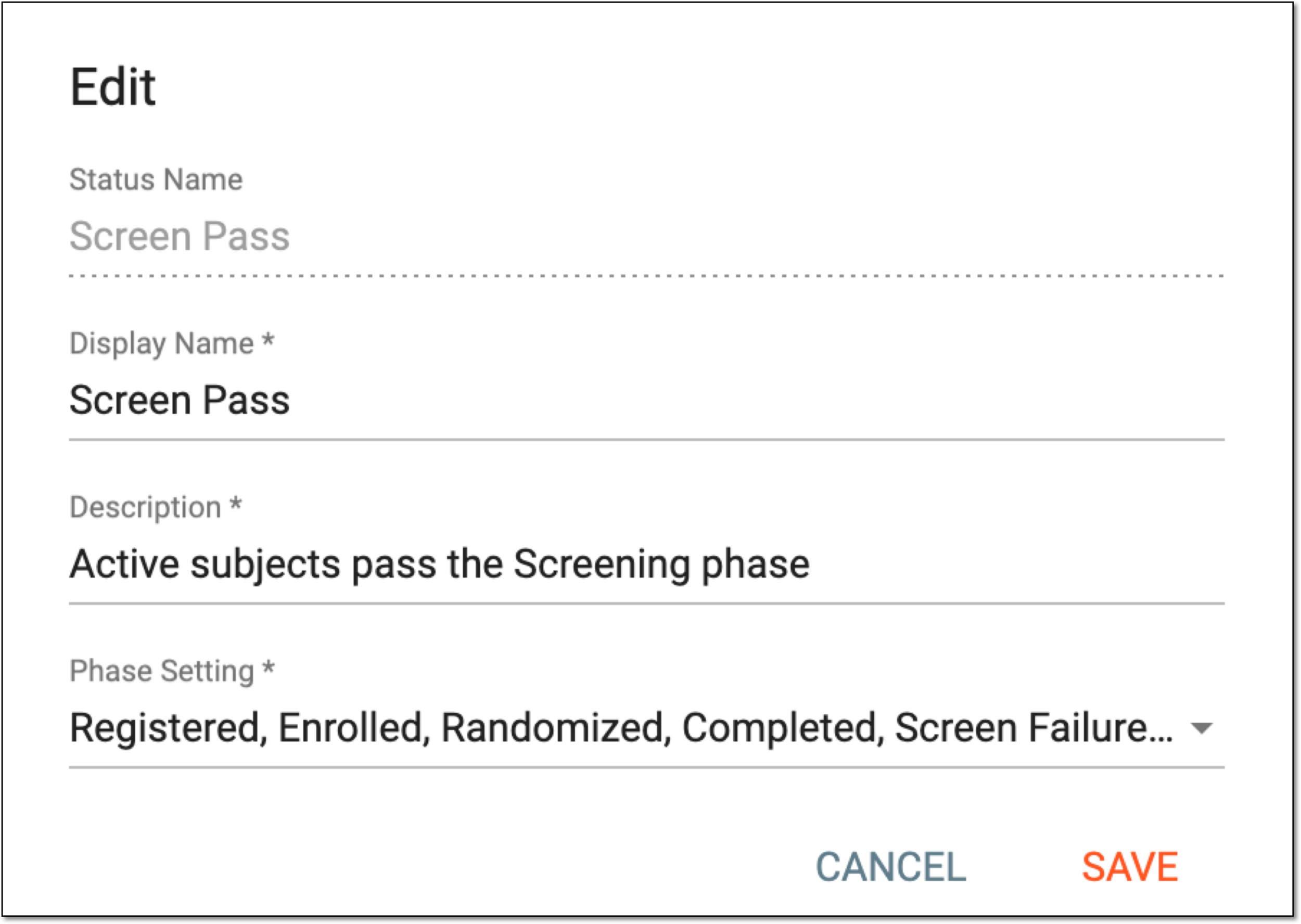 Figure 4. Editing status
Tip
In the following table, mandatory elements are marked with an asterisk (*).
Element
Details
Status Name
Represents the name of the status configured in the system. The value is read-only.
Display Name*
Enter the name of the status that is to be displayed in the EDC UI, for instance, under the Site List page.
Description*
Enter the status description that provides insights into the logic behind its value.
For instance, by adding a description to the In Screening status, you can help other users understand that this value represents all the subjects that are currently under the Registered phase.
Phase Setting
Select the subject phase(s) pertinent to the status.
For instance, the Screen Pass status can include all the subjects that are currently under the Enrolled, Randomized, and Completed phases.
The Phase Setting is not available for the Expected status, for that one you can only configure custom display name and description.SAVE
Select
 to save the implemented changes.
CANCEL
Select
 to discard the changes without saving and close the dialog.
Once saved, the status is updated.
Any person, company, institution, group, or organization that is a client of EDETEK and a user of the eClinical system.
In the eClinical system, the Sponsor role is assigned to the user who oversees or pays for a clinical trial and collects and analyzes the data. Before the study goes live, the Sponsor users work closely with the data managers, configuring CRFs and other aspects to make sure everything meets their requirements before giving the green light for the study to go live. In the course of a trial, the Sponsor users make requests for amendments in the system according to a new protocol version, changes in business requirements, or other needs.
A specific phase that a subject has to complete in the course of a clinical trial to move further to the next phase. For instance, Screening, Enrolled, Randomized, and others.
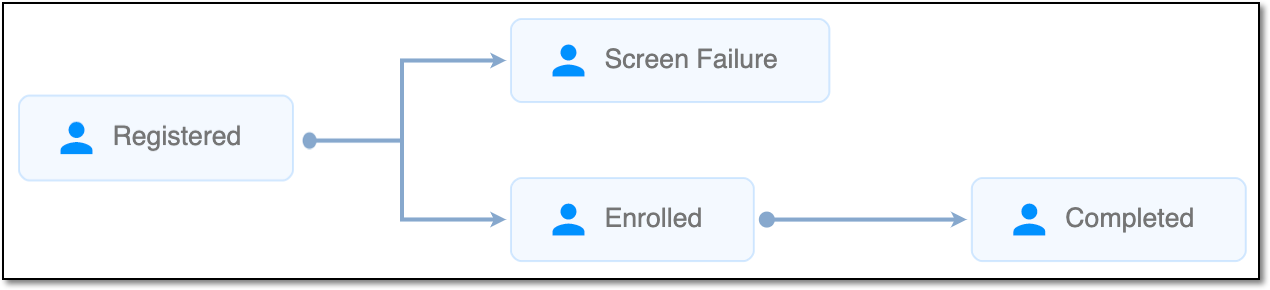 |
In eClinical, subject phases are designed individually for each study via the SD application, although they are referenced in others, like IWRS or EDC.