Export subject list from study information
You can export the subject list with all the details and save it on your local machine. This feature might be helpful if, for example, you need to share the subject list with someone who does not have access to eClinical but has to view the information.
Tip
You can export either all data stored in the table or filtered data.
-
In the EDC application header, select the STUDY INFO tab.
-
On the page that opens, in the left pane, expand the Subject option.
-
In the menu that appears, select the Subject Information subtab.
-
On the Subject Information page that opens, optionally filter the table data, and above the Subject List table, select Export
 .
.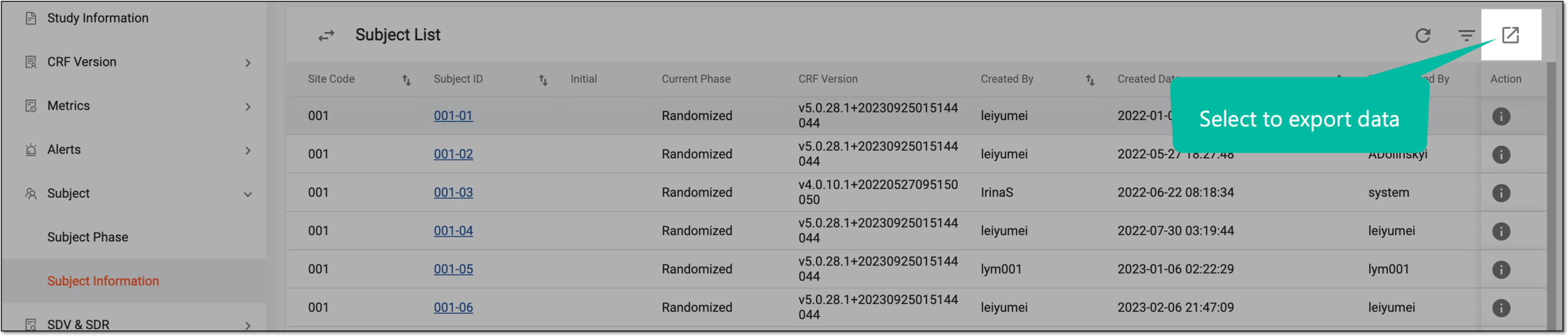 Figure 1. Selecting to export data
Tip
If you have applied filtering to the table, the system exports the filtered data, and if not, the system exports all data.
-
Once selected, the widget appears displaying your download progress. Select the widget to open the My Downloads dialog.
 Figure 2. Downloads widget
-
In the My Downloads dialog that opens, you can see the following tabs:
-
Preparing: under this tab, you can find all the files whose export is in progress, and they are not yet ready for download.
-
Download is Ready: under this tab, you can find all the files whose export is complete, and they can be downloaded to your computer.
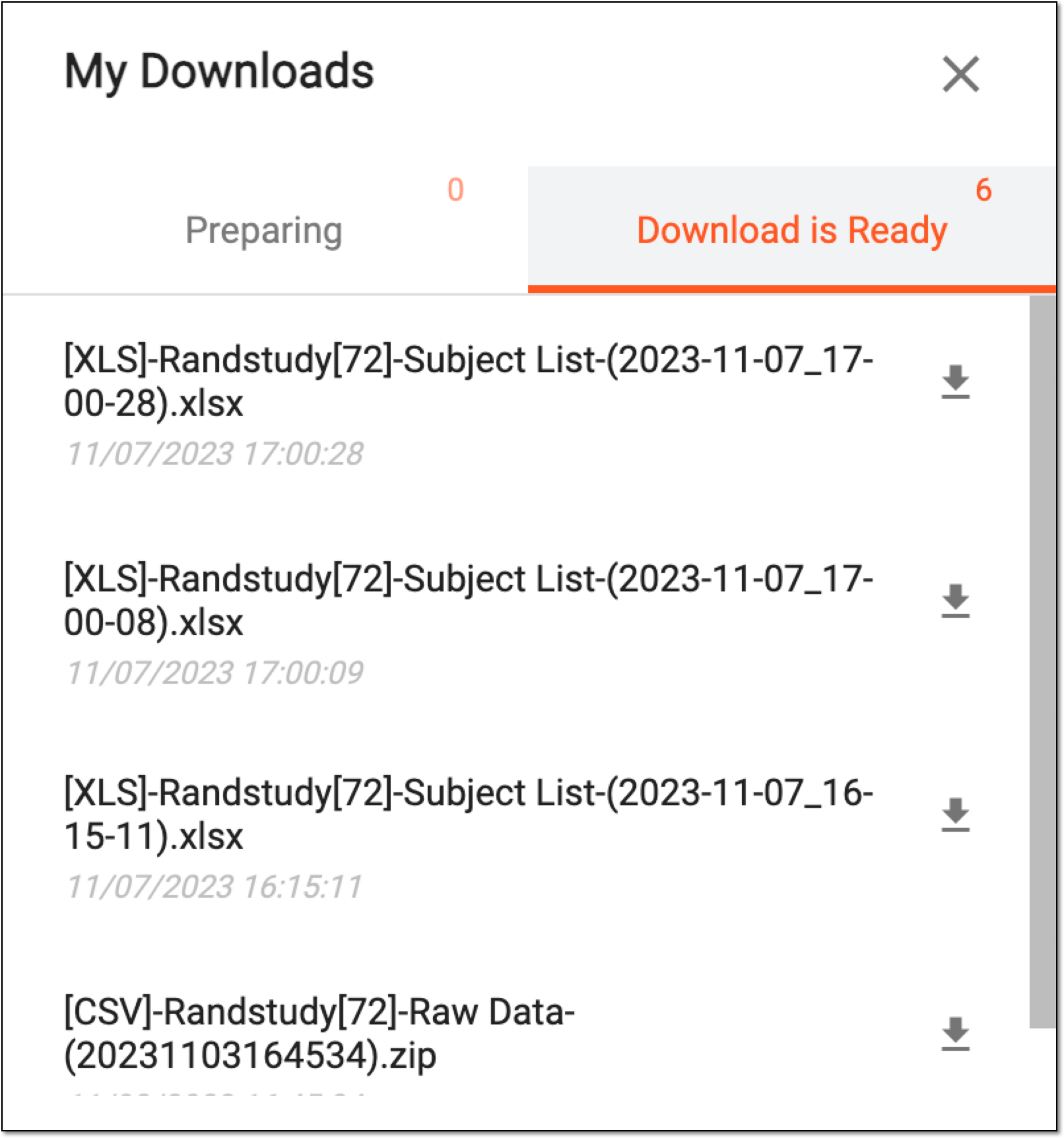 Figure 3. Viewing downloads
-
-
Under the Download is Ready tab, next to the file that you want to download, select
 .
.
Once the file is downloaded and saved, you can view the subject data in the XLSX format on your computer.