Add subject phase property
In EDC, you can add new properties to a subject phase according to your business needs. Adding properties to the phase means assigning certain procedures to be performed by all subjects during the specific phase of their participation in the study.
For example, your screening phase includes a property of HIV testing, and you want to add testing for the subject's cholesterol levels. You can do that by adding a new property.
-
In the EDC application header, select the STUDY INFO tab.
-
On the page that opens, in the left pane, select Subject > Subject Phase.
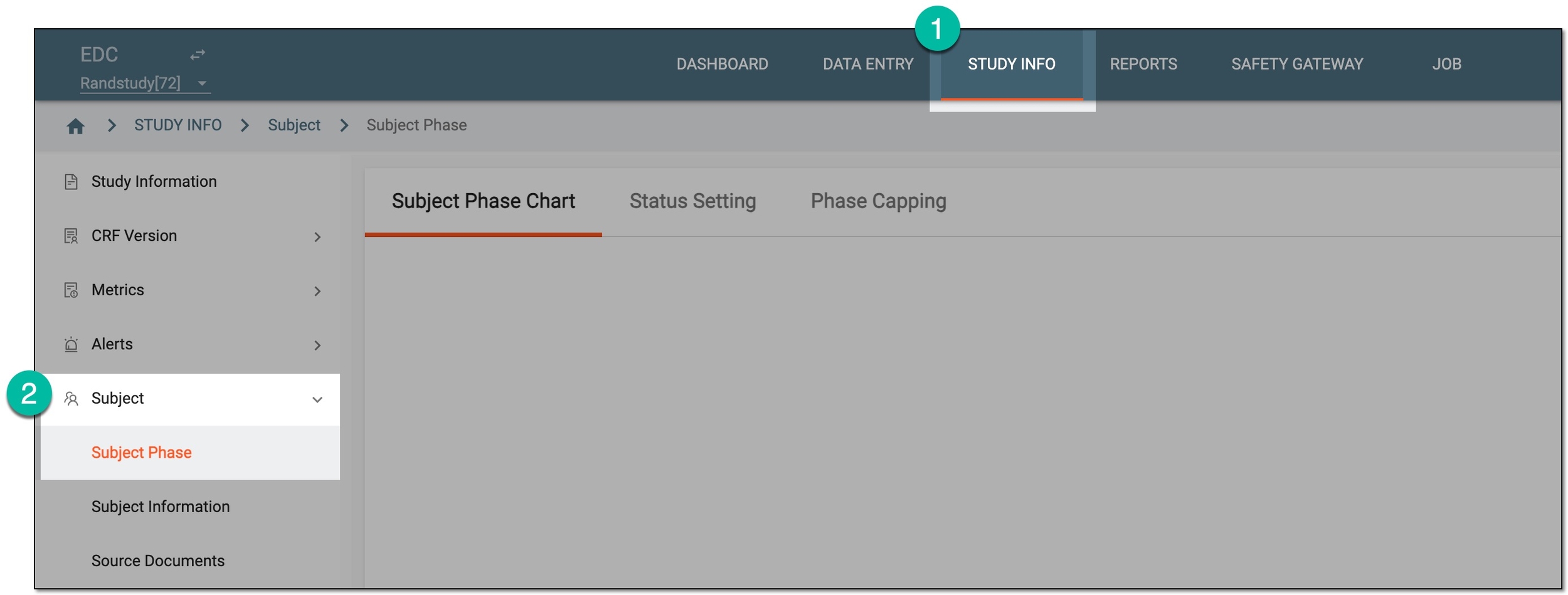 Figure 1. Accessing subject phase management
-
On the Subject Phase Chart page that opens, on the subject phase flow chart, double-click the tile of your interest.
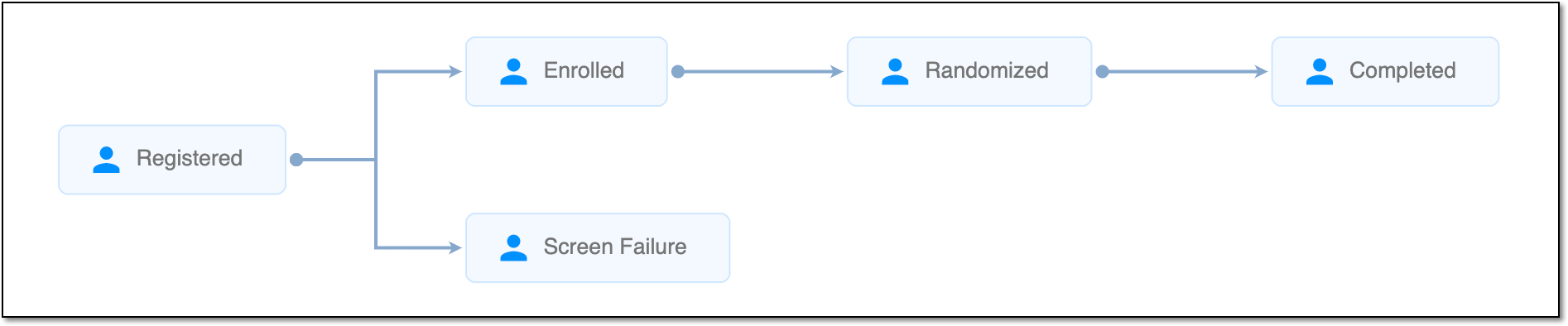 Figure 2. Viewing subject phase flow chart
Tip
For quick access to Property, right-click the needed phase in the chart.
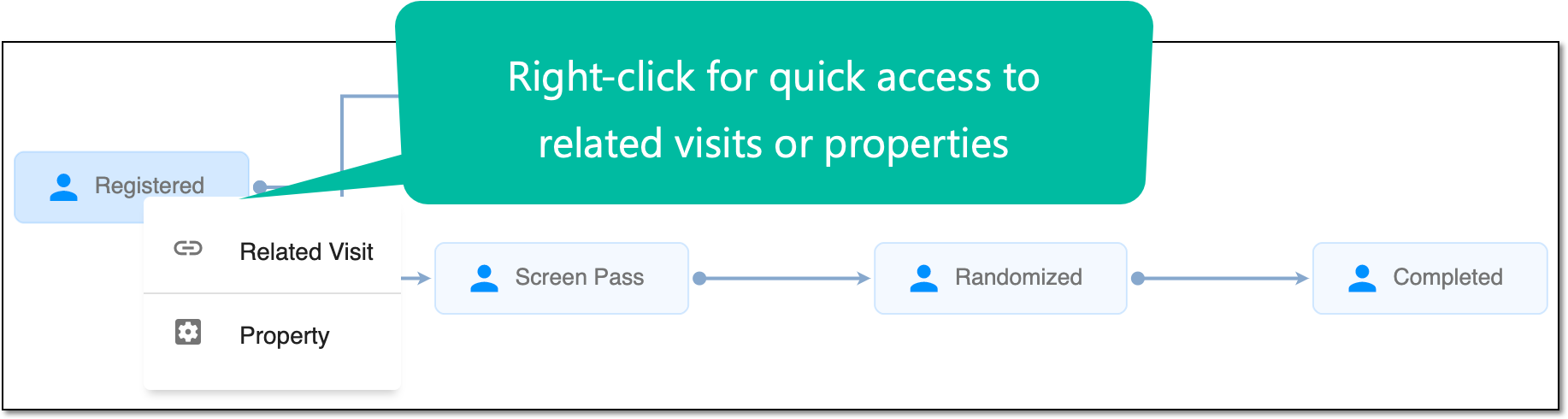 Figure 3. Accessing Related Visit and Property functionality
-
In the dialog that opens, select the Property Define subtab.
-
Above the table that appears, on the workspace toolbar, select New Property
 .
.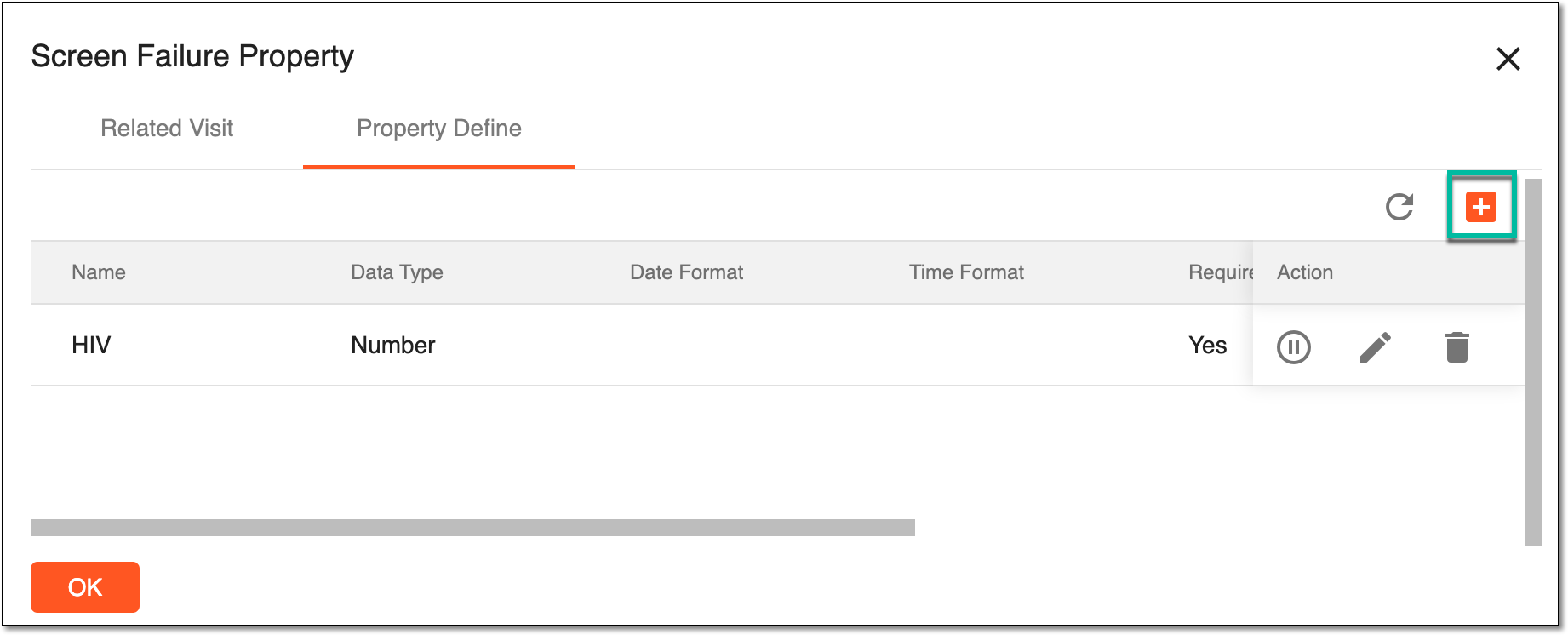 Figure 4. Adding new property
-
In the new property row that appears in the table, configure the fields as suggested in the following table.
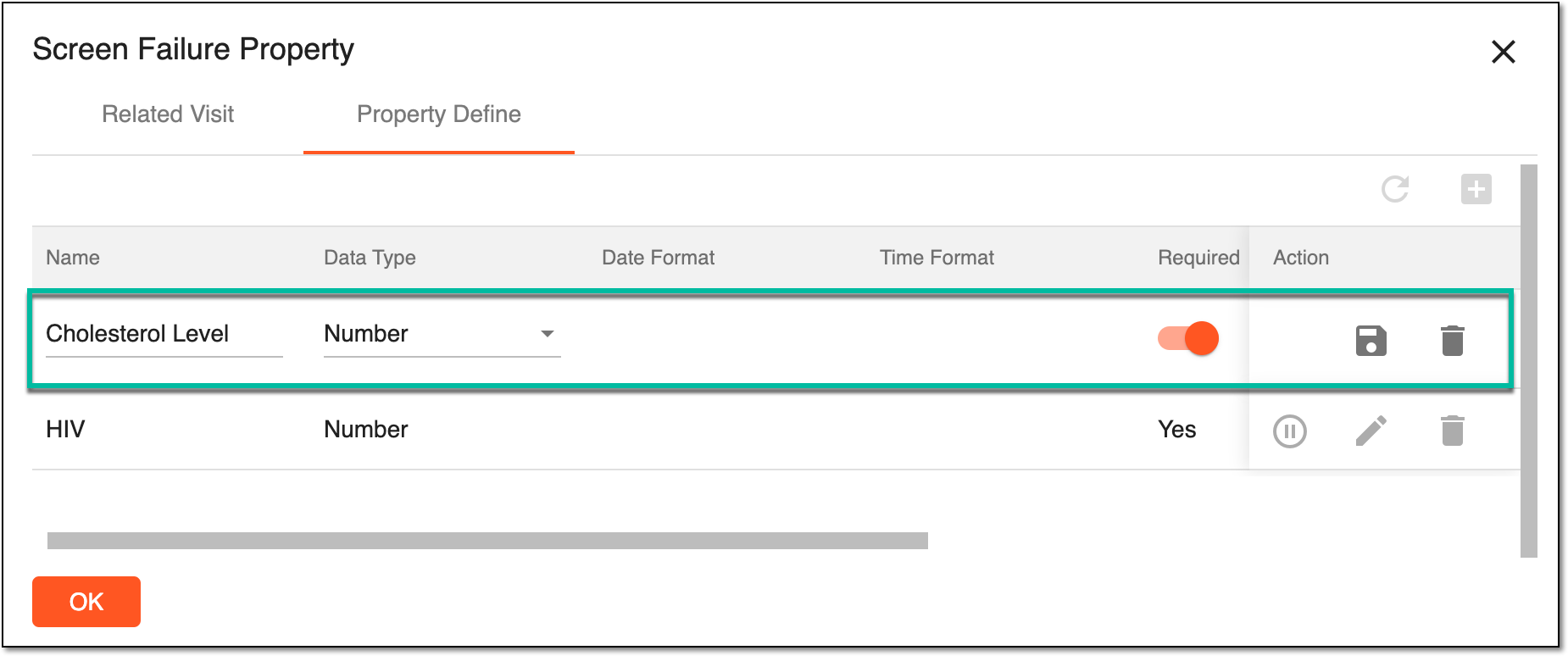 Figure 5. Configuring new property details
Tip
In the following table, mandatory elements are marked with an asterisk (*).
Element
Details
Name
Enter the descriptive name of the property. For example, Cholesterol level.
Data Type
Expand the dropdown list and select the preferable data type: Text, Date, Number, DateTime, or Time.
Date Format
Expand the dropdown list and select the preferable date format.
The Date Format field is only enabled if you have selected Date or Date Time data type.
Required
-
Turn this toggle on to set this property as mandatory.
-
Turn this toggle off to set this property as optional.
Unique
Expand the dropdown list and select one of the following options:
-
In Study: if selected, the value of this property must be unique within the study.
-
In Site: if selected, the value of this property must be unique within a site.
-
NA: if selected, there is no restriction on the uniqueness of the value.
Blinded
-
Turn this toggle on to set this property as blinded so that only users with certain permissions could view its value.
-
Turn this toggle off to set this property value as unblinded and visible for all users.
If Blinded, Accessible Role(s)
Expand the dropdown list and select the checkbox(es) next to the user role(s) for which you want the blinded property to be visible.
Save
Select
 from the Actions column to save the property you have configured.
Delete
Select
 from the Actions column to dismiss the configuration and remove the row from the table at once.
OK
Select
 at the bottom of the dialog to close the dialog and dismiss all the unsaved configurations.
 -
Upon saving, the subject phase property is added.
A specific phase that a subject has to complete in the course of a clinical trial to move further to the next phase. For instance, Screening, Enrolled, Randomized, and others.
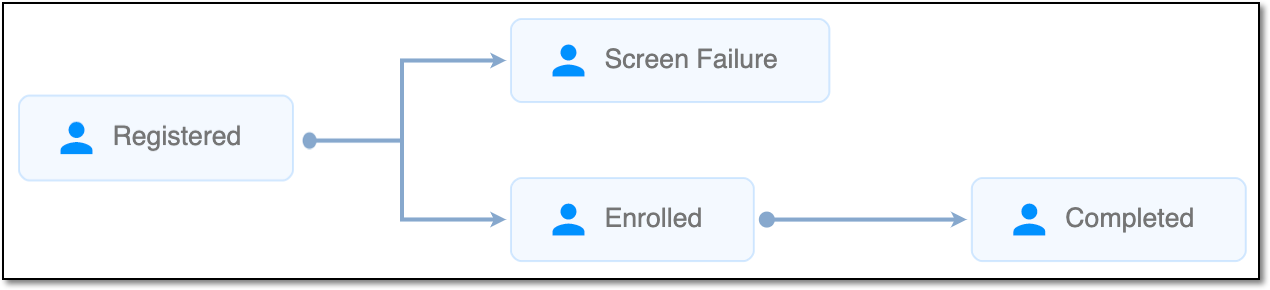 |
In eClinical, subject phases are designed individually for each study via the SD application, although they are referenced in others, like IWRS or EDC.