Edit subject phase property
In EDC, you can edit the existing properties for subject phases according to your business needs.
-
In the EDC application header, select the STUDY INFO tab.
-
On the page that opens, in the left pane, select Subject > Subject Phase.
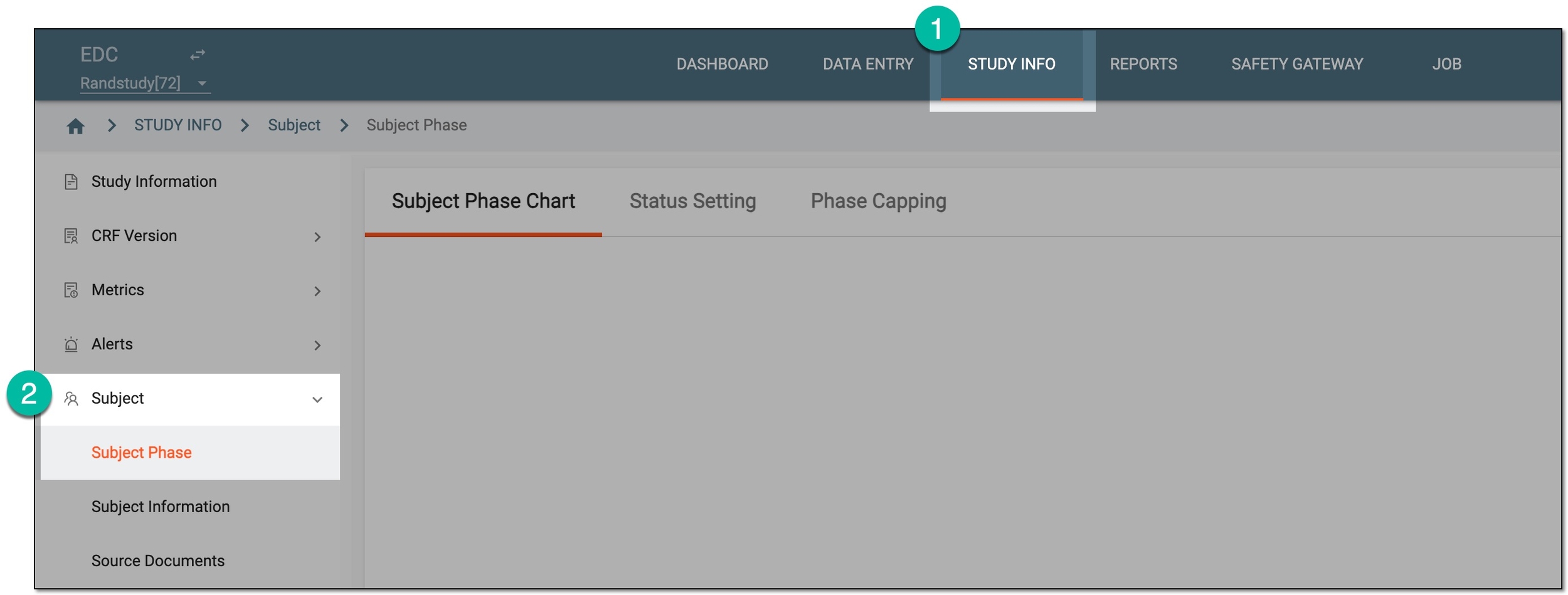 Figure 1. Accessing subject phase management
-
On the Subject Phase Chart page that opens, on the subject phase flow chart, double-click the tile of your interest.
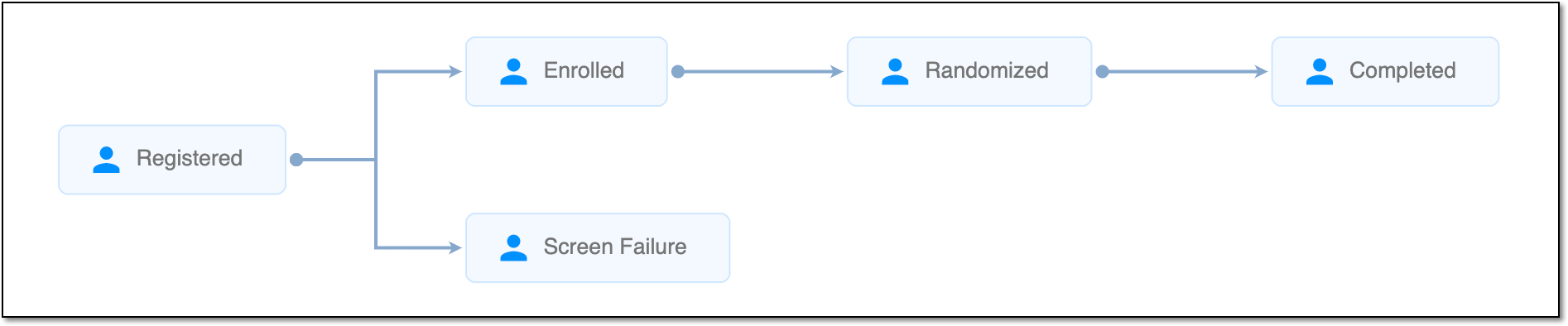 Figure 2. Viewing subject phase flow chart
Tip
For quick access to Property, right-click the needed phase in the chart.
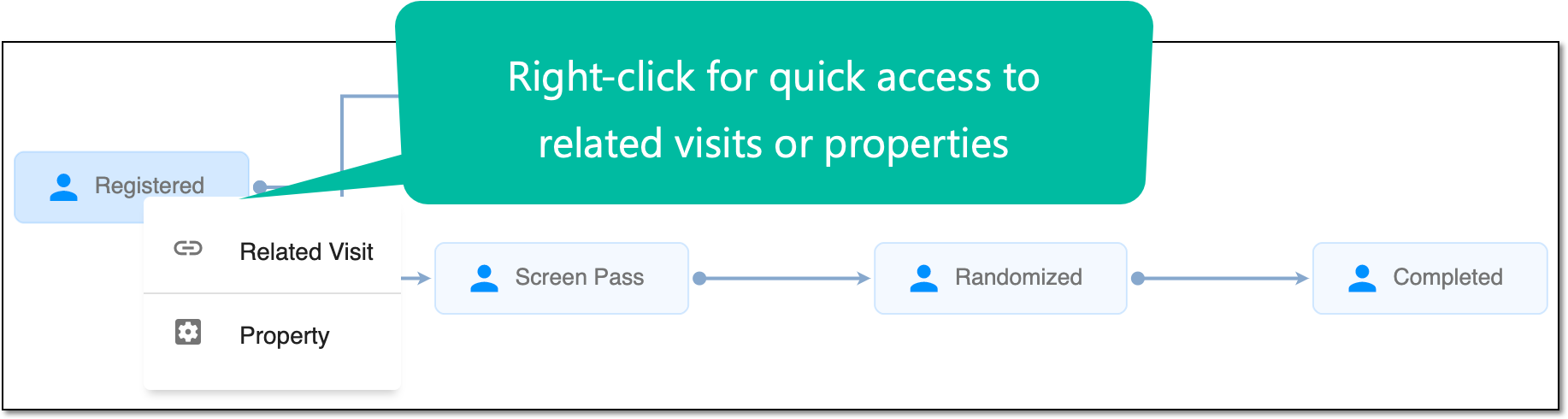 Figure 3. Accessing Related Visit and Property functionality
-
In the dialog that opens, select the Property Define subtab.
-
In the table that appears, locate the property of your interest, and next to it, select Edit
 .
.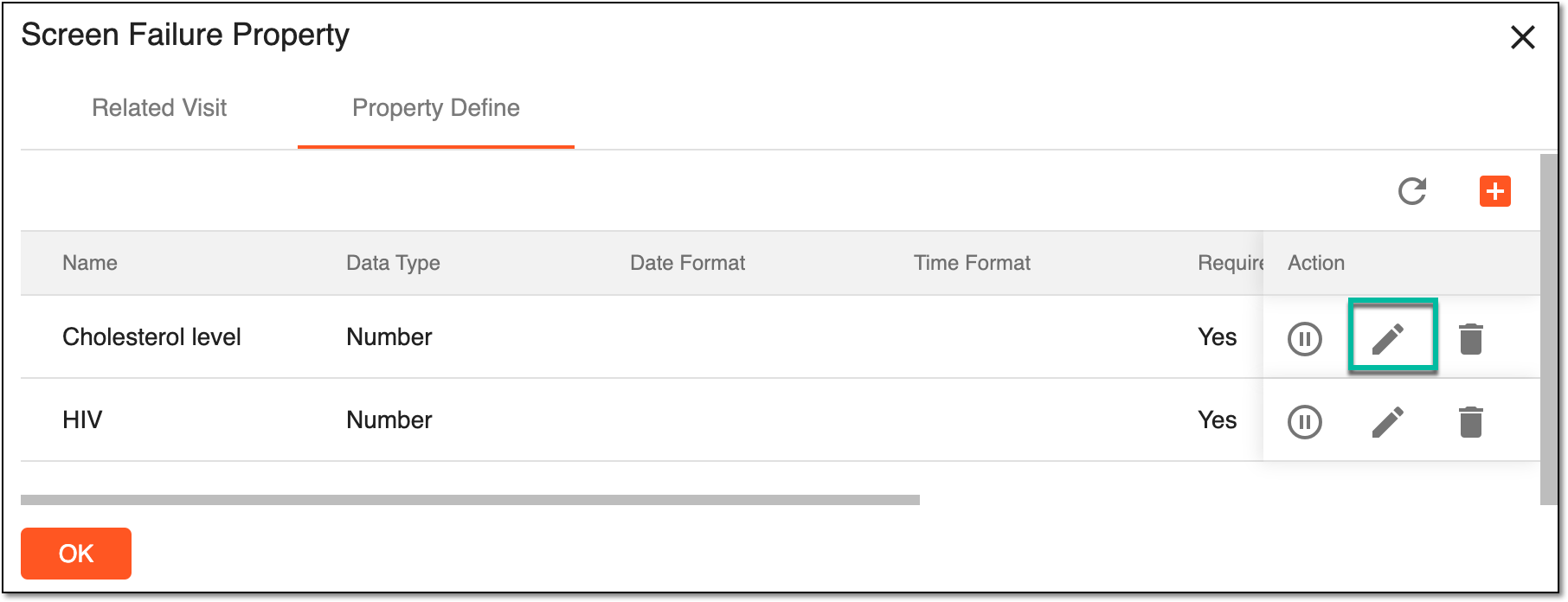 Figure 4. Editing property
-
In the new property row that appears in the table, edit the fields as suggested in the respective table of the Add subject phase property section.
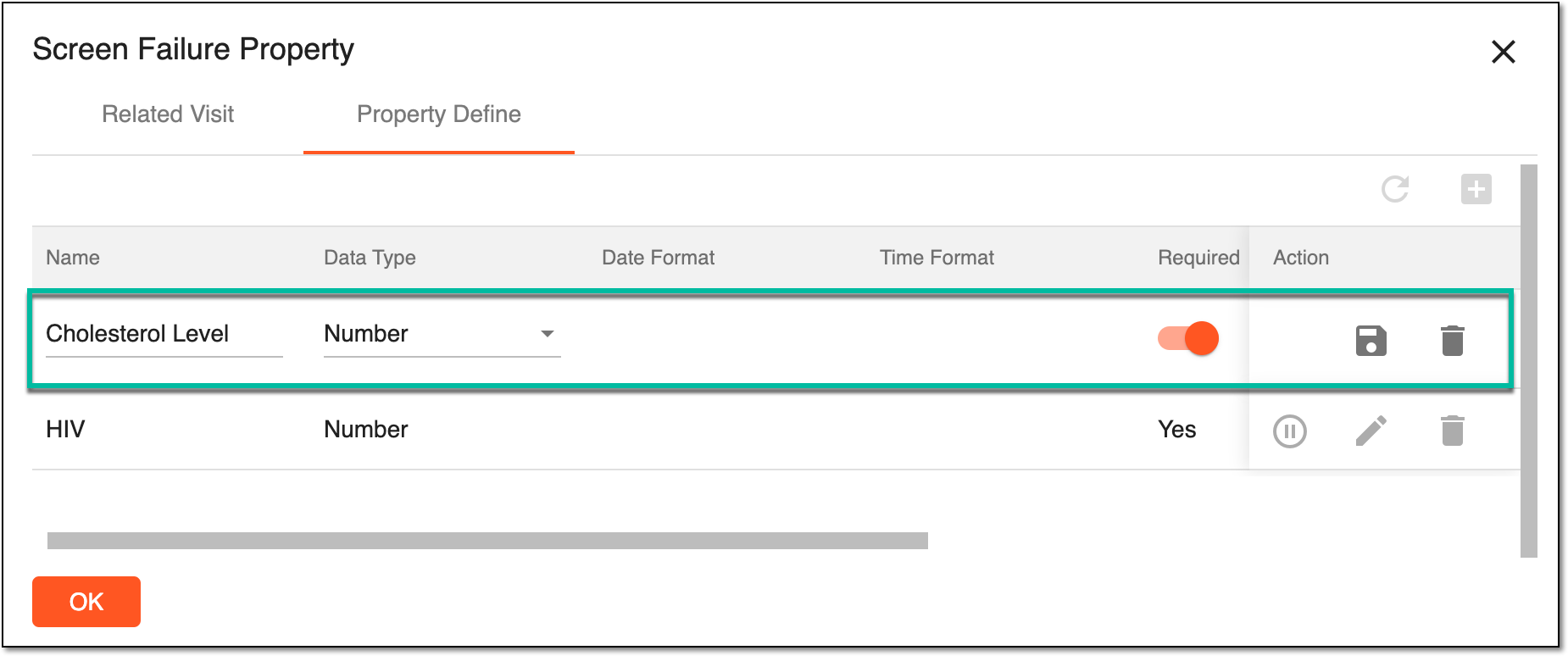 Figure 5. Editing property details
-
From the Actions column, select
 to save the edits.
Upon saving, the property is updated. Select  to close the dialog and return to the Subject Phase Chart page.
A specific phase that a subject has to complete in the course of a clinical trial to move further to the next phase. For instance, Screening, Enrolled, Randomized, and others.
 |
In eClinical, subject phases are designed individually for each study via the SD application, although they are referenced in others, like IWRS or EDC.