Add eCOA user account
eCOA is a software application designed to run on mobile devices such as smartphones or tablets, enabling subjects or nurses to complete electronic Clinical Outcome Assessments (eCOA) through mobile devices. The eClinical EDC system has customizable configurations that facilitate integration with the eCOA mobile application, enabling real-time data collection.
In eClinical EDC, you have a feature to add users to the eCOA mobile application, granting them access and the ability to enter data into visit forms. This process ensures efficient data collection and enhances collaboration among users, facilitating a data entry experience.
-
In the EDC application header, select the STUDY INFO tab.
-
In the left pane of the page that opens, select eCOA > Subject Setting.
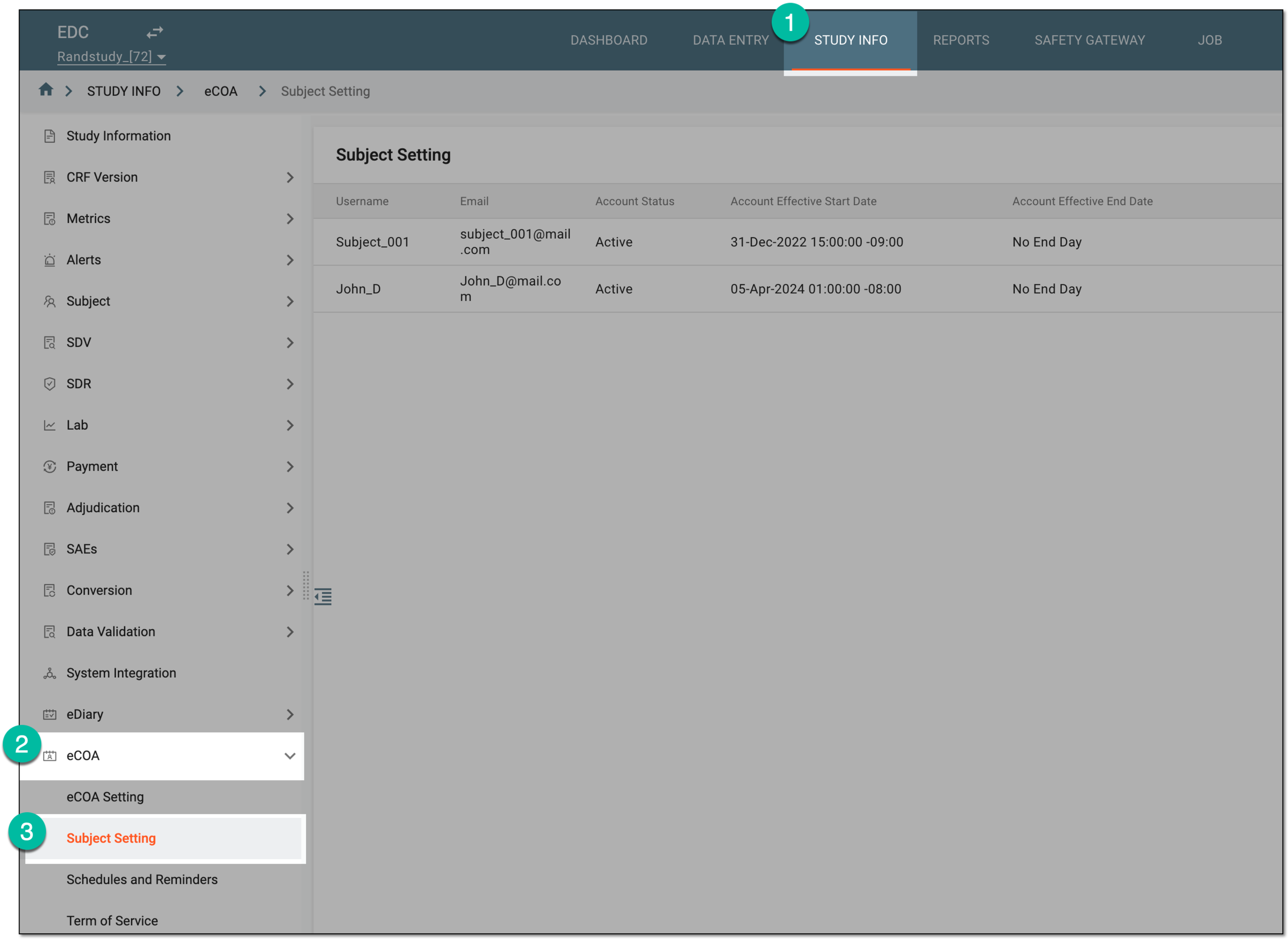 Figure 1. Accessing eCOA subject setting
-
From the workspace toolbar of the Subject Setting table that appears, select New Item
 .
. Figure 2. Selecting option to add eCOA user
-
In the New eCOA Account dialog that appears, enter the email address of the person for whom you are creating the account. Then select
 .
.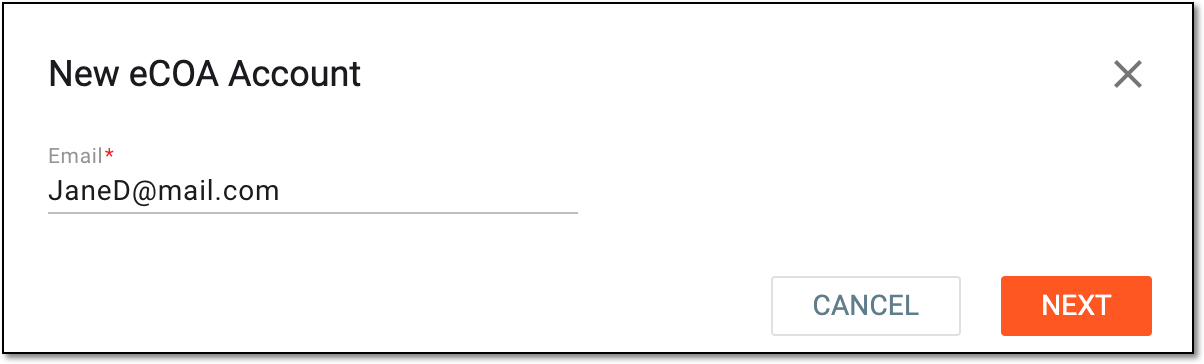 Figure 3. Adding new eCOA account
-
In the New Item dialog that appears, provide eCOA user details as explained in the following table.
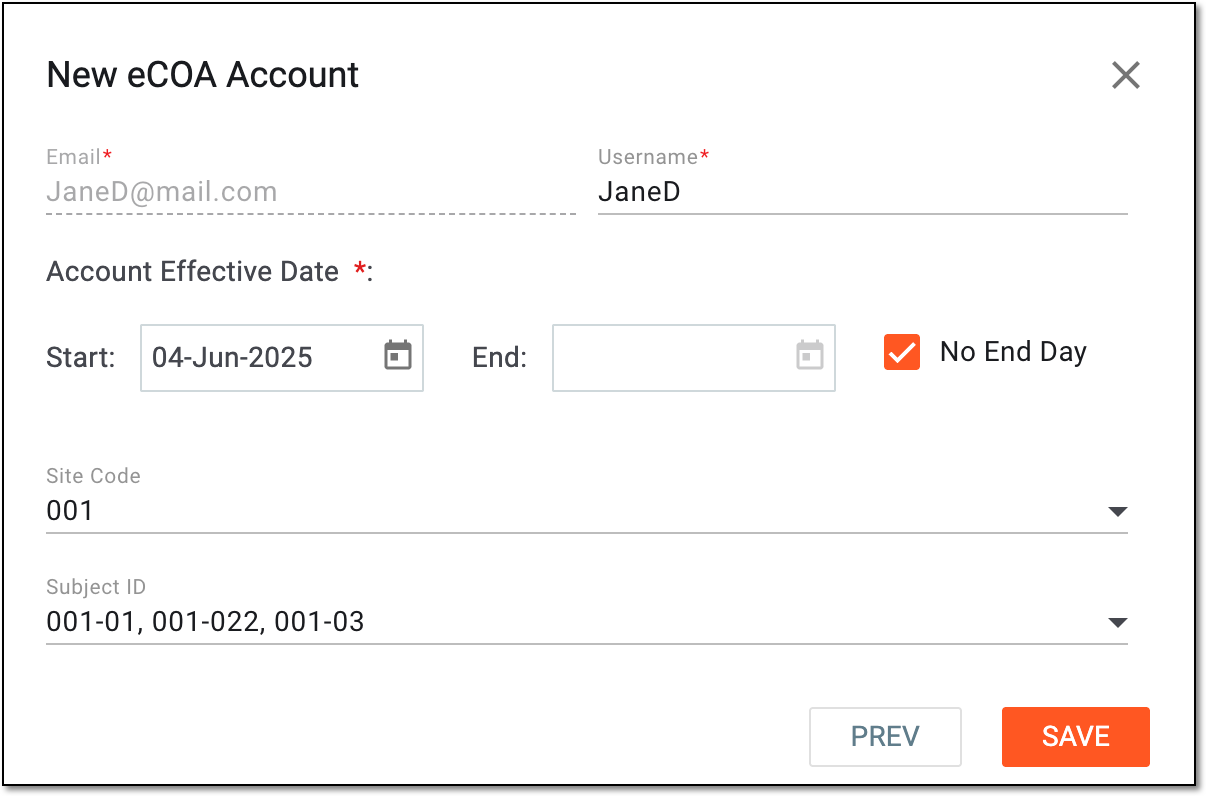 Figure 4. Configuring new eCOA account
Tip
In the following table, mandatory elements are marked with an asterisk (*).
Element
Details
Email*
Represents the email address of the eCOA user provided in the previous step. You cannot edit the email here, instead, you can select PREV and go to the previous step to make amendments.
Username*
Enter a unique name for a new eCOA user.
Account Effective Date
Start
Select the date of the eCOA user account activation. This date indicates when the created user can start entering data into the application forms.
End
Select the date of the eCOA user account deactivation. This date indicates when the user stops having access to the application and can no longer enter data into the forms.
If the end date is indicated and reached, the eCOA account becomes inactive, meaning it cannot be updated or reactivated.No End Day
Select this checkbox if the eCOA account does not need to have the end date. If not selected, the end date must be specified.
If this checkbox is selected, the End field becomes inactive.Site Code*
Select sites to which the eCOA user is to be granted access for data entry.
Subject ID*
Select subjects to which the eCOA user is to be granted access for data entry. The subjects' availability in this field depends on the sites selected previously.
SAVE
Select
 to add a new eCOA user.
PREV
Select
 to go to the previous step to make amendments.
 -
In the dialog that appears, select
 to confirm your acknowledgment that the created user must check their email to find login credentials for access to the
eCOA application.
to confirm your acknowledgment that the created user must check their email to find login credentials for access to the
eCOA application.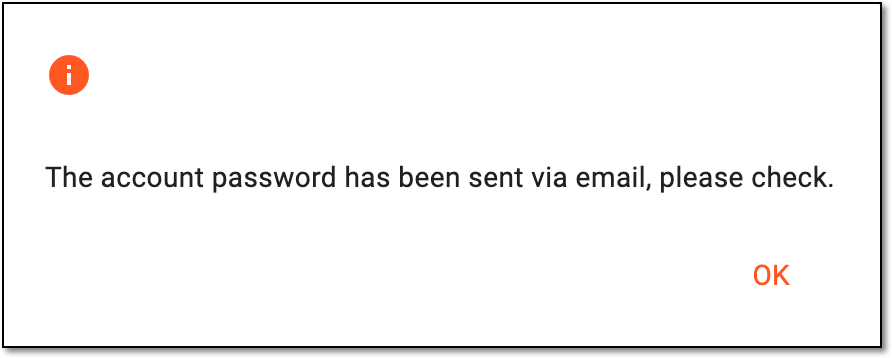 Figure 5. Confirming eCOA user account creation
Once confirmed, a new user is added to the eCOA mobile application.