Activate/Inactivate eCOA user account
eCOA is a software application designed to run on mobile devices such as smartphones or tablets, enabling subjects or nurses to complete electronic Clinical Outcome Assessments (eCOA) through mobile devices. The eClinical EDC system has customizable configurations that facilitate integration with the eCOA mobile application, enabling real-time data collection.
In eClinical EDC, you have a feature to add users to the eCOA mobile application, granting them access and the ability to enter data into visit forms. However, some users may need to be temporarily restricted from accessing the application so they can be inactivated. Such users can be granted access again if needed because with the EDC functionality, study administrators to manage user permissions effectively.
Important
You can activate or inactivate eCOA user accounts only if they have not yet reached the deactivation date and are still in the Active account status.
-
In the EDC application header, select the STUDY INFO tab.
-
In the left pane of the page that opens, select eCOA > Subject Setting.
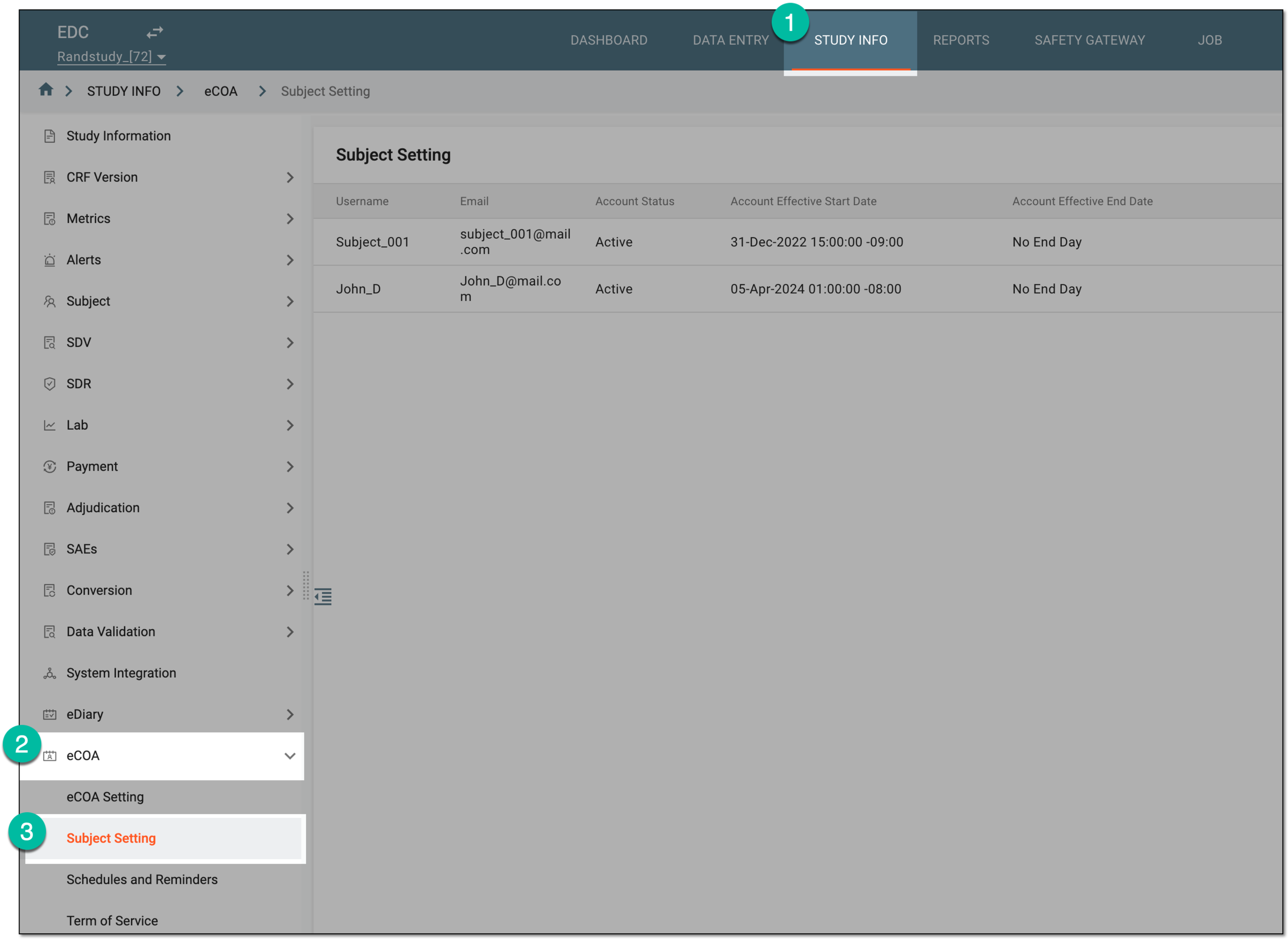 Figure 1. Accessing eCOA subject setting
-
In the Subject Setting table that appears, locate the record of the user whose account you need to activate or inactivate, then select one of the following:
-
Activate
 : to make the eCOA account active and available for the user to log in to the application with their
credentials.
: to make the eCOA account active and available for the user to log in to the application with their
credentials. -
Inactivate
 : to make the eCOA account inactive and unavailable for the user to log in to the application with their
credentials.
: to make the eCOA account inactive and unavailable for the user to log in to the application with their
credentials.
 Figure 2. Activating and inactivating eCOA user accounts
-
Once selected, the eCOA user account is activated or inactivated based on the action performed. Inactivated users have no access to the eCOA application until activated again.