Configure eCOA at visit and form level
eCOA is a software application designed to run on mobile devices such as smartphones or tablets, enabling subjects or nurses to complete electronic Clinical Outcome Assessments (eCOA) through mobile devices. The eClinical EDC system has customizable configurations that facilitate integration with the eCOA mobile application, enabling real-time data collection. Healthcare professionals can remotely monitor patient progress via EDC and make informed decisions based on data captured through eCOA.
In the eClinical EDC system, you can configure the form settings of the eCOA mobile application. With these settings, you can establish a date-based variable that determines when visits become available for data entry in eCOA. Additionally, you can grant users the option to add unscheduled events to visits or forms, providing greater flexibility in data collection.
-
In the EDC application header, select the STUDY INFO tab.
-
In the left pane of the page that opens, expand eCOA and select eCOA Setting.
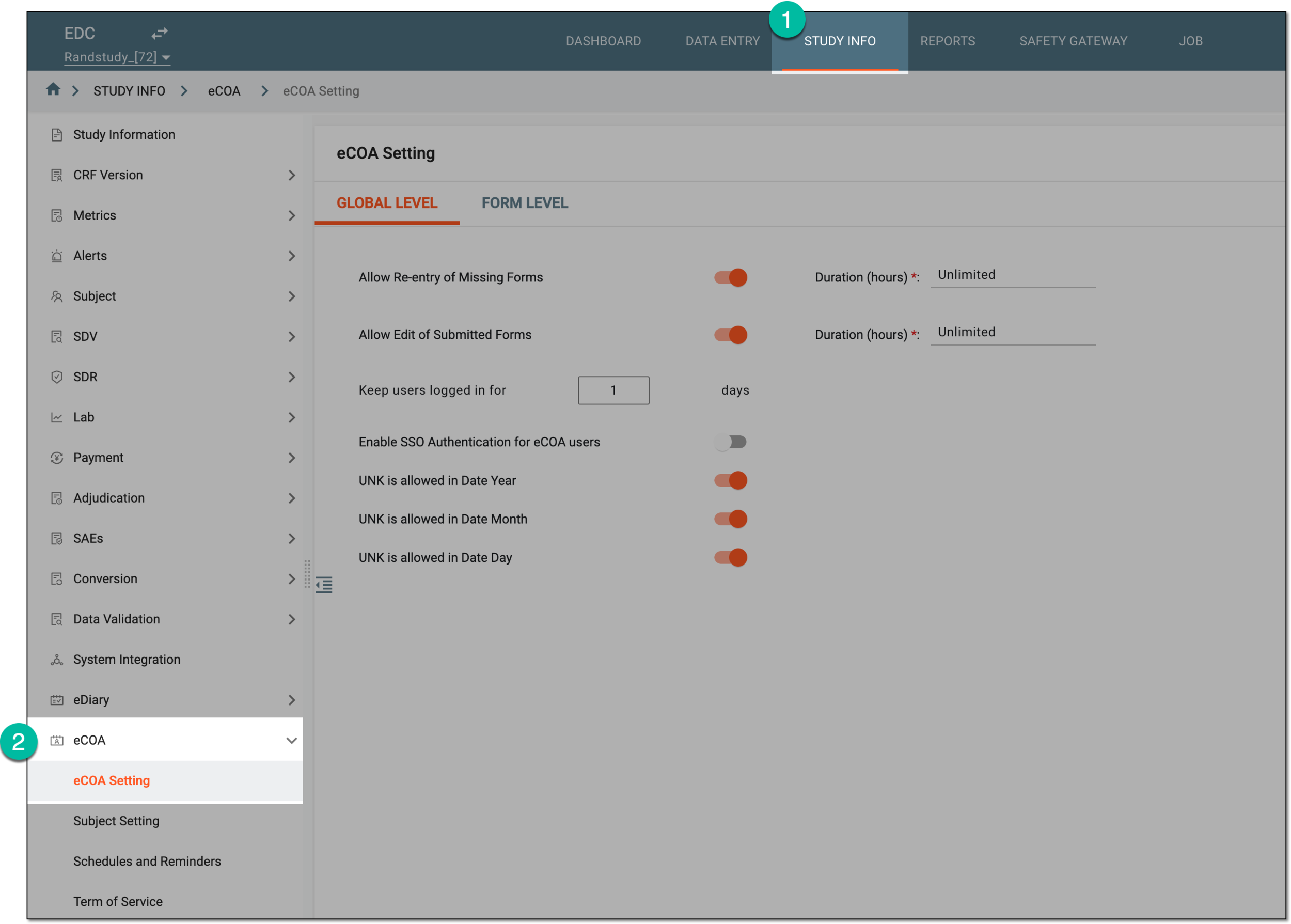 Figure 1. Accessing eCOA settings
-
In the contents panel that appears, select the FORM LEVEL tab to configure eCOA visit and form settings.
-
In the explorer tree pane, select the visit-level folder and in the contents panel, complete the settings as explained in the following table.
Important
The configuration of eCOA settings is not possible if the eCOA setting status is Completed. To enable the configuration, from the workspace toolbar, select Unsubmit
 .
.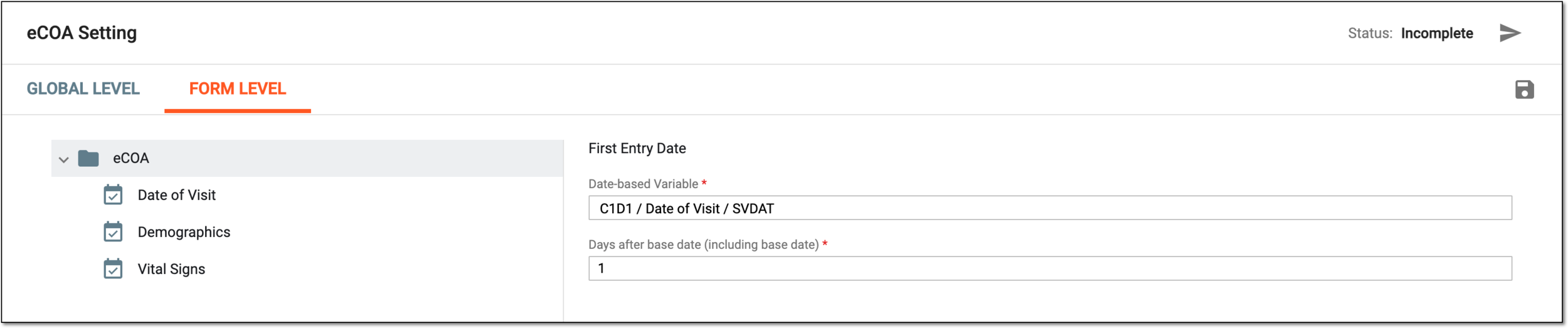 Figure 2. Configuring eCOA at visit level
Tip
In the following table, mandatory elements are marked with an asterisk (*).
Element
Details
Date-based Variable*
Select the visit, form, and variable within to serve as a baseline date for the forms to become available in the eCOA application for data entry.
Suppose you have chosen the SVDAT variable from the C1D1 visit and Date of Visit form as the date-based variable for the eCOA forms to become available for completion. This means, that once the user enters the value to the SVDAT variable, the system starts calculating the number of days after the base date and then generate the forms for completion.
Days after base date (including base date)*
Enter the number of days after the base date when the eCOA has to start generating forms for the user to complete.
Suppose you have chosen the SVDAT variable from the C1D1 visit and Date of Visit form as the date-based variable for the eCOA forms to become available. If the SVDAT variable is set to July 1 and you enter "1" as the number of days after the base date, the first eCOA form will become available in the application on July 2.
Save
Select
 to apply the configuration.
 -
Once visit-level settings are saved, from the explorer tree pane, select the form-level folders one by one and for each, complete the settings as explained in the following table.
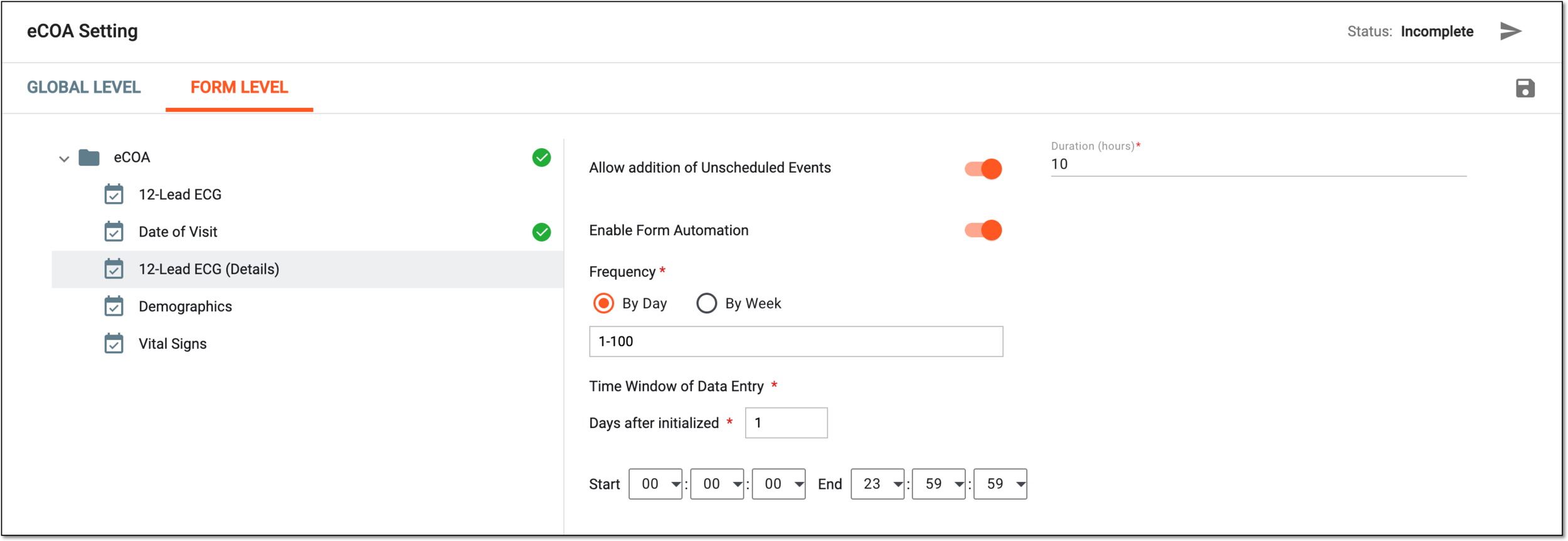 Figure 3. Configuring eCOA at form level
Tip
In the following table, mandatory elements are marked with an asterisk (*).
Element
Details
Allow addition of Unscheduled Events
Turn the toggle on to allow the eCOA users to add the form for the unscheduled event data entry.
If turned off, the user cannot add forms to eCOA and can only fill the existing scheduled forms.
This setting is only available for the log form configuration and is missing for the simple forms.Duration (hours)*
Enter the number of hours during which the user can enter data to the unscheduled event form.
For instance, if you set this value to "10," then once the user adds the unscheduled event form via eCOA, they must complete the data entry no later than 10 hours after creation.
This value is only available if the addition of unscheduled events is enabled.Enable Form Automation
Turn the toggle on to automate form initialization by setting the data entry timeframes.
If turned off, the Time Window of Data Entry block of settings is unavailable and there is no limitation for how long the users can enter data into the form.
Frequency*
This block of settings is only available if the form automation is enabled.By Day
Select this option and in the field that appears, enter the range or sequence of days for the new records of the log form to be generated after the visit initialization.
For instance, if you enter "1-100," then the system will generate a new form record every day from day one after the visit initialization and to the hundredth day.
However, you can enter a random sequence, such as "5, 10, 15" to generate a new form record on the fifth, tenth, and fifteenth days after the visit initialization.
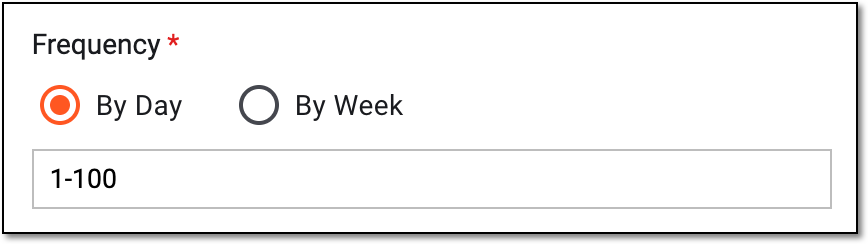 Figure 4. Configuring form completion frequency by day
By Week
Select this option and then select the week days on which you want the new records of the log form to be generated. Then in the # of Weeks field, enter for how many weeks you want the system to continue the form record generation after the visit initialization.
For instance, if you select Mon. and Thur. and then enter # of Weeks as "1," then the system will only generate two form records—on Monday and Thursday of the first week after the visit initialization.
However, if you select Mon. and Thur. and then enter # of Weeks as "10," then the system will generate two form records per week—on Monday and Thursday—for ten weeks after the visit initialization.
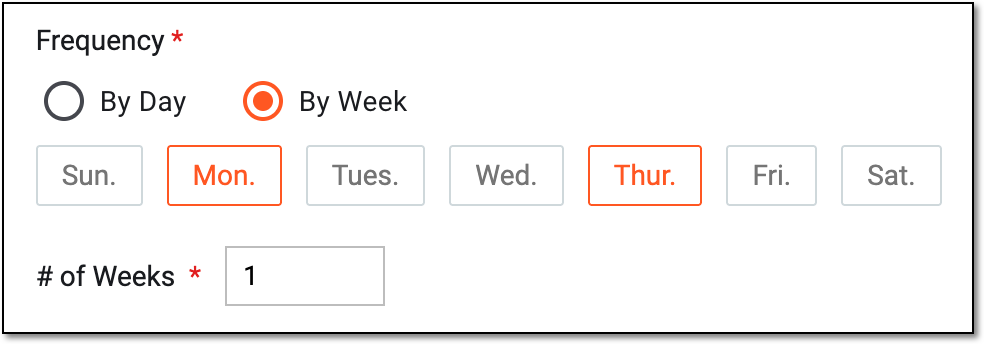 Figure 5. Configuring form completion frequency by week
Time Window of Data Entry*
This block of settings is only available if the form automation is enabled.Days after initialized
Enter the number of days after the form initialization date, within which the eCOA form completion must commence. This number of days is summed up with the visit-level setting of initialization and the form becomes available on the resulting day during the set hours as follows:
Days after base date (including base date)* + Days after initialized = the form is available for completion from the Start to End time frame.
For instance, the base date is set to July 1. At visit level, you configure that the forms must initialize "1" day after the base date, and at form level, you set for the form to become available "1" day after initialization. Thus, it makes it two days after the base date, and the form becomes available for completion on July 3.
Start
Select hours, minutes, and seconds to set the start time for data entry in the eCOA form. This gives you the flexibility to limit the user to enter their data during specific hours or allow the data entry during the day.
For instance, you can select "00:00:00" to enable form completion from the beginning of the day. Or you can set "08:00:00" if you want the user to be able to enter data starting at 8 AM.
End
Select hours, minutes, and seconds to set the end time for data entry in the eCOA form. This gives you the flexibility to limit the user to enter their data during specific hours or allow the data entry during the day.
For instance, you can select "23:59:59" to enable form completion by the end of the day. Or you can set "20:00:00" if you want the user to be able to enter data no later than 8 PM.
Save
Select
to preserve the configurations but not yet push them to the eCOA application.Submit
Select
 once the visit, form, and global configurations for the eCOA application are finalized.
Once submitted, the form and global settings for the eCOA application are applied.