Configure eCOA at global level
eCOA is a software application designed to run on mobile devices such as smartphones or tablets, enabling subjects or nurses to complete electronic Clinical Outcome Assessments (eCOA) through mobile devices. The eClinical EDC system has customizable configurations that facilitate integration with the eCOA mobile application, enabling real-time data collection. Healthcare professionals can remotely monitor patient progress via EDC and make informed decisions based on data captured through eCOA.
In the eClinical EDC system, you can configure the global settings of the eCOA mobile application. These settings help you determine the maximum allowed time for application users to enter data in missing forms, make edits to previously submitted forms, or enable users to remain logged in without automatic logouts.
-
In the EDC application header, select the STUDY INFO tab.
-
In the left pane of the page that opens, expand eCOA and select eCOA Setting.
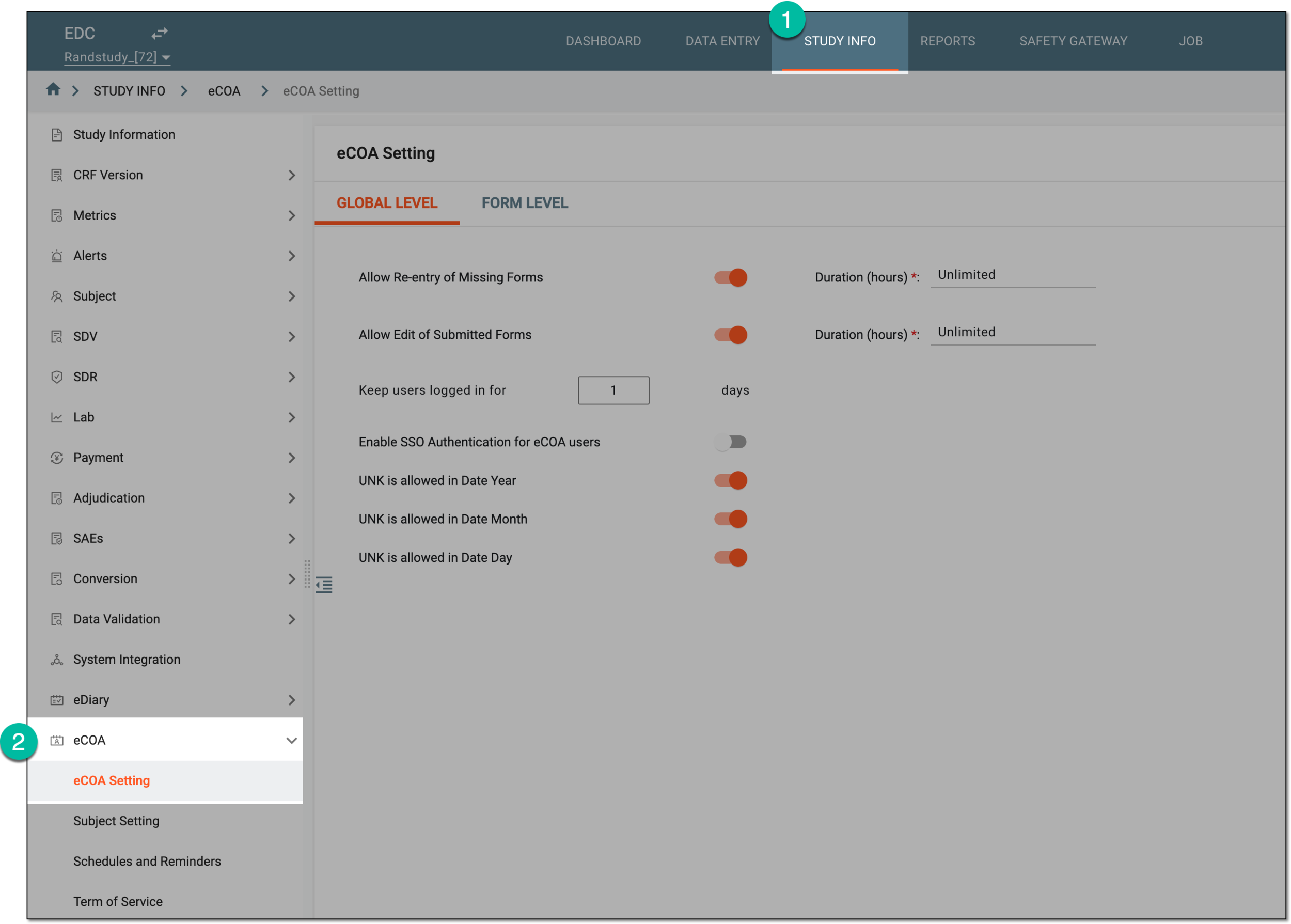 Figure 1. Accessing eCOA settings
-
Under the GLOBAL LEVEL tab that opens in the contents panel, configure the eCOA global settings as explained in the following table.
Important
The configuration of eCOA settings is not possible if the eCOA setting status is Completed. To enable the configuration, from the workspace toolbar, select Unsubmit
 .
.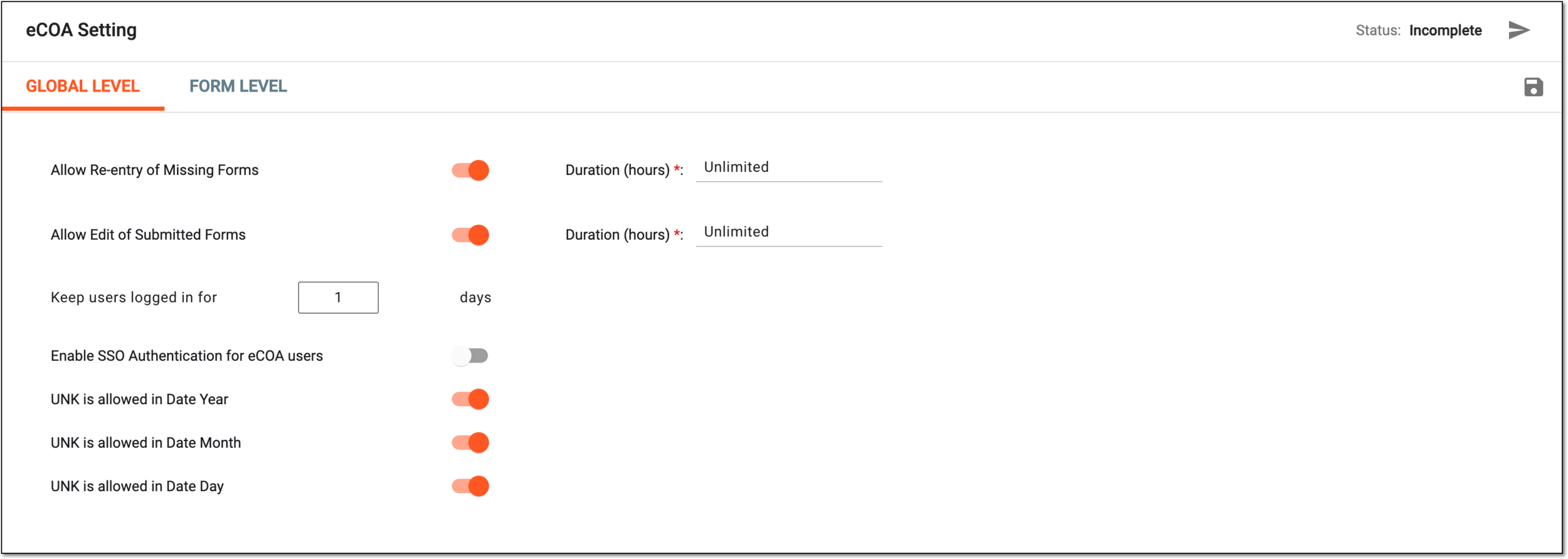 Figure 2. Configuring eCOA application settings at global level
Tip
In the following table, mandatory elements are marked with an asterisk (*).
Element
Details
Allow Re-entry of Missing Forms
Turn this toggle on to indicate the maximum allowed number of hours for eCOA application users to be allowed to complete missing forms they might have forgotten to fill in. The hours are specified in the Duration (hours) field that becomes available once the toggle has been turned on.
Duration (hours)*
Enter the maximum allowable number of hours for eCOA application users to complete missing forms. Alternatively, from the dropdown list, select Unlimited to always allow users to complete missing forms.
Allow Edit of Submitted Forms
Turn this toggle on to indicate the maximum allowed number of hours for eCOA application users to be allowed to make edits to previously submitted forms. The hours are specified in the Duration (hours) field that becomes available once the toggle has been turned on.
Duration (hours)*
Enter the maximum allowable number of hours for eCOA application users to make edits to submitted forms. Alternatively, from the dropdown list, select Unlimited to always allow users to update submitted forms.
Keep users logged in for _ days
Enter the maximum number of days for eCOA application users to remain logged in without automatic logouts.
Enable IG Initialization for Past Visits
Turn the toggle to control the form generation as follows:
-
If turned on, if the subject transfers to the new protocol version or the eCOA settings change, the system generates all the eCOA forms for visits—the ones scheduled before and after the transition or change date.
-
If turned off, once the subject transfers to the new protocol version or the eCOA settings change, the system only generates eCOA forms for visits after the transition or change date.
Enable SSO Authentication for eCOA users
Turn the toggle to control authentication as follows:
-
If turned on, you enable the eCOA mobile application access via the SSO authorization along with the standard login and password authentication method.
-
If turned off, you disable the eCOA mobile application access via the SSO authorization, only leaving the standard login and password authentication method.
UNK is allowed in Date Year
Turn the toggle to control unknown values as follows:
-
If turned on, you allow the selection of the Unknown value when entering years in the date fields.
-
If turned off (prohibited), the user must enter a valid date when asked to enter the year value.
UNK is allowed in Date Month
Turn the toggle to control unknown values as follows:
-
If turned on, you allow the selection of the Unknown value when entering months in the date fields.
-
If turned off (prohibited), the user must enter a valid date when asked to enter the month value.
UNK is allowed in Date Day
Turn the toggle to control unknown values as follows:
-
If turned on, you allow the selection of the Unknown value when entering days in the date fields.
-
If turned off (prohibited), the user must enter a valid date when asked to enter the day value.
Save
Select
 to preserve the configurations but not yet push them to the eCOA application.
Submit
Select
 from the workspace toolbar once the global and form configurations are final and ready to be pushed to the eCOA application.
 -
Once submitted, the global and form settings for the eCOA application are applied.