Send alert email on expired file
An expired file in eTMF refers to a clinical trial document—study protocol, informed consent form, case report form, or else—that has reached its expiration period determined by regulatory requirements or internal procedures.
Sometimes you might need to notify a user of the file expiration for them to take an action, for instance, replace the file with a valid copy. The email recipient can be set via the alert trigger configurations for all the file levels, countries, and sites.
For instance, there can be one alert recipient for all the expired files of the site level but an individual recipient for the site 001. Similarly, there can be one alert recipient for all the country-level files but another specific recipient for all the China files.
-
In the eTMF application header, select the TMF.
-
In the Study List table that appears, select the study for which you need to send the expired file email.
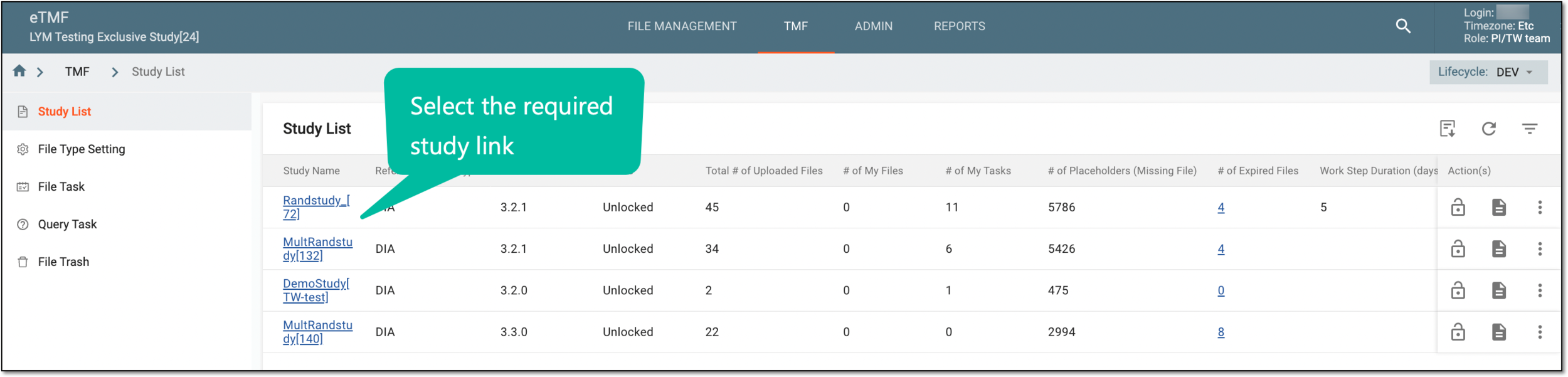 Figure 1. Selecting study
-
On the page that opens, in the left pane, select Study Details > Expired Files.
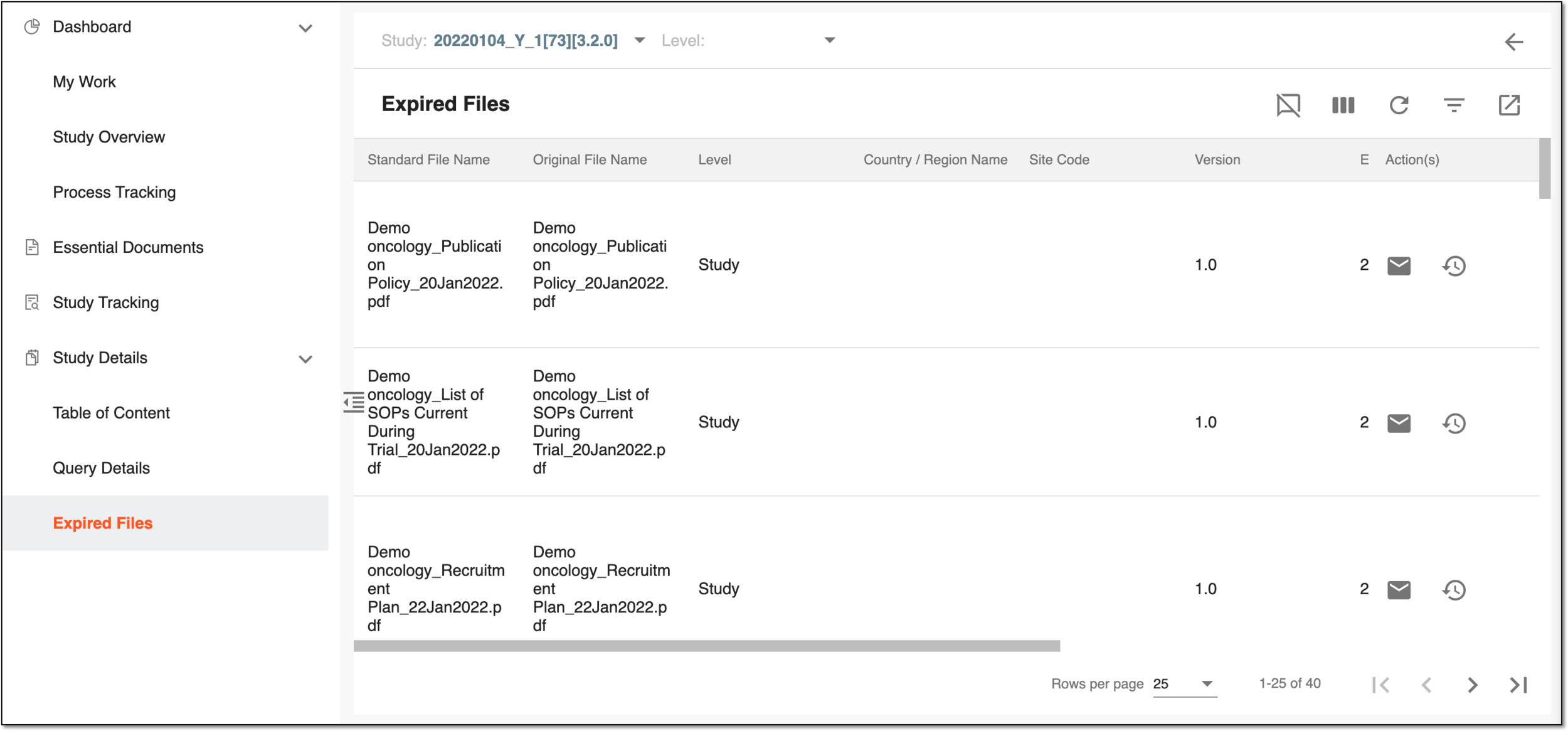 Figure 2. Expired files page
-
On the Expired Files page that opens, optionally you can sort the report data by study-, country-, and site-level files.
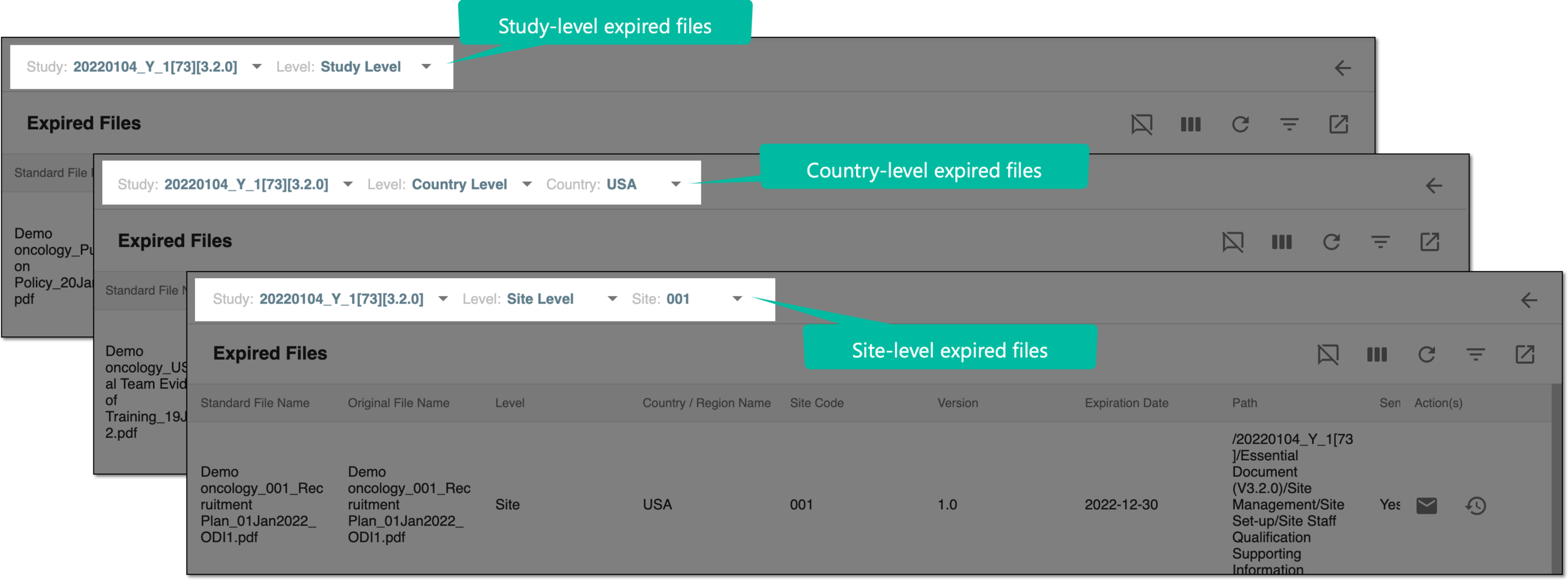 Figure 3. Sorting expired files by level
-
In the Expired Files table, go to the file for which you need to send the alert email and in the Actions column next to it, select Send Alert Email
 .
.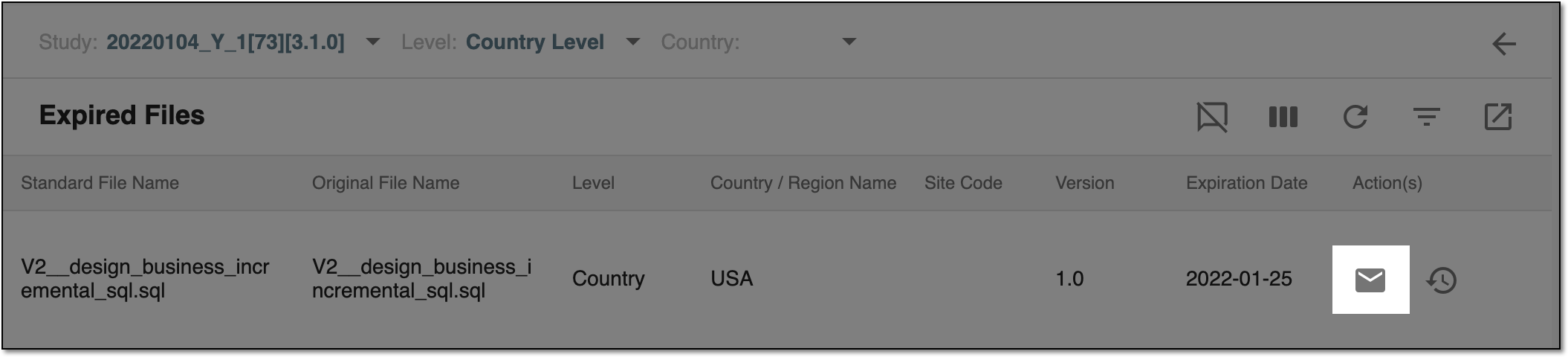 Figure 4. Sending expired file email alert
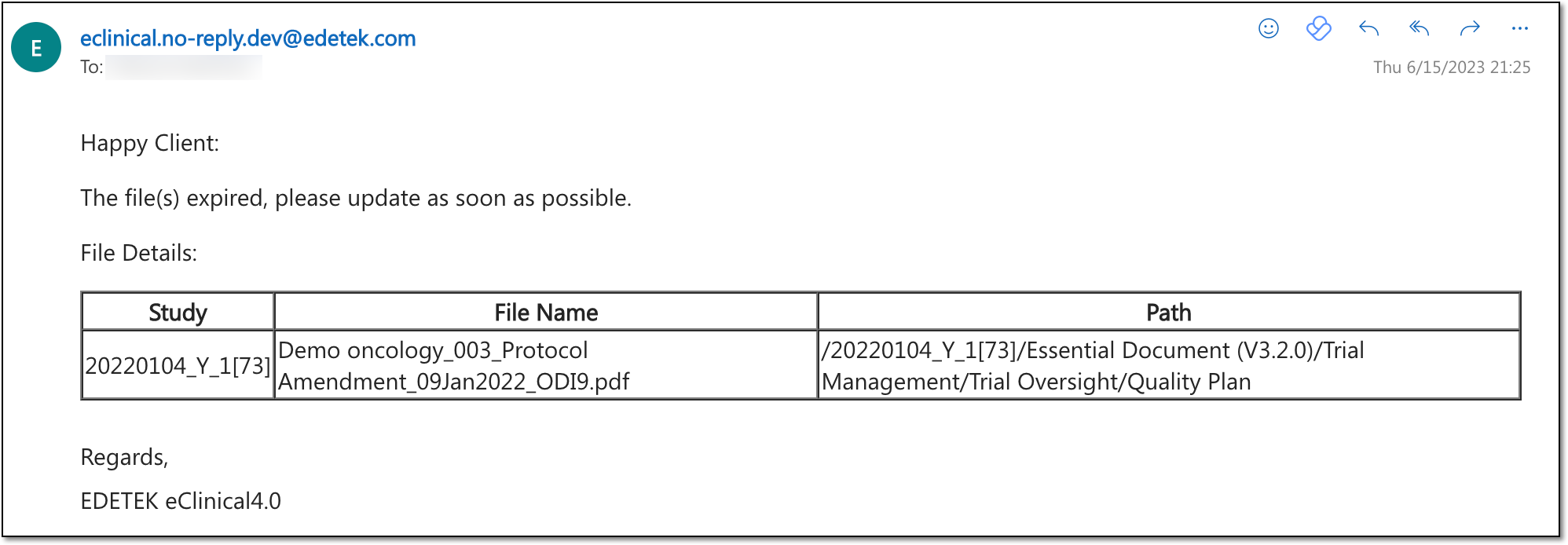
You have sent the alert email on the expired file. Now the dedicated recipient receives a similar email notification as shown in the following figure.
Tip
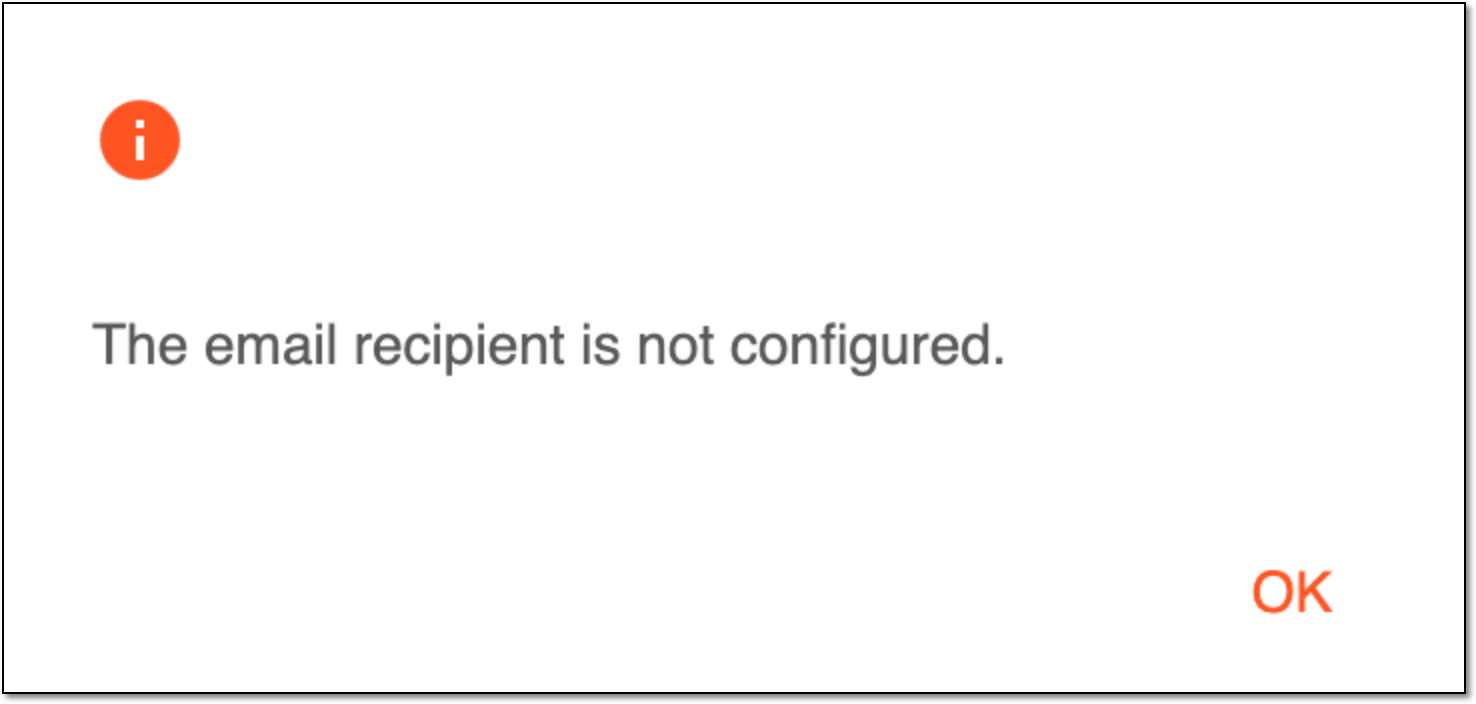
If no recipient is configured for the file, the action is unsuccessful, and you receive the respective notification. Configure the alert recipient and then repeat your attempt.
 |