View exception items
The monitoring configuration incorporates a set of settings that facilitate the preparation and management of monitoring visits. When creating a monitoring configuration, you have the option to select the sites for which this configuration is applicable. In the CTMS application, it is required to have the monitoring configuration with every monitoring type for all study sites.
However, it may occur that there is only one monitoring configuration designed for a specific list of sites of only some monitoring type, thus leaving some sites and some monitoring types without the configuration. By viewing exception items, you can learn what sites and monitoring types still require to be included in the existing monitoring configuration or in the new one.
-
Access the study management page in one of the following ways:
-
In the CTMS application header, select the DASHBOARD tab and then select the study dashboard of your interest.
 Figure 1. Accessing study management from dashboard
-
In the CTMS application header, select the STUDY MANAGEMENT tab. Then from the Study Data List table, select the study name of your interest.
 Figure 2. Accessing study management from study data list
-
-
On the study page that opens, in the left pane, expand Monitoring and select Monitoring Config.
-
Above the Monitoring Configuration table that appears, from the workspace toolbar, select Exception Items
 .
.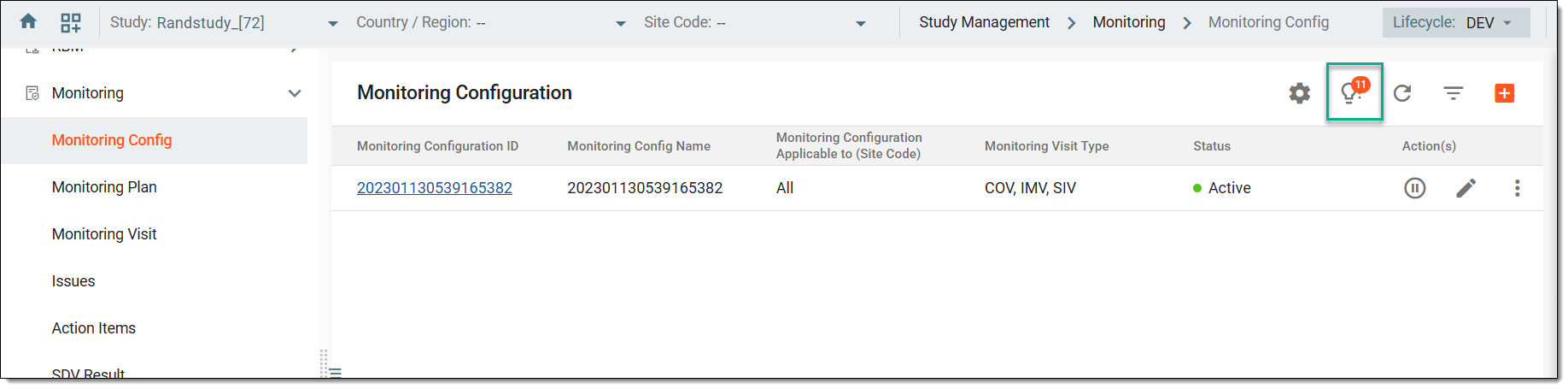 Figure 3. Selecting exception items option
Tip
The number displayed on the icon indicates the total number of sites of different monitoring types that must be included in some monitoring configuration.
-
In the Exception Items dialog that appears, view the list of sites and different monitoring types that still require to be included in some monitoring configuration.
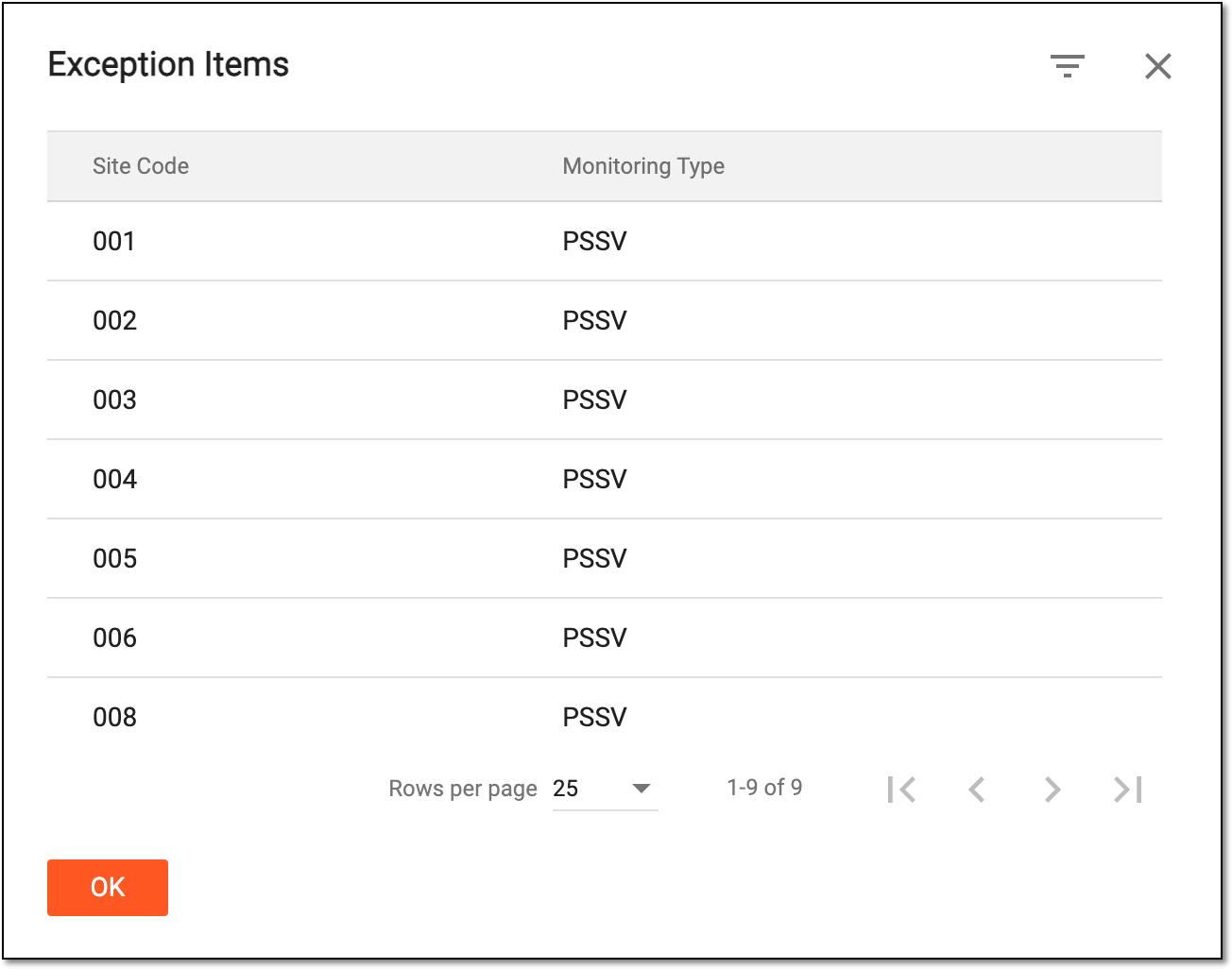 Figure 4. Viewing list of exception items
Once viewed, select  to close the Exception Items dialog. You can now update the monitoring configuration to make sure that all sites and monitoring types are included in the configuration.