Update study settings for defined monitoring configurations
Once the monitoring configurations are set, you can update the study settings to align with them—particularly for managing trip report and issue workflows. These settings ensure that a new trip report cannot be created until certain actions or criteria are fulfilled. They also define when queries can be opened and whether issues should be displayed. This helps maintain a clear, organized, and orderly reporting process, reducing the risk of confusion or incomplete information.
-
Access the study management page in one of the following ways:
-
In the CTMS application header, select the DASHBOARD tab and then select the study dashboard of your interest.
 Figure 1. Accessing study management from dashboard
-
In the CTMS application header, select the STUDY MANAGEMENT tab. Then from the Study Data List table, select the study name of your interest.
 Figure 2. Accessing study management from study data list
-
-
On the study page that opens, in the left pane, expand Monitoring and select Monitoring Config.
-
Above the Monitoring Configuration table that appears, from the workspace toolbar, select Setting For Study
 .
.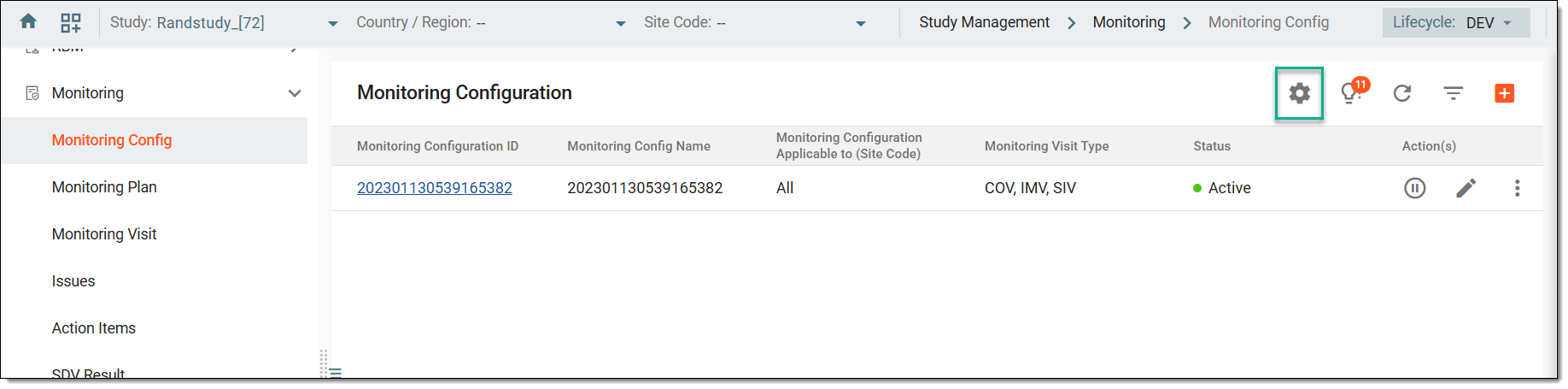 Figure 3. Accessing study settings option
-
In the Setting For Study dialog that appears, enter the details as explained in the following table.
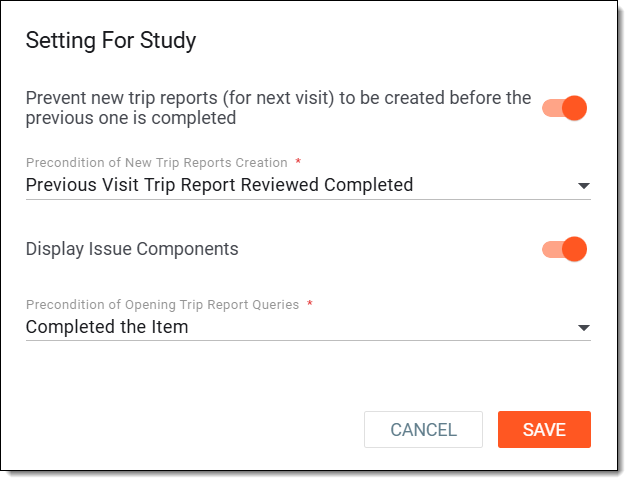 Figure 4. Setting study conditions for monitoring configurations
Tip
In the following table, mandatory elements are marked with an asterisk (*).
Element
Details
Prevent new trip reports (for next visit) to be created before the previous one is completed
Turn this toggle on to set a condition that must be fulfilled before a new trip report is created.
If the toggle is off, then the new trip reports can be created whenever needed.
Precondition of New Trip Reports Creation*
Select the condition that must be fulfilled before creating a new trip report.
This field is only displayed if the toggle in the previous field is switched on.Display Issue Components
Turn this toggle on to set a condition that must be fulfilled before a new query or issue regarding a trip report is generated.
If the toggle is off, then the issues or queries can be generated whenever needed.
Precondition of Opening Trip Report Queries*
Select the condition that must be fulfilled before generating a new query or issue related to a trip report.
This field is only displayed if the toggle in the previous field is switched on.SAVE
Select
 to implement your changes.
CANCEL
Select
 to dismiss your changes without saving.
Once your changes are saved, the criteria is defined and must be fulfilled before creating a new trip report or generating a query concerning a trip report.