Edit monitoring configuration
The monitoring configuration incorporates settings that facilitate the preparation and management of monitoring visits. You can edit the existing monitoring configuration entities if you need to update some of their details.
-
Access the study management page in one of the following ways:
-
In the CTMS application header, select the DASHBOARD tab and then select the study dashboard of your interest.
 Figure 1. Accessing study management from dashboard
-
In the CTMS application header, select the STUDY MANAGEMENT tab. Then from the Study Data List table, select the study name of your interest.
 Figure 2. Accessing study management from study data list
-
-
On the study page that opens, in the left pane, expand Monitoring and select Monitoring Config.
-
In the Monitoring Configuration table that appears, locate the required monitoring configuration entity, and either select its ID or, from the Action(s) column next to it, select Edit
 .
.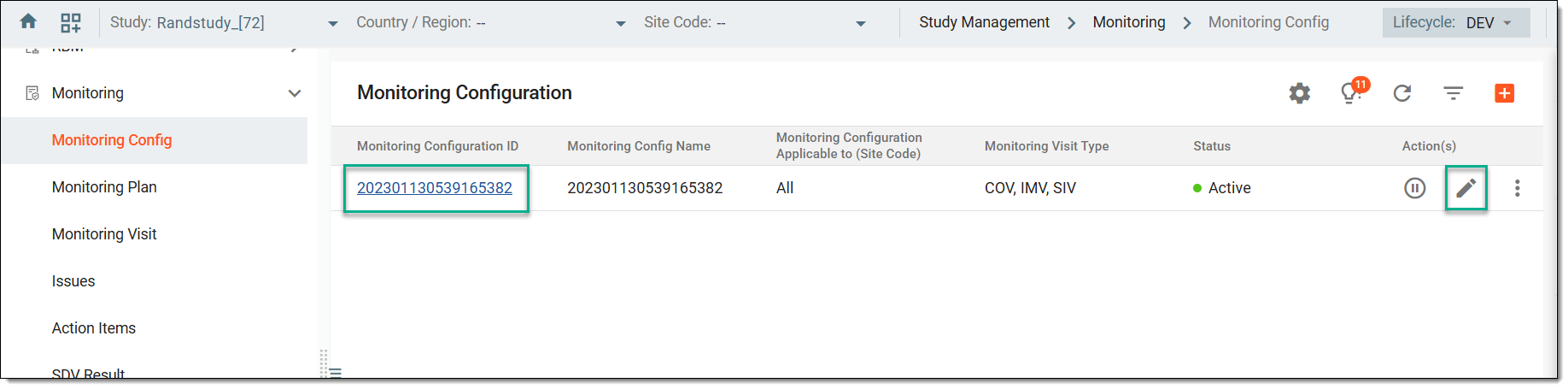 Figure 3. Accessing option to update monitoring configurations
-
On the page that opens, you can update the configurations organized into various blocks explained as follows:
-
Basic Setting: update key monitoring configuration details (except its ID), like the configuration's name, site to which the configuration can be applied, and much more, as explained in the table of the Create monitoring configuration section.
-
Components Setting: update various components or items included in the monitoring configurations, such as a confirmation letter, follow-up letter, ICF tracking log, and others, as explained in the table of the Create monitoring configuration section.
-
Monitoring Visit Work Steps Setting: modify the monitoring visit approval process settings, as explained in the table of the Create monitoring configuration section.
-
Trip Report Templates: edit the templates to associate with your visit types, as explained in the table of the Create monitoring configuration section.
-
Trip Report Work Steps Setting: update the trip report's approval process settings, as explained in the table of the Create monitoring configuration section.
-
Cancellation Letter Setting: modify the settings for generating and sending the automated cancellation letter during monitoring visits, as explained in the table of the Create monitoring configuration section.
-
Confirmation Letter Setting: edit the settings for generating and sending the automated confirmation letter during monitoring visits, as explained in the table of the Create monitoring configuration section.
-
Follow-up Letter Setting: update the settings for generating and sending the automated follow-up letter during monitoring visits, as explained in the table of the Create monitoring configuration section.
-
Monitoring Visit Naming Convention: update the naming convention for monitoring visits by combining specific elements as explained in the table of the Create monitoring configuration section.
-
Monitoring Auto Change Phase: modify the automatic finalization of a monitoring visit, based on the completion of specific predefined criteria as explained in the table of the Create monitoring configuration section.
-
Exporting Trip Report: update the appendices required when exporting trip reports, as explained in the table of the Create monitoring configuration section.
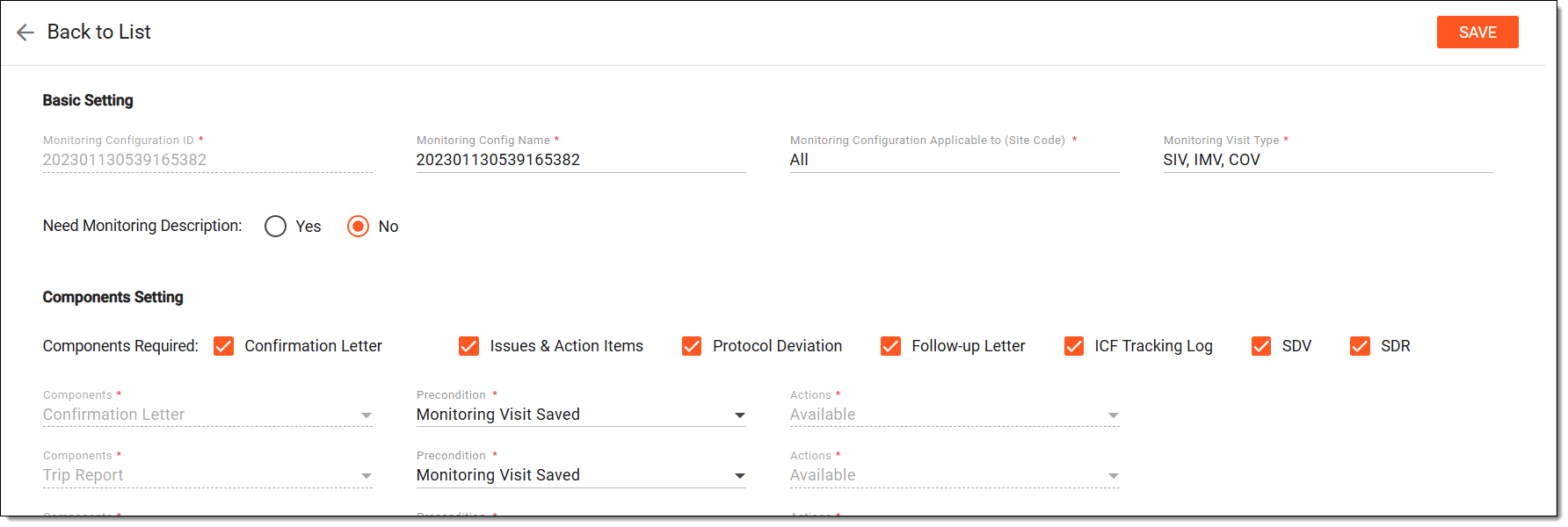 Figure 4. Editing monitoring configuration entity
-
Once the configurations are updated, select SAVE to implement your changes, and update the monitoring configuration entity.