Activate/Inactivate monitoring configuration
The monitoring configuration incorporates a group of settings that facilitate the preparation and management of monitoring visits. It may happen that some old monitoring configuration is temporarily not required and you need to have a new one designed. For this reason, you can deactivate the currently enabled monitoring configuration entity to activate the most recent one.
-
Access the study management page in one of the following ways:
-
In the CTMS application header, select the DASHBOARD tab and then select the study dashboard of your interest.
 Figure 1. Accessing study management from dashboard
-
In the CTMS application header, select the STUDY MANAGEMENT tab. Then from the Study Data List table, select the study name of your interest.
 Figure 2. Accessing study management from study data list
-
-
On the study page that opens, in the left pane, expand Monitoring and select Monitoring Config.
-
In the Monitoring Configuration table that appears, select Inactivate
 next to
the active monitoring configuration entity in order to deactivate it. Or select Activate
next to
the active monitoring configuration entity in order to deactivate it. Or select Activate  next to the inactive monitoring
configuration entity in order to activate it.
next to the inactive monitoring
configuration entity in order to activate it.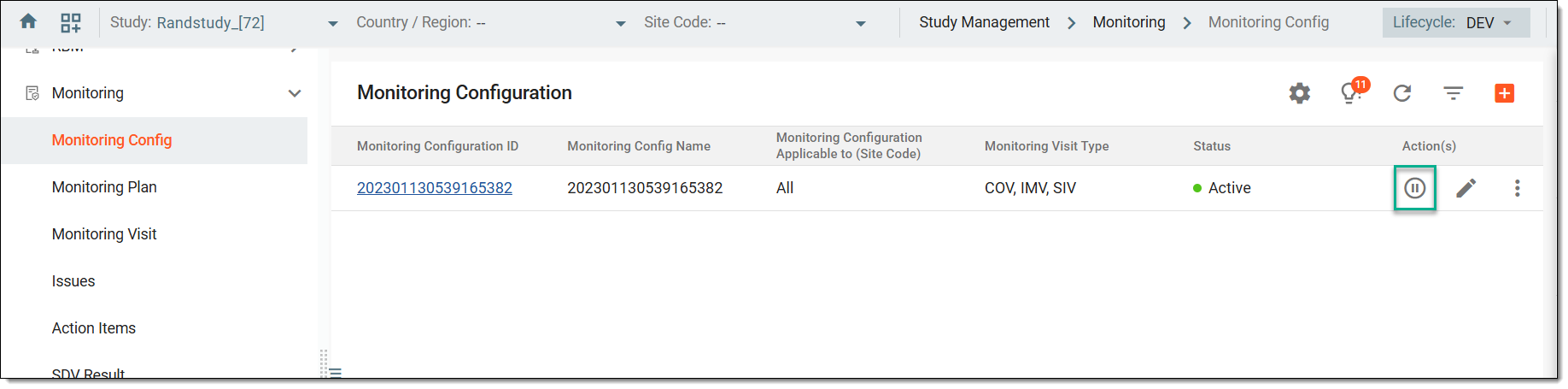 Figure 3. Inactivating monitoring configuration entity
-
If you chose to deactivate a monitoring configuration entity, in the Reason dialog that opens, enter the reason for deactivation and then select
 .
.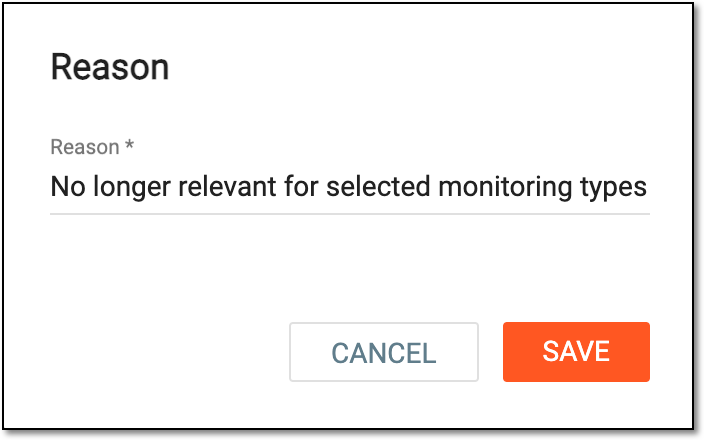 Figure 4. Providing reason for inactivation
Once confirmed, the monitoring configuration entity becomes deactivated or activated.