Subject management alerts
In IWRS, you can configure alerts for the system users to get notified of different events occurring with subjects involved in your study as explained in the following sections.
In IWRS, you can create and manage alerts to notify interested parties of the subject unblinding. If enabled, the recipient(s) receive an email notification each time a subject is unblinded in the study.
-
In the IWRS application header, select the TREATMENT DESIGN tab.
-
On the page that opens, in the left pane, select Alert > Subject Management.
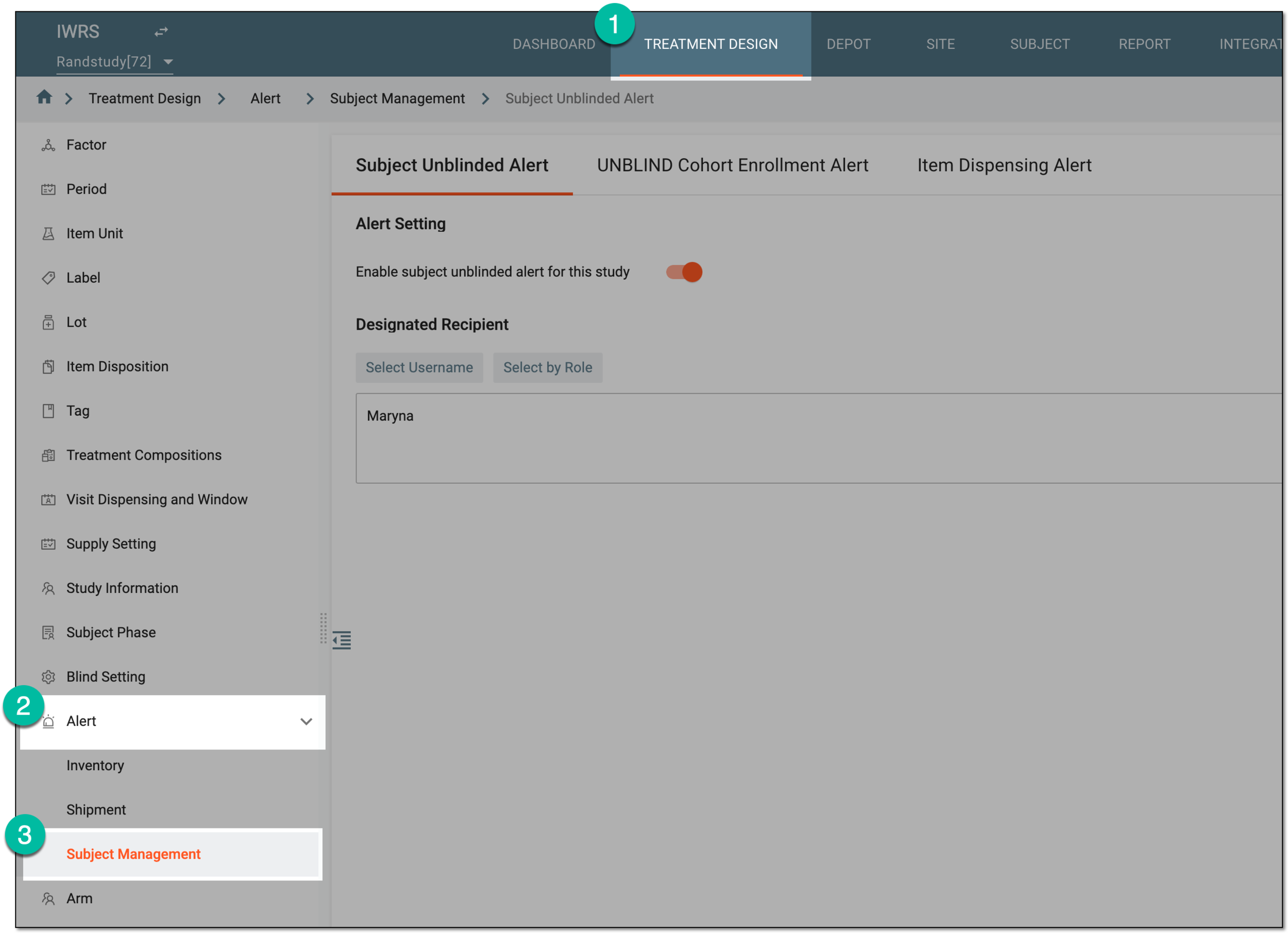 Figure 1. Accessing subject management alert configuration
-
On the page that opens, under the Subject Unblinded Alert tab, configure the alert settings as explained in the following table.
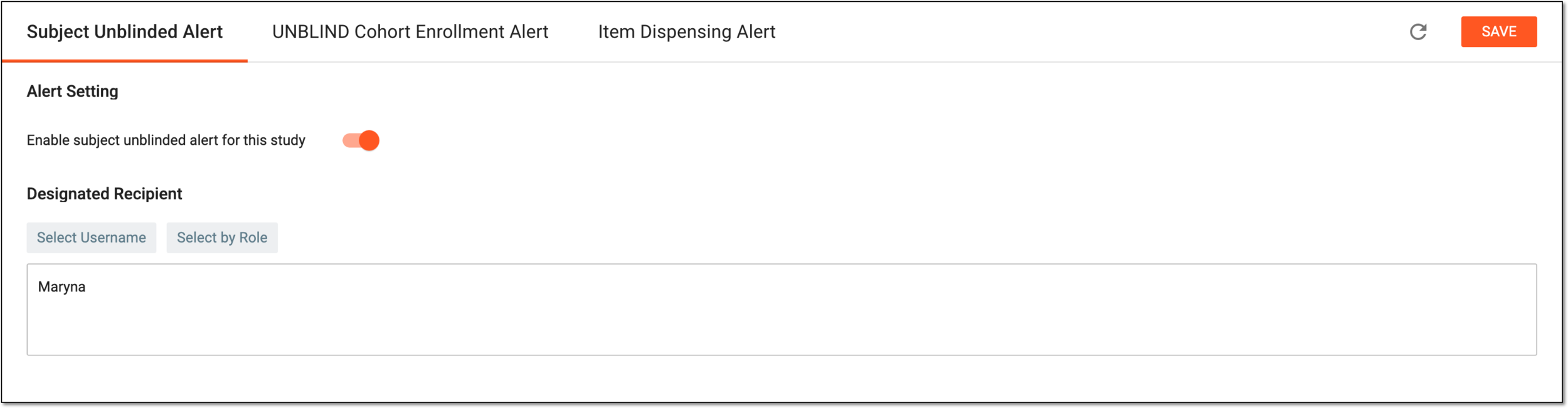 Figure 2. Configuring subject unblinding alert
Element
Details
Alert Setting
Enable subject unblinded alert for this study
-
Turn the toggle on to enable the subject unblinding alert functionality for your study.
When enabled, upon saving, the indicating icon
 appears next to the tab name.
 -
Turn the toggle off to disable the subject unblinding alert functionality for your study.
Designated Recipient
Select Username
Select this button and from the list that opens, select the users to be the recipients of the subject unblinding alert emails.
The alert email itself does not contain any blinded details of the study, so any user can be set as a recipient for this notification.Once the individual users are selected, you can also select the user roles to be the recipients via the Select by Role button.
Select by Role
Select this button and from the list that opens, select the user roles to be the recipient of the subject unblinding alert emails.
Once user roles are selected, you can also select the individual users to be the recipients via the Select Username button.
SAVE
Select
 to save the implemented changes.
Select this icon to refresh the page, discard all your changes, and return the fields to their original values.
-
Upon enabling the functionality and saving, your alert configurations are set. Once the conditions are met, the alert recipients get notified via email of the subject unblinding.
In the email, you can find details, such as subject ID, site and study, date and time of unblinding, and an active link to the subject information page.
In IWRS, you can set a limit for cohort enrollment and specify the number of subjects that must be enrolled in each cohort. You can also create and manage alerts to notify interested parties when the set cohort enrollment limit is almost or completely met.
If the cohort enrollment alert functionality is enabled, the recipients receive an email notification when the subject enrollment reaches the set limit—either partially or completely.
-
In the IWRS application header, select the TREATMENT DESIGN tab.
-
On the page that opens, in the left pane, select Alert > Subject Management.
Figure 1. Accessing subject management alert configuration
-
On the page that opens, under the UNBLIND Cohort Enrollment Alert tab, configure the alert settings as explained in the following table.
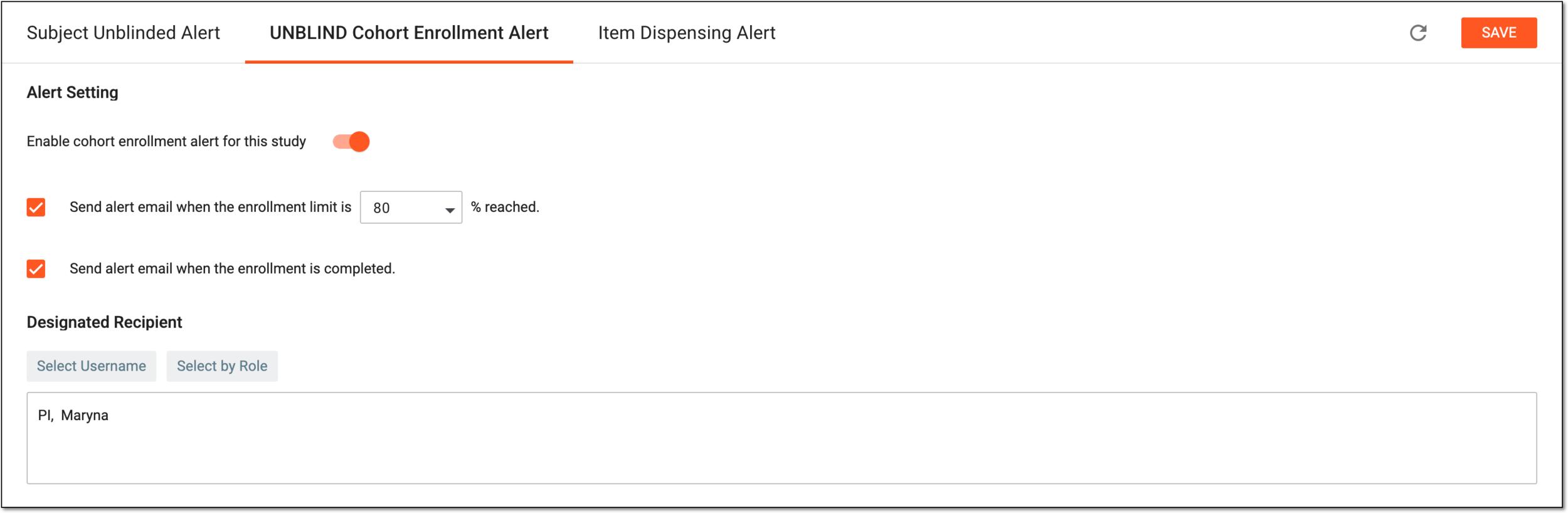 Figure 2. Configuring cohort enrollment alert
Element
Details
Alert Setting
Enable cohort enrollment alert for this study
-
Turn the toggle on to enable the cohort enrollment alert functionality for your study.
When enabled, upon saving, the indicating icon
appears next to the tab name. -
Turn the toggle off to disable the cohort enrollment alert functionality for your study.
Send alert email when the enrollment limit is [_] % reached
-
Select this checkbox for the system to trigger an alert when the enrollment toll in your cohort reaches a certain percentage (select a number manually in %) of the set limit number of subjects.
For instance, to get a notification that the enrollment toll is almost complete, you can set the value to 90%, and the system will trigger an alert when this condition is met.
-
Clear the checkbox not to alert the recipients on the partial completion of the subjects enrollment in a cohort.
Send alert email when the enrollment is completed
-
Select this checkbox for the system to trigger an alert when the enrollment toll in your cohort reaches 100% of the set limit number of subjects.
-
Clear the checkbox not to alert the recipients on the 100% completion of the subjects enrollment in a cohort.
Designated Recipient
Select Username
Select this button and from the list that opens, select the users to be the recipient of the cohort enrollment alert emails.
Once the individual users are selected, you can also select the user roles to be the recipients via the Select by Role button.
Select by Role
Select this button and from the list that opens, select the user roles to be the recipient of the cohort enrollment alert emails.
Once user roles are selected, you can also select the individual users to be the recipients via the Select Username button.
SAVE
Select
to save the implemented changes.Select this icon to refresh the page, discard all your changes, and return the fields to their original values.
-
Upon enabling the functionality and saving, your alert configurations are set. Once the conditions are met, the alert recipients get notified via email of the enrollment completion in the study.
In IWRS, you can create and manage alerts to notify interested parties of the subject dispensing.
If enabled, the recipients receive an email notification each time an item is dispensed to a subject.
-
In the IWRS application header, select the TREATMENT DESIGN tab.
-
On the page that opens, in the left pane, select Alert > Subject Management.
Figure 1. Accessing subject management alert configuration
-
On the page that opens, under the Item DIspensing Alert tab, configure the alert settings as explained in the following table.
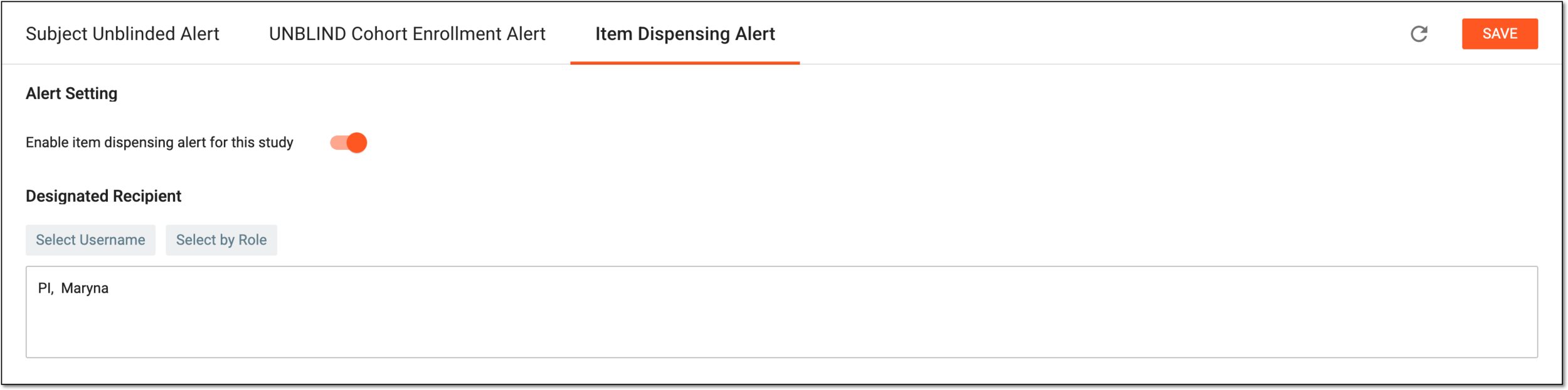 Figure 2. Configuring item dispensing alert
Element
Details
Alert Setting
Enable item dispensing alert for this study
-
Turn the toggle on to enable the item dispensing alert functionality for your study.
When enabled, upon saving, the indicating icon
appears next to the tab name. -
Turn the toggle off to disable the item dispensing alert functionality for your study.
Designated Recipient
Select Username
Select this button and from the list that opens, select the users to be the recipient of the item dispensing alert emails.
The alert email itself does not contain any blinded details of the study, so any user can be set as a recipient for this notification.Select by Role
Select this button and from the list that opens, select the user roles to be the recipient of the item dispensing alert emails.
SAVE
Select
to save the implemented changes.Select this icon to refresh the page, discard all your changes, and return the fields to their original values.
-
Upon enabling the functionality and saving, your alert configurations are set. Once the conditions are met, the alert recipient(s) will get notified via email of the item dispensing.