Activate/Inactivate participating organization for study
A participating organization previously added to your study becomes active by default and can be used in various study processes, for instance, financial management. However, there may be cases when the participating organization needs to be inactivated, for example, if the cooperation is temporarily ceased but it is expected to be reinstated.
-
Access the study management page in one of the following ways:
-
In the CTMS application header, select the DASHBOARD tab and then select the study dashboard of your interest.
 Figure 1. Accessing study management from dashboard
-
In the CTMS application header, select the STUDY MANAGEMENT tab. Then from the Study Data List table, select the study name of your interest.
 Figure 2. Accessing study management from study data list
-
-
From the left pane of page that opens, select Study Details > Participating Organizations.
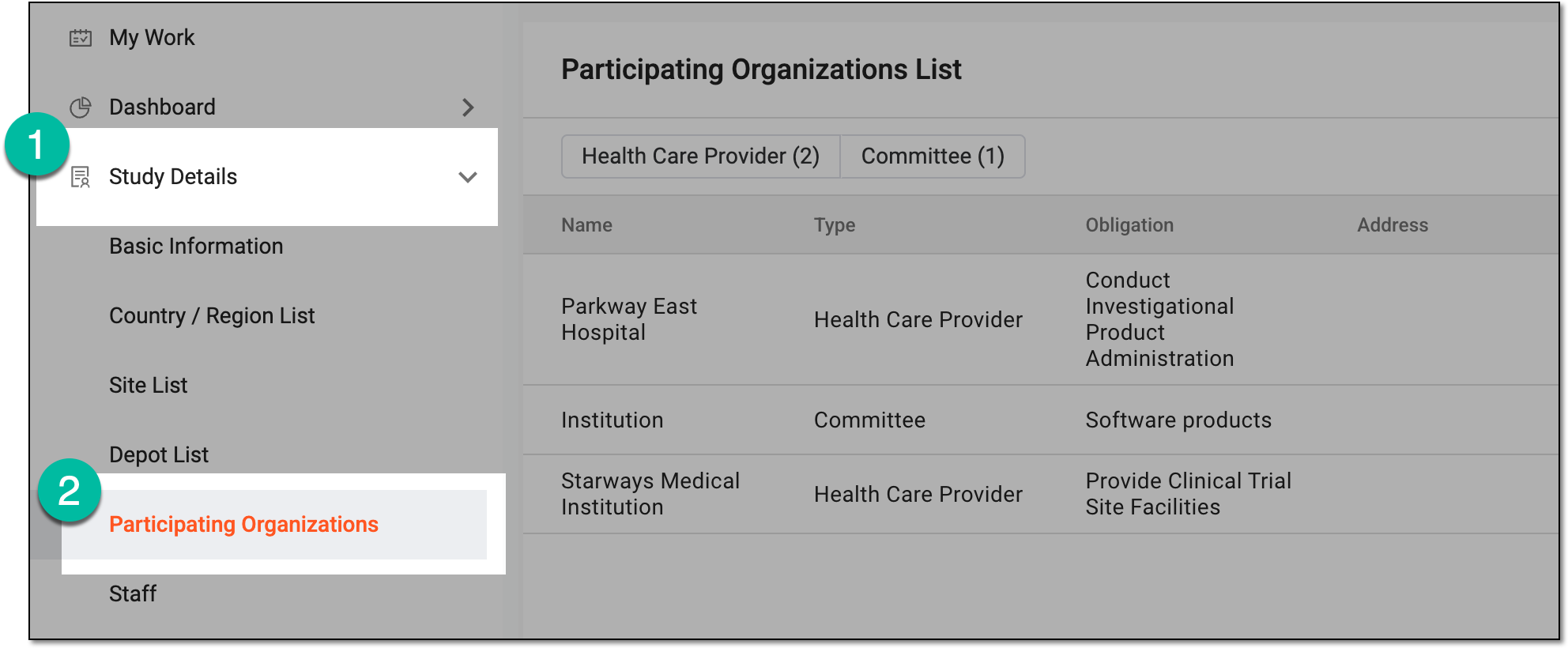 Figure 3. Accessing participating organizations of study
-
In Participating Organizations List, next to the active organization, select Inactivate
 to deactivate it. Or, next to the inactive organization, select Activate
  to activate it.
 Figure 4. Activating or inactivating participating organization
-
In the Reason dialog that appears, provide the needed details to justify your action. Then select
 .
.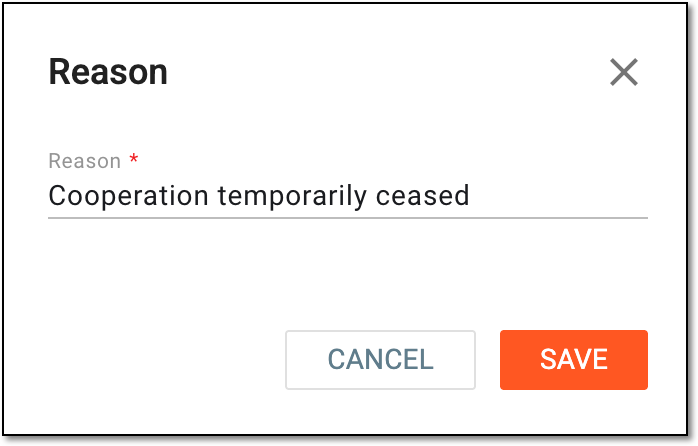 Figure 5. Providing reason for participating organization inactivation
Once saved, the participating organization is activated or inactivated.