Export CRF status report
Within the CRF Status tab under Study Management, you can view the most actual statistics pulled from the EDC system related to case report forms (CRFs), such as the CRF details (form name, corresponding site, visit, and others), count of CRFs filled out for a specific study, CRF form status, and much more. The statistical data related to the CRF can be exported in the XLSX file so you can use it offline on your computer.
-
Access the study management page in one of the following ways:
-
In the CTMS application header, select the DASHBOARD tab and then select the study dashboard of your interest.
 Figure 1. Accessing study management from dashboard
-
In the CTMS application header, select the STUDY MANAGEMENT tab. Then from the Study Data List table, select the study name of your interest.
 Figure 2. Accessing study management from study data list
-
-
On the study page that opens, in the left pane, expand CRF Status. Then choose any of the following CRF report to export:
-
Above the table that appears, from the workspace toolbar, select Export
 .
.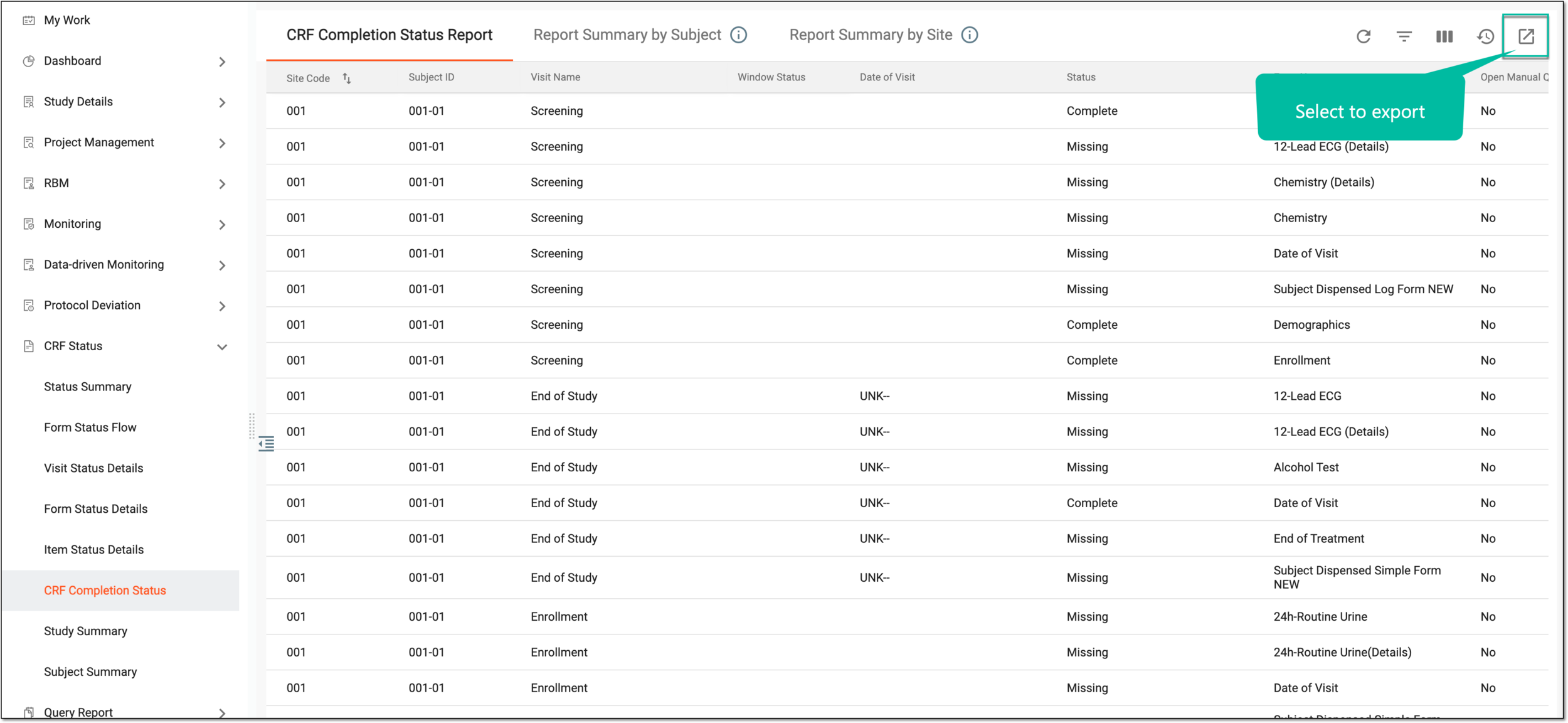 Figure 3. Exporting report
Important
In CRF completion status report, for master studies only, the dialog opens where you can select the Export all study data checkbox to export the data for the master study and its respective substudies. If cleared, only the master study data is exported.
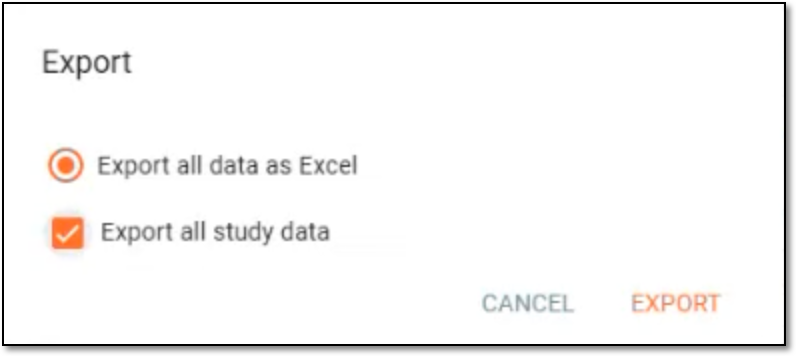 Figure 4. Selecting to export master and study data
-
In the dialog that opens, select
 to acknowledge the background preparation of the report for the download. The data extraction time depends on its
volume.
to acknowledge the background preparation of the report for the download. The data extraction time depends on its
volume.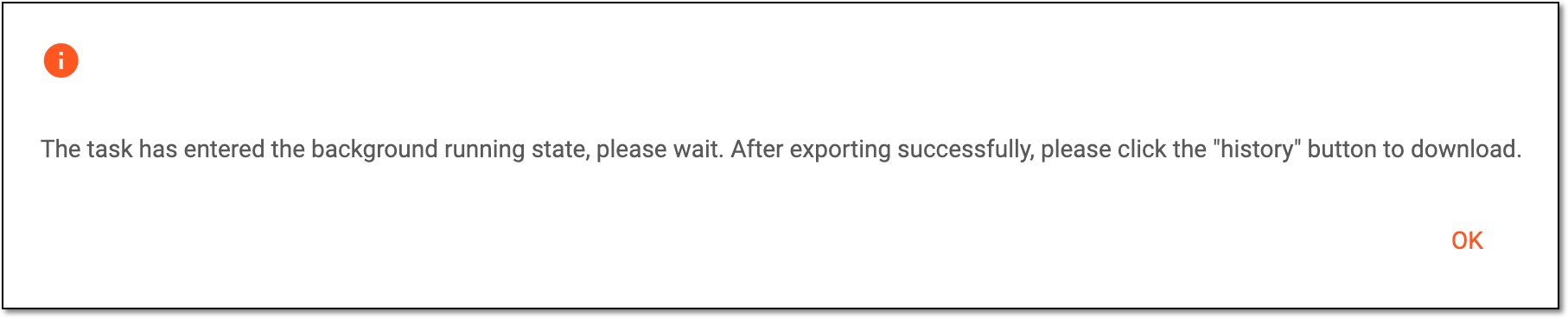 Figure 5. Confirming download
-
To access the generated file for download, from the workspace toolbar, select Export History
 .
. Figure 6. Accessing export history for CRF status report
-
In the Export History dialog that opens, select
 next to the report that you want to download.
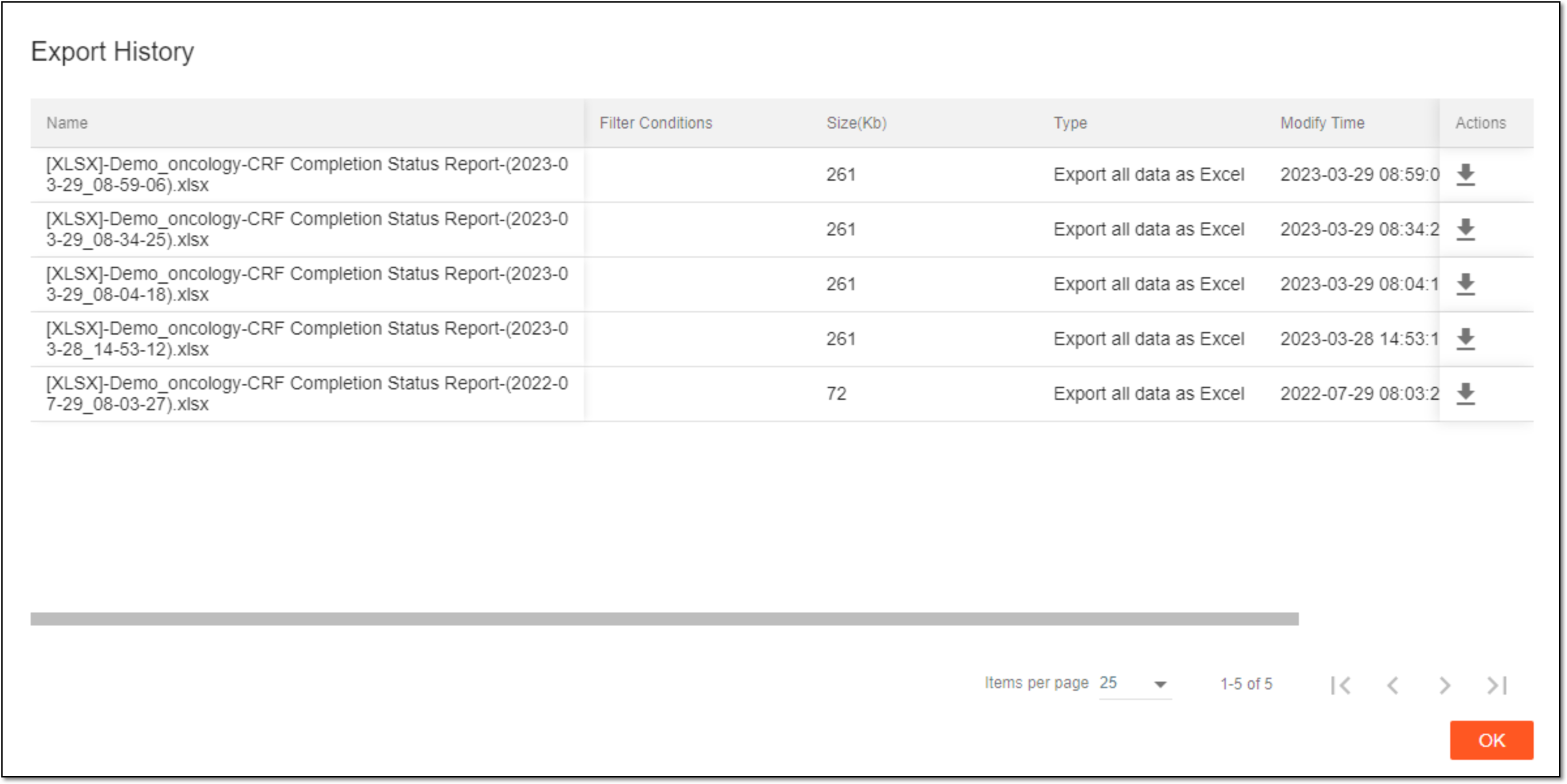 Figure 7. Downloading report
Once selected, the CRF completion status report becomes downloaded to your computer and can be used offline. Select  to close the dialog.