Export depot shipment details
Under the Shipment subtab, you can view and manage all the shipments of a depot. This comprehensive table displays all the important details of your shipments, such as their identification numbers, current statuses, origin and destination facilities, and so on.
Sometimes, you may need to export the shipment details to work with the data offline on your computer or, for instance, print it out and provide it to a third party.
-
In the IWRS application header, select the DEPOT tab.
-
In the Depot List table that appears, select the depot for which you want to export the shipment details.
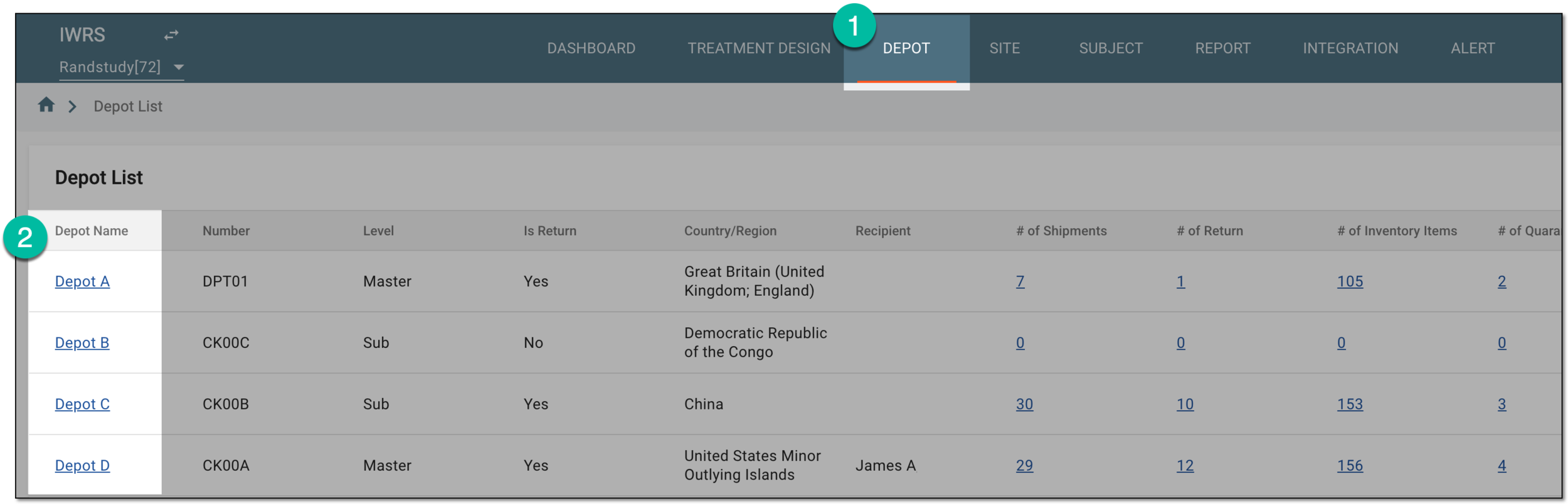 Figure 1. Selecting depot to open its details
-
On the page that opens, in the left pane, select the Shipment subtab.
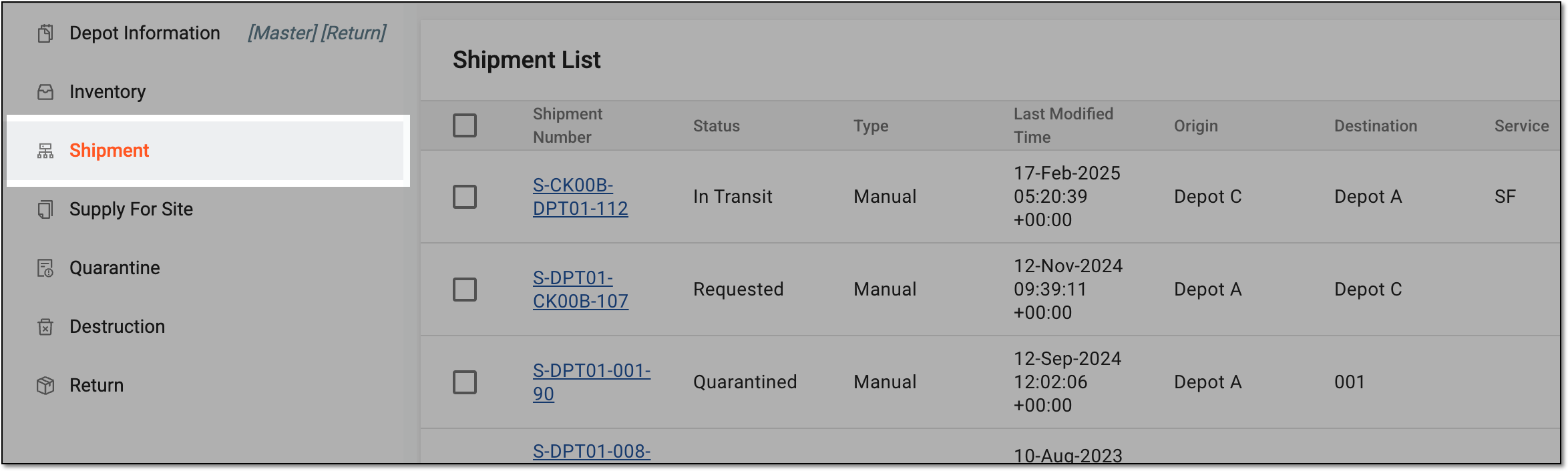 Figure 2. Accessing depot shipment list
-
In the Shipment List table that appears, go to the needed shipments and select the checkboxes next to them.
-
From the workspace toolbar, select Export
 .
. Figure 3. Exporting shipment details
-
Once selected, the widget appears displaying your download progress. Select the widget to open the My Downloads dialog.
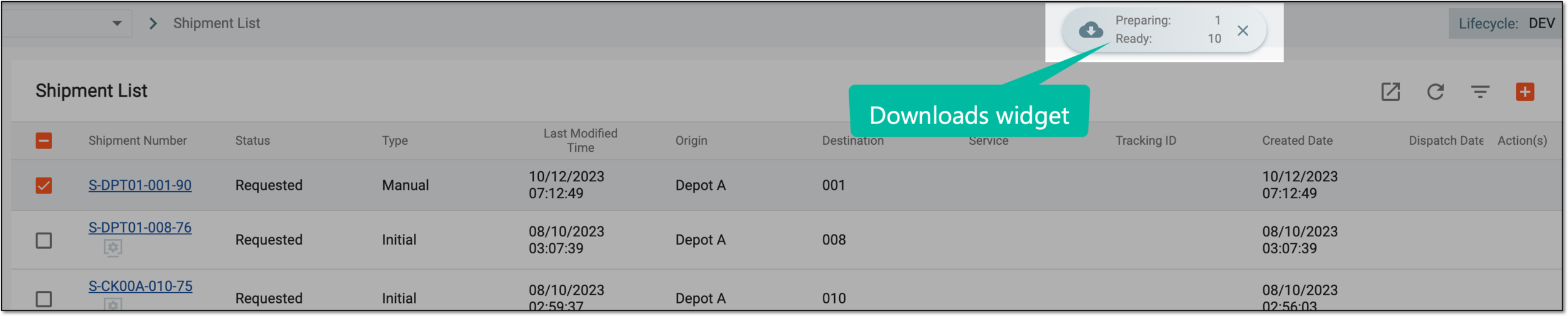 Figure 4. Downloads widget
-
In the My Downloads dialog that opens, you can find the following tabs:
-
Preparing: under this tab, you can find all the files whose export is in progress, and they are not yet ready for download.
-
Download is Ready: under this tab, you can find all the files whose export is complete, and they can be downloaded to your computer.
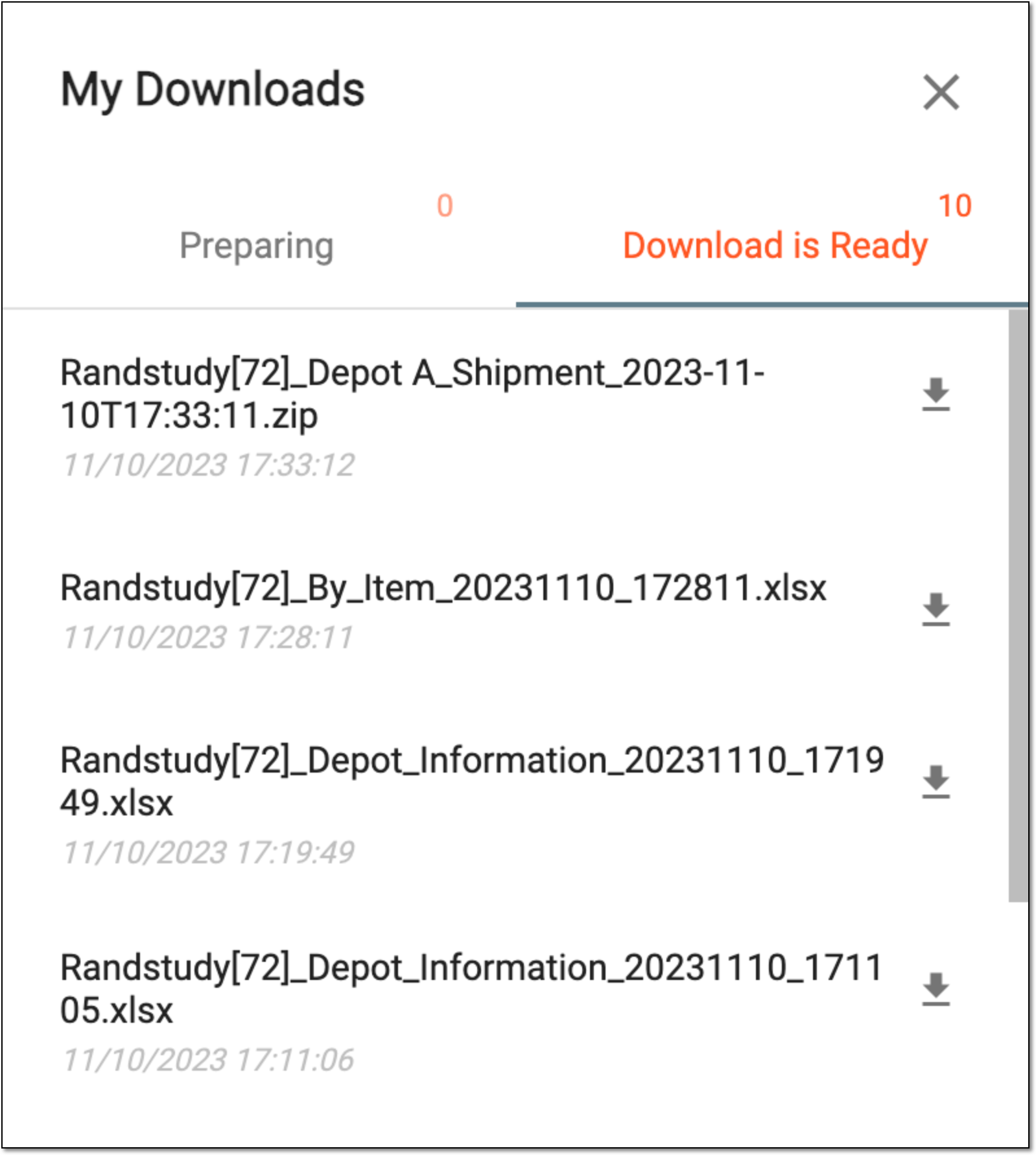 Figure 5. Viewing downloads
-
-
Under the Download is Ready tab, next to the file that you want to download, select
 .
.
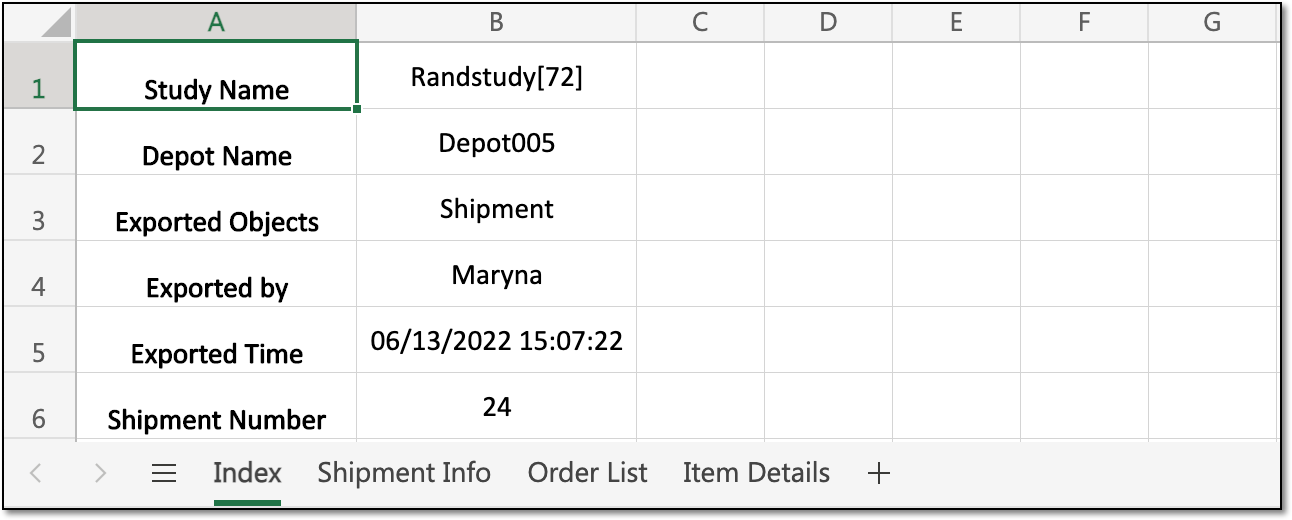
Upon saving and opening the ZIP archive, you can use the XLSX files with shipment details as needed. If you export the details for more than one shipment, a separate XLSX file is generated for each.
 |
Important
For a user with the Unblind view permission, there are four sheets in the shipment details file (Index, Shipment Info, Order List, and Item Details) containing all the data about the supplied units.
For a user without the Unblind view permission, the exported file does not have the Order List sheet because it contains the item unit data. Also, on the Item Details sheet, the Item Unit and Sequence properties are replaced with the Blind value (the Blind value is applicable for some users to ensure that they do not know the details of the drugs they work with and the study is not compromised). For instance, a user from a site that should not know the details of items they receive from suppliers cannot see the item unit details because it causes unblinding and compromises the study.