Add dependency to simple or log form
Using the functionality, you can associate two forms in a way that based on the answers provided in one form, the other form is displayed to the reviewer.
For example, in the "Subject Enrollment and Retention" form, there is a question "Is subject retention appropriate for the study?". If the reviewer answers "Yes," then the "Informed Consent" form becomes available.
-
In the CTMS application header, select the LIBRARY tab.
-
On the page that opens, from the left pane, select the Monitor Template subtab.
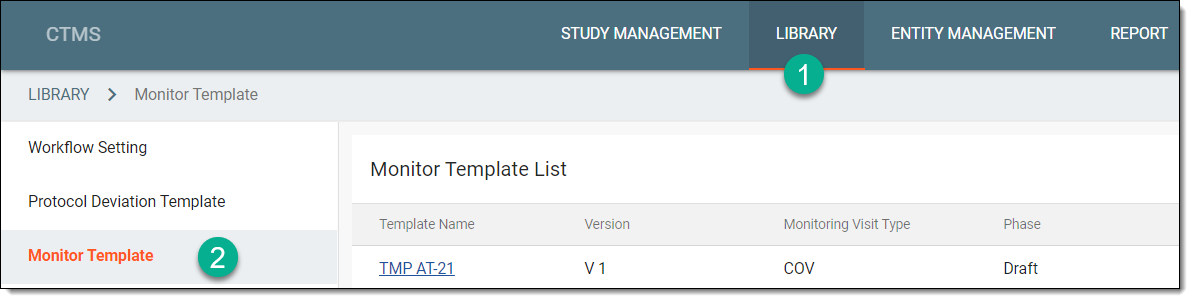 Figure 1. Accessing monitor template subtab
-
From the Monitor Template List table, select the template name in which the required simple or log form exists.
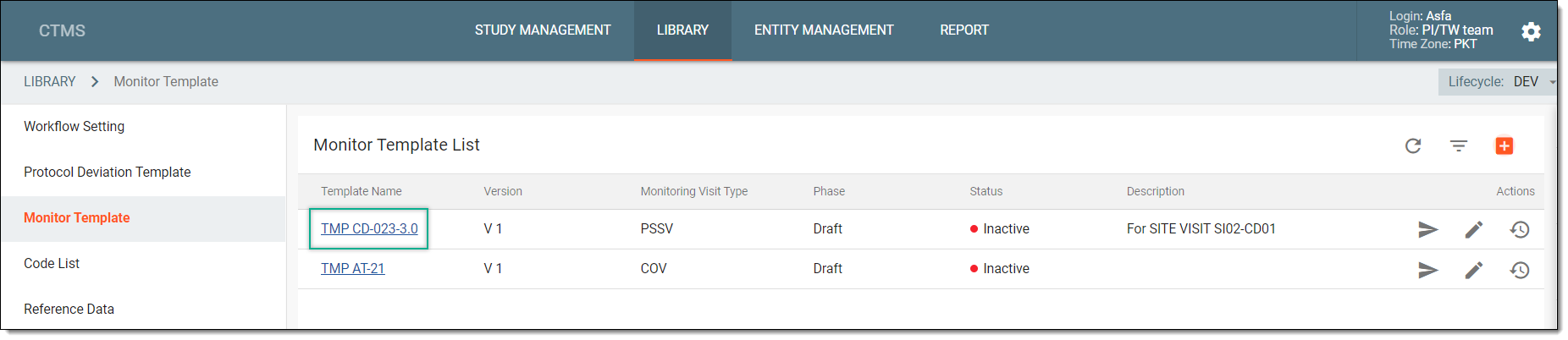 Figure 2. Selecting monitor template
-
On the Monitor Template Detail page that appears, from the explorer pane, locate the required simple or log form, and right-click it.
-
From the dropdown menu that appears, select Depend
 .
.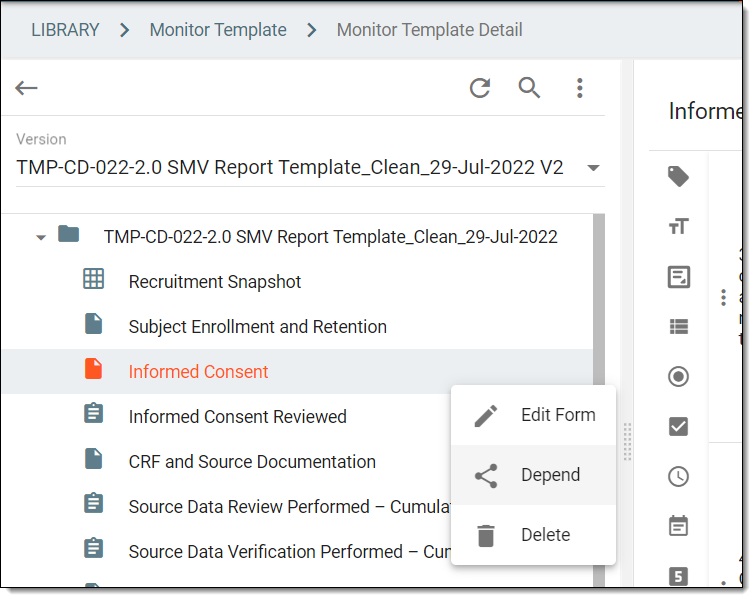 Figure 3. Selecting option to add dependence to form
-
In the Depend dialog that appears, select the question and next to it, select the particular answer based on which you want to share the dependent form with the reviewer.
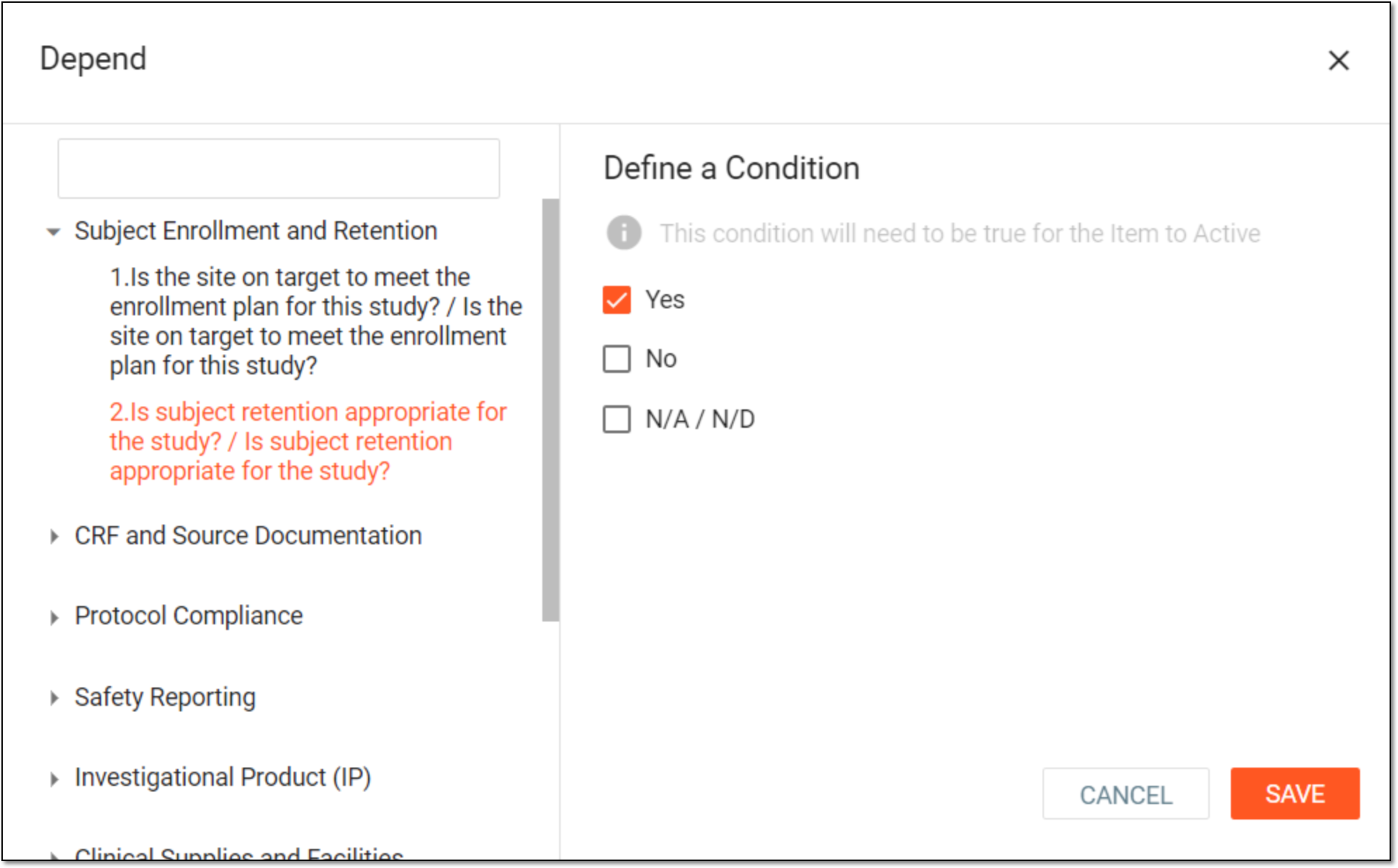 Figure 4. Selecting depending question
Tip
You can add dependence on multiple questions if required. That is, in the Depend dialog, after selecting an answer option for one question, you can expand the second question, and select the required answer option based on which you want to display the dependent form.
This way, if the reviewer provides the particular answers for the questions, only then the dependent form is shared with the reviewer.
-
Select
 to save your changes.
Upon saving, the dependence on a simple or log form is added. The dependent form is not shared until a reviewer provides the required answer to the dependent question.