View query aging report
Query Aging Report is mainly used to track the query processing status at site and study levels. The report shows how many days the query status is open and closed.
-
In the EDC application header, select the REPORTS tab.
-
On the page that opens, in the left pane, select the Query Report subtab to expand the list of available reports and select Query Aging Report.
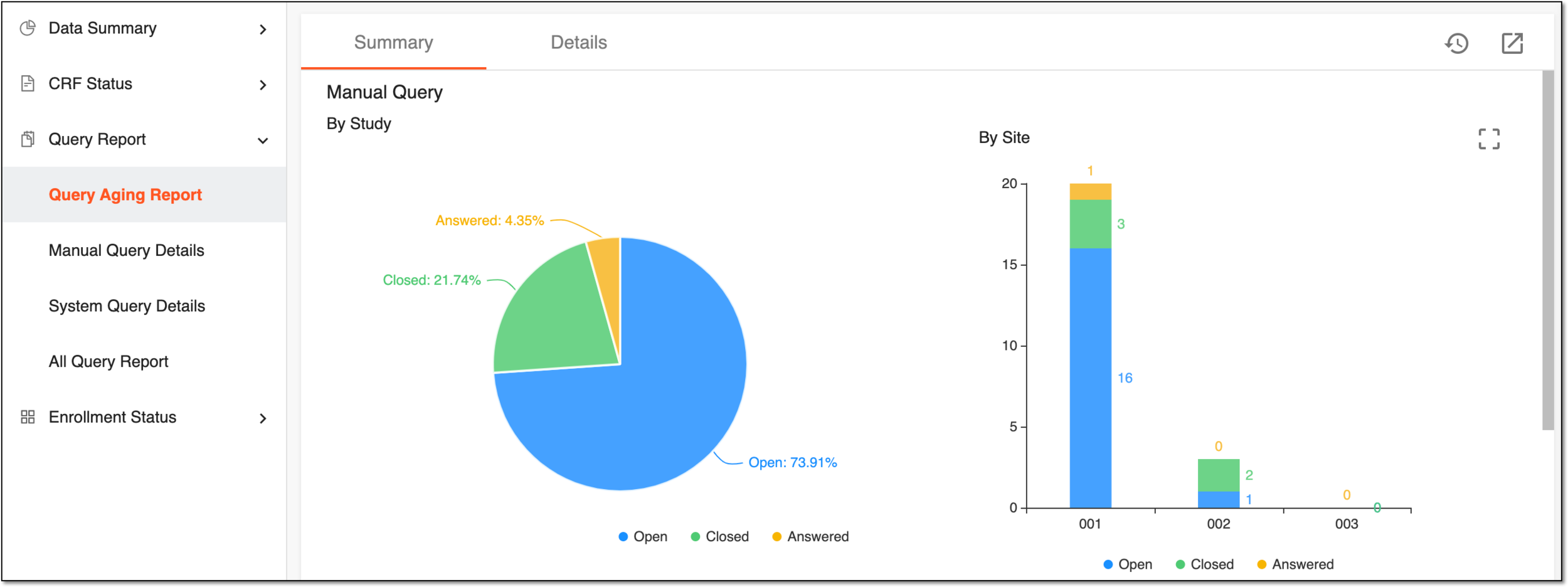 Figure 1. Viewing query aging details
Summary
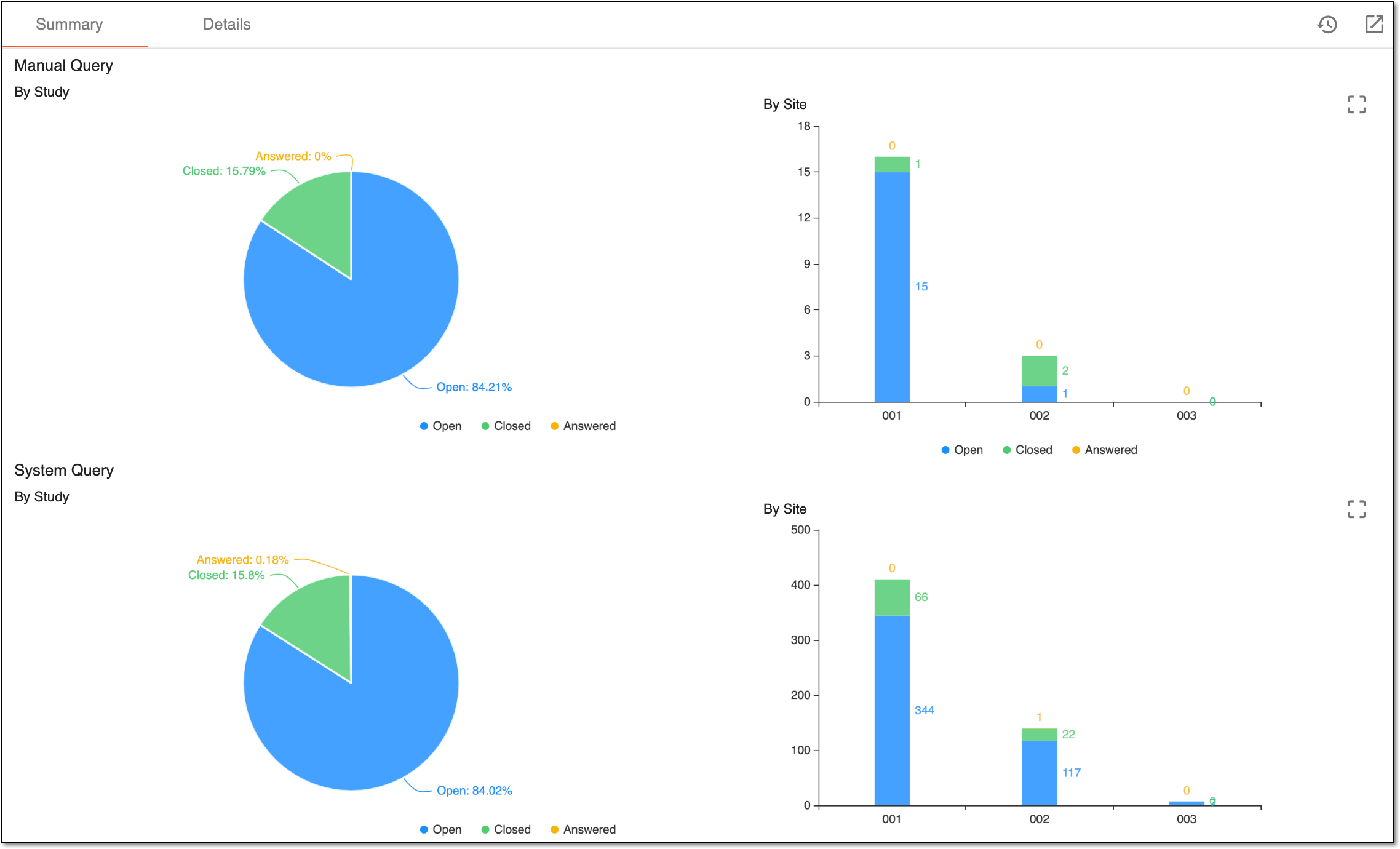
Under the Summary tab of the Query Aging Report page, you can find two blocks of charts: Manual Query and System Query where the statistics are given by study and site, as shown in the figure and explained in the following table.
|
Query type |
Statistics by |
Details |
|---|---|---|
|
Manual Query |
By Study |
Displays the pie chart diagram depicting the ratio of open (blue), closed (green), and answered (yellow) manual queries for the study. Hover over any pie chart element to view the details on queries amount and ratio (%). |
|
By Site |
Displays the column charts depicting the ratio of open (blue), closed (green), and answered (yellow) manual queries for each site individually. Hover over any column chart element to view the details on queries amount. |
|
|
System Query |
By Study |
Displays the pie chart diagram depicting the ratio of open (blue), closed (green), and answered (yellow) system queries for the study. Hover over any pie chart element to view the details on queries amount and ratio (%). |
|
By Site |
Displays the column charts depicting the ratio of open (blue), closed (green), and answered (yellow) system queries for each site individually. Hover over any column chart element to view the details on queries amount. |
Tip
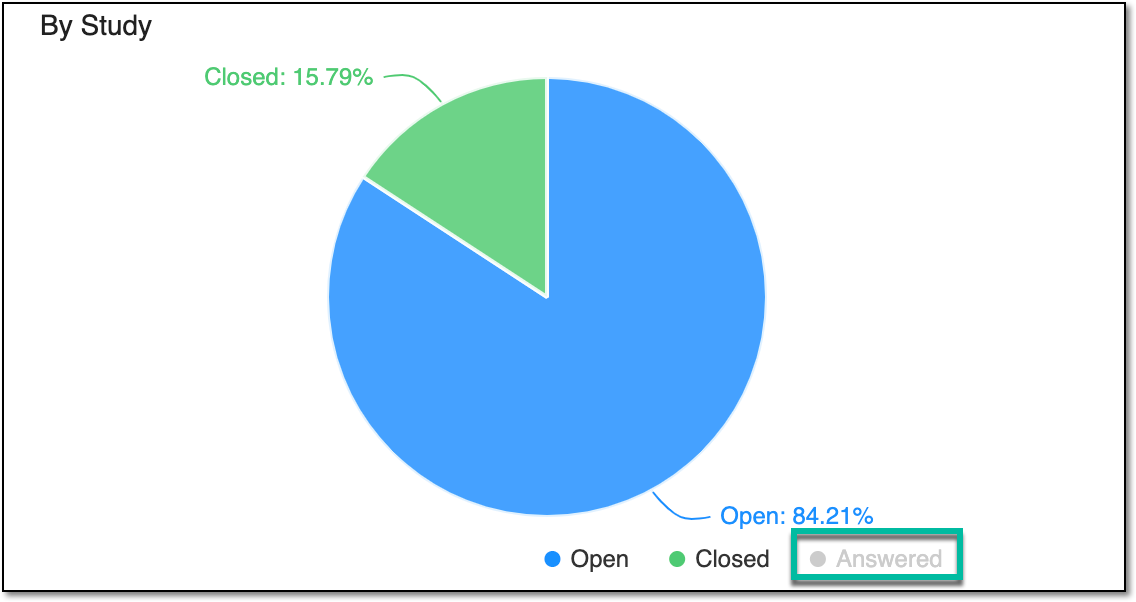
To include/exclude statistics for any query status (Open, Closed, or Answered) from the chart, select the respective status following the chart. Upon selecting, the status name is grayed out and the respective data disappears from the chart. Select the query status name again to restore its data on the chart.
 |
Details
Under the Details tab, you can view two column charts—Manual Query and System Query—on query aging statistics. The chart shows queries according to the given aging time frames (in days).
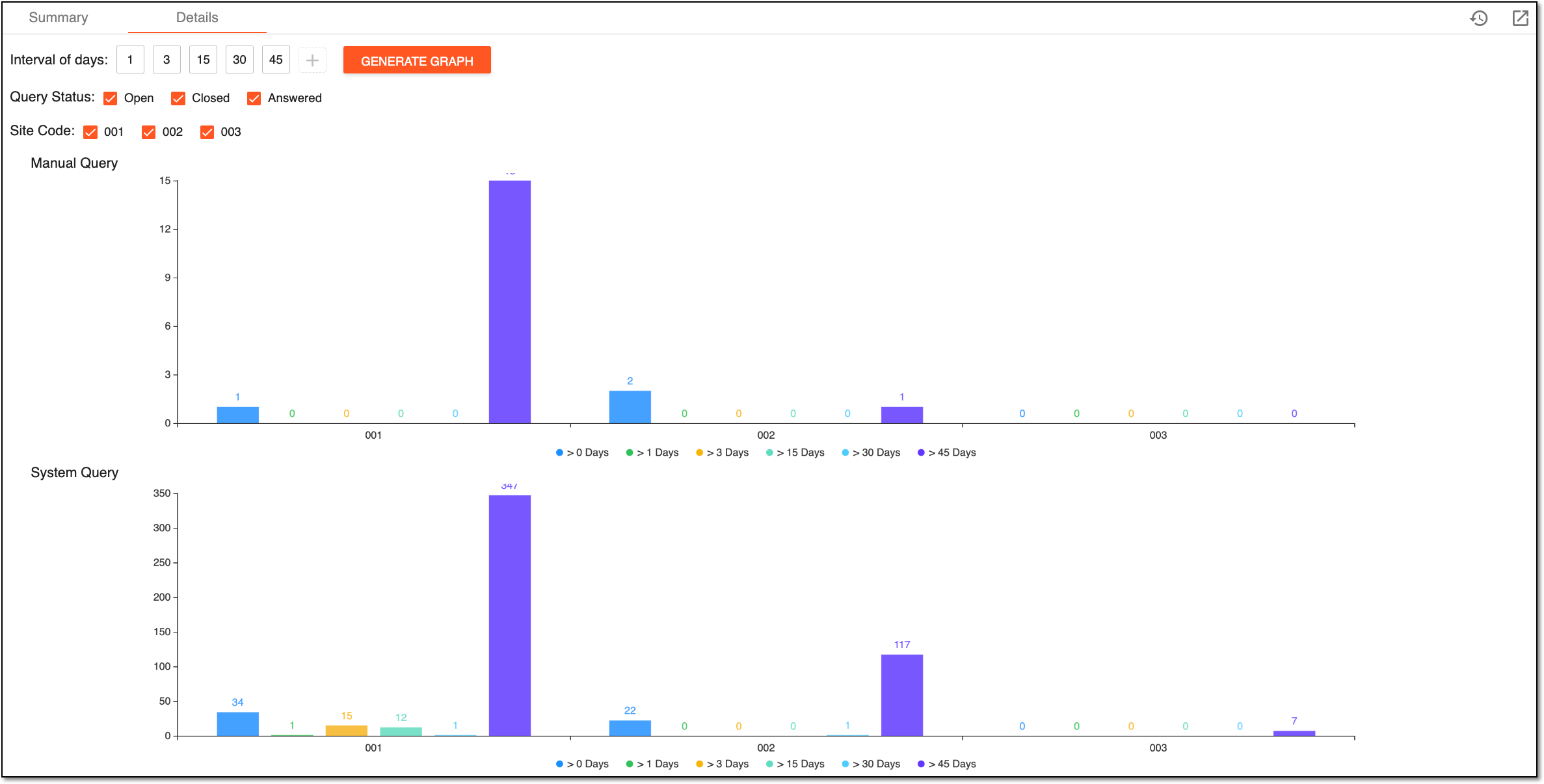
By default, the time frames are set to >1, >3, >15, >30, and >45 but you can manage them as follows.
-
To delete a time frame from the list, select
 above it.
 -
To add a new time frame to the list, select
 .
. -
To apply the updated time frames to both Manual Query and System Query charts, select
 and then access the generated report in the CRF Completion Status report list.
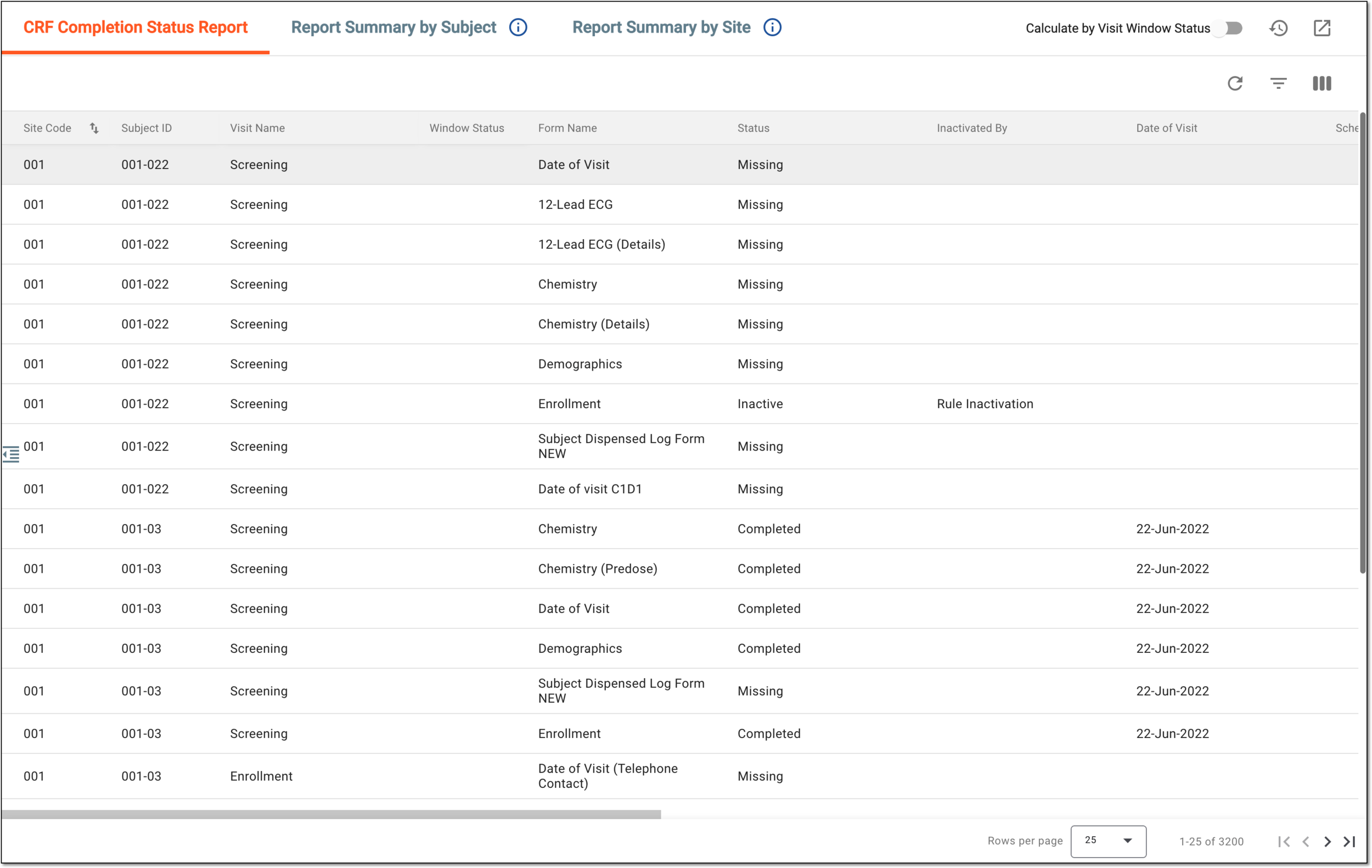 Figure 5. CRF Completion Status report page
You can also manage the chart data as follows:
-
To include/exclude any site query statistics from both Manual Query and System Query charts, select/clear the Site Code checkbox next to the respective site.
-
To include/exclude statistics for any query status from both Manual Query and System Query charts, select/clear the Query Status checkbox next to the respective status—Open, Closed, or Answered.
-
To include/exclude statistics for any aging time frame from each chart individually, select the respective property following the respective chart. Upon selecting, it is grayed out, and the data disappears from the chart. Select the property again to restore its data on the chart.
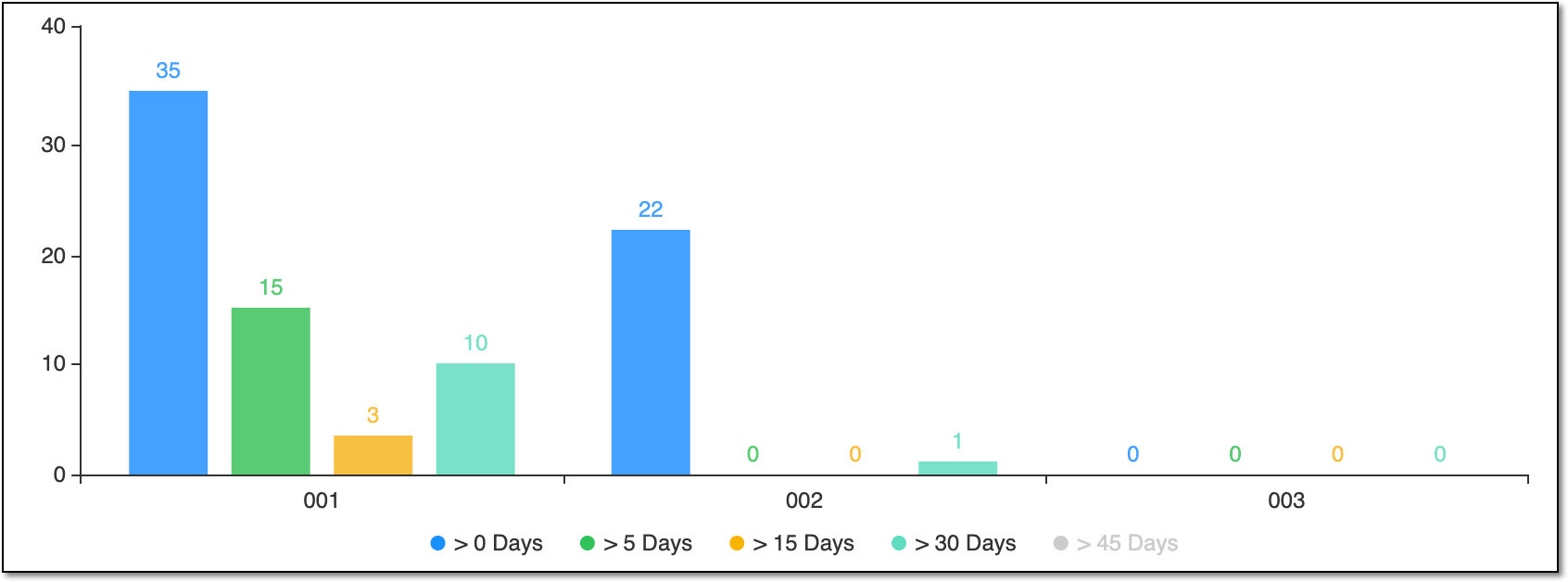 Figure 6. Hiding query aging time frame statistics from charts