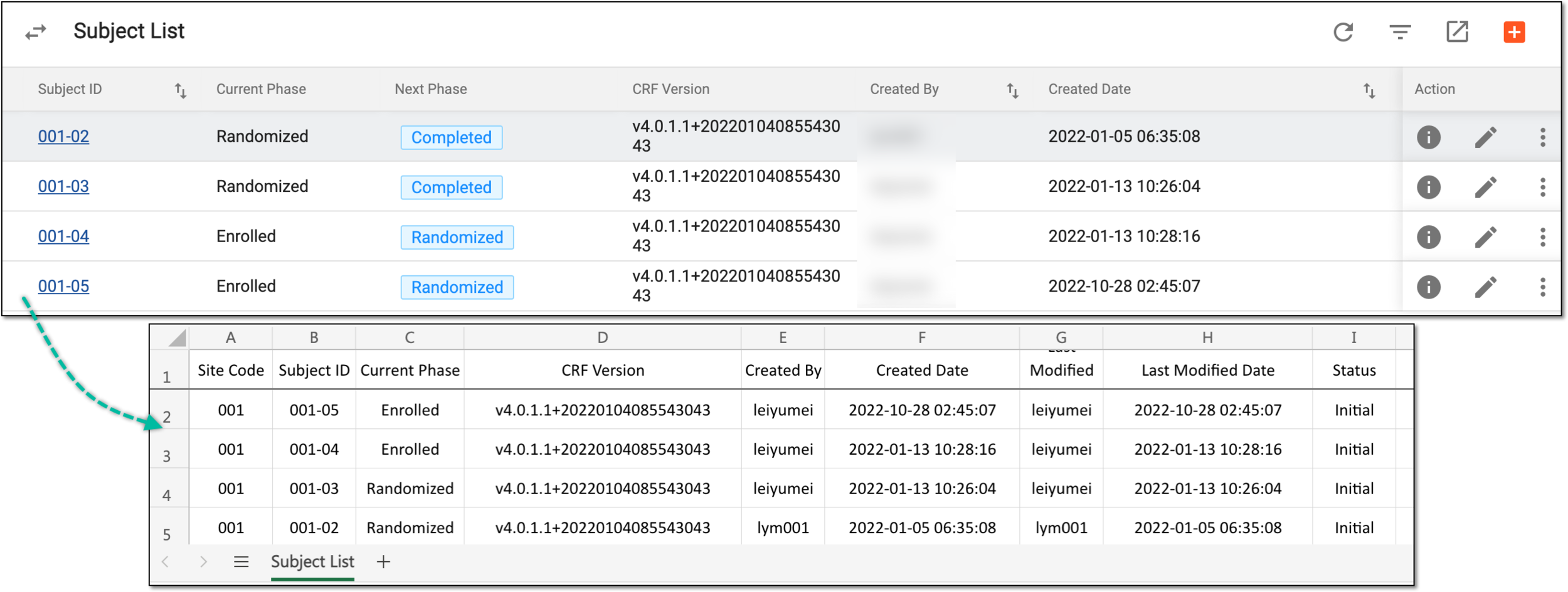
Export subject data
You can export the data stored in the Subject List table to an XLSX file for offline work. It is useful if you want to share data for analysis with someone who does not have access to the EDC system or is using another software.
-
In the EDC application header, select the DATA ENTRY tab.
-
On the site list page that opens, select the tile representing the site with which you want to work.
 Figure 1. Accessing site
-
Optionally, filter the table:
-
Above the table, on the top right, select Table Filters
 .
. -
In the filter pane that appears, enter/select the filters of your choice.
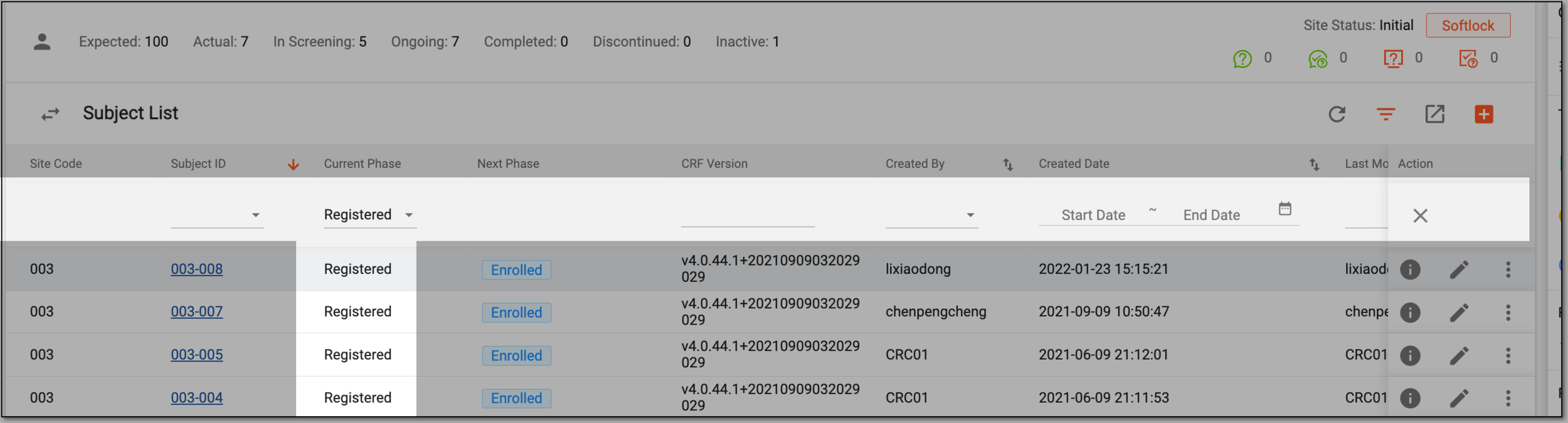 Figure 2. Filtering data
-
-
Above the table, on the top right, select Export
 .
. Figure 3. Selecting to export data
Tip
If you have applied filtering to the table, the system exports the filtered data, and if not, the system exports all data.
-
Once selected, the widget appears displaying your download progress. Select the widget to open the My Downloads dialog.
 Figure 4. Downloads widget
-
In the My Downloads dialog that opens, you can find the following tabs:
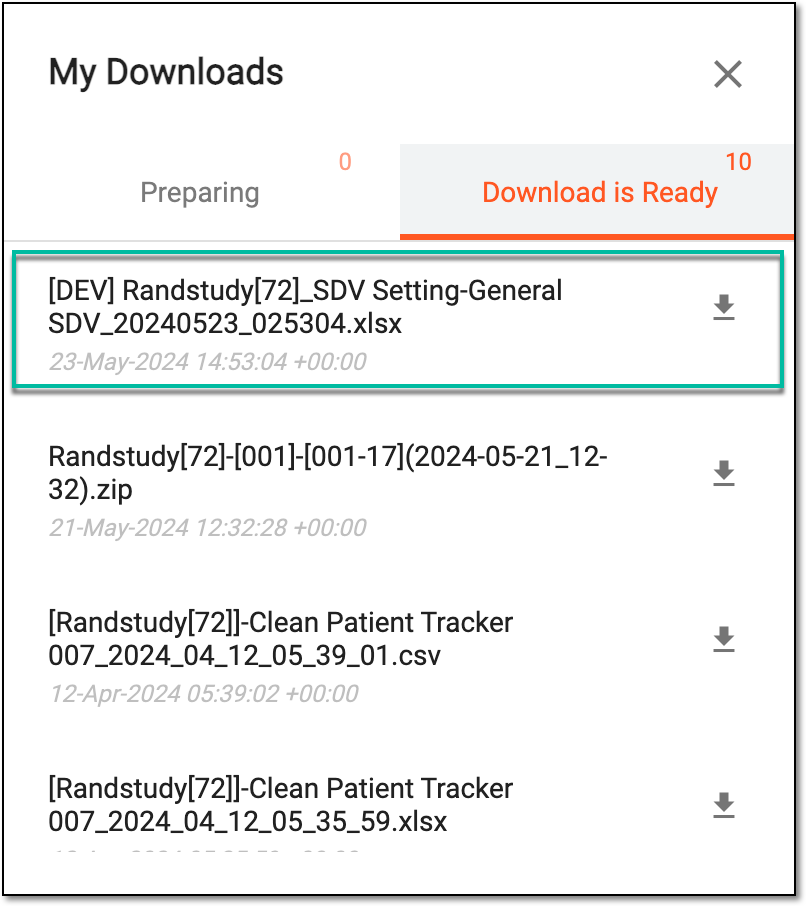 Figure 5. Viewing downloads
-
Preparing: under this tab, you can find all the files whose export is in progress, and they are not yet ready for download.
-
Download is Ready: under this tab, you can find all the files whose export is complete, and they can be downloaded to your computer.
-
-
Under the Download is Ready tab, next to the file that you want to download, select
 .
.
Once the file is downloaded and saved, you can view the subject data in the XLSX format on your computer.