Electronic signature for safety data imported from EDC
A signature of a principal investigator (PI) or another entitled staff member on serious adverse event (SAE) forms is a requirement in clinical trials.
In PV, you can import the SAE data from EDC, and once first processed, the imported data becomes an ICSR. The SAE form that the ICSR is based on can be sent for the PI's electronic signature. The signature request must be created in PV, and the signature is done by the PI in EDC.
Important
The signature functionality must be enabled in EDC to become available in PV.
To manage the electronic signature (eSignature) in PV, you have various options as follows.
An electronic signature (eSignature) on the SAE form is a requirement in clinical trials. Once the SAE data imported to PV from EDC is first processed, you can request the SAE form signature from a principal investigator (PI) or another entitled staff member in charge of verifying the case.
Important
The signature request functionality becomes available only for the processed safety data that already has a case ID in PV. You cannot request a signature for the imported data that has no case ID yet.
-
In the PV application header, select the INTAKE tab.
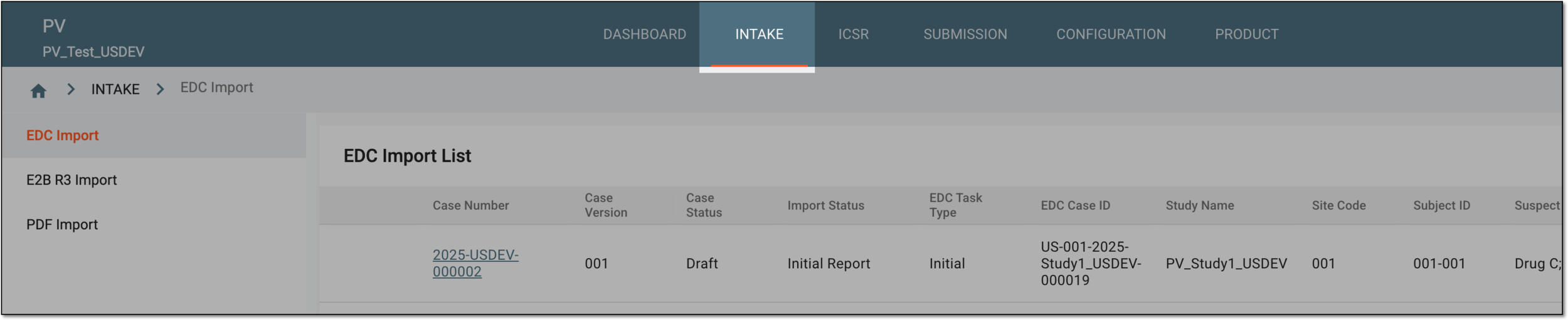 Figure 1. Accessing intake management
-
On the page that opens, in the left pane, select the EDC Import subtab.
-
In the EDC Import List that appears, locate the processed safety data that you need to be signed. Then in the Actions column next to it, select More
 > Request eSignature
 .
-
In the dialog that opens, at the Select Template step, select the preconfigured email template that will be used to notify the assignee about their eSignature task in PV. Then select the language of the case that the assignee must review and sign. To proceed, select NEXT STEP.
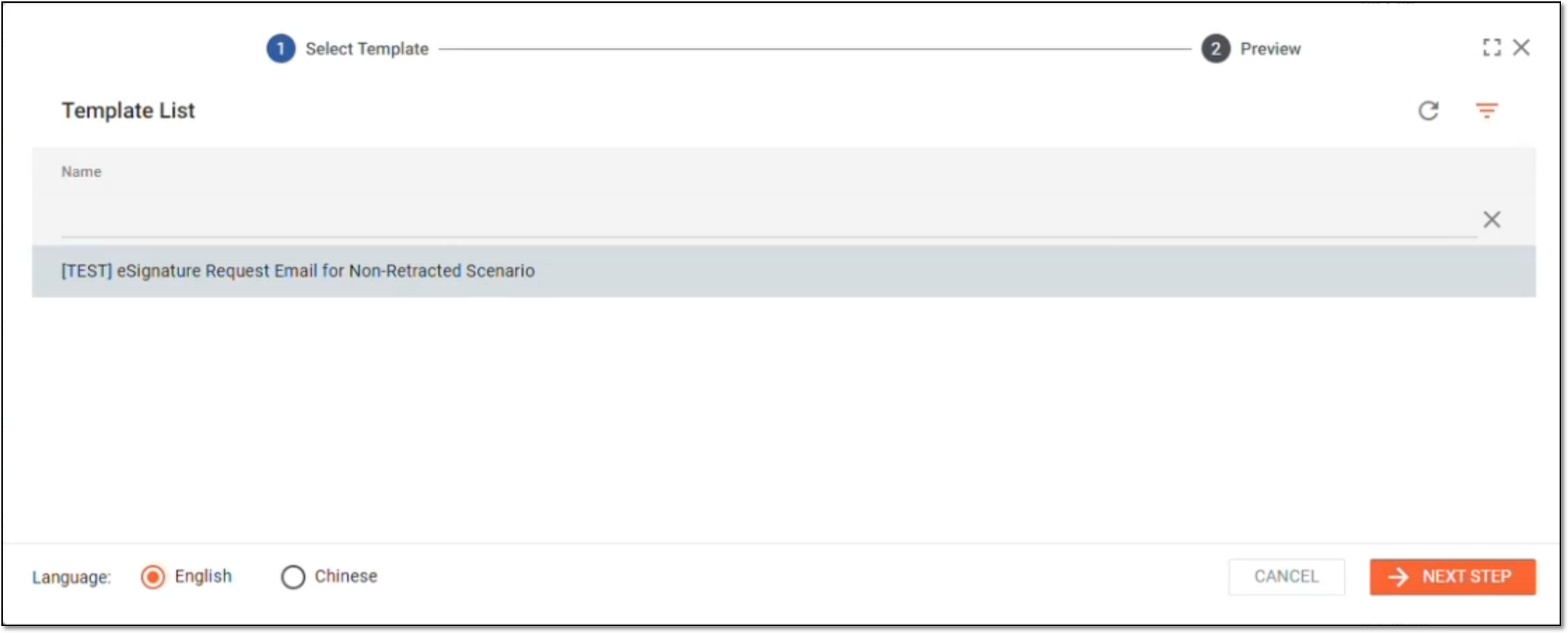 Figure 2. Selecting template for signature request
-
At the Preview stage, all the details are prepopulated for you from the selected template, however, the fields are editable. Adjust the needed details and settings—such as recipients, email subject and body, reminder interval, and so on—and select REQUEST SIGNATURE AND SEND EMAIL.
Tip
In case something went wrong, the system will prompt you with the respective message. The email request fails if you try to use the email of a person who has no access to EDC. If you need assistance handling the issue, contact the EDETEK administrator.
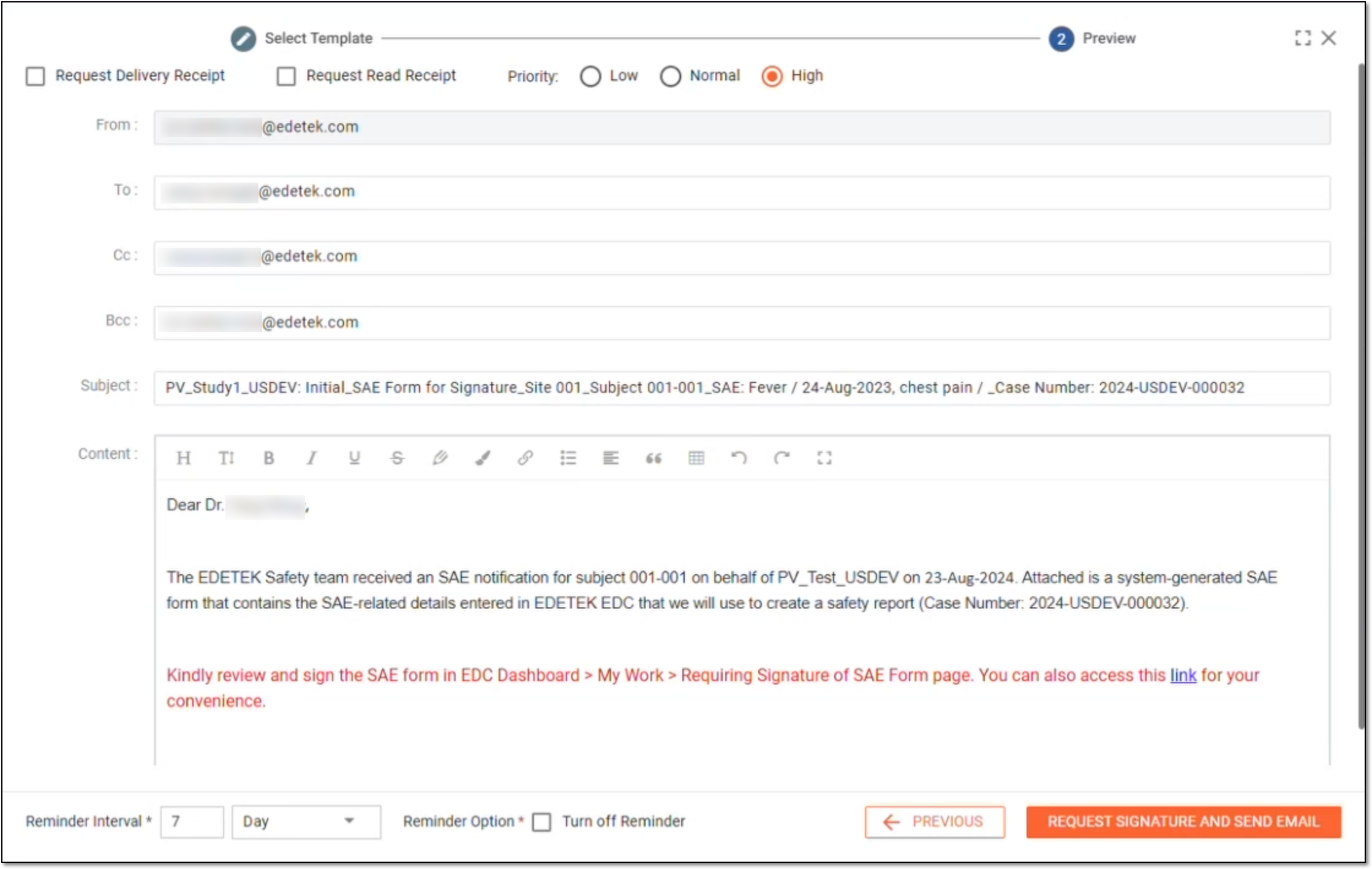 Figure 3. Adjusting signature notification email
Once done, the email is sent to the assignee and all the indicated recipients with all the needed details and the link they can follow to review and sign the SAE form in EDC. Once the assignee signs the safety data, the signed SAE form in the PDF format is attached to the Source form of the case in PV.
An electronic signature (eSignature) on the SAE form is a requirement in clinical trials. Once the SAE data imported to PV from EDC is first processed, you can request the SAE form signature from a principal investigator (PI) or another entitled staff member in charge of verifying the case.
There can be cases when the assignee cannot provide their signature for some reason. Thus, not to halt the whole procedure of data review and case submission, you can replace the signer.
-
In the PV application header, select the INTAKE tab.
Figure 1. Accessing intake management
-
On the page that opens, in the left pane, select the EDC Import subtab.
-
In the EDC Import List that appears, locate the safety data for which you need to replace the signer. Then in the Actions column next to it, select More
> Replace Signer  .
-
In the dialog that opens, at the Select Template step, select the preconfigured email template that will be used to notify the assignee about their eSignature task in PV. Then select the language of the case that the assignee must review and sign. To proceed, select NEXT STEP.
Figure 2. Selecting template for signature request
-
At the Preview stage, all the details are prepopulated for you from the selected template and contain the edits made when first requesting signature for the case. The fields are editable for you to adjust the needed details and settings—such as recipients, email subject and body, reminder interval, and so on. To replace the assignee, change the email in the To field and the name in the email body. Select REQUEST SIGNATURE AND SEND EMAIL.
Tip
In case something went wrong, the system will prompt you with the respective message. The email request fails if you try to use the email of a person who has no access to EDC or reassign the case to the same signer as it is currently assigned to. If you need assistance handling the issue, contact the EDETEK administrator.
Figure 3. Adjusting signature notification email
Once done, the email is sent to the new assignee with all the needed details and the link they can follow to review and sign the safety data.
An electronic signature (eSignature) on the SAE form is a requirement in clinical trials. Once the SAE data imported to PV from EDC is first processed, you can request the SAE form signature from a principal investigator (PI) or another entitled staff member in charge of verifying the case.
There can be cases, when the signature is not required, for instance if the report is no longer valid and a new one is expected to be provided. However, you cannot simply leave the safety data unsigned, you need to reflect in the system that there is no need for the signature along with an appropriate reason for that.
-
In the PV application header, select the INTAKE tab.
Figure 1. Accessing intake management
-
On the page that opens, in the left pane, select the EDC Import subtab.
-
In the EDC Import List that appears, locate the processed safety data that you need to be signed. Then in the Actions column next to it, select More
> No Signature Required. -
In the No Signature Required dialog that opens, enter the reason to justify why the safety data no longer needs to be signed. Then select
 .
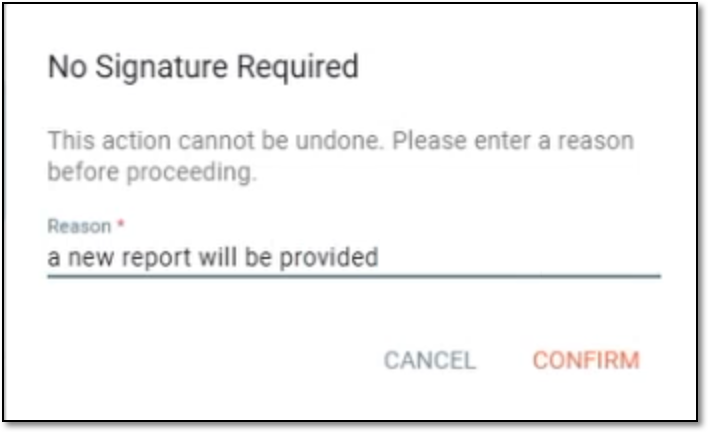 Figure 2. Providing reason for voiding signature request
The result depends on the initial status of the safety data:
-
If there was already a signature request created, then the Requested, Unsigned status changes to Request Voided.
-
If there is no signature request created yet, then the status changes to No Signature Required.
For any scenario, the provided reason why there is no need to sign the SAE form electronically is saved in the system.
An electronic signature (eSignature) on the SAE form is a requirement in clinical trials. Once the SAE data imported to PV from EDC is first processed, you can request the SAE form signature from a principal investigator (PI) or another entitled staff member in charge of verifying the case.
There can be cases when the safety data is signed outside the eClinical system, for instance, if it has already been signed before the eSignature functionality is introduced. In this case, you need to reflect that the case is signed manually.
-
In the PV application header, select the INTAKE tab.
Figure 1. Accessing intake management
-
On the page that opens, in the left pane, select the EDC Import subtab.
-
In the EDC Import List that appears, locate the processed safety data that you need to be signed. Then in the Actions column next to it, select More
> Signed Manually. -
In the Signed Manually dialog that opens, enter the reason to justify why the safety data has been signed outside the eClinical system. Then select
.
The record that the safety data is signed manually (outside the eClinical system) is saved with its appropriate reason.